Business tech · Beginner · 18 min
Back up a small team's files with the 3-2-1 rule
By Padding · Updated 18 Nov 2026
Google Workspace or Microsoft 365 and a cloud-to-cloud backup service · November 2026
You will have three copies of your team's files on two kinds of storage with one kept off-site, a written backup map, a tested restore of a deleted folder and a quarterly reminder to test again.
On this page
Ember Studio is a seven-person design agency with staff in Lagos and Nairobi and clients in the UK. All its work lives in Google Drive or OneDrive, and everyone's laptop syncs. Ask the team whether the studio is backed up and most will say yes, because "it's all in the cloud".
It is not. Sync keeps every copy the same, and that includes mistakes. If a designer deletes a client folder, or ransomware on one laptop encrypts every file it can reach, the change reaches the cloud and then every other laptop within minutes. The provider's trash and version history help for a while, but they live in the same account, are run by the same admins, and empty themselves on a timer.
A backup is a separate copy that does not follow your changes straight away, so you can go back to how things were last week. The simplest test for a backup plan is the 3-2-1 rule, which the US Cybersecurity and Infrastructure Security Agency (CISA) recommends to small businesses: keep 3 copies of important data, on 2 different kinds of storage, with 1 of them off-site.
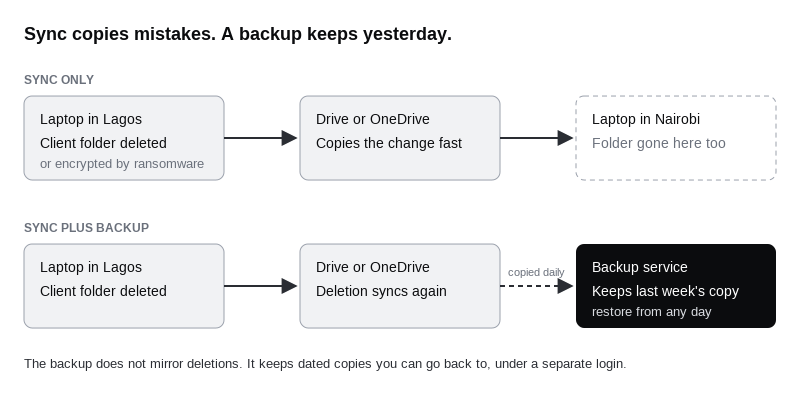
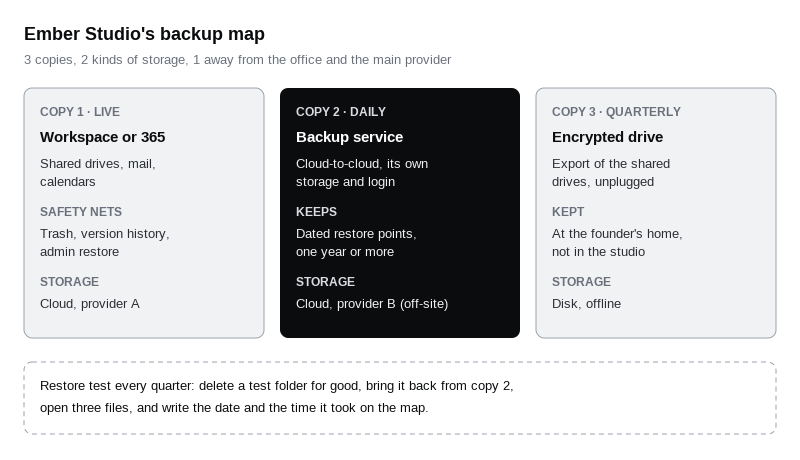
In this tutorial you list what the studio cannot afford to lose, record the safety nets your suite already has, add a backup service and an offline drive so you have three copies, and then prove it works by restoring a deleted folder from the backup. Each step gives Google Workspace and Microsoft 365 where they differ; follow the half that matches your subscription.
Step 1 · List what the studio cannot lose
Start a document called "Backup map". Its first section is a table with four columns: what it is, where it lives today, who owns it, and what happens if it is gone for a week.
Walk through the business, not the software. For Ember Studio the list looks like this:
- Client project files: briefs, contracts, exports and deliverables, in shared drives (Google) or SharePoint team sites (Microsoft).
- Design source files: the working files behind each deliverable. Some designers keep these on the laptop's desktop because they are large. Note every one that is not inside a shared drive or team site.
- Email: client threads, quotes and approvals in the team's mailboxes, including shared addresses such as
hello@andaccounts@. - Accounts: the sign-ins for the domain, the website host, the bank and the payment provider. You do not back these up like files; you make sure they can be recovered. A team password manager covers most of this.
- The website: its files and database at the web host.
- Finance records: invoices and receipts, often in an accounting tool and in
accounts@.
For each row, ask what a lost week would cost. "We redo two days of work" is a different row from "We cannot invoice and the client contract is gone".
Move anything that lives only on one laptop into a shared drive or team site before you go further. In Google Workspace, files in a shared drive belong to the organisation and stay when a member leaves; files in one person's My Drive go with that account. The backup you set up later protects what is in the suite, not what sits on someone's desktop.
Check it worked
Your backup map has a table with at least the six kinds of data above, every row has a named owner, and no row says "on Tolu's laptop" without a note saying where it will move to and by when.
Step 2 · Create a test folder to restore later
You will prove the backup works at the end of this tutorial by deleting something and bringing it back. Create that something now, so the backup has time to capture it.
In a shared drive or team site the whole team uses, create a folder called restore-test-2026-11 (use the current year and month). Put three small files in it: a text document, a spreadsheet and an image or PDF. Type today's date into the document so you can tell later that you have the right copy.
Do not use real client work for this. The point is to delete it on purpose.
Check it worked
The folder restore-test-2026-11 exists with three files in it, and you can see it from a second person's account or a second device.
Step 3 · Write down the safety nets your suite already has
Your suite has undo features. They count as protection against small mistakes, but they are all inside copy 1, the live account. Record each one in the backup map with its time limit, so nobody assumes they last for ever.
Google Workspace
- Trash: a deleted file stays in Drive's trash for 30 days, then is deleted for good. Emptying the trash deletes everything in it at once.
- Admin restore: after a user empties their trash, a super admin has 25 more days to restore it from Directory > Users, then More options > Restore data on that user. After that it is gone.
- Version history: for uploaded files such as PDFs and design files, Drive removes an old version after 30 days or once there are 100 newer ones, unless you mark it Keep forever under File information > Manage versions.
- Google Vault, if your plan includes it, is for legal holds and retention. Google says it is not designed to be a backup tool, so do not list it as one of your three copies.
Microsoft 365
- Recycle bin: OneDrive for work or school keeps deleted items for 93 days by default, unless an admin has changed that.
- Restore your OneDrive: in OneDrive on the web, Settings > Restore OneDrive rolls one person's whole OneDrive back to any point in the last 30 days. It helps after ransomware, but it rolls back everything in that OneDrive, good changes included.
- Version history on files in OneDrive and SharePoint.
None of these protect you if an admin account is taken over, if someone empties the trash and the window passes, or if the subscription lapses. That is what the next two copies are for.
Check it worked
The backup map has a "Copy 1: live account" section listing each safety net with its time limit in days. You can answer "a client folder was deleted five weeks ago and the trash was emptied; can we get it back from the suite alone?" from the map. (For Google Workspace, probably not.)
Step 4 · Choose a backup service for copy 2
Copy 2 is a cloud-to-cloud backup: a service that connects to your Google Workspace or Microsoft 365 account, copies the files and mail every day to its own storage, and keeps dated restore points. Because it is a different company with a separate login, it is your off-site copy, and a deletion or an attacker in your suite cannot reach it easily.
Both suites list third-party backup apps: the Google Workspace Marketplace for Google, and partner backup products for Microsoft 365. Shortlist two or three, and score each against these questions in the backup map:
- What does it cover? You need shared drives and every user's Drive and Gmail (Google), or OneDrive, SharePoint and Exchange mailboxes (Microsoft). Check shared drives and shared mailboxes specifically; some plans leave them out.
- How often, and for how long? Daily backups at least, kept for a year or longer.
- Can you restore one folder, to its original place, from a chosen date? You should not have to restore a whole account to get one folder back.
- Is deletion protected? A backup that deletes its copy when you delete the source is only sync again. Look for restore points that cannot be changed or deleted by a normal admin, and a delay before any backup deletion takes effect.
- Separate sign-in, with two-step verification? The backup service's admin login should not be the same account as your suite admin.
- Can you download a restore point as an archive? You will use this for copy 3.
- Where is the data stored? Note the region. If clients or law require data to stay in a region, check it here.
Microsoft also sells its own Microsoft 365 Backup, billed by how much you store. It restores quickly, but its backups stay inside Microsoft 365 and are managed from the same admin center as your live data. If you choose it, treat it as copy 2 but not as your off-site copy, and keep copy 3 strictly offline.
Write down prices only from the vendor's own pricing page, with the date you checked. They change often and many are per user per month.
Check it worked
The backup map has a short table scoring your shortlist against the seven questions, and one service is marked as chosen, with the reason in one sentence.
Step 5 · Connect the service and run the first backup
Sign up for the chosen service with a dedicated admin address such as backup-admin@ rather than your personal account, and turn on two-step verification for it straight away. Store its sign-in in the team password manager, shared with one other trusted person, so the backup is not lost if you are unavailable.
Connect it to your suite by following the service's own setup guide. You will usually sign in as your suite admin and approve the access the app asks for. Read the list of permissions: a backup app needs to read everything, and to restore it needs to write too, which is why its own login must be protected.
Include every user, every shared drive or team site, and shared mailboxes. Set the backup to run daily and the retention to at least a year. Then start the first full backup.
A cloud-to-cloud backup runs between data centres, so it does not use the office internet connection or anyone's mobile data. That matters if the studio's connection is a capped or prepaid bundle: the first backup can be many gigabytes, and none of it passes through your office.
Add a "Copy 2" section to the backup map with the service name, the admin address, what it covers, how often it runs and how long it keeps restore points.
Check it worked
The service's dashboard shows a completed first backup with a date and time, the number of users and shared drives or sites covered matches your user list, and when you browse the latest restore point you can see restore-test-2026-11 with its three files.
Step 6 · Make copy 3 on a different kind of storage
Copies 1 and 2 are both in the cloud. Copy 3 goes on a different kind of storage, an external drive, which is then unplugged and kept away from the studio. An unplugged drive cannot be reached by ransomware or a stolen password.
First, encrypt the drive, because it will hold every client file the studio has:
- On a Mac: in Disk Utility, erase the drive and choose the format APFS (Encrypted). Erasing wipes the drive, so use an empty one.
- On Windows: BitLocker To Go encrypts removable drives on Windows Pro, Enterprise and Education. Windows Home cannot turn it on.
Store the drive's password in the team password manager, not on a sticky note in the drive's case.
Then put a copy of the shared files on it:
- From your backup service: download the latest restore point of the shared drives or team sites as an archive, if the service offers it. This is usually the simplest route.
- From Google Workspace: a super admin with two-step verification can run the data export for the whole organisation. It takes at least 48 hours, often 72 and up to 14 days, and the default download links expire 60 days after the export starts, so download it as soon as it is ready.
- From Microsoft 365 (including if you use Microsoft 365 Backup, or your service has no archive download): on one Windows PC signed in to the OneDrive app, open each SharePoint team site's Documents library in the browser and select Sync. The libraries appear in File Explorer under a folder named after your organisation. Right-click each synced library folder and choose Always keep on this device, then wait until every file shows the solid green circle with a white tick. Without this, many files are online-only placeholders and copying them gives you nothing usable offline. Then copy the library folders to the encrypted drive.
A full export can be large. Download it on an unmetered connection, overnight if the line is slow, and check the size before you start if your data is on a prepaid bundle.
Copy the archive or the downloaded folders to the encrypted drive, eject it, and give it to the person named in the map to keep at home or in another office. Ember Studio keeps one drive at the founder's home in Lagos. Repeat this every quarter; two drives that swap each quarter mean one is always away from the studio.
The website and accounts need their own copies. Back up the WordPress site with its own tutorial, and keep the password manager's recovery details offline as its setup guide describes.
Check it worked
The encrypted drive asks for a password when you plug it in, you can open a file from restore-test-2026-11 on it (inside the archive, or in the copied library folder) with the PC's network turned off, and the backup map has a "Copy 3" section with the date of this copy, where the drive is kept and who holds it.
Step 7 · Restore a deleted folder from the backup
A backup you have never restored from is a hope, not a plan. Delete the test folder for good and bring it back from copy 2, the backup service.
Before you delete anything, check twice that you have selected only restore-test-2026-11. The deletions below cannot be undone from the trash.
Google Workspace: delete the folder in Drive. Open Trash, select only that folder and choose Delete forever. Do not choose Empty trash, which deletes everything in it.
Microsoft 365: delete the folder in the SharePoint site or OneDrive. Open the Recycle bin, select only that folder and choose Delete. It may still sit in a second, admin-level recycle bin for a while. Leave it there; this test is about the backup.
Now go to the backup service, browse to the restore point from the day after you created the folder, select restore-test-2026-11 and restore it to its original location. Time how long it takes, from opening the backup service to having the files back.
Check it worked
The folder restore-test-2026-11 is back in the shared drive or team site with all three files, the document shows the date you typed into it, the files open normally, and the backup service's activity log lists the restore. In Google Workspace the folder is no longer in the trash; in Microsoft 365 the original may still sit in the second-stage recycle bin, untouched, so you know the copy you see came from the backup service.
Step 8 · Schedule a restore test every quarter
Restores fail for dull reasons: a connection expired, a new shared drive was never added, the person who knew the password left. A test every three months catches these before you need the backup for real.
Create a recurring calendar event every three months, for one hour, owned by the person named in the backup map, with a second person invited. Put this checklist in the event description:
- Create a new
restore-test-<year>-<month>folder with three files, a week before the test. - Check the backup service shows a successful backup in the last 24 hours, covering every user and shared drive or site.
- Delete the test folder for good and restore it from the backup service. Note the time taken.
- Make the quarterly drive copy, and swap drives if you use two.
- Update the backup map: date of the test, time taken, any problem and who fixed it.
Add any new staff, shared drives or sites to the backup service the same week they are created, not at the next test.
Check it worked
Your calendar shows the restore test repeating every three months for the next year, with the checklist in the description and two people invited, and the backup map has a "Restore tests" table whose first row is today's test and the time it took.
Next steps
Your files now have three copies, a map that says where each one is, and a tested restore. Build on it:
- Back up the website in the same spirit with Back up and restore a WordPress site with WP-CLI.
- Protect the accounts that run everything with Roll out a password manager to your team.
- Make lost or stolen laptops less of a risk with Manage company laptops and phones with MDM.
- Tighten the admin side of Google Workspace with Set up the Google Workspace Admin console for a small team.
- Or do the same for Microsoft 365 with Set up Microsoft 365 admin basics for a small team.
Related tutorials
- How to Back Up and Restore a WordPress Site with WP-CLIYou will write a backup script that saves a WordPress 7.1 site's database and wp-content folder to a private folder with WP-CLI 2.12, schedule it with cron, prune old copies, then destroy the demo database and restore it from the backup to prove that the backup works.
- Manage company laptops and phones with device management basicsYou will write a one-page device policy for a small team's laptops and phones, set the minimum security rules in Google endpoint management or Microsoft Intune, and enrol one test device that the admin console reports as encrypted with a screen lock.
- Set up the Google Workspace Admin console for a small teamYou will finish the first-week admin for a Google Workspace with seven staff and a freelancer, from a second super admin and a break-glass account to enforced 2-Step Verification, safe Drive sharing and useful alerts, and end with a completed admin checklist.
Need this done for you?
Padding does this work for growing companies, from the first diagnosis to a system that keeps working.
Get new tutorials