Frontend development · Beginner · 22 min
Handle clicks and key presses with event listeners and delegation
By Padding · Updated 18 Nov 2026
Modern browsers · DOM Living Standard · checked in Chromium 159 with Node.js 26.13
You will build a small to-do list where adding, ticking and deleting tasks work by mouse and keyboard, using one delegated listener on the list, a form submit handler that stops the page reloading, and an AbortController that removes every listener in one call.
On this page
A web page sits still until something happens: a click, a key press, a form being sent. Each of those is an event, and your script reacts by registering a listener, a function the browser calls when the event reaches an element. Getting listeners right is mostly about three questions. Which element did the event start on? Which elements does it pass through on the way? And what does the browser do by default if you do nothing?
In this tutorial you answer all three on a small to-do list. You start with one listener per Delete button and see why that breaks as soon as tasks are added. Then you watch an event travel through the page, replace the per-button listeners with one listener on the list, handle Enter and Escape, and tear everything down with one call. The finished list works the same with a mouse, a keyboard or a touch screen, and a short Playwright script proves it.
The page uses no framework and no build step. Every framework you meet later (React, Vue, Svelte) is built on these same browser events, so what you learn here carries over.
Step 1 · Write the to-do page
Make a demo folder with three files: the page, a little CSS and an empty script. The list already holds three tasks, written in the same shape your script will create later: a checkbox and the task text inside one <label>, then a Delete button.
mkdir -p ~/todo-events-demo
cd ~/todo-events-demo
cat > index.html <<'HTML'
<!doctype html>
<html lang="en">
<head>
  <meta charset="utf-8">
  <meta name="viewport" content="width=device-width, initial-scale=1">
  <title>To-do list</title>
  <link rel="stylesheet" href="style.css">
  <script src="app.js" defer></script>
</head>
<body>
  <main>
    <h1>To-do</h1>
    <form id="add-form">
      <label for="new-task">New task</label>
      <div class="row">
        <input id="new-task" name="task" type="text" autocomplete="off" required>
        <button type="submit">Add</button>
      </div>
    </form>
    <ul id="tasks">
      <li><label><input type="checkbox" class="done"> <span class="text">Buy airtime</span></label> <button type="button" class="delete" aria-label="Delete Buy airtime">Delete</button></li>
      <li><label><input type="checkbox" class="done"> <span class="text">Call the plumber</span></label> <button type="button" class="delete" aria-label="Delete Call the plumber">Delete</button></li>
      <li><label><input type="checkbox" class="done"> <span class="text">Return library books</span></label> <button type="button" class="delete" aria-label="Delete Return library books">Delete</button></li>
    </ul>
    <p id="status" role="status"></p>
  </main>
</body>
</html>
HTML
cat > style.css <<'CSS'
* { box-sizing: border-box; }
body { margin: 0; font-family: system-ui, sans-serif; line-height: 1.5; color: #1b1f24; background: #f6f7f8; }
main { max-width: 30rem; margin: 0 auto; padding: 1rem; }
.row { display: flex; gap: 0.5rem; margin: 0.25rem 0 1.5rem; }
input[type="text"] { flex: 1; min-width: 0; min-height: 2.75rem; padding: 0 0.75rem; font: inherit; border: 1px solid #7d8592; border-radius: 0.375rem; }
button { min-height: 2.75rem; padding: 0 1rem; font: inherit; border: 1px solid #1b1f24; border-radius: 0.375rem; background: #fff; }
#tasks { list-style: none; margin: 0; padding: 0; }
#tasks li { display: flex; align-items: center; justify-content: space-between; gap: 0.5rem; padding: 0.5rem 0; border-bottom: 1px solid #d5d9df; }
#tasks label { display: flex; align-items: center; gap: 0.5rem; min-height: 2.75rem; }
#tasks input[type="checkbox"] { width: 1.25rem; height: 1.25rem; }
.is-done .text { text-decoration: line-through; color: #5a6270; }
:focus-visible { outline: 3px solid #0f5e5a; outline-offset: 2px; }
#status { color: #5a6270; min-height: 1.5em; }
CSS
touch app.js
A few choices in that markup matter later:
- The script tag has
defer, soapp.jsruns after the whole page has been read. YourquerySelectorcalls then find the list, without wrapping everything in a "page loaded" listener. - Each Delete button has an
aria-labelsuch asDelete Buy airtime. Sighted people see "Delete" next to the task; a screen reader user moving from button to button hears which task each one removes. The label starts with the visible word, so speech-control users can still say "click Delete". - The
<p id="status" role="status">is empty for now. Your script writes short messages into it, and screen readers read them out without moving focus.
Check it worked
Open index.html in your browser (open index.html on macOS, xdg-open index.html on Linux, or drag the file into a window). You see a To-do heading, a New task field with an Add button, and three tasks, each with a checkbox and a Delete button. Ticking a checkbox works, because that is the browser's own behaviour. Delete does nothing yet, and clicking Add with text in the field reloads the page.
Step 2 · Add your first listener and read the event object
Open app.js and give every Delete button a click listener. addEventListener takes the event name and a function, and the browser calls that function with an event object describing what happened.
cd ~/todo-events-demo
cat > app.js <<'JS'
const list = document.querySelector('#tasks');

list.querySelectorAll('.delete').forEach((button) => {
  button.addEventListener('click', (event) => {
    console.log(event.type, event.target, event.currentTarget);
    event.currentTarget.closest('li').remove();
  });
});
JS
Three properties of the event object do most of the work:
event.typeis the event's name, here"click".event.targetis the element the event started on, the innermost thing that was clicked.event.currentTargetis the element whose listener is running right now, the one you calledaddEventListeneron.
Here both are the same button, because the button holds only text. They differ as soon as a button holds other elements, such as an icon in a <span> or an <svg>: a click on the icon makes target the icon and currentTarget still the button. That is why the code removes event.currentTarget.closest('li'). closest() starts at the element itself and walks up through its ancestors until one matches the selector, so it finds the task's <li> from the button.
A click listener also covers more than the mouse. When a button has keyboard focus, Enter and Space "click" it, and a tap on a touch screen fires click too. Listening for click on a real <button> gives you all three for free; listening for mousedown would not.
Check it worked
Reload the page and open the developer tools console (F12, or Cmd and Option and J on a Mac in Chrome). Click Delete next to Call the plumber. The task disappears, and the console shows a line starting with click followed by the same button twice. Press Tab until a Delete button has a focus ring and press Enter: that task goes too, and another click line appears.
Step 3 · Stop the form reloading the page with preventDefault
Now make Add work. A form's default action is to send its fields to a URL and load the response, which here means reloading the page and losing any tasks your script added. Listen for the form's submit event and call event.preventDefault() to cancel that default, then add the task yourself.
Append this to app.js:
cd ~/todo-events-demo
cat >> app.js <<'JS'

const form = document.querySelector('#add-form');
const input = document.querySelector('#new-task');

form.addEventListener('submit', (event) => {
  event.preventDefault();
  const text = input.value.trim();
  if (text === '') return;
  list.append(makeTask(text));
  form.reset();
  input.focus();
});

function makeTask(text) {
  const item = document.createElement('li');
  const label = document.createElement('label');
  const box = document.createElement('input');
  box.type = 'checkbox';
  box.className = 'done';
  const span = document.createElement('span');
  span.className = 'text';
  span.textContent = text;
  label.append(box, ' ', span);

  const remove = document.createElement('button');
  remove.type = 'button';
  remove.className = 'delete';
  remove.textContent = 'Delete';
  remove.setAttribute('aria-label', `Delete ${text}`);

  item.append(label, ' ', remove);
  return item;
}
JS
Listening for submit rather than a click on the Add button matters. A form is submitted by clicking its submit button, by pressing Enter in a text field (the browser calls this implicit submission), and by assistive technology. All three fire one submit event on the form, so one listener handles them all. The required attribute is checked before submit fires, so an empty field never reaches your code; the trim() check catches a field that holds only spaces.
The task text goes in with textContent, never innerHTML, so whatever someone types is shown as text and cannot inject HTML or script into the page.
Check it worked
Reload, type Pay the electricity bill and press Enter. The task appears at the bottom of the list, the field empties and keeps focus, and the address bar does not change. Now click the new task's Delete button. Nothing happens, and nothing is logged in the console. The listeners from the previous step were attached to the three buttons that existed when the script ran; this button did not exist then, so it has none. The next two steps fix that properly.
Step 4 · Watch an event travel through the page
An event does not only fire on the element you clicked. The browser works out the path from the top of the document down to that element, then sends the event along it in three phases:
- Capture: from
windowanddocumentdown towards the target, running listeners registered with{ capture: true }. - Target: on the element where the event started.
- Bubble: back up from the target to
documentandwindow, running ordinary listeners.
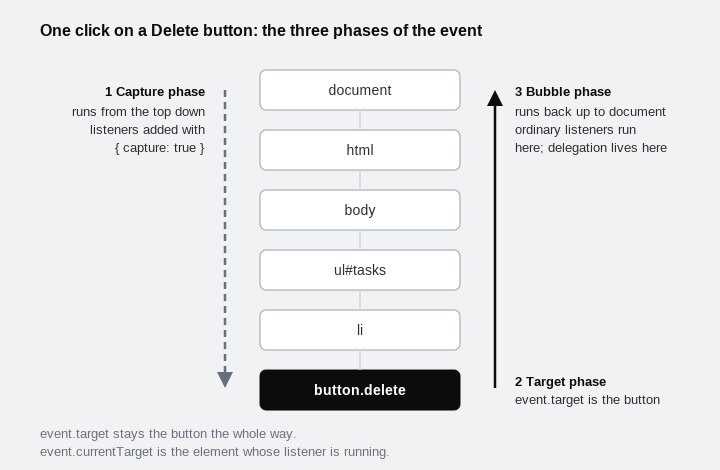
See it for yourself. Reload the page and paste this into the console. It adds a listener on each element along the path, plus one capture listener on the document, and each one logs where it is. { once: true } removes each listener after it has run, so the log is clean.
const button = document.querySelector('#tasks .delete');
const path = [button, button.closest('li'), document.querySelector('#tasks'), document.body, document];
document.addEventListener('click', (e) => console.log('capture at', e.currentTarget.nodeName), { capture: true, once: true });
for (const el of path) {
  el.addEventListener('click', (e) => console.log('bubble at', e.currentTarget.nodeName, '| target is', e.target.className), { once: true });
}
Then click the first task's Delete button.
Two things in the output are worth noticing. event.target is the Delete button at every stop, while currentTarget changes. And the event still reaches UL, BODY and #document even though the first listener on the button removed the <li> from the page: the path is fixed before the event starts moving, so removing an element mid-way does not cut it short.
Almost every listener you write runs in the bubble phase. You rarely need capture, and you should rarely stop an event spreading with event.stopPropagation(), because other code on the page (analytics, a menu that closes on outside clicks) may be listening further up.
Check it worked
Alongside the click line from your own listener in app.js, the console shows six lines in this order: capture at #document, then bubble at BUTTON, bubble at LI, bubble at UL, bubble at BODY and bubble at #document, each bubble line ending with target is delete. Buy airtime has gone from the list.
Step 5 · Replace the per-button listeners with one delegated listener
Because every click on a Delete button bubbles up through ul#tasks, the list can handle all of them. This is event delegation: one listener on a parent that checks event.target to see what was clicked. It covers tasks that exist now and any added later, and with twenty tasks it is still one listener instead of twenty. Fewer listeners also means less work when the page loads, which helps a little on long lists and on low-cost Android phones, but the main gain is that new items work without extra code.
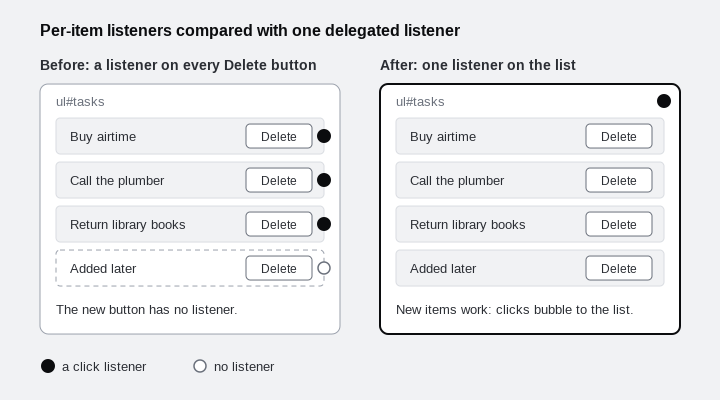
Rewrite app.js. The forEach loop goes; the list gets one click listener for Delete and one change listener for the checkboxes. A short status message reports each change.
cd ~/todo-events-demo
cat > app.js <<'JS'
const list = document.querySelector('#tasks');
const form = document.querySelector('#add-form');
const input = document.querySelector('#new-task');
const status = document.querySelector('#status');

form.addEventListener('submit', (event) => {
  event.preventDefault();
  const text = input.value.trim();
  if (text === '') return;
  list.append(makeTask(text));
  form.reset();
  input.focus();
  status.textContent = `Added "${text}".`;
});

// One listener for every Delete button, now and later.
list.addEventListener('click', (event) => {
  const button = event.target.closest('.delete');
  if (!button || !list.contains(button)) return;
  const item = button.closest('li');
  const text = item.querySelector('.text').textContent;
  item.remove();
  status.textContent = `Deleted "${text}".`;
  input.focus();
});

// One listener for every checkbox.
list.addEventListener('change', (event) => {
  if (!event.target.matches('.done')) return;
  event.target.closest('li').classList.toggle('is-done', event.target.checked);
});

function makeTask(text) {
  const item = document.createElement('li');
  const label = document.createElement('label');
  const box = document.createElement('input');
  box.type = 'checkbox';
  box.className = 'done';
  const span = document.createElement('span');
  span.className = 'text';
  span.textContent = text;
  label.append(box, ' ', span);

  const remove = document.createElement('button');
  remove.type = 'button';
  remove.className = 'delete';
  remove.textContent = 'Delete';
  remove.setAttribute('aria-label', `Delete ${text}`);

  item.append(label, ' ', remove);
  return item;
}
JS
The guard at the top of the click listener is the heart of delegation. The list hears every click inside it, including clicks on task text, checkboxes and the gaps between rows. event.target.closest('.delete') returns the Delete button if the click started on it or anywhere inside it, and null otherwise, so every other click returns early. list.contains(button) makes sure the button belongs to this list, which matters once lists are nested.
Checkboxes use change instead of click. change fires once the checked state has actually changed, whether that came from a mouse, a tap, Space on the keyboard, or a click on the label text.
After a delete, focus moves to the New task field. Without that, the button a keyboard user just pressed disappears and focus falls back to the start of the page, so they would have to Tab all the way back.
Check it worked
Reload. Add Pay the electricity bill, then click its Delete button: it goes, and Deleted "Pay the electricity bill". appears under the list. Tick Call the plumber: its text is struck through and greyed. Click the words "Call the plumber" instead of the box: the tick toggles again, because the label passes the click to its checkbox.
Step 6 · Handle Enter and Escape on the keyboard
Most of the keyboard already works because the page uses real controls: Tab moves between them, Space ticks a checkbox, Enter or Space presses a button, and Enter in the text field submits the form through the submit listener you already have. That last point is why you should not add a keydown listener for Enter on the field: the submit listener covers Enter, the Add button and assistive technology in one place.
What the browser does not give you is a quick way to clear the field. Add an Escape handler. Append this to app.js:
cd ~/todo-events-demo
cat >> app.js <<'JS'

input.addEventListener('keydown', (event) => {
  if (event.isComposing) return;
  if (event.key === 'Escape') {
    input.value = '';
    status.textContent = 'Cleared the new task field.';
  }
});
JS
event.key holds the key's meaning as a string: "Escape", "Enter", "a", or " " (a single space) for the space bar. Compare against these names rather than the old numeric keyCode, which is deprecated.
The isComposing check matters for multilingual text. Many people type with an input method editor (IME) or a predictive keyboard, for example for Chinese or Japanese, and on phones while composing words with tone marks such as Yoruba or Vietnamese. While a word is being composed, Escape and Enter belong to the IME, to cancel or confirm the word. Ignoring key presses during composition stops your handler from wiping text the person is still choosing.
Check it worked
Reload, click in the New task field, type half a thought and press Escape. The field empties and Cleared the new task field. appears under the list. Then do a full round with the keyboard only: type Book a haircut and press Enter, press Tab until the new task's checkbox has a focus ring and press Space to tick it, press Tab once more to reach its Delete button and press Enter. The task goes and focus is back in the New task field.
Step 7 · Remove every listener at once with an AbortController
Listeners stay attached until you remove them. On a page that never changes that is fine, but in a single-page app a list like this is often taken off the screen and replaced, and listeners left behind on document or window keep running, holding memory and reacting to events they should ignore.
The old way to remove a listener is removeEventListener, which needs the same function you passed in, so you must keep a reference to every handler. The modern way is to pass a signal from an AbortController when you add each listener. Calling controller.abort() removes every listener registered with that signal in one go.
Rewrite app.js one last time, wrapping the setup in a function that returns its own clean-up:
cd ~/todo-events-demo
cat > app.js <<'JS'
function startTodos(root) {
  const controller = new AbortController();
  const { signal } = controller;

  const list = root.querySelector('#tasks');
  const form = root.querySelector('#add-form');
  const input = root.querySelector('#new-task');
  const status = root.querySelector('#status');

  form.addEventListener('submit', (event) => {
    event.preventDefault();
    const text = input.value.trim();
    if (text === '') return;
    list.append(makeTask(text));
    form.reset();
    input.focus();
    status.textContent = `Added "${text}".`;
  }, { signal });

  input.addEventListener('keydown', (event) => {
    if (event.isComposing) return;
    if (event.key === 'Escape') {
      input.value = '';
      status.textContent = 'Cleared the new task field.';
    }
  }, { signal });

  list.addEventListener('click', (event) => {
    const button = event.target.closest('.delete');
    if (!button || !list.contains(button)) return;
    const item = button.closest('li');
    const text = item.querySelector('.text').textContent;
    item.remove();
    status.textContent = `Deleted "${text}".`;
    input.focus();
  }, { signal });

  list.addEventListener('change', (event) => {
    if (!event.target.matches('.done')) return;
    event.target.closest('li').classList.toggle('is-done', event.target.checked);
  }, { signal });

  return () => controller.abort();
}

function makeTask(text) {
  const item = document.createElement('li');
  const label = document.createElement('label');
  const box = document.createElement('input');
  box.type = 'checkbox';
  box.className = 'done';
  const span = document.createElement('span');
  span.className = 'text';
  span.textContent = text;
  label.append(box, ' ', span);

  const remove = document.createElement('button');
  remove.type = 'button';
  remove.className = 'delete';
  remove.textContent = 'Delete';
  remove.setAttribute('aria-label', `Delete ${text}`);

  item.append(label, ' ', remove);
  return item;
}

const stopTodos = startTodos(document);
JS
Four listeners now cover the whole page, however many tasks it holds, and stopTodos() removes all four. In a framework you would call it when the component is removed; React's effect clean-up functions and Vue's onUnmounted hook are the usual places. The same signal can also be passed to fetch(), so one abort() can cancel a component's network requests and its listeners together.
Check it worked
Reload and check that add, tick and delete all still work. Then type stopTodos() in the console and press Enter. Click any Delete button: nothing happens. Tick a checkbox: the box ticks, because that is the browser's own behaviour, but the text is no longer struck through. Type a task and press Enter: the page reloads with ?task= in the address bar, because the listener that called preventDefault() has gone too. Reload to start the app again.
Step 8 · Test mouse and keyboard with Playwright
Clicking through by hand catches problems once. A test catches them every time the script changes. Install Playwright, which drives a real browser from a script. --with-deps also installs the system libraries Chromium needs on Linux, which can ask for your password:
cd ~/todo-events-demo
npm init -y > /dev/null
npm install playwright@1.65.1
npx playwright install --with-deps chromium
The test checks the bubbling order from earlier, then adds, ticks and deletes tasks once by mouse and once by keyboard, and finally checks that stopTodos() really removes the listeners.
cd ~/todo-events-demo
cat > test-events.mjs <<'JS'
import { chromium } from 'playwright';
import assert from 'node:assert/strict';

const url = new URL('./index.html', import.meta.url).href;
const browser = await chromium.launch();
const page = await browser.newPage({ viewport: { width: 390, height: 844 } });
await page.goto(url);
const tasks = page.locator('#tasks li');
const field = page.getByLabel('New task');
const status = page.locator('#status');
const isDone = (name) =>
  page.getByRole('checkbox', { name }).evaluate((box) => box.closest('li').classList.contains('is-done'));

assert.equal(await tasks.count(), 3);

// Capture runs top-down first, then the event bubbles from the button up.
const order = await page.evaluate(() => {
  const seen = [];
  const button = document.querySelector('#tasks .delete');
  const path = [button, button.closest('li'), document.querySelector('#tasks'), document.body, document];
  document.addEventListener('click', (e) => seen.push('capture ' + e.currentTarget.nodeName), { capture: true, once: true });
  for (const el of path) el.addEventListener('click', (e) => seen.push(e.currentTarget.nodeName), { once: true });
  button.click();
  return seen;
});
assert.deepEqual(order, ['capture #document', 'BUTTON', 'LI', 'UL', 'BODY', '#document']);
assert.equal(await tasks.count(), 2, 'the delegated listener deleted Buy airtime');

// The page must never reload: this marker would be lost if it did.
await page.evaluate(() => { window.stillHere = true; });

// Mouse: add with the Add button, tick with a click.
await field.fill('Book a haircut');
await page.getByRole('button', { name: 'Add', exact: true }).click();
assert.equal(await tasks.count(), 3);
await page.getByRole('checkbox', { name: 'Book a haircut' }).click();
assert.equal(await isDone('Book a haircut'), true, 'click ticks a new task');

// Keyboard: Enter adds, Escape clears, Space ticks, Enter on Delete deletes.
await field.focus();
await page.keyboard.type('Pay the electricity bill');
await page.keyboard.press('Enter');
assert.equal(await tasks.count(), 4);
assert.equal(await field.inputValue(), '');
assert.equal(await page.evaluate(() => document.activeElement.id), 'new-task');

await page.keyboard.type('half a thought');
await page.keyboard.press('Escape');
assert.equal(await field.inputValue(), '', 'Escape clears the field');
assert.equal(await status.textContent(), 'Cleared the new task field.');

await page.getByRole('checkbox', { name: 'Pay the electricity bill' }).focus();
await page.keyboard.press('Space');
assert.equal(await isDone('Pay the electricity bill'), true, 'Space ticks');
await page.keyboard.press('Tab');
assert.equal(await page.evaluate(() => document.activeElement.getAttribute('aria-label')), 'Delete Pay the electricity bill');
await page.keyboard.press('Enter');
assert.equal(await tasks.count(), 3);
assert.equal(await status.textContent(), 'Deleted "Pay the electricity bill".');
assert.equal(await page.evaluate(() => document.activeElement.id), 'new-task', 'focus returns to the field');

// Mouse delete on a task that was added after the page loaded.
await page.getByRole('button', { name: 'Delete Book a haircut' }).click();
assert.equal(await tasks.count(), 2);
assert.equal(await page.evaluate(() => window.stillHere), true, 'the page never reloaded');

// One abort() removes every listener.
await page.evaluate(() => stopTodos());
await page.getByRole('button', { name: 'Delete Call the plumber' }).click();
assert.equal(await tasks.count(), 2, 'Delete does nothing after stopTodos()');
await page.getByRole('checkbox', { name: 'Call the plumber' }).click();
assert.equal(await isDone('Call the plumber'), false, 'no change listener after stopTodos()');

// No sideways scrolling on a phone-sized screen.
const overflow = await page.evaluate(() => document.documentElement.scrollWidth > document.documentElement.clientWidth);
assert.equal(overflow, false);

await browser.close();
console.log('PASS: add, tick and delete work by mouse and keyboard');
JS
node test-events.mjs
The test finds controls by role and accessible name (Delete Book a haircut, New task), the same names a screen reader announces, so a broken label fails the test as well as a broken listener. It runs at a phone-sized 390 by 844 pixel viewport.
Check it worked
The last line of output is PASS: add, tick and delete work by mouse and keyboard. To see it fail for the right reason, delete the input.focus(); line just after Deleted in the click listener in app.js and run node test-events.mjs again: it stops with an AssertionError mentioning focus returns to the field, and prints no PASS line. Put the line back and the test passes again.
Step 9 · Clean up
Remove the demo folder, which also removes the local Playwright install. The browser Playwright downloaded stays in its shared cache; npx playwright uninstall removes that too if you no longer need it.
cd ~
rm -rf ~/todo-events-demoCheck it worked
ls ~/todo-events-demo reports that there is no such file or directory.
Next steps
- Go back over selecting, creating and re-rendering elements in select and change page elements with the DOM.
- Make the focus ring on the checkboxes and Delete buttons clear on every background with style keyboard focus with :focus-visible.
- Turn the status line into a fuller pattern for errors and notices in announce errors and notices with a live region.
- Add labels, hints and error messages to the New task form in build accessible HTML forms.
Part of these paths
Related tutorials
- Select and change page elements with the DOMYou will build a reading-list page whose script finds, changes, adds and removes elements, then renders the whole list from an array through a template and re-renders it when the array changes.
- Style keyboard focus with :focus-visibleYou will remove an outline reset that hides keyboard focus, add a two-colour focus ring with :focus-visible that stays visible on white, tinted and accent backgrounds, keep it clear of a sticky header with scroll-margin, check it in forced colours mode and prove it all with a Playwright keyboard test.
- How to Build Accessible HTML FormsYou will build a contact form that works with keyboards and screen readers, with real labels, grouped radio buttons, hints tied to their fields, autocomplete values, and an error summary that takes focus and links to each problem, checking the result against specific WCAG 2.2 criteria.
Need this done for you?
Padding does this work for growing companies, from the first diagnosis to a system that keeps working.
Get new tutorials