Web servers and networking · Intermediate · 20 min
Put a CDN in front of your site: cache rules, headers and purges
By Padding · Updated 18 Nov 2026
Ubuntu 26.04.1 LTS · Nginx 1.30.8 (nginx.org packages)
You will have an Nginx 1.30 origin that sends CDN-ready cache headers, versions its asset URLs, restores the real visitor address only from Cloudflare's ranges, refuses traffic that skips the CDN and purges single URLs through the API.
On this page
A CDN keeps copies of your pages and files in data centres close to your visitors, so most requests never travel to your server. Whether that works well depends almost entirely on your origin: the headers it sends decide what may be cached and for how long, its file names decide whether you ever need to purge, and its Nginx config decides whether you still see real visitor addresses and whether anyone can go around the CDN.
In this tutorial you will build a small Nginx origin and get it ready for a CDN, checking every header with curl on the server. Cloudflare is the worked example for the CDN side, because its free plan covers everything here; the origin work carries over to other CDNs with different header and address-list names.
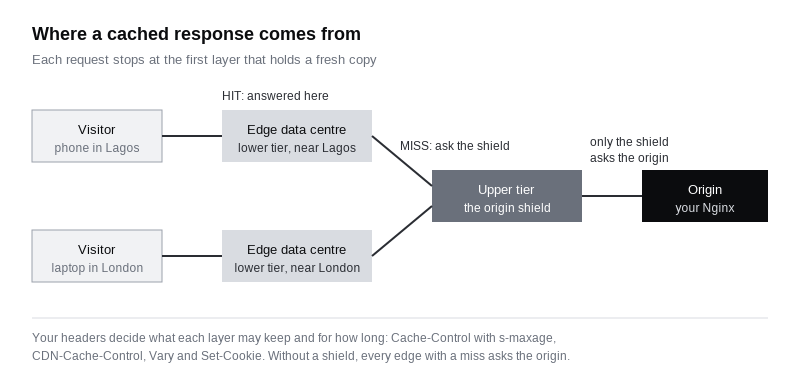
This is about the origin's side of a CDN. For what an API should send in Cache-Control, see /tutorials/set-caching-headers-for-api-responses; for compression and browser caching of static files on their own, see /tutorials/compress-and-cache-static-files-in-nginx. A CDN with data centres on the same continent as your visitors matters most where connections are slow or data is prepaid: Cloudflare lists cities such as Lagos, Nairobi and Johannesburg on its network map, and a cached file served from there skips the long trip to a server in Europe or the US.
Step 1 · Build a small origin site
Install Nginx 1.30 from nginx.org first, as in /tutorials/install-nginx-on-ubuntu-26-04.
The site has four kinds of response, and each needs different treatment at the CDN:
/is the HTML page. It changes when you deploy, so the CDN may keep it for a few minutes and browsers should check back every time./assets/app.<hash>.cssis a stylesheet whose name changes whenever its content does, so it can be kept for a year./status.jsonis a small data file that the CDN may keep a little longer than browsers do./accountstands in for a signed-in page. It sets a cookie and must never be cached by anyone but the visitor's own browser.
Create the source files and a build script that names the stylesheet after a hash of its content:
mkdir -p ~/cdn-demo/src
cat > ~/cdn-demo/src/index.html <<'HTML'
<!doctype html>
<html lang="en">
<head>
  <meta charset="utf-8">
  <title>CDN demo</title>
  <link rel="stylesheet" href="__CSS__">
</head>
<body>
  <h1>CDN demo origin</h1>
  <p>This page is served by Nginx and cached at the edge for five minutes.</p>
</body>
</html>
HTML
cat > ~/cdn-demo/src/app.css <<'CSS'
body { font-family: system-ui, sans-serif; margin: 2rem; color: #222; }
h1 { font-size: 1.5rem; }
CSS
cat > ~/cdn-demo/src/status.json <<'JSON'
{"status": "ok", "message": "served by the demo origin"}
JSON
cat > ~/cdn-demo/build.sh <<'SH'
#!/bin/sh
# Copy the site into /var/www/cdn-demo, naming the stylesheet after its content hash.
set -eu
SRC="$HOME/cdn-demo/src"
OUT=/var/www/cdn-demo
HASH=$(sha256sum "$SRC/app.css" | cut -c1-10)
sudo install -d -m 755 "$OUT/assets"
sudo install -m 644 "$SRC/app.css" "$OUT/assets/app.$HASH.css"
sudo install -m 644 "$SRC/status.json" "$OUT/status.json"
sed "s|__CSS__|/assets/app.$HASH.css|" "$SRC/index.html" > "$SRC/.index.built"
sudo install -m 644 "$SRC/.index.built" "$OUT/index.html"
rm "$SRC/.index.built"
echo "built index.html with /assets/app.$HASH.css"
SH
chmod 755 ~/cdn-demo/build.sh
~/cdn-demo/build.sh
It prints something like built index.html with /assets/app.4c1f0e9a2b.css. Your hash will differ.
Now the server block. It listens on port 8081 so it does not touch any site you already serve. On your real site these lines go into the site's own server block, on port 443.
sudo install -d -m 755 /etc/nginx/cdn/realip
sudo tee /etc/nginx/conf.d/cdn-demo.conf > /dev/null <<'CONF'
log_format cdn '$remote_addr edge=$realip_remote_addr "$request" $status';

server {
    listen 8081;
    server_name _;
    root /var/www/cdn-demo;
    access_log /var/log/nginx/cdn-demo.access.log cdn;

    # Filled in later: which addresses may set the visitor's IP.
    include /etc/nginx/cdn/realip/*.conf;

    gzip on;
    gzip_vary on;
    gzip_types text/css application/json;

    location / {
        try_files $uri $uri/ =404;
        add_header Cache-Control "public, max-age=0, s-maxage=300";
    }

    location /assets/ {
        add_header Cache-Control "public, max-age=31536000, immutable";
    }

    location = /status.json {
        add_header Cache-Control "public, max-age=10";
        add_header CDN-Cache-Control "max-age=60";
    }

    location = /account {
        default_type text/plain;
        add_header Cache-Control "private, no-store";
        add_header Set-Cookie "session=demo; Path=/; HttpOnly; Secure; SameSite=Lax";
        return 200 "Signed in as demo\n";
    }
}
CONF
sudo nginx -t
Apply it:
sudo systemctl reload nginxThe log line records two addresses: $remote_addr, the client Nginx believes it is talking to, and $realip_remote_addr, the address that actually opened the connection. They are the same for now; once a CDN sits in front, the second one is the CDN's edge.
Check it worked
curl -s http://127.0.0.1:8081/ | grep stylesheetThe line shows the hashed stylesheet name from the build. Request that file to make sure it is served:
CSS=$(curl -s http://127.0.0.1:8081/ | grep -o '/assets/app\.[0-9a-f]*\.css')
curl -s -o /dev/null -w '%{http_code} %{content_type}\n' "http://127.0.0.1:8081$CSS"
It prints 200 text/css.
Step 2 · Send headers a shared cache understands
A CDN is a shared cache: one stored copy serves many visitors. Cache-Control has directives aimed at exactly that, and the four locations use them differently. Read what each one sends:
curl -s -o /dev/null -D - http://127.0.0.1:8081/ | grep -i '^cache-control'
curl -s -o /dev/null -D - "http://127.0.0.1:8081$CSS" | grep -i '^cache-control'
curl -s -o /dev/null -D - http://127.0.0.1:8081/status.json | grep -iE '^(cdn-)?cache-control'
curl -s -o /dev/null -D - http://127.0.0.1:8081/account | grep -iE '^(cache-control|set-cookie)'
What each response tells the CDN:
- The HTML page says
public, max-age=0, s-maxage=300. Browsers ignores-maxageand treat the page as stale at once, so they check back every time. Shared caches uses-maxagein place ofmax-age, so the CDN keeps the page for 300 seconds. A deploy reaches visitors within five minutes, and your origin sees roughly one request for the page per edge every five minutes, however busy the site is. - The stylesheet says
public, max-age=31536000, immutable: everyone may keep it for a year, and browsers need not even revalidate it. This is only safe because the name changes with the content, which is the next step. status.jsonsends two headers.Cache-Control: public, max-age=10is for browsers and any proxy along the way;CDN-Cache-Control: max-age=60(defined in RFC 9213) is read only by CDNs, and where it is present Cloudflare uses it instead ofCache-Control. Use it when the CDN's lifetime should differ from everyone else's. Cloudflare also readsCloudflare-CDN-Cache-Control, which it does not pass on to any cache further down the line./accountsaysprivate, no-storeand sets a cookie. Cloudflare does not cache a response markedprivateorno-store, or one that carriesSet-Cookie, so this page always goes to your origin.
That last rule catches many sites by accident. If your framework sets a session cookie on every response, including the public home page, nothing is cached at the edge. Make sure only pages that need a session set one:
curl -s -o /dev/null -D - http://127.0.0.1:8081/ | grep -ci '^set-cookie' || trueIt prints 0: the public page sets no cookie.
Then compression. With gzip_vary on, Nginx adds Vary: Accept-Encoding to compressed responses, which tells caches to store compressed and uncompressed copies separately:
curl -s -o /dev/null -D - -H 'Accept-Encoding: gzip' "http://127.0.0.1:8081$CSS" | grep -iE '^(content-encoding|vary)'You see Content-Encoding: gzip and Vary: Accept-Encoding. Keep Vary to that. Cloudflare ignores other Vary values by default, and a CDN that does honour Vary: User-Agent or Vary: Cookie ends up storing a separate copy for nearly every visitor, which is the same as not caching at all.
Check it worked
Run the first group of commands again and compare against the list above: four Cache-Control lines with four different policies, one CDN-Cache-Control line, and one Set-Cookie line, on /account only.
add_header without always only adds headers to successful responses and redirects, so a 404 gets no s-maxage and the CDN does not hold on to a missing page for five minutes.
Step 3 · Ship changes with versioned asset URLs
Purging a CDN is a fix for mistakes, not part of a normal deploy. Because the stylesheet's name comes from its content, a changed file gets a new URL. The new HTML points at it, every edge fetches it fresh on first request, and the old copy is left to expire on its own.
Change the stylesheet and build again:
OLD_CSS=$CSS
cat >> ~/cdn-demo/src/app.css <<'CSS'
p { line-height: 1.6; max-width: 60ch; }
CSS
~/cdn-demo/build.sh
CSS=$(curl -s http://127.0.0.1:8081/ | grep -o '/assets/app\.[0-9a-f]*\.css')
echo "old: $OLD_CSS"
echo "new: $CSS"
ls /var/www/cdn-demo/assets
The two names differ, and both files are in the assets folder.
Keep the old file for a while. For up to five minutes the CDN can still hand out the previous HTML, and a browser that loads that page asks for the old stylesheet. Remove old versions a week or so after they were replaced. This deletes any app.*.css older than seven days, and nothing yet:
sudo find /var/www/cdn-demo/assets -name 'app.*.css' -mtime +7 -print -deleteThe same applies to scripts, fonts and images: give them content-hashed names (most front-end build tools do this already), put them under one path, and give that path the year-long immutable header. Files with fixed names, such as /favicon.ico or /logo.png linked from emails, keep a short lifetime.
Check it worked
Both URLs answer, so pages built before and after the change both work:
curl -s -o /dev/null -w '%{http_code}\n' "http://127.0.0.1:8081$OLD_CSS"
curl -s -o /dev/null -w '%{http_code}\n' "http://127.0.0.1:8081$CSS"
Each prints 200.
Step 4 · Trust the visitor address header only from the CDN
Behind a CDN, every connection to your origin comes from one of the CDN's edge servers. The visitor's own address arrives in a header; Cloudflare uses CF-Connecting-IP. Nginx's realip module can swap that header's value into $remote_addr, so your logs, rate limits and fail2ban rules see visitors again.
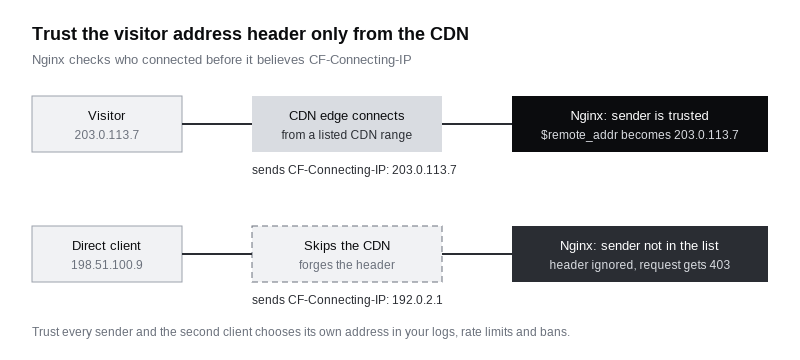
The danger is in which connections may set it. Anyone can send CF-Connecting-IP: 192.0.2.1 straight to your server. If Nginx believes that header from every sender, an attacker picks their own address in your logs, slips past per-IP rate limits and can get an innocent address banned. So list the CDN's published ranges with set_real_ip_from, and nothing else.
Cloudflare publishes its ranges as plain text and changes them from time to time. This script downloads them, checks that every line looks like an address range, and writes two Nginx files: the realip settings, and a list for the next-but-one step. If the download fails or looks wrong, it keeps the current files.
sudo tee /usr/local/sbin/update-cdn-ips > /dev/null <<'SH'
#!/bin/sh
# Fetch Cloudflare's published address ranges and write Nginx include files.
set -eu
OUT=/etc/nginx/cdn
TMP=$(mktemp -d)
trap 'rm -rf "$TMP"' EXIT

for v in v4 v6; do
  curl -fsS --max-time 20 "https://www.cloudflare.com/ips-$v" -o "$TMP/$v"
done
# awk reads each file separately, so a missing final newline does no harm.
awk 'NF { print $1 }' "$TMP/v4" "$TMP/v6" > "$TMP/all"

if [ "$(wc -l < "$TMP/all")" -lt 10 ] || grep -Evq '^[0-9a-fA-F:.]+/[0-9]{1,3}$' "$TMP/all"; then
  echo "unexpected range list, keeping the current files" >&2
  exit 1
fi

{
  echo "# Cloudflare ranges, written by update-cdn-ips on $(date -u +%F)"
  awk '{ print "set_real_ip_from " $1 ";" }' "$TMP/all"
  echo "real_ip_header CF-Connecting-IP;"
} > "$TMP/realip.conf"
awk '{ print $1 " 1;" }' "$TMP/all" > "$TMP/geo.conf"

install -d -m 755 "$OUT/realip"
install -m 644 "$TMP/realip.conf" "$OUT/realip/cloudflare.conf"
install -m 644 "$TMP/geo.conf" "$OUT/cloudflare-geo.conf"
echo "wrote $(wc -l < "$TMP/all") ranges to $OUT"
SH
sudo chmod 755 /usr/local/sbin/update-cdn-ips
sudo update-cdn-ips
sudo nginx -t
It prints something like wrote 22 ranges to /etc/nginx/cdn, then the nginx -t success lines. Look at the first few lines Nginx will read:
head -n 4 /etc/nginx/cdn/realip/cloudflare.confApply it:
sudo systemctl reload nginxCF-Connecting-IP holds a single address. If you use a CDN that only sends X-Forwarded-For, which can hold a chain of addresses, set real_ip_header X-Forwarded-For; and add real_ip_recursive on;, so Nginx skips trusted addresses from the right and takes the first one it does not trust.
Run the script again about once a month, then sudo nginx -t and sudo systemctl reload nginx, so new Cloudflare ranges are trusted before they carry your traffic.
Check it worked
Send a forged header from the server itself, which is not in Cloudflare's ranges, and read the log line:
curl -s -o /dev/null -H 'CF-Connecting-IP: 203.0.113.50' http://127.0.0.1:8081/
sudo tail -n 1 /var/log/nginx/cdn-demo.access.log
The line starts 127.0.0.1 edge=127.0.0.1. Nginx ignored the header, because the sender is not trusted.
To see what a trusted sender does, trust the server itself for one request. This file is only for this one check; you remove it straight after.
echo 'set_real_ip_from 127.0.0.1;' | sudo tee /etc/nginx/cdn/realip/local-test.conf
sudo nginx -tsudo systemctl reload nginxcurl -s -o /dev/null -H 'CF-Connecting-IP: 203.0.113.50' http://127.0.0.1:8081/
sudo tail -n 1 /var/log/nginx/cdn-demo.access.logNow the line starts 203.0.113.50 edge=127.0.0.1: the header replaced the address, and $realip_remote_addr still records who really connected. That is how every request would look if you trusted everyone. Remove the test file:
sudo rm /etc/nginx/cdn/realip/local-test.conf
sudo nginx -tsudo systemctl reload nginxStep 5 · Point your domain at the CDN and read its cache status
This step happens in Cloudflare and on your own domain, with your real site, on port 443. Cloudflare only proxies a fixed list of ports (80, 443, 8080, 8443 and a few others), which is why the demo port 8081 stays private.
- Add the domain to Cloudflare and switch its nameservers as Cloudflare asks.
- Set the DNS record for your site to Proxied, so traffic goes through Cloudflare rather than straight to your server's address.
- Set the SSL/TLS mode to Full (strict), so Cloudflare checks your origin's certificate rather than accepting any.
- Cloudflare caches by file extension and leaves HTML and JSON alone by default. To let it honour the
s-maxageon your pages, create a Cache Rule that makes those paths eligible for cache. Cloudflare then follows your origin's headers, so/accountstill passes through. - Check the zone's Browser Cache TTL. Cloudflare sends browsers the higher of that setting and your
max-age, so a long setting there overrides themax-age=0on your HTML.
Now ask for the home page twice from your laptop. Replace example.com with your domain:
curl -s -o /dev/null -D - https://example.com/ | grep -iE '^(cf-cache-status|age|cache-control):'
curl -s -o /dev/null -D - https://example.com/ | grep -iE '^(cf-cache-status|age|cache-control):'
The first answer shows cf-cache-status: MISS: the edge had no copy and fetched one. The second shows HIT and an Age header, the seconds since the copy was fetched. After five minutes you see EXPIRED once, then HIT again. The other values you will meet are BYPASS (the edge asked, but your response said not to cache it), DYNAMIC (the request was never eligible, such as a path with no cache rule), STALE (an old copy served because your origin could not be reached) and UPDATING (an old copy served while a fresh one is fetched). Other CDNs report the same idea in the standard Cache-Status header or in X-Cache.
Check it worked
Request /account on your domain the same way, twice. It never shows HIT; you see BYPASS or DYNAMIC every time, and its Set-Cookie header arrives each time. If it ever shows HIT, remove the rule that caused it before you do anything else, because it means one visitor's response can be served to another.
Step 6 · Turn on origin shielding
Without a shield, every edge data centre that misses asks your origin directly. On a site with visitors in many countries, that can be dozens of requests for the same page each time it expires. Origin shielding puts one more layer in between: edges ask an upper-tier data centre, and only that tier asks your origin. Cloudflare calls this Tiered Cache, and its Smart topology, which picks the upper tier closest to your origin, is on every plan.
Turn on Tiered Cache with the Smart topology in your zone's caching settings. It needs no change on your origin.
Check it worked
Your origin log shows which addresses connect. This counts requests per connecting address, using the edge= field from the log format:
sudo awk '{ print $2 }' /var/log/nginx/cdn-demo.access.log | sort | uniq -c | sort -rn | headOn the demo port every line is edge=127.0.0.1. On your real site's log, with the same log format, you see something like a handful of Cloudflare addresses carrying most of the requests once the shield is on, rather than many addresses each making a few.
Step 7 · Refuse requests that skip the CDN
Your origin's address is often easy to find, in old DNS records or certificate logs. Anyone who has it can go around the CDN, its cache and its firewall. Lock the origin so only the CDN's ranges get pages.
There is a trap here. allow and deny check $remote_addr, and the realip module has already replaced that with the visitor's address by the time they run. An allow list of Cloudflare ranges would then refuse every real visitor. Check the connecting address instead: the geo block below reads $realip_remote_addr and sets $from_cdn to 1 for Cloudflare's ranges, from the file the update script wrote.
Before you apply this, make sure your DNS record is Proxied and the site works through Cloudflare. From then on, anything that reaches the origin directly gets 403, including an uptime monitor pointed at the server's address.
sudo tee /etc/nginx/conf.d/cdn-demo.conf > /dev/null <<'CONF'
log_format cdn '$remote_addr edge=$realip_remote_addr "$request" $status';

geo $realip_remote_addr $from_cdn {
    default 0;
    include /etc/nginx/cdn/cloudflare-geo.conf;
}

server {
    listen 8081;
    server_name _;
    root /var/www/cdn-demo;
    access_log /var/log/nginx/cdn-demo.access.log cdn;

    include /etc/nginx/cdn/realip/*.conf;

    if ($from_cdn = 0) {
        return 403;
    }

    gzip on;
    gzip_vary on;
    gzip_types text/css application/json;

    location / {
        try_files $uri $uri/ =404;
        add_header Cache-Control "public, max-age=0, s-maxage=300";
    }

    location /assets/ {
        add_header Cache-Control "public, max-age=31536000, immutable";
    }

    location = /status.json {
        add_header Cache-Control "public, max-age=10";
        add_header CDN-Cache-Control "max-age=60";
    }

    location = /account {
        default_type text/plain;
        add_header Cache-Control "private, no-store";
        add_header Set-Cookie "session=demo; Path=/; HttpOnly; Secure; SameSite=Lax";
        return 200 "Signed in as demo\n";
    }
}
CONF
sudo nginx -tsudo systemctl reload nginxFor a second layer, also limit port 443 to the same ranges in your server's firewall, so other clients cannot even open a connection; /tutorials/write-a-server-firewall-with-nftables shows how to build such rules. The Nginx check stays useful either way, because it still works if a firewall rule is changed by mistake.
Check it worked
Request the page from the server itself, once plainly and once claiming to be a Cloudflare address:
curl -s -o /dev/null -w '%{http_code}\n' http://127.0.0.1:8081/
curl -s -o /dev/null -w '%{http_code}\n' -H 'CF-Connecting-IP: 173.245.48.1' http://127.0.0.1:8081/
Both print 403. The header cannot help, because the check uses the address that opened the connection. Through Cloudflare, your domain still answers 200.
Step 8 · Purge a single URL when you have to
Versioned assets mean you rarely purge, but sometimes a page has to change at once: a wrong price, a legal fix. Purge only the URLs that changed, not the whole zone. Emptying everything sends every edge back to your origin at the same moment.
Create an API token in the Cloudflare dashboard with only the Cache Purge permission, for this one zone, and note the zone ID from the zone's overview page. Store the token in a file only you can read, created private before anything is written to it:
mkdir -p ~/.config/cdn-demo
install -m 600 /dev/null ~/.config/cdn-demo/cf-token
Paste the token at the prompt; it is not shown and does not land in your shell history:
read -rs -p 'Cloudflare API token: ' CF_TOKEN && printf '%s' "$CF_TOKEN" > ~/.config/cdn-demo/cf-token && unset CF_TOKEN && echoSet your zone ID for this shell (replace the placeholder):
export CF_ZONE_ID=<your zone ID>The script sends the URLs you give it to Cloudflare's purge endpoint. It passes the token to curl in a temporary header file, so it never appears in the process list:
cat > ~/cdn-demo/purge-urls <<'SH'
#!/bin/sh
# Purge the given URLs from Cloudflare's cache. Needs CF_ZONE_ID and a token file.
set -eu
: "${CF_ZONE_ID:?set CF_ZONE_ID to your zone ID}"
CF_API="${CF_API:-https://api.cloudflare.com/client/v4}"
TOKEN_FILE="$HOME/.config/cdn-demo/cf-token"
if [ "$#" -eq 0 ]; then
  echo "usage: purge-urls https://example.com/page ..." >&2
  exit 2
fi

files=""
for url in "$@"; do files="$files\"$url\","; done
body="{\"files\":[${files%,}]}"

umask 077
hdr=$(mktemp)
trap 'rm -f "$hdr"' EXIT
printf 'Authorization: Bearer %s\n' "$(cat "$TOKEN_FILE")" > "$hdr"
curl -sS -X POST "$CF_API/zones/$CF_ZONE_ID/purge_cache" \
  -H @"$hdr" -H 'Content-Type: application/json' --data "$body"
SH
chmod 755 ~/cdn-demo/purge-urls
Purge your home page. Replace https://example.com/ with the exact URL you want refreshed:
~/cdn-demo/purge-urls https://example.com/Check it worked
The reply is JSON with success set to true. Request the page again with the cache-status command from earlier: the next answer is a MISS, then HIT with the new content. If the reply says success is false, read the errors list; a wrong zone ID or a token without Cache Purge is the usual cause.
Step 9 · Remove the demo
This deletes the demo site, its Nginx config and log, the address lists, the update script and the token file. If you are keeping the setup for your real site, keep /usr/local/sbin/update-cdn-ips and /etc/nginx/cdn/ and only remove the demo parts. Check that /etc/nginx/conf.d/cdn-demo.conf is the demo file before you remove it:
sudo rm /etc/nginx/conf.d/cdn-demo.conf
sudo nginx -tsudo systemctl reload nginxsudo rm -rf /var/www/cdn-demo /etc/nginx/cdn
sudo rm /usr/local/sbin/update-cdn-ips /var/log/nginx/cdn-demo.access.log
rm -rf ~/cdn-demo ~/.config/cdn-demoIn Cloudflare, delete the demo API token if you made one only for this.
Check it worked
curl -sS http://127.0.0.1:8081/ || echo "nothing is listening on port 8081"curl reports that it failed to connect, followed by nothing is listening on port 8081. Your other Nginx sites are untouched.
Next steps
- Cache your app's responses on the origin as well, so CDN misses are cheap:
/tutorials/cache-upstream-responses-with-nginx-proxy-cache. - Decide what an API sends in
Cache-Control:/tutorials/set-caching-headers-for-api-responses. - Add compression and precompressed files to the origin:
/tutorials/compress-and-cache-static-files-in-nginx. - Try a different CDN for a fully static site:
/tutorials/host-a-static-site-on-s3-and-cloudfront.
Related tutorials
- Write Nginx location blocks that match what you expectYou will build a practice Nginx 1.30 server where every location block labels its responses, predict which block answers each of twelve URLs, check your answers with curl, and fix the alias, regex-order and proxy_pass mistakes that catch most people out.
- Write a server firewall with nftablesYou will write one /etc/nftables.conf with a default-drop input chain, rate-limited SSH, named address sets, counters and logging, and load it over SSH behind a timer that undoes it if you lose your connection.
- Watch a TCP connection open and close with tcpdumpYou will capture a curl request to a local web server with tcpdump on Ubuntu 26.04, read its handshake, data and teardown line by line, see the reset a closed port sends, and save, filter and rotate captures as pcap files.
Need this done for you?
Padding does this work for growing companies, from the first diagnosis to a system that keeps working.
Get new tutorials