Linux and servers · Beginner · 14 min
Find your way around the Linux filesystem: /etc, /var, /usr and the rest
By Padding · Updated 18 Nov 2026
Ubuntu 26.04.1 LTS · Nginx 1.28.3 (Ubuntu archive)
You will know what each top-level folder on an Ubuntu 26.04 server is for, find where any file came from with dpkg, which, file and findmnt, and have a map of where Nginx keeps its binary, config, data, logs and unit file.
On this page
Most "where is it?" questions on a server have the same answer: Linux puts files by job, not by program. Nginx's settings sit next to every other program's settings in /etc, its logs next to everyone else's logs in /var/log, and its binary next to ls in /usr. Once you know the jobs, you can guess the path before you look.
In this tutorial you will walk the top-level folders of an Ubuntu 26.04 server, learn four commands that answer "where does this live and who put it there?", and finish with a map of every place a packaged service keeps its files. The example service is Nginx from Ubuntu's own archive (version 1.28.3 at the time of writing).
The only changes to your server are two packages (Nginx and file) and one small script. The last step removes the script and shows how to remove the packages if you do not want to keep them.
Step 1 · Install the tools and the example service
file tells you what kind of thing a file is, and Nginx gives you a real service to trace. Install both from the Ubuntu archive:
sudo apt update
sudo apt install -y nginx file
Then list the root of the filesystem:
ls -l /You see around twenty entries. Some are folders (lines starting with d) and a few are symbolic links (lines starting with l, with an arrow such as bin -> usr/bin).
Check it worked
nginx -v prints a version starting nginx/1.28, and ls -l / shows at least one line with -> in it.
Step 2 · See that /bin and /sbin are really /usr
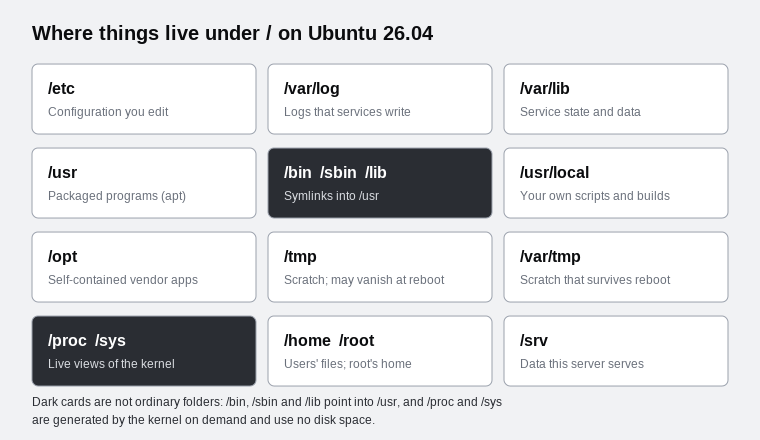
On older systems, /bin held the programs needed to boot and /usr/bin held everything else. Ubuntu has merged them: /bin, /sbin and /lib are now links into /usr. There is one copy of each program, under /usr.
ls -ld /bin /sbin /lib
readlink /bin /sbin
file /bin
readlink prints usr/bin and usr/sbin, and file reports /bin: symbolic link to usr/bin. Find out where a command really is with which, and follow any links with readlink -f:
which bash nginx
readlink -f /bin/bash
bash lives in /usr/bin and nginx in /usr/sbin, and readlink -f /bin/bash prints /usr/bin/bash. The sbin folders hold programs meant mainly for administrators; your sudo user still has them on its PATH.
The merge matters when you ask the package manager about a file. Packages record the /usr path, so look up the real path rather than the link:
dpkg -S "$(readlink -f "$(which bash)")"This prints bash: /usr/bin/bash: the bash package installed that file. If dpkg -S /bin/something ever says no path found matching pattern, run it again on the readlink -f result.
Links can go deeper than the /usr merge. Since Ubuntu 25.10 the basic commands such as ls, cp and readlink come from uutils coreutils, written in Rust, and /usr/bin/ls is itself a link into one shared program under /usr/lib/cargo/bin/. Run readlink -f "$(which ls)" and you see that longer path, not /usr/bin/ls. That is why readlink -f matters: it follows every link to the file that really exists, which is the path to hand to dpkg -S.
Check it worked
readlink /bin prints usr/bin, and dpkg -S names bash as the owner of /usr/bin/bash.
Step 3 · Read /etc and its .d folders
/etc holds configuration: plain text files you read and edit. Packages put their defaults there, and the package manager keeps your edits when it upgrades (it asks before replacing a file you changed).
Many programs read one main file plus every file in a folder ending in .d. That folder is where you add your own settings, so an upgrade never has to merge your changes into the package's file. Look at a few:
ls /etc/apt/sources.list.d/ /etc/apt/apt.conf.d/ /etc/logrotate.d/
ls /etc/nginx/
Nginx follows the same pattern. Its main file pulls in two folders:
grep include /etc/nginx/nginx.confYou get lines like include /etc/nginx/conf.d/*.conf; and include /etc/nginx/sites-enabled/*;. A new site goes in its own file under sites-available/, linked from sites-enabled/; you never need to edit nginx.conf for it.
To see what a file is before you open it, ask file:
file /etc/nginx/nginx.conf /etc/nginx/sites-enabled/defaultThe first is ASCII text. The second is a symbolic link to /etc/nginx/sites-available/default, which is how "enabled" works for Nginx sites on Ubuntu.
Check it worked
You can name the .d folder you would use to add your own log rotation rule (/etc/logrotate.d/), and grep include shows both Nginx include lines.
Step 4 · Find what changes in /var
/usr and /etc change when you install or configure something. /var changes while the server runs. Three parts matter most:
/var/logholds logs. Services that write their own files (Nginx, apt, dpkg) put them here. systemd's journal also lives under/var/log/journalon a server./var/libholds state: databases, package lists, anything a service must keep between restarts. PostgreSQL puts its data in/var/lib/postgresql, Docker in/var/lib/docker./var/cacheholds data that can be downloaded or rebuilt again, such as apt's.debfiles.
Look at the logs and state on your server:
ls /var/log/ /var/log/nginx/
sudo tail -n 3 /var/log/dpkg.log
ls /var/lib/
dpkg.log ends with your Nginx install. In /var/lib/dpkg/info you find the package manager's own state: one .list file per package, holding every path that package installed. That is what dpkg -L reads.
ls /var/lib/dpkg/info/ | grep '^nginx'Note for low-cost servers: /var is the folder that grows. On a small VPS with a 10 to 20 GB disk, logs and /var/lib are where space goes, so check them first when a disk fills up.
Check it worked
/var/log/nginx/ exists (Nginx writes access.log and error.log there once it runs), and the grep '^nginx' line lists files ending in .list.
Step 5 · Separate your own software from the system's
apt owns /usr/bin, /usr/lib and /usr/share. If you put files there yourself, an upgrade may overwrite them, and nobody can tell later where they came from. Use one of two places instead:
/usr/localfor single programs and scripts you build or write. It has its ownbin,libandshare, and/usr/local/bincomes before/usr/binon thePATH./optfor a vendor's self-contained bundle, one folder per product (/opt/<product>/), as many commercial tools ship.
Install a small script into /usr/local/bin:
printf '#!/bin/sh\necho "fs-tour works"\n' > /tmp/fs-tour
sudo install -m 755 /tmp/fs-tour /usr/local/bin/fs-tour
rm /tmp/fs-tour
which fs-tour
fs-tour
Now ask the package manager who owns it:
dpkg -S /usr/local/bin/fs-tour || echo "No package owns this file"dpkg reports no path found matching pattern, then the echo runs. That is the point: anything in /usr/local or /opt is yours to track, update and remove.
Check it worked
which fs-tour prints /usr/local/bin/fs-tour, and the script prints fs-tour works.
Step 6 · Tell /tmp from /var/tmp, and find which disk holds a path
Both folders are scratch space that any user can write to. The difference is how long files last:
/tmpis for short-lived files. Expect it to be empty after a reboot. On some systems it is atmpfs, kept in memory./var/tmpis for temporary files that should survive a reboot, such as a half-finished download.
Both have the sticky bit, the t at the end of the permissions, so users can only delete their own files there:
ls -ld /tmp /var/tmpEach line starts drwxrwxrwt. To see which mounted filesystem holds a path, and what type it is, use findmnt -T:
findmnt -T /tmp -o TARGET,SOURCE,FSTYPE
findmnt -T /var/log -o TARGET,SOURCE,FSTYPE
If the TARGET column says /, the path sits on the root disk. If it says /tmp with type tmpfs, your /tmp lives in memory and counts against RAM, not disk. On a server with a separate data volume, run the same command on your data folder to check it really lands on that volume.
systemd's clean-up rules decide when old files go. To read them on your server:
cat /usr/lib/tmpfiles.d/tmp.confEach rule line names a folder, its permissions and an age; files older than that age are removed during clean-up. If the file is missing, your server has no systemd clean-up rules for these folders.
Check it worked
Both ls -ld lines end their permission string in t, and findmnt -T prints a row for each path.
Step 7 · Look at /proc, /sys and the home folders
/proc and /sys are not on disk. The kernel makes their contents up when you read them, so they always show the current state:
cat /proc/uptime
head -n 3 /proc/meminfo
ls /sys/class/net/
cat /sys/class/net/lo/mtu
findmnt -T /proc -o TARGET,FSTYPE
findmnt -T /sys -o TARGET,FSTYPE
/proc/uptime gives seconds since boot, /proc/meminfo starts with MemTotal, and /sys/class/net/ lists your network interfaces (lo and one or more like eth0 or ens3). findmnt reports types proc and sysfs: virtual filesystems, not disks. Every running process also gets a folder, /proc/<pid>. /proc/self always means "the process reading it", and the shell variable $$ holds your shell's own process number, so you can look at your shell's folder:
readlink /proc/$$/exeThat prints the program your shell is running, something like /usr/bin/bash.
Last, the people folders:
/home/<user>belongs to each login user./rootis the root user's home, kept apart from/homeand closed to other users./srvis for data the server serves, such as/srv/wwwor/srv/git, when you want it outside any one user's home. Ubuntu leaves it empty.
ls -ld /home /root /srv/root shows something like drwx------ root root: only root may enter.
Check it worked
cat /sys/class/net/lo/mtu prints 65536, and findmnt shows proc for /proc.
Step 8 · Map where Nginx keeps everything
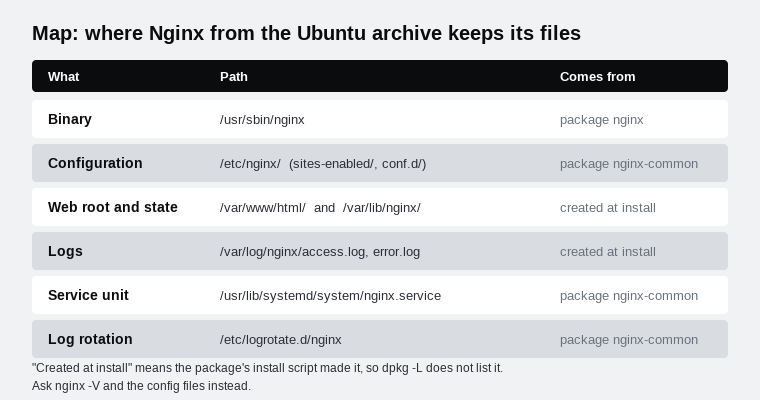
Now put it together for one service. Start with what the packages installed. Nginx comes as two packages: nginx (the program) and nginx-common (configuration and other shared files):
dpkg -S /usr/sbin/nginx /etc/nginx/nginx.conf
dpkg -L nginx-common | grep -E '^/(etc|usr/lib/systemd)'
The first prints nginx: /usr/sbin/nginx and nginx-common: /etc/nginx/nginx.conf. The second lists the config files and the service unit, /usr/lib/systemd/system/nginx.service. Ubuntu ships units in /usr/lib/systemd/system; your own units and overrides go in /etc/systemd/system, which wins.
Some folders do not appear in any package list, because the package's install script created them. Check for /var paths in the list:
dpkg -L nginx-common | grep '^/var' || echo "No /var paths in the package list"For those, ask the program and its config. nginx -V prints the paths compiled into the binary, and the default site names the web root:
nginx -V 2>&1 | tr ' ' '\n' | grep -E 'conf-path|temp-path|pid-path'
grep -E '^\s*(access|error)_log' /etc/nginx/nginx.conf
grep -E '^\s*root' /etc/nginx/sites-available/default
You see --conf-path=/etc/nginx/nginx.conf, temporary paths under /var/lib/nginx/, logs in /var/log/nginx/ and root /var/www/html;. The unit file itself you read with systemd:
systemctl cat nginxThe output starts with # /usr/lib/systemd/system/nginx.service, followed by the unit. That first line is a comment systemctl cat adds to tell you which file it read. You can also read the file directly and list its section headings:
grep -n '^\[' /usr/lib/systemd/system/nginx.serviceYou see [Unit], [Service] and [Install], each with its line number.
Remove the practice script. Leave Nginx installed if you plan to follow the Nginx tutorials next; otherwise remove it too with sudo apt purge -y nginx nginx-common (this deletes its config under /etc/nginx). If file was not on your server before this tutorial and you do not want it, remove it with sudo apt purge file. Other packages can depend on it, so read the list of packages apt plans to remove before you answer yes. Now delete the script:
sudo rm /usr/local/bin/fs-tourCheck it worked
You can fill in the map for Nginx without looking: binary, config, data, logs, unit file. Try it next on another package with dpkg -L <package> and dpkg -S <path>.
Next steps
- Control who can read and change the files you found here: /tutorials/linux-file-permissions-chmod-chown
- Track down which of these folders is filling your disk: /tutorials/find-what-is-using-disk-space-linux
- Install the current stable Nginx and serve a page: /tutorials/install-nginx-on-ubuntu-26-04
- Write your own unit file in /etc/systemd/system: /tutorials/run-an-app-as-a-systemd-service
Related tutorials
- Write safer Bash scripts with strict mode and trapsYou will build a small Bash release script that stops on the first error, says which line failed, survives file names with spaces and always removes its temporary files.
- Write least-privilege sudo rules with visudoYou will replace blanket sudo access with checked rule files in /etc/sudoers.d that let two operators restart one service and edit one file, give an automation account a password-free command list, and audit what every account can run.
- Upgrade a server from Ubuntu 24.04 LTS to 26.04 LTSYou will take a backed-up Ubuntu 24.04 server through do-release-upgrade to 26.04 LTS over SSH with a fallback login, then confirm services, repositories and language runtimes work on the new release.
Need this done for you?
Padding does this work for growing companies, from the first diagnosis to a system that keeps working.
Get new tutorials