Containers and Kubernetes · Intermediate · 18 min
Use init containers and native sidecars in Kubernetes pods
By Padding · Updated 18 Nov 2026
Ubuntu 26.04 · Kubernetes 1.37 · kind 0.33 · kubeconform 0.8.0
You will build a pod whose init containers wait for a dependency and fetch its page into a shared emptyDir, add a native sidecar that ships the web server's logs, and watch the start and stop order with kubectl logs -c, describe and events.
On this page
A pod is not one container. It is a small group of containers that the kubelet starts on the same node, in one network namespace, with access to the same volumes. Most of the time the group has one member and you never think about it. Two patterns make the group worth understanding:
- Init containers run one after another before your app starts, and each must exit successfully before the next begins. They are the place for "wait until the database answers" or "download the config first", so the app's own image does not need a retry loop or a download tool.
- Native sidecars are helpers that run beside the app for the whole life of the pod: a log shipper, a proxy, a file syncer. Since Kubernetes 1.33 you declare one as an init container with
restartPolicy: Always. That one line gives the sidecar a start order (it is running before the app starts) and a stop order (it stops after the app has gone), which an ordinary second container never had.
In this tutorial you build one pod that uses both. Two init containers wait for a small config server and fetch a page from it into a shared emptyDir volume. An nginx container serves that page and writes its logs to a second emptyDir, and a sidecar reads those logs and prints them, so kubectl logs can show them. You then delete the pod and watch the order in which its containers stop, and finish with a Job, where native sidecars fix a long-standing problem.
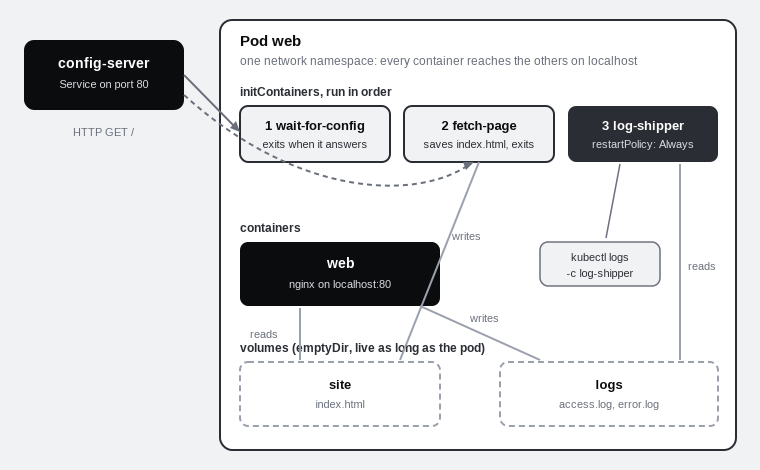
Every manifest is checked against the Kubernetes 1.37 API schemas with kubeconform before it reaches the cluster.
Step 1 · Install kubeconform and create the demo folder
kubeconform checks Kubernetes YAML against the published API schemas without needing a cluster. With -strict it also rejects any field the schema does not know, which matters for sidecars: a misspelt restartPolicy is not an error to YAML, it silently turns your sidecar into an ordinary init container that never exits.
The commands work on Linux and macOS, on Intel or Arm. They download the release archive and its checksum file from GitHub, check the archive, and install the binary in /usr/local/bin:
cd "$(mktemp -d)"
OS="$(uname -s | tr '[:upper:]' '[:lower:]')"
case "$(uname -m)" in
  x86_64) ARCH=amd64 ;;
  aarch64|arm64) ARCH=arm64 ;;
  *) echo "No release for CPU type $(uname -m)"; false ;;
esac
if command -v sha256sum >/dev/null; then SUM="sha256sum"; else SUM="shasum -a 256"; fi

KUBECONFORM=0.8.0
curl -fsSLO "https://github.com/yannh/kubeconform/releases/download/v${KUBECONFORM}/kubeconform-${OS}-${ARCH}.tar.gz"
curl -fsSLO "https://github.com/yannh/kubeconform/releases/download/v${KUBECONFORM}/CHECKSUMS"
grep " kubeconform-${OS}-${ARCH}.tar.gz$" CHECKSUMS | $SUM -c
tar xzf "kubeconform-${OS}-${ARCH}.tar.gz"
sudo install -m 0755 kubeconform /usr/local/bin/
The checksum line must end in OK. If it prints FAILED, do not install the file; download it again. A binary installed this way gets no updates from a package manager: to upgrade, run the same commands with a new number in KUBECONFORM=.
Now make a throwaway folder for this tutorial's manifests:
mkdir -p ~/sidecar-demo
cd ~/sidecar-demoCheck it worked
kubeconform -v
pwd
The first line is v0.8.0 and the second ends in /sidecar-demo. Run the rest of the commands from this folder.
Step 2 · Write a pod whose init containers wait and fetch
The pod's job is to serve one web page. The page lives on a separate config server, which does not exist yet. Instead of teaching nginx to retry, give the pod two init containers:
wait-for-configasks theconfig-serverService for its home page every two seconds and exits as soon as it gets an answer.fetch-pagedownloads that page into anemptyDirvolume calledsite.
Only when both have exited with status 0 does the kubelet start web, which mounts the same site volume read-only as nginx's web root:
cat > web-pod.yaml <<'YAML'
apiVersion: v1
kind: Pod
metadata:
  name: web
  namespace: sidecar-demo
  labels:
    app: web
spec:
  volumes:
    - name: site
      emptyDir:
        sizeLimit: 10Mi
  initContainers:
    - name: wait-for-config
      image: busybox:1.38.0
      command:
        - sh
        - -c
        - until wget -q -T 2 -O /dev/null http://config-server/; do echo "waiting for config-server"; sleep 2; done
    - name: fetch-page
      image: busybox:1.38.0
      command:
        - sh
        - -c
        - wget -q -T 5 -O /site/index.html http://config-server/ && echo "fetched $(wc -c < /site/index.html) bytes"
      volumeMounts:
        - name: site
          mountPath: /site
  containers:
    - name: web
      image: nginx:1.30.8-alpine
      ports:
        - name: http
          containerPort: 80
      volumeMounts:
        - name: site
          mountPath: /usr/share/nginx/html
          readOnly: true
YAML
kubeconform -strict -summary -kubernetes-version 1.37.3 web-pod.yaml
Three details are worth noticing. The volume is declared once, at pod level, and each container chooses whether and where to mount it: fetch-page sees it at /site, web at nginx's web root. An emptyDir is created empty when the pod lands on a node and deleted with the pod, so it is scratch space, not storage; sizeLimit stops a runaway download filling the node's disk. And the two init containers use the same small busybox image, which the node pulls once, a few megabytes in total. On a prepaid or metered connection, reusing one small tool image across helpers like this keeps the first start of a pod cheap.
Check it worked
kubeconform prints a summary like Summary: 1 resource found in 1 file - Valid: 1, Invalid: 0, Errors: 0, Skipped: 0. Confirm the init containers are in the order you want them to run:
grep -E '^ - name: ' web-pod.yamlThe output lists site, wait-for-config, fetch-page and web. The order of initContainers in the file is the order they run.
Step 3 · Watch the init containers wait for the dependency
Create the namespace and the pod, before the config server exists, so you can see the waiting happen:
kubectl config current-context
kubectl create namespace sidecar-demo
kubectl apply -f web-pod.yaml
kubectl -n sidecar-demo get pod web
The context must be kind-demo. If it is anything else, stop and switch with kubectl config use-context kind-demo before you apply.
The STATUS column shows something like Init:0/2: none of the two init containers has finished. Read the first init container's output with -c, which picks one container in a multi-container pod:
kubectl -n sidecar-demo logs web -c wait-for-configCheck it worked
You see a growing list of waiting for config-server lines, probably with a bad address 'config-server' error from wget before each one, because the Service name does not resolve yet. Ask for the second init container's logs with -c fetch-page and kubectl tells you it is waiting to start: it will not run until wait-for-config exits. The web container has not started either. This is the whole point: nginx never runs with an empty web root.
Step 4 · Start the config server and watch the pod come up
The config server is an ordinary nginx Deployment that serves one page from a ConfigMap, with a Service in front of it. The page carries a short line in three languages, so you can see that the UTF-8 text survives the trip through wget and the volume:
cat > config-server.yaml <<'YAML'
apiVersion: v1
kind: ConfigMap
metadata:
  name: welcome-page
  namespace: sidecar-demo
data:
  index.html: |
    <!doctype html>
    <meta charset="utf-8">
    <title>Sidecar demo</title>
    <p>Served by the web pod. Ẹ káàbọ̀. Karibu. Welcome.</p>
---
apiVersion: apps/v1
kind: Deployment
metadata:
  name: config-server
  namespace: sidecar-demo
spec:
  replicas: 1
  selector:
    matchLabels:
      app: config-server
  template:
    metadata:
      labels:
        app: config-server
    spec:
      containers:
        - name: nginx
          image: nginx:1.30.8-alpine
          ports:
            - name: http
              containerPort: 80
          volumeMounts:
            - name: page
              mountPath: /usr/share/nginx/html
              readOnly: true
      volumes:
        - name: page
          configMap:
            name: welcome-page
---
apiVersion: v1
kind: Service
metadata:
  name: config-server
  namespace: sidecar-demo
spec:
  selector:
    app: config-server
  ports:
    - name: http
      port: 80
      targetPort: http
YAML
kubeconform -strict -summary -kubernetes-version 1.37.3 config-server.yaml
kubeconform reports Valid: 3. Open a second terminal and watch the pod, then apply the config server in the first:
kubectl -n sidecar-demo get pod web -wkubectl apply -f config-server.yamlCheck it worked
Within a few seconds of the config server becoming ready, the watch moves through something like Init:0/2, Init:1/2, PodInitializing and Running, with READY 1/1. Stop the watch with Ctrl+C and look at the evidence:
kubectl -n sidecar-demo logs web -c fetch-page
kubectl -n sidecar-demo exec web -c web -- wget -qO- http://localhost/
fetch-page printed one line, something like fetched 155 bytes. The second command fetches the page from nginx inside the pod and prints the HTML with Ẹ káàbọ̀. Karibu. Welcome. intact. kubectl -n sidecar-demo describe pod web shows both init containers under Init Containers: with State: Terminated and Reason: Completed, and web under Containers: with State: Running.
Step 5 · Add a native sidecar that ships the logs
nginx in the official image writes its logs to the container's standard output, which kubectl logs reads. Many real apps write to files instead, and the usual fix is a sidecar that reads the files and forwards them. Here the sidecar prints them to its own output, which stands in for sending them to a log service.
Three changes turn the pod into that shape. A second emptyDir called logs is mounted at /var/log/nginx in web, which replaces the image's links to standard output with real files. A new init container, log-shipper, mounts the same volume and follows both files. And log-shipper has restartPolicy: Always, which is what makes it a sidecar rather than a third step that must finish:
cat > web-pod.yaml <<'YAML'
apiVersion: v1
kind: Pod
metadata:
  name: web
  namespace: sidecar-demo
  labels:
    app: web
spec:
  volumes:
    - name: site
      emptyDir:
        sizeLimit: 10Mi
    - name: logs
      emptyDir:
        sizeLimit: 50Mi
  initContainers:
    - name: wait-for-config
      image: busybox:1.38.0
      command:
        - sh
        - -c
        - until wget -q -T 2 -O /dev/null http://config-server/; do echo "waiting for config-server"; sleep 2; done
    - name: fetch-page
      image: busybox:1.38.0
      command:
        - sh
        - -c
        - wget -q -T 5 -O /site/index.html http://config-server/ && echo "fetched $(wc -c < /site/index.html) bytes"
      volumeMounts:
        - name: site
          mountPath: /site
    - name: log-shipper
      image: busybox:1.38.0
      restartPolicy: Always
      command:
        - sh
        - -c
        - |
          touch /logs/access.log /logs/error.log
          trap 'echo "log-shipper: SIGTERM at $(date +%T), stopping"; exit 0' TERM
          tail -n +1 -F /logs/access.log /logs/error.log &
          wait
      startupProbe:
        exec:
          command: ["test", "-f", "/logs/access.log"]
        periodSeconds: 1
        failureThreshold: 10
      volumeMounts:
        - name: logs
          mountPath: /logs
  containers:
    - name: web
      image: nginx:1.30.8-alpine
      ports:
        - name: http
          containerPort: 80
      volumeMounts:
        - name: site
          mountPath: /usr/share/nginx/html
          readOnly: true
        - name: logs
          mountPath: /var/log/nginx
YAML
kubeconform -strict -summary -kubernetes-version 1.37.3 web-pod.yaml
Why each line of the sidecar is there:
- Its place in the list. Sidecars start in file order with the other init containers.
log-shippercomes afterfetch-page, so it starts once the page is fetched and beforeweb. If you needed a sidecar while the init containers ran (a proxy thatfetch-pagegoes through, say), you would put it first. - The startup probe. The kubelet starts the next container once the sidecar counts as started: when its process is running, or, if it has a startup probe, when the probe passes. Here the probe holds
webback until the log files exist. Ordinary init containers cannot have probes; sidecars can have startup, readiness and liveness probes. - The
trap. The shell is process 1 in its container, and process 1 ignores SIGTERM unless it installs a handler. Without the trap, the sidecar would sit out the whole 30-second grace period on every delete and then be killed. With it, it prints a line and exits at once, which also lets you see exactly when it was asked to stop.
Now test the mistake that -strict exists for. This pipes a copy of the file with restartPolicy misspelt into kubeconform; the file on disk is not changed:
if sed 's/restartPolicy: Always/restartpolicy: Always/' web-pod.yaml | kubeconform -strict -kubernetes-version 1.37.3; then
  echo "unexpected: the typo was accepted"; false
else
  echo "typo rejected, as expected"
fiCheck it worked
The first kubeconform run reports Valid: 1, Invalid: 0. The typo check prints an error for Pod web saying something like additionalProperties 'restartpolicy' not allowed, then typo rejected, as expected. Without -strict the misspelt file passes. kubectl's own field validation would also refuse it at apply time, but a tool that applies with validation turned off would drop the unknown field, and the pod would hang at something like Init:2/3 for ever, because a tail -F that is not a sidecar never exits.
Step 6 · Replace the pod and see what the containers share
A pod's list of containers cannot be changed in place, so delete the old pod and create the new one. The config server is already up, so this time the init containers finish straight away:
kubectl -n sidecar-demo delete pod web
kubectl apply -f web-pod.yaml
kubectl -n sidecar-demo wait --for=condition=Ready pod/web --timeout=90s
kubectl -n sidecar-demo get pod web
READY now shows something like 2/2: kubectl counts the running sidecar along with web. Make a few requests from inside the sidecar. It has no web server of its own, but it shares the pod's network namespace, so localhost is nginx:
kubectl -n sidecar-demo exec web -c log-shipper -- sh -c 'for i in 1 2 3; do wget -q -O /dev/null http://localhost/; done'
kubectl -n sidecar-demo logs web -c log-shipper --tail=5Check it worked
The sidecar's logs end with three nginx access lines for GET / HTTP/1.1 from 127.0.0.1, written by web into the shared volume and printed by log-shipper. kubectl -n sidecar-demo logs web -c web shows nothing new for those requests, because the access log is now a file. In kubectl -n sidecar-demo describe pod web, log-shipper is listed under Init Containers: with Restart Policy: Always and State: Running, while the other two are Terminated with Reason: Completed.
Step 7 · Delete the pod and watch the stop order
When a pod is deleted, the kubelet sends the stop signal to the main containers first. It holds the sidecars back until the last main container has exited, then stops them in reverse order of their definition. That is what lets a log shipper catch the app's last lines.
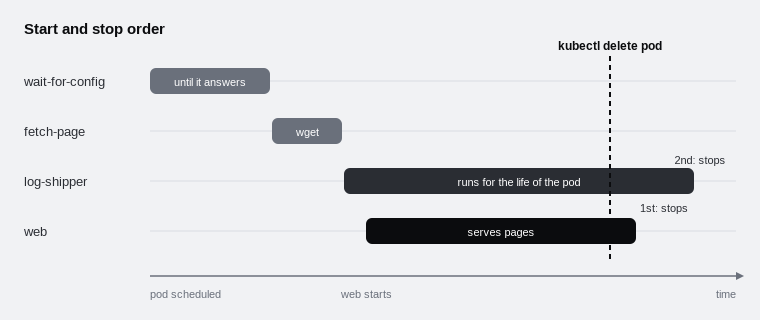
In a second terminal, follow the sidecar's logs:
kubectl -n sidecar-demo logs web -c log-shipper -fIn the first terminal, delete the pod, then list its events once the command returns:
kubectl -n sidecar-demo delete pod web
kubectl -n sidecar-demo get events --field-selector involvedObject.name=web --sort-by=.lastTimestamp | tail -n 4Check it worked
The followed log shows nginx's own shutdown notices from error.log first, lines like signal 3 (SIGQUIT) received, gracefully shutting down and exit, and only after them log-shipper: SIGTERM at <time>, stopping. The sidecar was still reading while web shut down, which is the ordering you were promised. The events end with two Killing lines, something like Stopping container web followed by Stopping container log-shipper. With an ordinary second container in containers:, both would get the signal at the same moment and the last log lines could be lost.
Step 8 · Use the same sidecar in a Job
Jobs are where native sidecars matter most. A Job is complete when its pod's main containers have exited successfully. Before native sidecars, a log shipper in containers: never exited, so the pod stayed Running and the Job never finished. A sidecar in initContainers with restartPolicy: Always does not count: once the main container exits, the kubelet stops the sidecar and the Job completes.
cat > report-job.yaml <<'YAML'
apiVersion: batch/v1
kind: Job
metadata:
  name: nightly-report
  namespace: sidecar-demo
spec:
  backoffLimit: 1
  ttlSecondsAfterFinished: 3600
  template:
    spec:
      restartPolicy: Never
      volumes:
        - name: logs
          emptyDir:
            sizeLimit: 10Mi
      initContainers:
        - name: log-shipper
          image: busybox:1.38.0
          restartPolicy: Always
          command:
            - sh
            - -c
            - |
              touch /logs/report.log
              trap 'echo "log-shipper: SIGTERM, stopping"; exit 0' TERM
              tail -n +1 -F /logs/report.log &
              wait
          volumeMounts:
            - name: logs
              mountPath: /logs
      containers:
        - name: report
          image: busybox:1.38.0
          command:
            - sh
            - -c
            - for i in 1 2 3; do echo "report line $i" >> /logs/report.log; sleep 1; done
          volumeMounts:
            - name: logs
              mountPath: /logs
YAML
kubeconform -strict -summary -kubernetes-version 1.37.3 report-job.yaml
Run it and wait for it to finish:
kubectl apply -f report-job.yaml
kubectl -n sidecar-demo wait --for=condition=Complete job/nightly-report --timeout=90s
kubectl -n sidecar-demo logs job/nightly-report -c log-shipperCheck it worked
kubeconform reports Valid: 1. On the cluster, wait prints job.batch/nightly-report condition met a few seconds after the start, and the sidecar's logs show report line 1 to report line 3 followed by log-shipper: SIGTERM, stopping. kubectl -n sidecar-demo get job nightly-report shows STATUS Complete and COMPLETIONS 1/1. If you move log-shipper into containers: and try again, the wait times out instead.
Step 9 · Clean up
Everything this tutorial made in the cluster lives in the sidecar-demo namespace, so deleting the namespace removes the pod, the Job, the config server and their volumes. Check the context first so you delete it from the right cluster:
kubectl config current-context
kubectl delete namespace sidecar-demo
Then remove the local manifests. Keep kubeconform if you will use it again; otherwise remove it as well:
rm -rf ~/sidecar-demo
sudo rm -f /usr/local/bin/kubeconformCheck it worked
kubectl get namespace sidecar-demo reports NotFound, ls ~/sidecar-demo reports that there is no such file or directory, and command -v kubeconform prints nothing. The kind cluster itself is still running for the next tutorial.
Next steps
- Put the same kind of pod behind a Deployment and a Service in /tutorials/deploy-and-expose-an-app-on-kubernetes.
- When a pod sits at
Init:orCrashLoopBackOff, work through /tutorials/debug-a-failing-kubernetes-pod-with-kubectl. - Give the main container readiness and liveness probes and a clean shutdown in /tutorials/keep-snip-healthy-with-probes-and-graceful-shutdown.
- Pass configuration in without an init container, from ConfigMaps and Secrets, in /tutorials/kubernetes-configmaps-and-secrets.
Related tutorials
- How to Deploy an App and Expose It with a Service on KubernetesYou will run an app on Kubernetes 1.37 as a Deployment with two replicas, watch it heal itself, give it a stable address with a Service, reach it from your computer, and roll out a new version with a way back.
- Debug a failing Kubernetes pod with kubectlYou will break Deployments on a kind cluster in six common ways, read each failure from kubectl get, describe, logs and events, fix it, and finish by opening a shell beside a distroless pod with kubectl debug.
- Keep Snip healthy with probes and graceful shutdownYou will give the Snip Deployment startup, readiness and liveness probes with timings you can explain, a preStop pause and a grace period that let in-flight requests finish during a rollout, and watch readiness take a pod out of service when PostgreSQL stops while liveness leaves it running.
Need this done for you?
Padding does this work for growing companies, from the first diagnosis to a system that keeps working.
Get new tutorials