Frontend development · Intermediate · 28 min
Make pages work offline with a service worker and the Cache API
By Padding · Updated 18 Nov 2026
Service Worker and Cache API · Node.js 26.13 · Playwright 1.65.1 · checked in Chromium on node:26
You will write a service worker by hand that precaches a small timetable site, serves files cache-first and pages network-first with a timeout, shows an offline page, offers a Reload when a new version is waiting, and passes a Playwright test with the network switched off.
On this page
A timetable is most useful at the bus stop, which is exactly where the signal drops. A page that needs the network for every visit fails there. A service worker fixes that: it is a script the browser keeps beside your site, and it can answer the page's requests itself, from files it saved earlier, before the network is even asked.
This tutorial writes that worker by hand, with no library, for Ridgeway Bus Times, the fictional town bus timetable from make a site installable as a progressive web app. You build a fresh copy of the site, so you can start here whether or not you kept that folder. By the end the worker:
- saves the app shell (the timetable, the stylesheet, the script and an offline page) when it installs
- deletes caches left by older versions when it takes over
- serves CSS and JavaScript from the cache without touching the network
- tries the network first for pages, but gives up after 3 seconds and shows a saved copy
- shows a friendly offline page for anything never saved
- tells the reader when a new version is ready, instead of swapping it under them
A Playwright script then proves it: it loads the site, cuts the connection and stops the server, and checks that the pages still appear.
For readers on prepaid mobile data this is about cost as much as signal. Once the stylesheet and script are cached, a return visit downloads only the page itself, a few kilobytes, and nothing at all when there is no connection.
Step 1 · Build the site and serve it on localhost
Service workers only run on a secure origin, and http://localhost counts as one, so the site needs a small server rather than files opened from disk. Make a demo folder with three pages, an offline page, a stylesheet and the server:
mkdir -p ~/bus-times-offline
cd ~/bus-times-offline
cat > index.html <<'HTML'
<!doctype html>
<html lang="en">
<head>
  <meta charset="utf-8">
  <meta name="viewport" content="width=device-width, initial-scale=1">
  <title>Ridgeway Bus Times</title>
  <link rel="icon" href="data:,">
  <link rel="stylesheet" href="/style.css">
  <script type="module" src="/app.js"></script>
</head>
<body>
  <div id="update" class="update" role="status"></div>
  <main>
    <nav><a href="/">Timetable</a> <a href="/fares.html">Fares</a> <a href="/news.html">Service news</a></nav>
    <h1>Ridgeway Bus Times</h1>
    <p class="note">Route 4 · Market Square to Hillside · weekdays</p>
    <table>
      <thead><tr><th scope="col">Market Square</th><th scope="col">Clinic</th><th scope="col">Hillside</th></tr></thead>
      <tbody>
        <tr><td>06:40</td><td>06:52</td><td>07:05</td></tr>
        <tr><td>07:20</td><td>07:32</td><td>07:45</td></tr>
        <tr><td>08:00</td><td>08:14</td><td>08:28</td></tr>
        <tr><td>12:30</td><td>12:42</td><td>12:55</td></tr>
        <tr><td>17:10</td><td>17:24</td><td>17:38</td></tr>
      </tbody>
    </table>
  </main>
</body>
</html>
HTML
cat > fares.html <<'HTML'
<!doctype html>
<html lang="en">
<head>
  <meta charset="utf-8">
  <meta name="viewport" content="width=device-width, initial-scale=1">
  <title>Fares · Ridgeway Bus Times</title>
  <link rel="icon" href="data:,">
  <link rel="stylesheet" href="/style.css">
  <script type="module" src="/app.js"></script>
</head>
<body>
  <div id="update" class="update" role="status"></div>
  <main>
    <nav><a href="/">Timetable</a> <a href="/fares.html">Fares</a> <a href="/news.html">Service news</a></nav>
    <h1>Fares</h1>
    <p class="note">Pay the driver in cash or tap a card.</p>
    <table>
      <thead><tr><th scope="col">Ticket</th><th scope="col">Price</th></tr></thead>
      <tbody>
        <tr><td>Single, any stop</td><td>1.20</td></tr>
        <tr><td>Day ticket</td><td>3.00</td></tr>
        <tr><td>Under 16 single</td><td>0.60</td></tr>
      </tbody>
    </table>
  </main>
</body>
</html>
HTML
cat > news.html <<'HTML'
<!doctype html>
<html lang="en">
<head>
  <meta charset="utf-8">
  <meta name="viewport" content="width=device-width, initial-scale=1">
  <title>Service news · Ridgeway Bus Times</title>
  <link rel="icon" href="data:,">
  <link rel="stylesheet" href="/style.css">
  <script type="module" src="/app.js"></script>
</head>
<body>
  <div id="update" class="update" role="status"></div>
  <main>
    <nav><a href="/">Timetable</a> <a href="/fares.html">Fares</a> <a href="/news.html">Service news</a></nav>
    <h1>Service news</h1>
    <p>Route 4 is diverted along Mill Lane from Monday while the bridge is repaired. The Clinic stop moves 100 metres north.</p>
  </main>
</body>
</html>
HTML
cat > offline.html <<'HTML'
<!doctype html>
<html lang="en">
<head>
  <meta charset="utf-8">
  <meta name="viewport" content="width=device-width, initial-scale=1">
  <title>Offline · Ridgeway Bus Times</title>
  <link rel="icon" href="data:,">
  <link rel="stylesheet" href="/style.css">
</head>
<body>
  <main>
    <h1>You are offline</h1>
    <p>This page has not been saved on this device yet. The timetable, and any page you have opened before, still work without a connection.</p>
    <p><a href="/">Go to the timetable</a></p>
  </main>
</body>
</html>
HTML
cat > style.css <<'CSS'
body { margin: 0; font-family: system-ui, sans-serif; background: #ffffff; color: #1b1f24; }
main { max-width: 30rem; margin: 0 auto; padding: 1rem; }
nav { display: flex; gap: 1rem; margin-bottom: 1rem; }
nav a { color: #0f5e5a; }
h1 { font-size: 1.5rem; margin: 0 0 0.25rem; }
.note { color: #5a6270; margin: 0 0 1rem; }
table { width: 100%; border-collapse: collapse; font-variant-numeric: tabular-nums; }
th, td { text-align: left; padding: 0.5rem; border-bottom: 1px solid #d5d9df; }
.update { display: flex; align-items: center; justify-content: space-between; gap: 0.75rem; padding: 0.75rem 1rem; background: #1b1f24; color: #ffffff; }
.update:empty { padding: 0; }
.update p { margin: 0; }
.update button { min-height: 2.75rem; padding: 0 1rem; border: 0; border-radius: 0.375rem; background: #ffffff; color: #1b1f24; font: inherit; font-weight: 600; }
CSS
cat > server.mjs <<'JS'
import { createServer } from 'node:http';
import { readFile } from 'node:fs/promises';
import { join } from 'node:path';

const root = import.meta.dirname;
const types = {
  html: 'text/html; charset=utf-8',
  css: 'text/css; charset=utf-8',
  js: 'text/javascript; charset=utf-8',
};
let pageDelayMs = 0;

// Lets the test pretend the network is slow for HTML pages.
export function slowPagesBy(ms) {
  pageDelayMs = ms;
}

async function handle(req, res) {
  const { pathname } = new URL(req.url, 'http://localhost');
  const name = pathname === '/' ? 'index.html' : pathname.slice(1);
  const match = /^[a-z0-9-]+\.(html|css|js)$/.exec(name);
  if (!match) {
    res.writeHead(404).end('Not found');
    return;
  }
  let body;
  try {
    body = await readFile(join(root, name));
  } catch {
    res.writeHead(404).end('Not found');
    return;
  }
  if (match[1] === 'html' && pageDelayMs) {
    await new Promise((resolve) => setTimeout(resolve, pageDelayMs));
  }
  res.writeHead(200, { 'Content-Type': types[match[1]], 'Cache-Control': 'no-cache' }).end(body);
}

export function startServer(port) {
  return new Promise((resolve) => {
    const server = createServer(handle);
    server.listen(port, () => resolve(server));
  });
}

if (process.argv[1] === import.meta.filename) {
  const port = Number(process.env.PORT ?? 8080);
  await startServer(port);
  console.log(`Serving on http://localhost:${port}`);
}
JS
Three choices in that code matter later:
- Every page loads
/app.jsas a module and has an empty#updatebox. The script registers the worker, and the box is where the "new version" message will appear. - The server only serves plain file names ending in
.html,.cssor.js, so it never hands outserver.mjs, the test ornode_modules. Cache-Control: no-cachemakes the browser check with the server before reusing its own HTTP cache. From here on, your service worker decides what is reused, and two caching layers fighting each other is the most common source of "I changed the file and nothing happened".
The slowPagesBy export does nothing yet. The test uses it to fake a slow connection.
Start the server in a second terminal window and leave it running:
cd ~/bus-times-offline
node server.mjs
Back in the first terminal, ask for each page:
for page in / /fares.html /news.html /offline.html; do
  curl -s "http://localhost:8080$page" | grep -o '<h1>.*</h1>'
doneCheck it worked
The server terminal prints Serving on http://localhost:8080, and the loop prints four headings: <h1>Ridgeway Bus Times</h1>, <h1>Fares</h1>, <h1>Service news</h1> and <h1>You are offline</h1>. Open http://localhost:8080 in Chrome or Edge: you see the links, the heading and a five-row timetable. The browser console shows a failed request for app.js, which you write next.
Step 2 · Precache the app shell when the worker installs
The worker has a life of its own, separate from any page. It is registered by a page, installs once, may wait, then activates and starts answering requests. Each stage is an event you can hook.
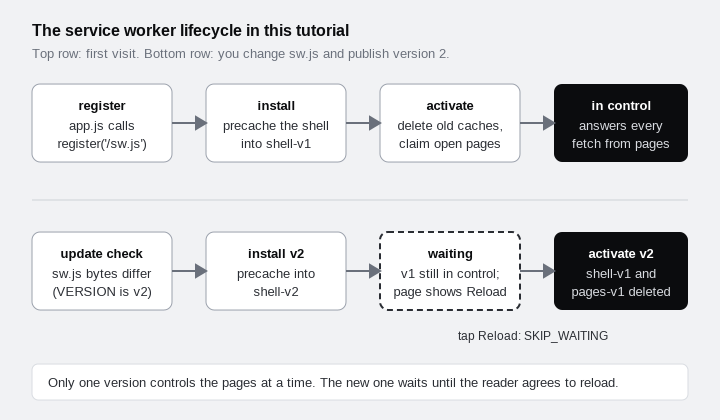
Install is the moment to save everything the site cannot work without. Write the start of the worker and the script that registers it:
cd ~/bus-times-offline
cat > sw.js <<'JS'
// Ridgeway Bus Times service worker.
// Change VERSION whenever any file in SHELL_FILES changes.
const VERSION = 'v1';
const SHELL_CACHE = `shell-${VERSION}`;
const PAGES_CACHE = `pages-${VERSION}`;
const SHELL_FILES = ['/', '/offline.html', '/style.css', '/app.js'];
const PAGE_TIMEOUT_MS = 3000;

self.addEventListener('install', (event) => {
  event.waitUntil(precacheShell());
});

async function precacheShell() {
  const cache = await caches.open(SHELL_CACHE);
  const requests = SHELL_FILES.map((url) => new Request(url, { cache: 'reload' }));
  await cache.addAll(requests);
}
JS
cat > app.js <<'JS'
if ('serviceWorker' in navigator) {
  const reg = await navigator.serviceWorker.register('/sw.js');
  console.log('Service worker registered for', reg.scope);
}
JS
node --check sw.js
What each piece does:
VERSIONgoes into the cache names.shell-v1holds the files this version needs. A new version writes toshell-v2and never mixes its files with the old ones.event.waitUntil()tells the browser that install is not finished until the promise settles. If it rejects, the install fails and the browser tries again on a later visit, so a half-filled cache never goes live.cache.addAll()is all or nothing. If any one of the four files fails to download, nothing is stored. Keep the shell list short and make sure every entry exists.cache: 'reload'makes these downloads skip the browser's HTTP cache, so the worker saves fresh copies rather than whatever was cached earlier.- The registration lives in a module script, which is why
awaitworks at the top level and why the page itself never waits for it.
PAGES_CACHE and PAGE_TIMEOUT_MS are used in later steps.
Before you reload the browser, turn on one developer tools setting. Open developer tools, go to Application, then Service workers, and tick Update on reload. While you edit sw.js in the next steps, it makes every reload install and activate the newest worker straight away. Without it, each edit would sit waiting, which is the behaviour you build on purpose in a later step. If you followed the installable-site tutorial on the same port, this also replaces its old worker.
Check it worked
node --check sw.js prints nothing, which means the file parses. Reload http://localhost:8080. The console logs Service worker registered for http://localhost:8080/. In Application, then Cache storage, a cache called shell-v1 lists four entries: /, /offline.html, /style.css and /app.js. If Cache storage looks empty, right-click it and choose Refresh caches.
Step 3 · Delete old caches when the worker activates
Activation happens once the new worker is about to take over. Nothing old is in use any more, so this is the safe moment to remove the previous version's caches. Append the activate handler:
cd ~/bus-times-offline
cat >> sw.js <<'JS'

self.addEventListener('activate', (event) => {
  event.waitUntil(deleteOldCaches().then(() => self.clients.claim()));
});

async function deleteOldCaches() {
  const current = [SHELL_CACHE, PAGES_CACHE];
  const isOurs = (name) => name.startsWith('shell-') || name.startsWith('pages-');
  const names = await caches.keys();
  await Promise.all(
    names.filter((name) => isOurs(name) && !current.includes(name)).map((name) => caches.delete(name)),
  );
}
JS
node --check sw.js
The filter deletes only caches whose names this worker uses. Other code on the same origin, such as an analytics library or a second app, may keep caches of its own, and deleting every name except yours would wipe theirs.
self.clients.claim() makes the worker control pages that are already open. Without it, the very first visit is never controlled: the page loaded before the worker existed, so the worker only starts answering on the next navigation.
Check it worked
node --check sw.js prints nothing. To see the clean-up, run await caches.open('shell-old') in the page console, then reload the page. With Update on reload ticked, the worker activates again and shell-old disappears from Cache storage after a refresh, while shell-v1 stays.
Step 4 · Serve CSS and JavaScript from the cache first
The stylesheet and script only change when you publish a new version, and a new version gets new cache names. So the worker can answer them from the cache without asking the network at all. That saves a round trip on every page, and it saves data.
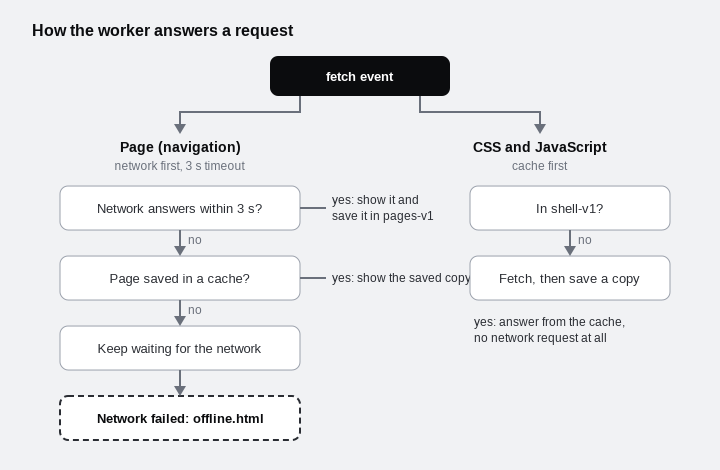
Append the first fetch handler. It deliberately ignores page navigations, which the next step handles:
cd ~/bus-times-offline
cat >> sw.js <<'JS'

// Static files: cache first.
self.addEventListener('fetch', (event) => {
  const { request } = event;
  if (request.method !== 'GET' || request.mode === 'navigate') return;
  if (new URL(request.url).origin !== self.location.origin) return;
  event.respondWith(cacheFirst(request));
});

async function cacheFirst(request) {
  const cache = await caches.open(SHELL_CACHE);
  const cached = await cache.match(request);
  if (cached) return cached;
  const response = await fetch(request);
  if (response.ok) await cache.put(request, response.clone());
  return response;
}
JS
node --check sw.js
Some details worth knowing:
- Returning without calling
respondWith()hands the request back to the browser, which fetches it normally. That is what happens to form posts, requests to other sites and page navigations here. cache.match()on one named cache, notcaches.match().caches.match()searches every cache on the origin. While a new version is waiting, an old worker using it could pick up the new version's stylesheet, so the page would mix versions.response.clone(). A response body can be read only once. One copy goes into the cache and the other goes to the page.- Only
okresponses are stored, so a 404 or a server error is never saved as if it were the real file.
Cache first has one rule you must keep: when you change style.css or app.js, change VERSION too. Otherwise readers keep the old file indefinitely, because the worker never asks for a new one.
Check it worked
Reload the page, then open the Network panel and reload once more. The rows for style.css and app.js say (ServiceWorker) in the Size column, and there is no second row for either file with a gear icon beside its name. A gear row would be the worker itself fetching the file from the server, so its absence shows the copies came straight out of Cache storage.
Step 5 · Serve pages network first, with a timeout and an offline page
Pages are different. The timetable and service news change, so the reader should see the latest version when the network works. When it does not, a saved copy is far better than an error. Network first does that, and a timeout keeps a weak connection from leaving the reader staring at a blank screen.
Append the second fetch handler:
cd ~/bus-times-offline
cat >> sw.js <<'JS'

// Pages: network first, fall back to a saved copy after PAGE_TIMEOUT_MS.
self.addEventListener('fetch', (event) => {
  if (event.request.mode !== 'navigate') return;
  const network = fetchAndSavePage(event.request);
  event.waitUntil(network.catch(() => {}));
  event.respondWith(pageFromNetworkOrCache(event.request, network));
});

async function fetchAndSavePage(request) {
  const response = await fetch(request);
  if (response.ok) {
    const pages = await caches.open(PAGES_CACHE);
    await pages.put(request, response.clone());
  }
  return response;
}

async function pageFromNetworkOrCache(request, network) {
  try {
    return await withTimeout(network, PAGE_TIMEOUT_MS);
  } catch {
    const saved = await savedPage(request);
    if (saved) return saved;
    try {
      return await network;
    } catch {
      return savedPage('/offline.html');
    }
  }
}

async function savedPage(request) {
  const pages = await caches.open(PAGES_CACHE);
  const shell = await caches.open(SHELL_CACHE);
  return (await pages.match(request)) ?? (await shell.match(request));
}

function withTimeout(promise, ms) {
  const timer = new Promise((_, reject) => setTimeout(() => reject(new Error('timed out')), ms));
  return Promise.race([promise, timer]);
}
JS
node --check sw.js
The order of the two fetch handlers matters. The browser runs them in the order they were added, and the first to call respondWith() wins. The static-file handler returns early for navigations, so they reach this one.
Follow a page request through it:
- The network answers within 3 seconds. The reader gets the fresh page, and a copy goes into
pages-v1. - The network is slow. After 3 seconds the worker shows the saved copy. The network request is not cancelled:
event.waitUntil()keeps the worker alive until it finishes, so the fresh page is saved for next time. - The network is slow and nothing is saved. Showing an offline page would be wrong, because the page may still arrive, so the worker keeps waiting.
- The network fails. With no saved copy, the reader gets
offline.htmlfrom the shell cache, which links back to the timetable.
Three seconds is a judgement call. On a good connection a page arrives well inside it, so readers almost always see the fresh version. On a weak 3G signal, common on low-end Android phones on prepaid bundles, it caps how long someone waits before something useful appears.
Check it worked
node --check sw.js prints nothing. Reload the timetable, click Fares, then click Timetable again. Cache storage now has pages-v1 holding /fares.html and /. In the Network panel, change the throttling menu from No throttling to Offline and reload: the timetable still appears. Click Fares: it appears too. Click Service news, which you have never opened: you get "You are offline" with a link back. Set throttling back to No throttling before you go on.
Step 6 · Tell the reader when a new version is waiting
So far Update on reload has hidden a real-world rule: a new worker installs in the background, then waits until no page uses the old one. Swapping it in at once could give a page that loaded with version 1 a version 2 stylesheet and script halfway through someone's task. The better pattern is to let the new version wait, tell the reader, and switch over when they choose.
Add a message handler to the worker, so a page can ask the waiting worker to take over:
cd ~/bus-times-offline
cat >> sw.js <<'JS'

self.addEventListener('message', (event) => {
  if (event.data?.type === 'SKIP_WAITING') self.skipWaiting();
});
JS
node --check sw.js
Then replace app.js with a version that watches for a waiting worker:
cd ~/bus-times-offline
cat > app.js <<'JS'
const banner = document.getElementById('update');
let reloadRequested = false;

function offerUpdate(worker) {
  // No controller means this is the first install: there is nothing to replace.
  if (!navigator.serviceWorker.controller || banner.childElementCount) return;
  const text = document.createElement('p');
  text.textContent = 'A new version of Ridgeway Bus Times is ready.';
  const button = document.createElement('button');
  button.type = 'button';
  button.textContent = 'Reload';
  button.addEventListener('click', () => {
    reloadRequested = true;
    worker.postMessage({ type: 'SKIP_WAITING' });
  });
  banner.replaceChildren(text, button);
}

function watchInstalling(worker) {
  worker.addEventListener('statechange', () => {
    if (worker.state === 'installed') offerUpdate(worker);
  });
}

if ('serviceWorker' in navigator) {
  navigator.serviceWorker.addEventListener('controllerchange', () => {
    if (reloadRequested) location.reload();
  });
  const reg = await navigator.serviceWorker.register('/sw.js');
  if (reg.waiting) offerUpdate(reg.waiting);
  if (reg.installing) watchInstalling(reg.installing);
  reg.addEventListener('updatefound', () => watchInstalling(reg.installing));
}
JS
How it fits together:
- Three ways to spot a new worker. One may already be waiting from an earlier visit (
reg.waiting), still installing as the page loads (reg.installing), or found while the page is open (updatefound). Covering all three means the banner never misses an update. - Clicking Reload posts
SKIP_WAITING. The waiting worker callsskipWaiting()and becomes the active worker. That firescontrollerchangestraight away, so the page reloads with the new version's files, and the new worker's activate handler deletes the old caches. reloadRequestedstops a reload on the very first visit, whenclients.claim()also firescontrollerchangebut nobody asked for anything.role="status"on the banner asks screen readers to announce the message politely when it appears, without moving focus. The live region tutorial covers how that works.
Ship the banner code before you test it. With Update on reload still ticked, reload the page once. The worker installs again and saves the new app.js into shell-v1; without this reload, the active worker would keep serving the old app.js from its cache, and a banner can only appear once the code that shows it has itself been shipped. The console no longer logs Service worker registered for ..., because the new app.js does not log, and the timetable still works. That tells you the new app.js is cached and running.
Now publish a new version for that code to find. You changed app.js, which is in the shell, so this is a real new version. The browser compares the bytes of sw.js on each page load, so bumping VERSION is what triggers the update. In Application, then Service workers, untick Update on reload. Then make the change with an editor: in sw.js, change the line const VERSION = 'v1'; to const VERSION = 'v2';.
Check it worked
Reload the page once. The Service workers panel shows the current worker as activated and running, and a second one, waiting to activate. The page shows a dark bar reading "A new version of Ridgeway Bus Times is ready." with a Reload button. Click Reload: the page reloads, the bar is gone, and Cache storage holds only shell-v2 and pages-v2 once you refresh it.
Before you continue, change VERSION back to 'v1' in sw.js. The test in the next step starts from version 1.
Step 7 · Test offline behaviour with Playwright
Clicking through developer tools proves it once. A script proves it after every change to the worker, which is when offline support usually breaks without anyone noticing. Install Playwright, which drives a real Chromium from Node. --with-deps also installs the system libraries Chromium needs on Linux, and may ask for your password:
cd ~/bus-times-offline
npm init -y > /dev/null
npm install playwright@1.65.1
npx playwright install --with-deps chromium
The test starts its own copy of the server on port 8181, so it never touches the browser profile you have been using on port 8080. It visits the site, then checks four things: the caches after a first visit, pages with no network at all, pages on a slow network, and the update banner.
cd ~/bus-times-offline
cat > test-offline.mjs <<'JS'
import { chromium } from 'playwright';
import assert from 'node:assert/strict';
import { readFile, writeFile } from 'node:fs/promises';
import { startServer, slowPagesBy } from './server.mjs';

const port = 8181;
const site = `http://localhost:${port}`;
const swFile = new URL('./sw.js', import.meta.url);
const original = await readFile(swFile, 'utf8');
assert.ok(original.includes("const VERSION = 'v1';"), 'sw.js starts at v1');

async function stop(server) {
  server.closeAllConnections();
  await new Promise((resolve) => server.close(resolve));
}

async function timed(action) {
  const start = Date.now();
  await action();
  return Date.now() - start;
}

async function waitUntil(check, message, ms = 10000) {
  const end = Date.now() + ms;
  while (Date.now() < end) {
    if (await check()) return;
    await new Promise((resolve) => setTimeout(resolve, 100));
  }
  assert.fail(message);
}

let server = await startServer(port);
const browser = await chromium.launch();
const context = await browser.newContext({ viewport: { width: 390, height: 844 } });
const page = await context.newPage();
const heading = () => page.locator('h1').textContent();

try {
  // 1. A first visit installs the worker, which saves the shell and takes control.
  await page.goto(`${site}/`);
  await page.waitForFunction(() => navigator.serviceWorker.controller !== null);
  await page.goto(`${site}/fares.html`);
  assert.equal(await heading(), 'Fares');
  assert.deepEqual((await page.evaluate(() => caches.keys())).sort(), ['pages-v1', 'shell-v1']);
  const shell = await page.evaluate(async () => {
    const keys = await (await caches.open('shell-v1')).keys();
    return keys.map((r) => new URL(r.url).pathname).sort();
  });
  assert.deepEqual(shell, ['/', '/app.js', '/offline.html', '/style.css']);

  // 2. No connection and no server at all.
  await context.setOffline(true);
  await stop(server);
  await page.goto(`${site}/`);
  assert.equal(await heading(), 'Ridgeway Bus Times');
  assert.equal(await page.locator('tbody tr').count(), 5);
  const maxWidth = await page.locator('main').evaluate((el) => getComputedStyle(el).maxWidth);
  assert.equal(maxWidth, '480px', 'the stylesheet came from the cache');
  await page.goto(`${site}/fares.html`);
  assert.equal(await heading(), 'Fares');
  await page.goto(`${site}/news.html`);
  assert.equal(await heading(), 'You are offline', 'a never-visited page shows the offline page');

  // 3. A slow network: pages take 5 s to arrive.
  await context.setOffline(false);
  server = await startServer(port);
  slowPagesBy(5000);
  const savedTook = await timed(() => page.goto(`${site}/fares.html`));
  assert.equal(await heading(), 'Fares');
  assert.ok(savedTook >= 2500 && savedTook < 4500, `saved copy after the 3 s timeout (${savedTook} ms)`);
  const freshTook = await timed(() => page.goto(`${site}/news.html`));
  assert.equal(await heading(), 'Service news', 'an unsaved page waits for the network');
  assert.ok(freshTook >= 4500, `waited for the network (${freshTook} ms)`);
  slowPagesBy(0);

  // 4. Publish v2: the page offers Reload, and Reload switches versions.
  await writeFile(swFile, original.replace("const VERSION = 'v1';", "const VERSION = 'v2';"));
  await page.goto(`${site}/`);
  await page.evaluate(async () => {
    const reg = await navigator.serviceWorker.getRegistration();
    await reg.update();
  });
  const reload = page.getByRole('button', { name: 'Reload' });
  await reload.waitFor();
  assert.match(await page.getByRole('status').textContent(), /new version/);
  await Promise.all([page.waitForEvent('load'), reload.click()]);
  await waitUntil(async () => {
    const names = await page.evaluate(() => caches.keys());
    return names.includes('shell-v2') && names.every((name) => name.endsWith('-v2'));
  }, 'v1 caches were not deleted');
  assert.equal(await page.locator('#update').textContent(), '', 'banner gone after reload');
} finally {
  await writeFile(swFile, original);
  await browser.close();
  await stop(server);
}
console.log('PASS: pages work offline, on a slow network and across an update');
JS
node test-offline.mjs
The offline part does two things at once on purpose. context.setOffline(true) tells Chromium there is no network, and stopping the server makes sure that nothing could answer even if a request slipped through. Every page in that section can only have come from the worker's caches.
The test edits sw.js to publish version 2 and always puts the original back in its finally block, so you can run it as often as you like.
Check it worked
The last line of output is PASS: pages work offline, on a slow network and across an update. To watch it fail for the right reason, delete '/offline.html', ` from `SHELL_FILES in sw.js and run node test-offline.mjs again: it stops with an AssertionError about the shell list and no PASS line. Put the entry back and it passes again.
Step 8 · Know the limits, then clean up
Cached files are not permanent. Browsers share a storage budget between sites and can clear a site's caches when the device runs low on space, which happens most on low-end phones with little storage. Calling navigator.storage.persist() asks the browser to keep your data, and browsers decide differently whether to grant it. Keep the shell small, a few hundred kilobytes at most, and the site keeps working even if the page cache is cleared, because the next visit with a connection fills it again.
When you are done, stop the server with Ctrl+C in its terminal.
In the browser, open Application, then Storage, and click Clear site data for http://localhost:8080. That unregisters the worker and deletes its caches, so it does not keep answering for whatever you run on port 8080 next. Then remove the demo folder, which also removes the local Playwright install. The browser Playwright downloaded stays in its shared cache; npx playwright uninstall removes that too if you no longer need it.
cd ~
rm -rf ~/bus-times-offlineCheck it worked
ls ~/bus-times-offline reports that there is no such file or directory. In the browser, Application, then Service workers shows no worker for http://localhost:8080, and Cache storage is empty.
Next steps
- Make the same site installable on a home screen with a manifest and icons in make a site installable as a progressive web app.
- Decide what deserves caching for people paying per megabyte in design for slow networks and costly data.
- Measure how much a warm cache saves on a throttled phone connection in test and speed up a page on a slow phone connection.
Part of these paths
Related tutorials
- Make a site installable as a progressive web appYou will turn a small static site into an installable web app with a manifest, home screen icons including a maskable one, a registered service worker and two scripts that prove the browser accepts it.
- Design for slow networks and costly dataYou will have a per-screen data budget for the Larkfield Clinic booking flow, Figma frames for what each screen shows offline, a save-and-resume state, a use-less-data option and SMS confirmation text that fits in one message.
- Test and speed up a page on a slow phone connectionYou will measure a heavy clinic home page on a throttled slow mobile connection, set a 500 kB page weight budget with a check that fails when the page grows, and cut its images, JavaScript and third-party widget until it passes, with before and after numbers to show for it.
Need this done for you?
Padding does this work for growing companies, from the first diagnosis to a system that keeps working.
Get new tutorials