Containers and Kubernetes · Advanced · 28 min
Route traffic to Snip with the Gateway API and TLS
By Padding · Updated 18 Nov 2026
Kubernetes 1.37 on kind 0.33 · Envoy Gateway 1.10.0 · Gateway API 1.6.1 (standard channel) · cert-manager 1.21.3 · Kustomize 5.8.3 · kubeconform 0.8.0
You will put Snip behind an Envoy Gateway on kind, with an HTTPS listener whose certificate cert-manager issues from your own demo CA, a redirect from HTTP to HTTPS, and curl proving both from your laptop.
On this page
So far Snip only answers inside the cluster, or through kubectl port-forward. In this part you give it a front door: a hostname, HTTPS with a certificate that renews itself, and a redirect for anyone who types http://.
For years the usual front door was an Ingress handled by Ingress NGINX. That project stopped receiving releases and security fixes in March 2026, and the Kubernetes project points users to the Gateway API instead. The Gateway API also splits the job more sensibly. A GatewayClass says which controller does the work. A Gateway is the listener that the platform team owns: ports, hostnames, certificates, and which namespaces may attach to it. An HTTPRoute belongs to the app team and says which paths go to which Service. Snip's team can change routes without touching the certificate, and the platform team can change the certificate without touching Snip.
You will use Envoy Gateway 1.10 as the controller and cert-manager 1.21 to issue the certificate, on the kind cluster from earlier parts. The hostname is snip.example.test. The .test top-level domain is reserved for testing and never resolves on the public internet, so you point it at your laptop with curl --resolve rather than editing DNS.
A note on versions: Gateway API 1.7.0 came out at the end of October 2026, but Envoy Gateway 1.10.0 is built and tested against Gateway API 1.6.1. Install the CRDs your controller supports, not the newest ones. Everything in this tutorial uses only the v1 resources, which are the same in both.
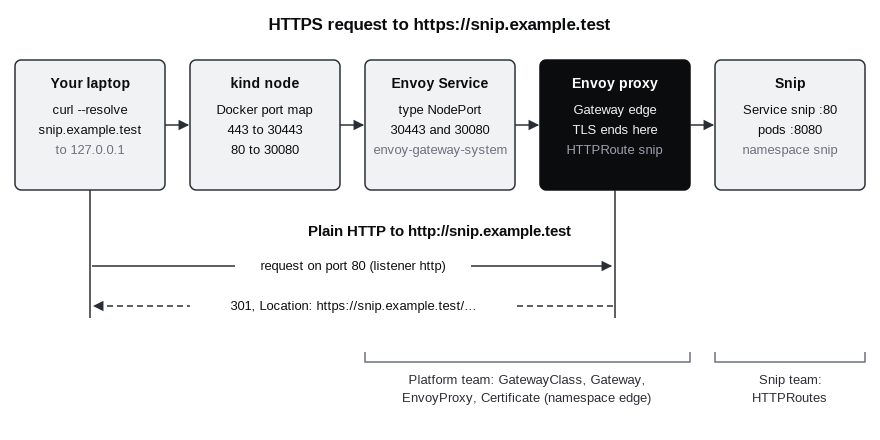
Step 1 · Give the kind cluster ports 80 and 443
kind nodes are Docker containers, so traffic from your laptop only reaches the cluster through ports that Docker publishes. kind can only publish them when it creates a cluster. Write a cluster config that maps ports 80 and 443 on 127.0.0.1 to two fixed NodePorts, 30080 and 30443. In a later step you tell Envoy Gateway to use exactly those NodePorts.
mkdir -p ~/snip-demo/kind
cat > ~/snip-demo/kind/cluster.yaml <<'EOF'
kind: Cluster
apiVersion: kind.x-k8s.io/v1alpha4
nodes:
  - role: control-plane
    image: kindest/node:v1.37.0
    extraPortMappings:
      - containerPort: 30080
        hostPort: 80
        listenAddress: "127.0.0.1"
        protocol: TCP
      - containerPort: 30443
        hostPort: 443
        listenAddress: "127.0.0.1"
        protocol: TCP
EOF
listenAddress: "127.0.0.1" keeps the ports on your laptop only, so nobody else on your Wi-Fi can reach the demo.
Check whether the cluster you already have publishes these ports:
docker port snip-control-planeIf the output already lists 30080/tcp -> 127.0.0.1:80 and 30443/tcp -> 127.0.0.1:443, skip to the next step. Otherwise you need a new cluster.
Deleting the cluster deletes everything in it, including the PostgreSQL volume from part 3, so any short links you created are lost. That is fine for this demo; copy anything you want to keep first. Then recreate the cluster and load the Snip image again (use the tag you built in part 1). The snip-db Secret from part 3 was created by hand, not from the manifests, so it goes with the old cluster, and without it PostgreSQL, the migration Job and Snip cannot start. Create the namespace, recreate the Secret from the same files as in part 3, apply the dev overlay, and run the migration Job again so the new database has its links table:
kind delete cluster --name snip
kind create cluster --name snip --config ~/snip-demo/kind/cluster.yaml --wait 120s
kind load docker-image snip:0.1.0 --name snip
cd ~/snip-demo
kubectl create namespace snip
kubectl create secret generic snip-db -n snip \
  --from-file=password=.secrets/password \
  --from-file=database-url=.secrets/database-url
kubectl apply -k ~/snip-demo/k8s/overlays/dev
kustomize build ~/snip-demo/k8s/migrate | kubectl apply -n snip -f -
kubectl wait job/snip-migrate -n snip --for=condition=Complete --timeout=180s
kubectl rollout status deployment/snip -n snip --timeout=180s
kubectl apply then reports the Namespace as unchanged or configured, which is fine.
On Linux, Docker publishes the ports as root, so ports below 1024 work. Rootless Docker cannot bind them; there, change hostPort to 8080 and 8443 and add those ports to every URL in this tutorial.
Check it worked
docker port snip-control-plane
kubectl get pods -n snip
docker port lists the two mappings above. The Snip pods and the PostgreSQL pod are Running, as they were at the end of part 4.
Step 2 · Install the Gateway API CRDs and Envoy Gateway
The Gateway API is not built into Kubernetes. Its resources are CustomResourceDefinitions (CRDs) you install, and a controller such as Envoy Gateway acts on them. Envoy Gateway publishes a chart that holds both the Gateway API CRDs and its own. Render it and apply it with server-side apply, which the Envoy Gateway docs ask for because these CRDs are too large for the annotation that client-side apply writes:
helm template eg-crds oci://docker.io/envoyproxy/gateway-crds-helm \
  --version v1.10.0 \
  --set crds.gatewayAPI.enabled=true \
  --set crds.gatewayAPI.channel=standard \
  --set crds.envoyGateway.enabled=true \
  | kubectl apply --server-side -f -
channel=standard installs only the stable resources. The experimental channel adds alpha resources and fields you do not need here, and mixing channels later is awkward: the chart also installs a ValidatingAdmissionPolicy, safe-upgrades.gateway.networking.k8s.io, that refuses some channel switches and downgrades.
Now install the controller itself. crds.enabled=false stops the main chart from installing CRDs a second time:
helm install eg oci://docker.io/envoyproxy/gateway-helm \
  --version v1.10.0 \
  -n envoy-gateway-system \
  --create-namespace \
  --set crds.enabled=false
kubectl wait --timeout=5m -n envoy-gateway-system deployment/envoy-gateway --for=condition=AvailableCheck it worked
kubectl get crd gateways.gateway.networking.k8s.io \
  -o jsonpath='{.metadata.annotations.gateway\.networking\.k8s\.io/bundle-version} {.metadata.annotations.gateway\.networking\.k8s\.io/channel}{"\n"}'
kubectl get pods -n envoy-gateway-system
The first command prints v1.6.1 standard. The second shows one envoy-gateway-... pod, 1/1 and Running. There is no Envoy proxy yet: Envoy Gateway starts one for each Gateway you create.
Step 3 · Install cert-manager and make a demo CA
cert-manager issues certificates and renews them before they expire. Install version 1.21.3 from its release manifest and wait for its three Deployments:
kubectl apply -f https://github.com/cert-manager/cert-manager/releases/download/v1.21.3/cert-manager.yaml
kubectl wait --for=condition=Available -n cert-manager deployment --all --timeout=180s
A public CA such as Let's Encrypt cannot issue for snip.example.test, because nobody owns .test. So you build a small private CA inside the cluster, in three objects:
- A
selfSignedClusterIssuer, used only once, to sign the CA's own certificate. - A Certificate with
isCA: true. cert-manager stores its key and certificate in the Secretsnip-demo-ca, in thecert-managernamespace, because that is where a ClusterIssuer looks for Secrets. - A
caClusterIssuer that signs other certificates with that Secret.
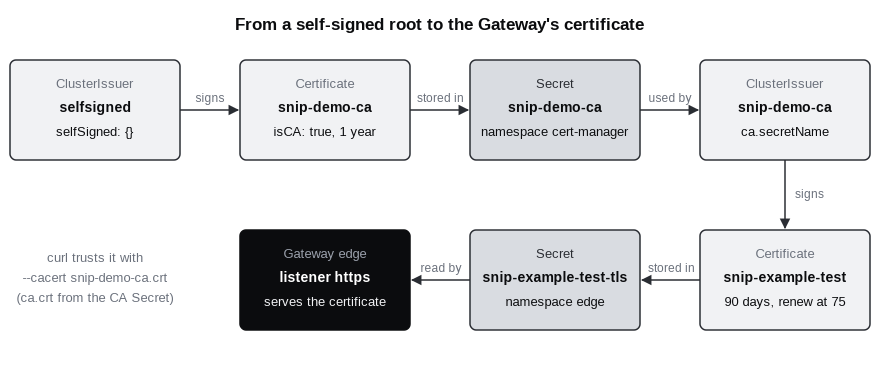
Keep the platform objects apart from Snip's own manifests, in ~/snip-demo/k8s/platform. They are cluster-wide or live in other namespaces, so they do not belong in Snip's overlay:
mkdir -p ~/snip-demo/k8s/platform
cat > ~/snip-demo/k8s/platform/issuers.yaml <<'EOF'
apiVersion: cert-manager.io/v1
kind: ClusterIssuer
metadata:
  name: selfsigned
spec:
  selfSigned: {}
---
apiVersion: cert-manager.io/v1
kind: Certificate
metadata:
  name: snip-demo-ca
  namespace: cert-manager
spec:
  isCA: true
  commonName: Snip demo CA
  secretName: snip-demo-ca
  duration: 8760h # one year
  privateKey:
    algorithm: ECDSA
    size: 256
  issuerRef:
    group: cert-manager.io
    kind: ClusterIssuer
    name: selfsigned
---
apiVersion: cert-manager.io/v1
kind: ClusterIssuer
metadata:
  name: snip-demo-ca
spec:
  ca:
    secretName: snip-demo-ca
EOF
The CA's private key never leaves the cluster and is not in any file you commit.
Check it worked
kubectl get pods -n cert-managerYou see three pods, cert-manager-..., cert-manager-cainjector-... and cert-manager-webhook-..., all 1/1 and Running. You apply the issuers in a later step, after validating them.
Step 4 · Describe the Gateway and its certificate
Four files make up the front door. Write them into the same platform folder.
The GatewayClass hands Gateways of class envoy to Envoy Gateway's controller:
cat > ~/snip-demo/k8s/platform/gatewayclass.yaml <<'EOF'
apiVersion: gateway.networking.k8s.io/v1
kind: GatewayClass
metadata:
  name: envoy
spec:
  controllerName: gateway.envoyproxy.io/gatewayclass-controller
EOF
By default Envoy Gateway exposes each Gateway with a LoadBalancer Service, which stays Pending on kind because there is no cloud load balancer. An EnvoyProxy object changes that for one Gateway: a NodePort Service, patched so the NodePorts are the 30080 and 30443 that kind publishes. The patch is a strategic merge, so each entry is matched to the generated Service port by its port number:
cat > ~/snip-demo/k8s/platform/namespace.yaml <<'EOF'
apiVersion: v1
kind: Namespace
metadata:
  name: edge
EOF
cat > ~/snip-demo/k8s/platform/envoyproxy.yaml <<'EOF'
apiVersion: gateway.envoyproxy.io/v1alpha1
kind: EnvoyProxy
metadata:
  name: kind-nodeports
  namespace: edge
spec:
  provider:
    type: Kubernetes
    kubernetes:
      envoyService:
        type: NodePort
        patch:
          type: StrategicMerge
          value:
            spec:
              ports:
                - port: 80
                  nodePort: 30080
                - port: 443
                  nodePort: 30443
EOF
On a cloud cluster you would leave the EnvoyProxy out and let the LoadBalancer Service get a public address.
The Gateway lives in its own edge namespace. It has two listeners for the one hostname. The https listener terminates TLS with the Secret snip-example-test-tls. Both listeners accept routes only from the snip namespace, using the kubernetes.io/metadata.name label that Kubernetes puts on every namespace, so another team cannot attach a route that takes over your hostname:
cat > ~/snip-demo/k8s/platform/gateway.yaml <<'EOF'
apiVersion: gateway.networking.k8s.io/v1
kind: Gateway
metadata:
  name: edge
  namespace: edge
spec:
  gatewayClassName: envoy
  infrastructure:
    parametersRef:
      group: gateway.envoyproxy.io
      kind: EnvoyProxy
      name: kind-nodeports
  listeners:
    - name: http
      protocol: HTTP
      port: 80
      hostname: snip.example.test
      allowedRoutes:
        namespaces:
          from: Selector
          selector:
            matchLabels:
              kubernetes.io/metadata.name: snip
    - name: https
      protocol: HTTPS
      port: 443
      hostname: snip.example.test
      tls:
        mode: Terminate
        certificateRefs:
          - kind: Secret
            name: snip-example-test-tls
      allowedRoutes:
        namespaces:
          from: Selector
          selector:
            matchLabels:
              kubernetes.io/metadata.name: snip
EOF
The certificate for the listener goes in the same namespace as the Gateway, so the Gateway can read its Secret without a ReferenceGrant:
cat > ~/snip-demo/k8s/platform/certificate.yaml <<'EOF'
apiVersion: cert-manager.io/v1
kind: Certificate
metadata:
  name: snip-example-test
  namespace: edge
spec:
  secretName: snip-example-test-tls
  dnsNames:
    - snip.example.test
  duration: 2160h # 90 days
  renewBefore: 360h # renew 15 days before expiry
  privateKey:
    algorithm: ECDSA
    size: 256
  issuerRef:
    group: cert-manager.io
    kind: ClusterIssuer
    name: snip-demo-ca
EOF
cat > ~/snip-demo/k8s/platform/kustomization.yaml <<'EOF'
apiVersion: kustomize.config.k8s.io/v1beta1
kind: Kustomization
resources:
  - namespace.yaml
  - issuers.yaml
  - gatewayclass.yaml
  - envoyproxy.yaml
  - gateway.yaml
  - certificate.yaml
EOF
cert-manager can also create this Certificate for you from an annotation on the Gateway, but only after you turn on its Gateway API support. A Certificate you write yourself is easier to read and review, so this series keeps it explicit.
The ECDSA P-256 keys keep the TLS handshake smaller than RSA 2048. That helps users on slow or metered mobile data, such as the prepaid plans common across much of Africa.
Check it worked
kustomize build ~/snip-demo/k8s/platform | grep '^kind:' | sort | uniq -cYou see eight objects: two Certificate, two ClusterIssuer, one each of EnvoyProxy, Gateway, GatewayClass and Namespace.
Step 5 · Route Snip through the Gateway
The routes belong to Snip, in the snip namespace, so they go next to Snip's manifests. Two HTTPRoutes attach to different listeners with sectionName. The first sends every path on the HTTPS listener to the snip Service on port 80. The second answers every request on the HTTP listener with a 301 redirect to the same URL over HTTPS; because the scheme changes to https, the Location header uses port 443:
mkdir -p ~/snip-demo/k8s/routes
cat > ~/snip-demo/k8s/routes/httproute-https.yaml <<'EOF'
apiVersion: gateway.networking.k8s.io/v1
kind: HTTPRoute
metadata:
  name: snip
  namespace: snip
spec:
  parentRefs:
    - name: edge
      namespace: edge
      sectionName: https
  hostnames:
    - snip.example.test
  rules:
    - matches:
        - path:
            type: PathPrefix
            value: /
      backendRefs:
        - name: snip
          port: 80
EOF
cat > ~/snip-demo/k8s/routes/httproute-redirect.yaml <<'EOF'
apiVersion: gateway.networking.k8s.io/v1
kind: HTTPRoute
metadata:
  name: snip-http-to-https
  namespace: snip
spec:
  parentRefs:
    - name: edge
      namespace: edge
      sectionName: http
  hostnames:
    - snip.example.test
  rules:
    - filters:
        - type: RequestRedirect
          requestRedirect:
            scheme: https
            statusCode: 301
EOF
cat > ~/snip-demo/k8s/routes/kustomization.yaml <<'EOF'
apiVersion: kustomize.config.k8s.io/v1beta1
kind: Kustomization
resources:
  - httproute-https.yaml
  - httproute-redirect.yaml
EOF
Add the routes to the dev overlay with kustomize edit, which updates the resources: list for you instead of you editing YAML by hand:
cd ~/snip-demo/k8s/overlays/dev
kustomize edit add resource ../../routes
The prod overlay stays as it is. A production route would use your own domain and a public issuer such as Let's Encrypt instead of the demo CA.
Each redirect costs the browser one extra round trip. On a high-latency mobile connection that is noticeable, so on a real domain also send a Strict-Transport-Security header from the HTTPS route once HTTPS works: browsers then go straight to HTTPS on later visits. Do not send it for a hostname you might still serve over plain HTTP.
Check it worked
cat ~/snip-demo/k8s/overlays/dev/kustomization.yaml
kustomize build ~/snip-demo/k8s/overlays/dev | grep -c '^kind: HTTPRoute'
resources: now lists ../../routes after the entries from part 2 (kustomize edit may also re-indent the list), the components: list from part 3 is unchanged, and the count is 2.
Step 6 · Validate everything before you apply it
A typo in a Gateway field can slip through: the API server rejects some mistakes, but others only show up later as a route that never attaches. Check the rendered YAML against the schemas first. kubeconform knows the built-in Kubernetes kinds; for the CRDs, point it at the community CRDs catalog, pinned to one commit so the schemas do not change under you:
cd ~/snip-demo
CATALOG='https://raw.githubusercontent.com/datreeio/CRDs-catalog/30499112dbaf5d3760c0843d4841e52e62dd0233/{{.Group}}/{{.ResourceKind}}_{{.ResourceAPIVersion}}.json'
kustomize build k8s/platform | kubeconform -strict -summary -kubernetes-version 1.37.3 \
  -schema-location default -schema-location "$CATALOG"
kustomize build k8s/overlays/dev | kubeconform -strict -summary -kubernetes-version 1.37.3 \
  -schema-location default -schema-location "$CATALOG"
-strict also rejects fields that do not exist, such as sectionname written in the wrong case. The catalog's Gateway API schemas come from the 1.7.0 experimental channel, so they accept everything 1.6.1 standard accepts and a little more; the API server still has the final say.
Check it worked
Each command ends with a summary line. The platform one reads Summary: 8 resources found parsing stdin - Valid: 8, Invalid: 0, Errors: 0, Skipped: 0. The dev overlay line has the same shape, with Invalid: 0 and Errors: 0; the total depends on what parts 2 to 4 added, and includes the two HTTPRoutes.
Step 7 · Apply and read the status
Apply the platform objects first, so the Gateway exists before the routes look for it:
kubectl apply -k ~/snip-demo/k8s/platform
kubectl wait --for=condition=Ready certificate/snip-demo-ca -n cert-manager --timeout=120s
kubectl wait --for=condition=Ready certificate/snip-example-test -n edge --timeout=120s
kubectl wait --for=condition=Programmed gateway/edge -n edge --timeout=180s
kubectl apply -k ~/snip-demo/k8s/overlays/dev
If the first apply fails with an error about the cert-manager webhook, cert-manager was not ready yet; run it again.
Gateway API resources report what the controller thought of them in status. Read it before you test from outside:
kubectl get gateway -n edge
kubectl get httproute -n snip
kubectl get svc -n envoy-gateway-system \
-l gateway.envoyproxy.io/owning-gateway-name=edge,gateway.envoyproxy.io/owning-gateway-namespace=edgeCheck it worked
- The Gateway
edgeshows classenvoyandPROGRAMMEDTrue. kubectl get httproute -n sniplistssnipandsnip-http-to-https, both with hostnamesnip.example.test.- The Envoy Service has type
NodePortand ports80:30080/TCP,443:30443/TCP.
For a route, run kubectl describe httproute snip -n snip and look under Status, Parents: Accepted and ResolvedRefs are both True. Accepted False with reason NotAllowedByListeners means the route is in a namespace the listener's selector does not allow. ResolvedRefs False usually means the Service name or port is wrong.
Step 8 · Test HTTPS and the redirect with curl
Export the demo CA's certificate so curl can check the server's certificate against it. The Secret also holds the CA's private key; you only copy ca.crt:
cd ~/snip-demo
kubectl get secret snip-demo-ca -n cert-manager -o jsonpath='{.data.ca\.crt}' | base64 -d > snip-demo-ca.crt
openssl x509 -in snip-demo-ca.crt -noout -subject -enddate
openssl prints subject=CN=Snip demo CA and an end date one year from now.
--resolve snip.example.test:443:127.0.0.1 tells curl to use 127.0.0.1 for that name and port, while still sending snip.example.test in the TLS handshake (SNI) and in the Host header. That is what the Gateway listener and the route match on:
curl --resolve snip.example.test:443:127.0.0.1 --cacert snip-demo-ca.crt \
  https://snip.example.test/healthz
curl -sS -o /dev/null -w '%{http_code} %{redirect_url}\n' \
--resolve snip.example.test:80:127.0.0.1 http://snip.example.test/healthzCheck it worked
- The first command prints the same body
/healthzreturned in part 1, with no certificate error. - The second prints
301 https://snip.example.test/healthz. - Run the first command again without
--cacert snip-demo-ca.crt. curl refuses the connection with an error such asSSL certificate problem: unable to get local issuer certificate, because your laptop does not trust the demo CA. That is the expected result: the certificate is only trusted by clients that have the CA.
To use https://snip.example.test in a browser, add 127.0.0.1 snip.example.test to your hosts file and import snip-demo-ca.crt as a trusted authority in a separate browser profile. Remove both when you finish the series. If any part of this TLS chain is unclear, /tutorials/understand-tls-certificates-and-chains-with-openssl walks through it with openssl.
Leave the Gateway, cert-manager and the routes in place. The rest of the series reaches Snip through this Gateway, and the clean-up in part 8 removes it all.
Next steps
- /tutorials/scale-snip-with-a-horizontal-pod-autoscaler: part 6 drives traffic through the Gateway and lets Kubernetes add Snip pods when CPU rises.
- /tutorials/move-from-ingress-nginx-to-the-gateway-api: convert existing Ingress manifests and their annotations, and switch controllers without downtime.
- /tutorials/choose-a-kubernetes-service-type: why the Envoy Service was a NodePort here and a LoadBalancer on a cloud.
- /tutorials/understand-tls-certificates-and-chains-with-openssl: read the certificates cert-manager issued, field by field.
Related tutorials
- Validate Kubernetes manifests before they reach a clusterYou will have one script that checks plain, Kustomize, Helm, generated and custom-resource manifests against the Kubernetes 1.37 schemas and a set of lint rules, with no cluster, and a GitHub Actions job that runs it on every pull request.
- Use secrets in Docker builds without leaking them into the imageYou will find a token and a private key leaking through a Docker build with Trivy 0.76, then fix the build with secret and SSH mounts, carry the fix into Compose and GitHub Actions, and prove with a rescan that the build context is clean.
- Store data in Kubernetes with persistent volumes and claimsYou will claim storage on a Kubernetes 1.37 kind cluster, prove the data outlives its pod, see which access modes and reclaim policies keep or lose data, and know how expansion and snapshots work on a cloud CSI driver.
Need this done for you?
Padding does this work for growing companies, from the first diagnosis to a system that keeps working.
Get new tutorials