Careers and getting hired · Beginner · 14 min
Work across time zones on a remote team
By Padding · Updated 18 Nov 2026
Any calendar · November 2026
You will have an overlap chart for summer and winter time, published overlap hours, a daily handoff note and a personal working agreement that lets your team move without everyone being online at once.
On this page
On a team spread across time zones, the hard part is not the hours you share. It is the hours you do not. A question asked at the end of your day can wait 16 hours for an answer, and a vague handoff can cost a colleague their whole morning. Teams that work well across zones keep the shared hours small and protected, and make everything else work without anyone waiting.
In this tutorial you map your team's hours, find the overlap in both summer and winter time, agree it with the team, and set up the writing habits that carry work across the gap: async updates and an end-of-day handoff. You finish with a short personal working agreement that also says when you are not available.
The example reader is Tobi, a mobile developer in Lagos. Nigeria stays on West Africa Time (UTC+1) all year. Tobi's product lead, Maya, is in San Francisco, and the engineering manager, Jonas, is in Berlin. Both of those cities change their clocks twice a year, on different dates, so the overlap Tobi sees moves even though Lagos time never does. Use your own team in place of theirs.
Step 1 · List where everyone works and how their clocks change
Open a new document called "Time zones and working agreement". Make a list with one entry per person you work with often, and note for each:
- Name and role
- City (a city, not a country: the United States and Australia each have several zones)
- Usual working hours in their local time, as they would say them
- UTC offset in winter and UTC offset in summer
- Clock-change dates, or "none"
Get the hours from the people themselves, not from a guess based on their city. Many people on distributed teams already work shifted hours, and a quick message ("What hours do you usually work, in your time?") avoids planning around the wrong ones.
For the offsets and clock-change dates, use your calendar's world clock or the rules below. Common ones:
- Lagos (UTC+1) and Nairobi (UTC+3): no daylight saving time. For other African cities, check the world clock, as rules differ by country.
- United States and most of Canada: clocks go forward on the second Sunday of March and back on the first Sunday of November.
- European Union: clocks go forward on the last Sunday of March and back on the last Sunday of October.
Tobi's list:
- Tobi, mobile developer, Lagos: 10:00–18:00; UTC+1 in winter and summer; clocks never change.
- Jonas, engineering manager, Berlin: 10:00–18:00; UTC+1 in winter, UTC+2 in summer; clocks change on the last Sunday of March and of October.
- Maya, product lead, San Francisco: 08:00–16:00; UTC−8 in winter, UTC−7 in summer; clocks change on the second Sunday of March and the first Sunday of November.
Check it worked
Every entry in your list has a city, hours the person confirmed, two UTC offsets (the same twice if their country does not change clocks) and either two clock-change rules or "none". If anyone's entry still says "probably", send them the message before moving on.
Step 2 · Draw the overlap for winter and summer
Convert everyone's hours to UTC so you can compare them on one line. Subtract the offset: 10:00 in Lagos at UTC+1 is 09:00 UTC; 08:00 in San Francisco at UTC−8 is 16:00 UTC.
Then draw the hours as bars on a UTC axis, once for winter time and once for summer time. A spreadsheet with one column per UTC hour and shaded cells works, so does squared paper or a drawing tool. Mark the hours where every bar is shaded.
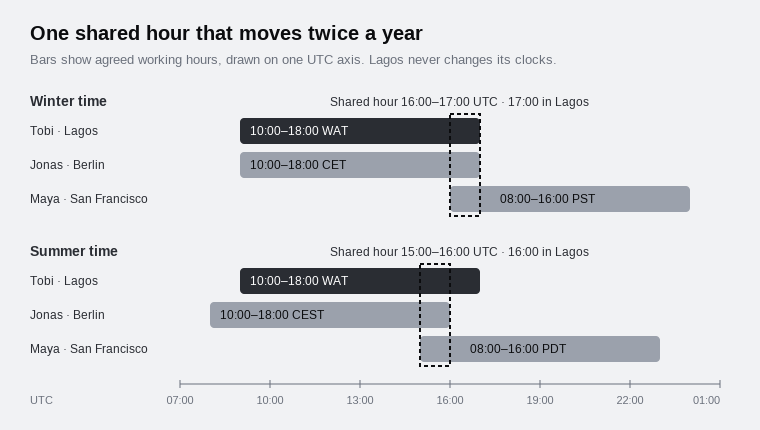
Tobi's chart shows one shared hour for all three:
- Winter time: 16:00–17:00 UTC, which is 17:00–18:00 in Lagos and Berlin and 08:00–09:00 in San Francisco.
- Summer time: 15:00–16:00 UTC, which is 16:00–17:00 in Lagos, 17:00–18:00 in Berlin and 08:00–09:00 in San Francisco.
The chart also shows things a list of times hides. In summer, Tobi and Maya share two hours, so one-to-one questions with Maya fit easily. Tobi and Jonas share their whole day in winter and seven hours of it in summer, so most of the work does not need Maya online at all.
If your chart shows no shared hour, that is a finding too. Bring it to the team in the next step rather than quietly working late every night to fill the gap.
Check it worked
You have two charts, labelled winter time and summer time. Each shows the shared hours for the whole team in UTC and in each person's local time, and the local times differ between the two charts for anyone whose country changes clocks.
Step 3 · Agree the overlap hours and publish them
Shared hours are scarce, so decide what they are for. Good uses: decisions that need discussion, unblocking someone, planning, and the occasional conversation that is better spoken than typed. Poor uses: status updates that could be written, and anything one person could read later.
Write a short proposal and send it to your manager or team lead:
Our shared hour is 08:00–09:00 San Francisco time, which is 16:00–17:00 UTC in winter and 15:00–16:00 UTC in summer. I suggest we keep it free of focus work for all of us, use it for decisions and blockers, and post status updates in writing instead. Outside that hour, I reply to messages within my working day, 10:00–18:00 Lagos time.
Anchor the shared hour to one city. Pick the city of the person whose working hours have the least room to move (here, San Francisco: 08:00 is the start of Maya's day). Then the hour stays at the same local time for that person, and everyone else's chart from the previous step tells them where it lands.
Once agreed, publish it where the team looks: the team page, the channel description or the top of the shared document. Include everyone's working hours in their own local time.
Check it worked
A message or page your whole team can see states the shared hour in one anchor city, lists each person's working hours, and says what the hour is for. At least your manager has replied to agree it, or you have a date when the team will discuss it.
Step 4 · Set up your calendar to show other time zones
Make your calendar do the conversions for you, so you never work out "8 a.m. in San Francisco" in your head again.
- Set your own time zone correctly, and your working hours, if your calendar supports them. Colleagues booking time with you then see when you are available.
- Add a second time zone to the calendar view. Google Calendar can show a secondary and a tertiary time zone beside your own, and a world clock with as many zones as you add. Other calendar apps have similar settings; look in the calendar's settings for "time zone".
- Create the shared hour as a recurring event in the anchor city's time zone, not in yours. In Google Calendar you can set a time zone for each event when you create or edit it. A recurring event in "Los Angeles" time then moves in your calendar by itself when the United States changes its clocks.
- Write times with the zone in every message: "16:00 WAT (15:00 UTC)", not "4 p.m.". A time with no zone means a different hour to every reader.
Check it worked
Your calendar view shows at least one other time zone beside yours. Open the shared hour's recurring event: its time zone is the anchor city's. Look at one week in December and one in June; the event sits an hour earlier in your day in June if your own country does not change clocks.
Step 5 · Write things down by default
Because most of your day has no live overlap with part of the team, the written record is how work moves. Three habits do most of it.
Ask questions that can be answered in one reply. Include the context, what you have tried, the options you see and when you need an answer. "Should the reminder retry after 1 hour or 6 hours? 1 hour uses more data; 6 hours may miss a same-day appointment. I start on it at 10:00 WAT tomorrow" gets an answer overnight. "Got a minute?" gets nothing until the next shared hour.
Post a short async update at a fixed time each day, in the team's channel or tool:
Yesterday: reminder screen merged, Android build 2.4.1 on the test track
Today: offline retry for reminders
Blocked: need the retry interval from Maya (asked in the ticket)
If your team holds a stand-up, this update can replace it on days when not everyone can join. Run a daily stand-up that stays short shows how teams combine the two.
Record decisions where people will find them. When a decision is made in the shared hour or a call, write one or two lines in the ticket or document it affects: what was decided, by whom, and why. The colleague who was asleep reads it there, not in a chat history.
Check it worked
Look at the last three questions you asked a colleague in another zone. Each one includes the context, the options and the time you need the answer by, or you have rewritten one that did not. Your first async update is posted, with the time zone on any time it mentions.
Step 6 · Hand off at the end of your day
The last 15 minutes of your day decide how useful your colleagues' next eight hours are. Write a handoff before you log off, in the same place and the same order every day.
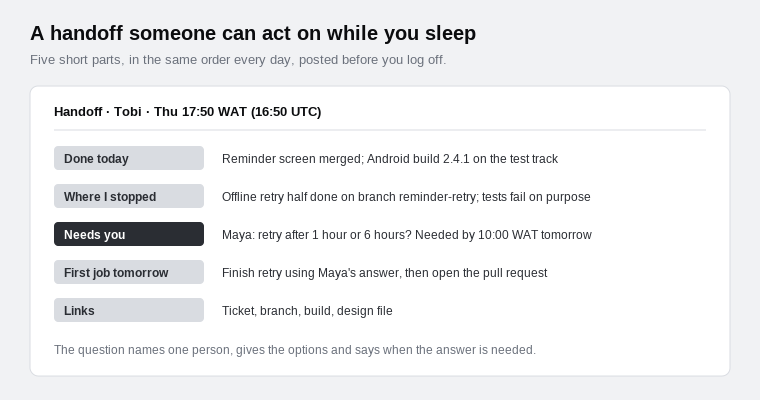
The five parts:
- Done today: what is finished and where it is.
- Where I stopped: the exact state of anything half done, including the branch or file, so someone could pick it up.
- Needs you: questions or reviews, each naming one person, with options and a time you need the answer.
- First job tomorrow: what you will do when you start, so people know what their answer unblocks.
- Links: ticket, branch, build, design or document.
Push your work before writing the handoff, so the branch it names really exists for others. If nothing needs anyone, say so ("Needs you: nothing today"); an empty section tells the reader they checked the right place.
Check it worked
Your handoff is posted with all five parts and a time in your zone and UTC. Every item under "Needs you" names a person and a time. The next morning, check whether the answers arrived; if a question came back with another question, add the missing context to your next one.
Step 7 · Plan for the clock changes
Each year your overlap shifts on up to four dates, and the weeks between the United States and the EU changing are the ones that catch people out. For the next year:
- 14 March 2027: the United States moves to summer time. The EU has not yet, so for two weeks San Francisco is eight hours behind Berlin instead of nine.
- 28 March 2027: the EU moves to summer time.
- 31 October 2027: the EU moves back to winter time.
- 7 November 2027: the United States moves back. For the one week from 31 October, San Francisco is again eight hours behind Berlin.
For Tobi, the shared hour anchored at 08:00 San Francisco time is 17:00 in Lagos until 14 March 2027, then 16:00 until 7 November 2027. For Jonas it is 17:00, then 16:00 for the two weeks to 28 March, then 17:00 again, then 16:00 again for the one week from 31 October to 7 November 2027, then back to 17:00. The autumn gap is one week, not two.
Add an all-day reminder event a week before each date: "Clocks change in the US on Sunday; check the shared hour and any one-off meetings." One-off meetings set as fixed UTC or local times in someone's head are the ones that break. Recurring events in the anchor zone move by themselves.
If your country changes its clocks too, add its dates to the list and redraw the chart with them.
Check it worked
Your calendar has reminder events before each clock-change date in the next 12 months, and your chart document has a line for each period stating the shared hour in your local time. Check one date against your calendar's world clock.
Step 8 · Write your personal working agreement
Remote work across zones slides easily into being always on: one late reply becomes an expectation. A written agreement, shared with your team, prevents that and tells people how to reach you when it matters.
Add a section to your document with these headings and fill each in a line or two:
- My hours: "10:00–18:00 WAT (09:00–17:00 UTC), Monday to Friday."
- The shared hour: "08:00–09:00 San Francisco time; I keep it free for the team."
- How fast I reply: "Messages within my working day. Outside it, I reply the next working morning."
- How to reach me urgently: one channel only, for one kind of thing ("a phone call, for a production outage only").
- My daily writing: "Async update by 10:30 WAT, handoff by 17:50 WAT."
- When I go offline: how you will tell the team about leave, public holidays in your country, or a lost connection.
- When I flex: if you agree to the occasional late call, say how often, and how you take the time back.
Turn off work notifications outside your hours on your phone, or set your chat app's notification schedule, so the agreement holds without willpower.
In Nigeria and across Africa
Power cuts and patchy mobile data are a real risk to a shared hour that falls late in your day. Plan for them and say so in the agreement:
- Backup power: a battery or inverter that keeps your router and laptop running for at least the shared hour. Test it on a working day, not during a call. If you rely on a generator, use a headset with a microphone that rejects background noise.
- Backup internet: a second mobile data SIM on a different network from your main connection, with data on it before you need it. Prepaid data that runs out in the middle of a call is a common cause of dropping out.
- Coworking: a coworking space with its own backup power and connection, for days with planned outages or important calls. Many cities across the continent have them; ask colleagues which ones hold up during cuts.
- Say what you will do: "If I lose power or connection, I post from my phone within 15 minutes and catch up from the recording or notes."
Public holidays differ too. Add your country's holidays to the shared team calendar, so a colleague in Berlin does not book a review on a day you are off.
Check it worked
Your document has a working agreement with every heading filled in, including what you do when power or internet fails. You have shared it with your manager, and your phone's notification settings match the hours you wrote. Your overlap chart in the same document shows the shared hours in summer and winter time, in each colleague's local time.
Next steps
Bring your agreement to your next one-to-one and ask your manager whether anything in it does not fit the team. If the team's meetings regularly run past the shared hour, run a daily stand-up that stays short helps you suggest a tighter format. For the people who are rarely in the shared hour at all, write a weekly stakeholder update keeps them informed in writing. If you are new in the job, plan your first 90 days in a tech job shows where these habits fit in your first months.
Related tutorials
- Run a daily stand-up that stays under fifteen minutesYou will replace a long daily status round with a fifteen-minute stand-up that walks the board from right to left, and end with a written format your team agreed, an asynchronous variant for teammates in other time zones and a two-week trial plan.
- Write a weekly stakeholder update people readYou will have a reusable weekly update template and one finished update under 250 words, whose first two lines tell any reader whether they need to act.
- Plan your first 90 days in a tech jobYou will write a 30-60-90 day plan for your first junior tech role, agree one outcome per 30-day block with your manager in writing, and set up the confusion log and wins log that feed your first review.
Need this done for you?
Padding does this work for growing companies, from the first diagnosis to a system that keeps working.
Get new tutorials