AI in design · Intermediate · 20 min
Check accessibility with AI tools and know what they miss
By Padding · Updated 18 Nov 2026
Any AI assistant that accepts images and pasted code, a desktop browser with an accessibility rules engine, a screen reader and a spreadsheet · November 2026
You will have run AI accessibility reviews on a screenshot and on the code of a booking page with nine known problems, measured them against a rules engine, a keyboard pass and a screen reader pass, and recorded the results in a comparison table that shows where each method stops.
On this page
AI assistants will now review a design or a block of code for accessibility and hand back a confident list. Some of what they say is right. Some is wrong, and some is phrased so loosely that you cannot tell. The bigger risk is what they leave out: an AI reading a screenshot cannot press Tab, and an AI reading code cannot hear what a screen reader says. A rules engine has the same kind of blind spot, in different places.
The only way to know what a method misses is to test it on a page where you already know the answers. In this tutorial you save a small version of the Pick a time screen from Larkfield Clinic, the fictional community clinic whose appointment booking app runs through the design tutorials on this site. It has nine accessibility problems planted in it. You run two AI reviews (one on a screenshot, one on the code), a rules engine, a keyboard pass and a screen reader pass, score each one against the nine, and end with a comparison table you can show your team.
The steps do not depend on any one AI product or rules engine. Nothing here treats an AI finding as true until you have checked it yourself.
Step 1 · Save the sample page and list its known issues
Save the following as pick-a-time-check.html in a new folder, such as ~/a11y-compare-demo/. It is the Pick a time screen with the Nurse appointment selected for Tuesday 9 December at 10:30, built badly on purpose. Do not use it as a starting point for real work.
<!doctype html>
<html>
<head>
  <meta charset="utf-8">
  <meta name="viewport" content="width=device-width, initial-scale=1">
  <title>Larkfield Clinic</title>
  <style>
    body { margin: 0; font: 16px/1.5 system-ui, sans-serif; background: #F6F7F8; color: #1B1F24; }
    header { display: flex; align-items: center; gap: 8px; padding: 12px 16px; background: #FFFFFF; }
    header h1 { margin: 0; font-size: 20px; }
    .back { width: 44px; height: 44px; border: 0; background: none; }
    main { padding: 16px 16px 96px; }
    .day { margin: 16px 0 8px; font-size: 20px; font-weight: 600; }
    .group { margin: 12px 0 8px; font-weight: 600; }
    .slots { display: flex; flex-wrap: wrap; gap: 8px; }
    .slot { padding: 10px 14px; border: 1px solid #7D8592; border-radius: 8px; background: #FFFFFF; cursor: pointer; }
    .slot.selected { background: #0F5E5A; border-color: #0F5E5A; color: #FFFFFF; }
    .notice { display: none; padding: 8px 12px; background: #FFF4DC; color: #8A5A00; }
    .fallback { font-size: 14px; color: #9AA0A8; }
    .bar { position: fixed; left: 0; right: 0; bottom: 0; padding: 16px; background: #FFFFFF; }
    .bar button { width: 100%; padding: 14px; border: 0; border-radius: 8px; background: #0F5E5A; color: #FFFFFF; font-size: 16px; }
    button:focus { outline: none; }
  </style>
</head>
<body>
  <header>
    <button class="back">
      <svg width="24" height="24" viewBox="0 0 24 24" aria-hidden="true"><path d="M15 5l-7 7 7 7" fill="none" stroke="#1B1F24" stroke-width="2"/></svg>
    </button>
    <h1>Pick a time</h1>
  </header>
  <main>
    <p>Nurse appointment · 15 min</p>
    <div class="day">Tue 9 Dec</div>
    <p class="notice">That time has just gone. Please pick another.</p>
    <div class="group">Morning</div>
    <div class="slots">
      <div class="slot">09:00</div>
      <div class="slot">09:20</div>
      <div class="slot" data-gone="yes">09:40</div>
      <div class="slot selected">10:30</div>
      <div class="slot">11:00</div>
    </div>
    <div class="group">Afternoon</div>
    <div class="slots">
      <div class="slot">14:00</div>
      <div class="slot">14:40</div>
      <div class="slot">15:20</div>
      <div class="slot">16:00</div>
    </div>
    <p class="fallback">Can't see a time that works? Call 01234 567 890</p>
  </main>
  <div class="bar"><button>Continue</button></div>
  <script>
    document.querySelectorAll('.slot').forEach(function (slot) {
      slot.addEventListener('click', function () {
        if (slot.dataset.gone) {
          document.querySelector('.notice').style.display = 'block';
          return;
        }
        document.querySelectorAll('.slot').forEach(function (s) { s.classList.remove('selected'); });
        slot.classList.add('selected');
      });
    });
  </script>
</body>
</html>
Open a spreadsheet and name the first tab Known issues. Add the columns #, Issue, WCAG 2.2 criterion, How you would confirm it, then enter the nine problems planted in the page:
- The back button has no accessible name: it holds only a hidden icon. 4.1.2 Name, Role, Value.
- The
<html>element has nolangattribute. 3.1.1 Language of Page. - The fallback line ("Can't see a time…") is #9AA0A8 on the #F6F7F8 canvas, about 2.46:1, below the 4.5:1 needed for text this size. 1.4.3 Contrast (Minimum).
- The time slots are plain
divelements with click handlers. A keyboard cannot reach them, and assistive technology is not told they are controls. 2.1.1 Keyboard, 4.1.2. - The selected slot is shown only by a fill change, with no tick (the high-fidelity design has one), and its selected state is not exposed in code. 1.4.1 Use of Color, 4.1.2.
button:focus { outline: none; }removes the focus indicator from both buttons. 2.4.7 Focus Visible.- "Tue 9 Dec", "Morning" and "Afternoon" look like headings but are
divs, so screen reader users cannot jump to them. 1.3.1 Info and Relationships. - Picking 09:40 shows "That time has just gone", but nothing tells a screen reader it appeared. 4.1.3 Status Messages.
- The page title is "Larkfield Clinic", the same on every screen, so it never says which step you are on. 2.4.2 Page Titled.
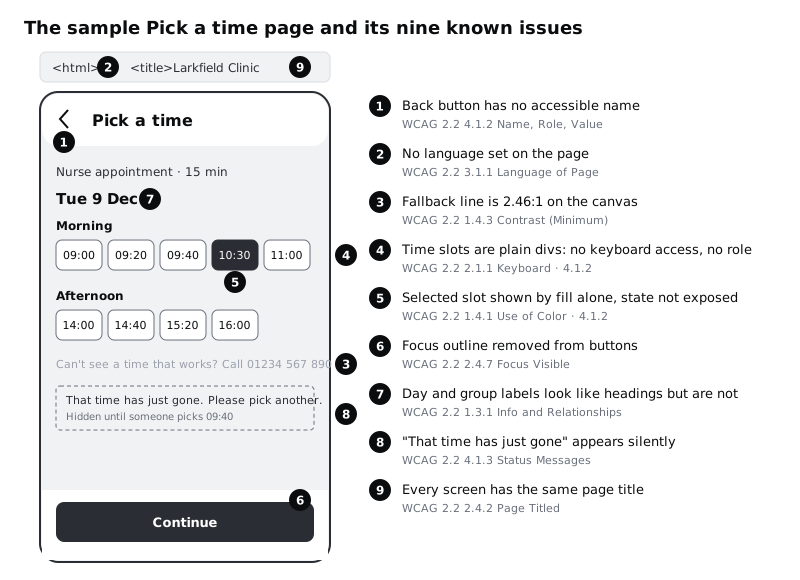
Writing the answer key before you run anything keeps you honest. Once a tool has given you a tidy list, it is easy to forget what it did not mention.
Check it worked
Open the file in your browser. You see the Pick a time heading, nine time slots with 10:30 filled, and a Continue button pinned to the bottom. Clicking 09:40 shows the "That time has just gone" notice. Your Known issues tab has nine rows, each with a criterion number.
Step 2 · Ask an AI tool to review a screenshot
Many teams first meet AI accessibility checks at the design stage, on a picture of a screen. Take a screenshot of the page in your browser at phone width (about 390 pixels wide; use your browser's responsive or device mode). If you finished the high-fidelity Pick a time frame in the design series, you can export that frame as a PNG as well and run it separately, but score only the sample page against the answer key.
Check that the image holds nothing your organisation would not want sent to the AI tool, such as real patient names or unreleased work. Then start a new conversation, upload the screenshot, and send:
This is a screenshot of one screen from a clinic appointment booking app.
Review it for accessibility against WCAG 2.2 level AA.
For each possible issue give: what and where, the success criterion,
and whether you can confirm it from this image or are inferring it.
Then list the checks you cannot do from a screenshot.
Add a tab called AI findings with the columns Source, Finding as written, Criterion it cited, Matches known issue #, Verdict, How I checked. Paste each finding into its own row with Source set to Screenshot, word for word.
Expect a mix. A typical reply notices the pale fallback line, may suggest that the selected slot relies on colour, and may say the arrow "should have a label", which is a guess: nothing in a picture shows whether the button has a name in code. It may quote a contrast ratio. Treat any number it gives as unchecked; models estimate colours from pixels and can be well off. It may also raise things that are not problems, such as asking for alt text on text that is already text.
Check it worked
Your AI findings tab has one row per screenshot finding, copied exactly, and the reply's list of things it cannot check is saved in a note under them. If the tool did not give that list, ask for it in a second message and save that too.
Step 3 · Ask an AI tool to review the code
Start a fresh conversation, so the screenshot does not influence the answer. Paste the whole of pick-a-time-check.html and send:
Review this HTML, CSS and JavaScript for accessibility against WCAG 2.2 level AA.
For each issue give: the element or line, what goes wrong for which users,
the success criterion, and your confidence (high, medium, low).
Do not suggest fixes yet. Say which issues you could only confirm
by running the page with a keyboard or a screen reader.
Before pasting real code from a client or your own product, check your organisation's rules on what can go into an AI tool. The sample page is safe to share.
Add each finding to AI findings with Source set to Code. Code gives the AI far more to work with: it can read the missing lang, the empty button, the outline: none and the div slots. It may still word a real problem vaguely ("ensure interactive elements are accessible"), merge two issues into one, cite the wrong criterion, or miss the silent notice because the script that shows it is a few lines away from the markup.
Check it worked
AI findings now has two groups of rows, Screenshot and Code. In the Matches known issue # column, every row has either a number from 1 to 9 or the word none. A row with none is either something you did not plant or a mistake; the next step decides which.
Step 4 · Check every AI finding by hand
An AI finding is a lead, not a result. Go through AI findings row by row and set Verdict to one of:
- Confirmed: you saw the problem yourself, in the browser or the code.
- Wrong: you checked and it is not a problem, or the criterion or numbers are wrong in a way that would mislead a developer.
- Can't tell: too vague to check ("improve accessibility of controls"), or it describes behaviour you have not tested yet. Come back to these after the keyboard and screen reader steps.
Write in How I checked what you did. For contrast, put both hex values into a contrast checker and record the ratio it gives, not the AI's. For anything about names, roles or states, open your browser's developer tools, select the element and read its accessibility panel, which shows the computed name and role. For focus, press Tab and look.
A row that is mostly right but cites the wrong criterion is still Confirmed for the issue, with a note. If you hand these findings to a developer, the criterion has to be right, because that is what they will look up.
Check it worked
Every row in AI findings has a Verdict and a How I checked entry. No row is marked Confirmed on the AI's word alone: each Confirmed row names something you looked at, such as a ratio from a contrast checker or a role in the accessibility panel.
Step 5 · Run an automated rules engine
A rules engine tests the page's live structure against fixed rules and reports the same result every time on the same page. Use one you can get: the axe DevTools browser extension, the accessibility category of Lighthouse in Chrome's developer tools (which runs axe-core rules), or the WAVE extension. Open pick-a-time-check.html, run the check, and record each reported issue on a new tab called Engine with the rule name, the element and the matching known issue number.
If the extension will not run on a file opened from your disk, allow it access to file URLs in the browser's extension settings, or put the file on any static host you already use.
With axe-core 4.13 and its default rules, this page gives three violations: a button with no discernible text (issue 1), an <html> element with no lang (issue 2) and insufficient colour contrast on the fallback line (issue 3). Another engine or version may group or word them differently, and some engines add warnings for a person to review. Those are not failures, but read each one.
Notice what the engine did not report. It cannot know that a div with a click handler was meant to be a button, that a fill change means "selected", or that a bold line should have been a heading. A clean engine report means none of its rules failed, not that the page is accessible.
Check it worked
Your Engine tab lists every issue the tool reported, each matched to a known issue number or marked none. You can say in one sentence which of the nine it found; with axe-core that is 1, 2 and 3.
Step 6 · Do a keyboard-only pass
Put the mouse or trackpad out of reach. Reload the page and use only Tab, Shift+Tab, Enter and Space. Try to book 14:40: move to the slot, select it, then reach Continue.
On a Mac, if Tab skips buttons in your browser, turn on keyboard navigation in your Mac's keyboard settings first, or the pass will report problems the page does not have.
Record on a new tab called Keyboard what happens at each press. On this page, Tab goes from the back button straight to Continue: none of the nine slots can be reached, so a keyboard user cannot pick a time at all (issue 4). When focus does land on a button, there is no ring or other sign of where you are (issue 6). Nothing else in the known list is visible from the keyboard alone, which is why this pass and the screen reader pass are separate.
Check it worked
Your Keyboard tab says, in your own words, that you could not select any time and could not see where focus was. It records the tab order you actually got: back button, then Continue.
Step 7 · Do a screen reader pass with a short script
Turn on your screen reader and follow the same task: find out which day you are booking, pick a time, and hear what happens. Use this short script and note what you hear at each line on a tab called Screen reader:
- Listen to the page title as the page loads, or ask for it (NVDA+T in NVDA). Does it say which step you are on? (Issue 9.)
- Move to the first control. What is it called? With issue 1 you hear something like "button" and nothing more.
- List the headings (H in NVDA browse mode, or the headings list in the VoiceOver rotor or TalkBack's reading controls). Only "Pick a time" is there; "Tue 9 Dec", "Morning" and "Afternoon" are missing (issue 7).
- Read down to the slots. They are read as plain text, with no role and no hint that you can select one (issue 4), and nothing says which slot is selected (issue 5).
- Activate 09:40 the way your screen reader allows (in NVDA browse mode, Enter on the text often still triggers the click). Listen: the notice appears on screen, but nothing is announced (issue 8).
If your screen reader's voice is set to a different language from the page, you may also hear English read with the wrong pronunciation, a symptom of issue 2. Many Larkfield patients would use TalkBack on a low-cost Android phone on prepaid data, so if you can, run this script on such a phone as well as on a laptop: it is a different experience, and it is the one many people have. If the product offers more than one language, such as English and Yoruba or English and Swahili, ask someone who reads both to listen too; only a person can tell whether each passage is marked and read in the right language (3.1.2 Language of Parts).
Check it worked
Your Screen reader tab has a line for each of the five script items, saying what you actually heard, with the matching issue number. If you heard something different from the examples above, write what you heard: that is your result.
Step 8 · Build the comparison table and decide what comes next
Add a final tab called Comparison. Put the nine known issues down the side and five columns across: AI screenshot, AI code, Rules engine, Keyboard, Screen reader. In each cell write Found (confirmed by you), Vague (mentioned, but too loose or unconfirmed), or leave it empty. Under the nine rows, add two totals: confirmed issues found, and wrong or unconfirmable claims (from your Verdict column for the AI rows).
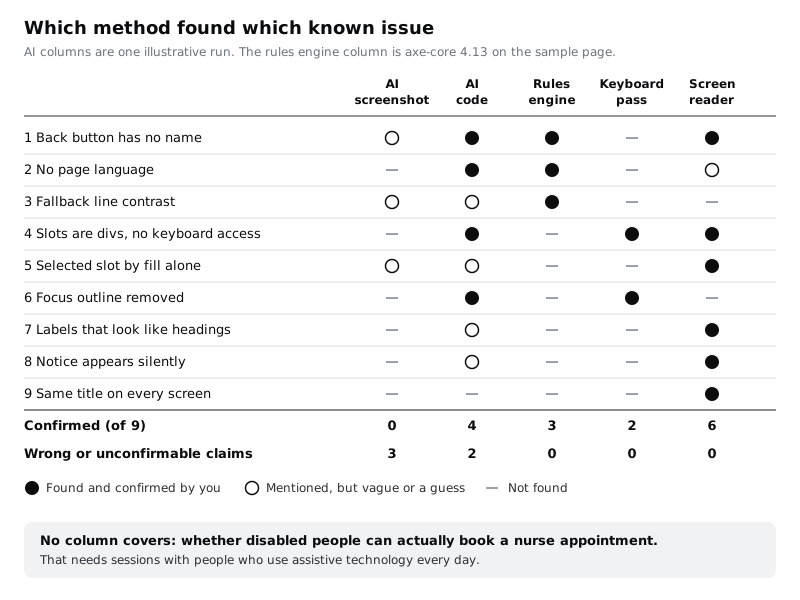
Your numbers will differ from the picture, especially in the AI columns, which change from run to run and tool to tool. The pattern is usually the same: AI on code overlaps a lot with the rules engine and adds some things the engine cannot see, mixed with claims you have to check; AI on a screenshot finds little you can confirm; the keyboard and screen reader passes find the problems that stop someone booking. Below the table, write three sentences for your team: what each AI review is good for (a fast first pass on code, a prompt for questions at design time), what it missed, and that the manual passes stay in every release.
Then add the row no tool fills: testing with disabled people. Your own screen reader pass is not the same as watching someone who uses one every day; they move faster, use features you do not know, and hit problems you would never think to test, such as a time slot list that takes two minutes to hear in full. Plan a short session on this flow with two or three people who use assistive technology daily, pay them for their time, and use Include disabled people in your user research to set it up.
Check it worked
Your Comparison tab has nine rows, five method columns, the two totals and your three-sentence summary. At least one known issue was found only by a manual pass, and the last line names the people you will test with, or the date you will ask for budget to recruit them.
Next steps
Turn the manual passes into a habit with Test a page for accessibility with axe and a screen reader, which adds an automated check to your tests and gives you a reusable manual checklist. For issue 3 and the focus ring behind issue 6, Meet contrast rules for text, icons and focus rings covers the harder contrast cases. To see another place where AI drafts need a human edit, try Draft alt text with AI and edit it, and to put these checks into the brief before design starts, read Add accessibility requirements to a design brief.
Part of these paths
Related tutorials
- Test a page for accessibility with axe and a screen readerYou will have a Playwright test that runs axe on the Larkfield Clinic booking page and fails on any new violation, a keyboard test that catches what axe cannot see, and a written checklist for a short screen reader pass.
- Meet contrast rules for text, icons and focus ringsYou will have a contrast log for one Larkfield Clinic screen that covers icons and field borders, placeholder text, text on a photo and gradient, a disabled button and focus rings, with a measured ratio, a verdict and a fix for each failure.
- Draft alt text with AI and edit itYou will have alt text for four Larkfield Clinic images, a photo, an icon, a chart and a decorative pattern, each drafted by an AI tool and edited for its purpose, plus a note of what the AI could not know.
Need this done for you?
Padding does this work for growing companies, from the first diagnosis to a system that keeps working.
Get new tutorials