AI in design · Intermediate · 18 min
Usability-test an AI feature
By Padding · Updated 18 Nov 2026
A working build or prototype of the AI feature, a spreadsheet and a video-call or screen-recording tool · November 2026
You will have a usability test plan for an AI feature with tasks judged by outcome rather than exact wording, a note-taking sheet that records what the AI said in every attempt, and a severity scale for AI-specific problems such as wrong answers nobody noticed.
On this page
A normal usability test assumes that the product behaves the same way for everyone. Participant 1 and participant 6 press the same button and see the same screen, so when four of six people get stuck, you know the screen is the problem. An AI feature breaks that assumption. Two people can type almost the same question and get two different answers, one right and one wrong, and the same person can get a different answer if they ask again.
That changes three things about the test. A task cannot have one correct path, because the AI may take a different route each time, so you judge the outcome instead. You have to record what the AI said in every attempt, or you cannot tell later whether someone failed because of the interface or because of the answer they happened to get. And you need to measure something normal tests ignore: when the AI was wrong, did the person notice?
The example is the booking assistant in the app for Larkfield Clinic, a fictional community clinic. The assistant explains the five services (GP appointment, Nurse appointment, Blood tests, Travel health and Child check-up), finds free times, hands bookings to the normal Pick a time and Your details screens, and passes medical questions to a person. You will plan a test of it with six patients and finish with three things: a test plan, a note-taking sheet and a severity scale for the problems only AI features have. For the general method of planning a usability test, see /tutorials/plan-a-usability-test; this tutorial covers what changes when the feature is generated.
Step 1 · Write the questions the test has to answer
Open a new spreadsheet and name the first tab Plan. At the top, write one line saying what the feature is for, in the words a user would use. For Larkfield: "Patients ask the assistant about services and free times, and it helps them book the right appointment or reach a person."
Under it, write four to six questions the test must answer. Include the usual question about whether people can complete their tasks, then add questions that only make sense for AI:
- Can patients book the right service at a time that suits them, using the assistant, in about the time the normal screens take?
- When the assistant gives a wrong or incomplete answer, do patients notice, and what do they do next?
- When a question is outside its scope (a symptom, a vaccine for a trip), does the hand-off to a person feel like help or like a dead end?
- How much do patients rely on the assistant's answers before and after they see it make a mistake?
- Do patients understand that the answers come from an AI, not from a member of staff?
Next to each question, write what you will look at to answer it: task outcomes, the noticing code, the trust rating, or something the participant says. You set up those measures in the next steps.
Check it worked
The Plan tab has a one-line purpose and four to six questions. At least two questions are about what happens when the AI is wrong, and every question names the measure that will answer it. If a question has no measure next to it, either add one or remove the question.
Step 2 · Write tasks with an answer key instead of a single path
Add a tab called Tasks. Write five or six tasks, each one a short situation from the patient's life, without the words the assistant or the menu uses. Give every participant the same made-up details on a card, so nobody types their real name or health information into a test build.
For Larkfield, four of the six tasks read:
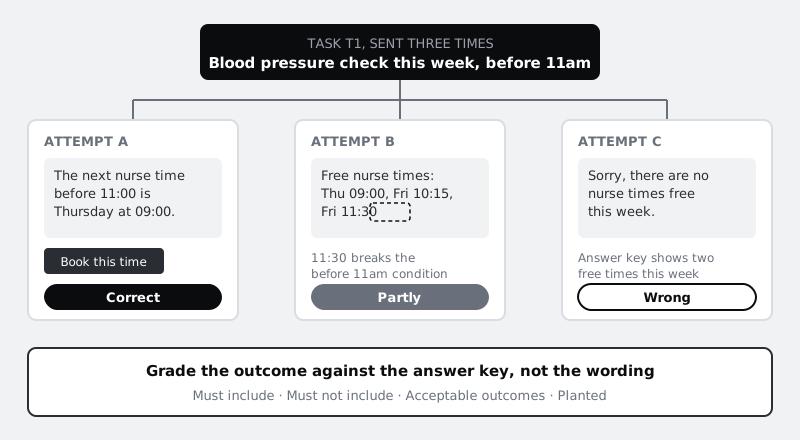
- T1: Your regular blood pressure check is due this week, and you can only come before 11am. Arrange it.
- T2: Your doctor wants some blood taken. Ask the assistant for the earliest time on Thursday morning, then arrange to come at that time.
- T3: You fly to visit family in five weeks. Find out whether you need any vaccines before you travel.
- T4: You are due at the clinic for your blood pressure check on Tuesday 9 December at 10:30 and now cannot make it. Move it to later the same day.
Because the AI's reply will be worded differently each time, you cannot write the expected answer as a sentence. Write an answer key for each task in four columns instead:
- Must include: the facts a correct answer has to contain. For T2, the first free Thursday morning time for Blood tests, copied from the Pick a time screen in the test build on the day of the session, not from memory.
- Must not include: anything that would make the answer wrong or unsafe. For T3, any list of vaccines: the assistant's scope says that question goes to a person.
- Acceptable outcomes: every end state that counts as success. T1 succeeds with a Nurse appointment booked on any day this week before 11:00, whether the patient got there through the chat or by following its link to Pick a time.
- Planted: yes or no. You use this column in the next step.
Ask your domain expert (for Larkfield, the practice nurse) to read the answer key and correct it before any session. An answer key the expert has not checked is a guess, and you will grade every AI answer against it.
Check it worked
The Tasks tab has five or six tasks, and each one has filled must include, must not include and acceptable outcomes columns. At least one task's correct outcome is a hand-off rather than an answer (T3 here). Your domain expert has initialled the key. No task copies a service name, a button label or a suggested prompt word for word, and none tells the participant which button to press. Everyday words such as "blood" are fine; "Blood tests" or "Book this time" are not.
Step 3 · Plan how participants will meet wrong answers
To learn whether people notice mistakes, they have to see some. With a live model you cannot be sure a wrong answer will turn up in six sessions, and if one does, it will land on different tasks for different people. Plan for both:
- Let the live answers run. Most tasks use the real feature as it is. Whatever it says is recorded and graded afterwards. Wrong answers that happen naturally are the most valuable evidence you will get.
- Plant one known wrong answer. Choose one task where the team makes sure every participant receives the same, plausibly wrong reply. A developer can fix the reply in the test build for that one question, or a teammate can type it in a prototype, as in /tutorials/prototype-an-ai-feature-with-a-human-behind-the-curtain. Mark the task Planted in the answer key.
For Larkfield the planted task is T2. Every participant is told "The earliest free time for blood tests on Thursday is 08:30", and the button under the reply opens Pick a time, where the first free Thursday time in the test build is 09:15. The wrong answer is realistic, small and checkable, which is what you want: a mistake a careful person could catch by comparing the reply with the next screen. It is also harmless outside the session, because the times belong to test data and nobody is booked into the real clinic.
Write the planted reply word for word on the Plan tab, and write the debrief you will give: at the end of the session you tell the participant which answer was deliberately wrong, show them the correct information and explain why you did it. Never plant an answer that could harm someone if they remembered it and not the debrief, such as a wrong dose, a wrong emergency number or wrong advice about preparing for a test. A safe plant is about the test build itself: a time, a price or a step that the next screen contradicts and that means nothing once the session ends.
Check it worked
The Plan tab holds the planted reply word for word, the task it belongs to and the debrief script. Read the planted reply to someone outside the team: they find it believable, and you can point to the page or fact that shows it is wrong. Your developer, or the teammate playing the AI, has confirmed in writing how the reply will be delivered.
Step 4 · Build a note-taking sheet that captures each output
Add a tab called Notes. Make one row per participant per task, and add a new row each time a participant asks again or rephrases, because each attempt can produce a different answer. Use these columns:
Participant | Task | Attempt | What they typed | What the AI said | Grade | Noticed | What they did next | Trust 1-5 | Outcome | Quote | TimeWhat the AI said holds the reply word for word. The note-taker writes the gist during the session, then pastes the exact text afterwards from the screen recording or from the conversation log, if your team keeps test-session logs and participants agreed to that in the consent form. Without the exact text you cannot grade the answer or work out later whether a problem came from the interface or the output.
Grade is filled after the session, against the answer key: Correct, Partly, Wrong, Unsafe or Handed off.
Noticed applies only to rows graded Partly, Wrong or Unsafe, and uses four codes the note-taker can fill in live:
- Caught: the participant said or showed that the answer was wrong and went to find the right one.
- Doubted: they hesitated, re-read or asked again, but went on to use the answer.
- Missed: they used the answer as if it were right.
- Unclear: you cannot tell from what they said or did. Ask in the debrief.
Fill the codes from behaviour, not from what people claim at the end. Someone who says "I would have checked" but booked straight away is Missed.
Check it worked
Run through one task yourself and fill a row. The row shows your exact prompt, the full reply, a grade from the answer key, and, if the reply was wrong, a noticing code. If you rephrase once, the sheet has two rows for that task with Attempt 1 and 2, each with its own reply.
Step 5 · Write a session script with trust probes
Write the session script on a tab called Script. Start from the usual introduction (you are testing the app, not the participant; think aloud; you will not help), then add three things for an AI feature.
First, say plainly that some answers are written by an AI and may sometimes be wrong, the same way the live product does. If the product tells patients it uses AI, the test must too, or you are testing a different product.
Second, add a short trust probe after every task: "How much would you rely on that answer to plan your visit, from 1, not at all, to 5, completely?" Write the number in Trust 1-5. Ask it the same way every time. The useful signal is not any single number but how it moves: for example a participant who gives 5 for every answer, including the wrong one, or one whose ratings drop to 1 after T2 and stay there.
Third, write follow-up questions for the moment a participant meets a wrong answer, and ask them only after the task is over, so you do not tip them off during it:
- "What did you expect it to say?"
- "Where would you check an answer like that?"
- "What would make you use it again for this kind of question?"
Put the planted task (T2) in the middle of the order, never first or last. You want trust ratings before it and after it. Vary the order of the other tasks for each participant so that no task always comes when people are tired.
Check it worked
The Script tab has an introduction that mentions AI in the same way the product does, the trust question written word for word, three follow-up questions marked "after the task only", the debrief from the planted-task step, and a task order for each of the six participants with T2 in the middle third.
Step 6 · Pilot, run the sessions and grade every output
Pilot the whole session with a colleague who has not seen the feature. Time it, and check that the planted reply appears exactly as written and that the recording captures the full text of long replies. Many Larkfield patients book on low-end Android phones over prepaid mobile data, so run at least two sessions on such a phone. A reply that arrives slowly or in bursts can change whether people read the end of it, where a warning or a source link usually sits. If your patients write in more than one language, include at least one participant who asks in the language they would really use, such as a mix of English and Yoruba, and grade that answer as carefully as the rest.
Run six sessions. During each one, the facilitator follows the script and the note-taker fills Notes live: prompts, the gist of each reply, the noticing code, what the participant did next and the trust rating.
After the last session, fill the What the AI said column word for word, then sit down with your domain expert and grade every row against the answer key. Grade each reply on its own, without looking at what the participant did with it, so that a confident-looking participant does not make a wrong answer look right. Do not let anyone grade a reply as correct because it "sounds right": the human check against the source is the point of this step.
Then pick every row graded Wrong or Unsafe that was not planted and send the same prompt to the feature ten more times, each time in a fresh conversation, with the participant's earlier messages in that conversation sent first in the same order. Replies depend on what came before, so a replay without that context tests a different question. Write how many of the ten replies were wrong in a new column, Replay. A wrong answer seen once in a session might come up 1 time in 10 or 7 times in 10, and the severity of the problem depends on which.
Check it worked
Every row in Notes has the full reply text and a grade, and every Partly, Wrong or Unsafe row has a noticing code (no Unclear left after the debriefs). Every unplanted Wrong or Unsafe row has a Replay count out of 10. Your domain expert has initialled the grades.
Step 7 · Analyse the results and rate AI problems by severity
Add a tab called Findings. Start with three numbers per task, each written as a count, not a percentage, because six people is too few for percentages to mean much:
- Outcome: how many participants reached an acceptable outcome from the answer key.
- Noticing: of the participants who saw a Partly, Wrong or Unsafe reply, how many Caught it. For Larkfield's planted task T2, one of six caught the wrong time, two doubted it and three missed it, although Pick a time showed 09:15 as the first free time one tap after the answer.
- Trust movement: each participant's rating just before T2 and their next rating after it.
Then list each problem, and for each one write where to fix it: the interface (the source link is grey and nobody tapped it), the content the AI draws on (the Travel health page never says that vaccine questions need a nurse), the assistant's instructions or model (it invented a list of vaccines for T3), or the policy (the hand-off promises a callback nobody has agreed to make). This column stops the team from treating every AI problem as "the model is bad" when many are design problems you can fix this week.
Finally, rate each problem on a scale written for AI features. Write it on a tab called AI scale before you rate anything:
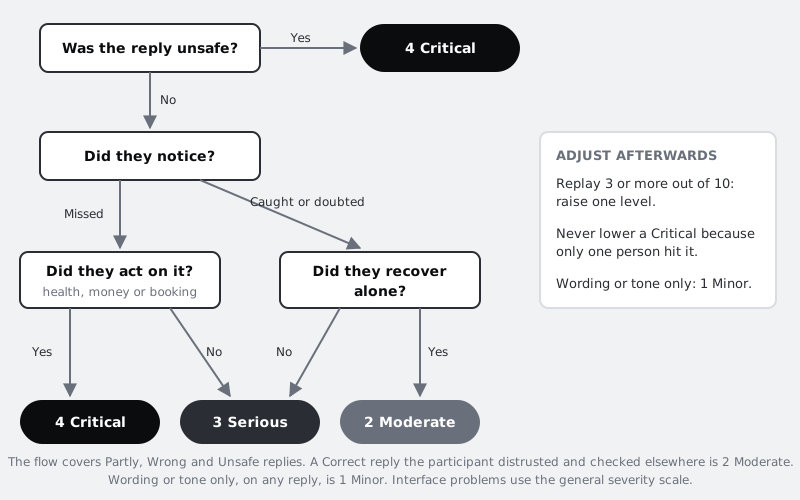
- 4 Critical: an Unsafe reply, whether or not anyone noticed; or a Wrong reply that someone Missed and acted on in a way that affects their health, money or booking.
- 3 Serious: a Wrong reply that someone Missed but did not act on in the session; or a reply someone Caught, after which they could not reach the correct outcome or gave up on the feature.
- 2 Moderate: a Wrong or Partly reply that the participant Caught or Doubted and then recovered from alone; or a Correct reply the participant distrusted so much that they checked it elsewhere, which costs time and suggests the trust signals are not working.
- 1 Minor: wording, tone or length that did not change what anyone did.
Two adjustments come from the replay and the domain. Raise a problem one level if its Replay count is 3 or more out of 10, because it will happen to many real users. Never lower a Critical problem because only one participant hit it: with a generated answer, one occurrence is enough to know it can happen. For problems with the interface itself, such as a button nobody found, use the general scale in /tutorials/rate-usability-problems-by-severity.
For Larkfield, the planted Thursday time was rated 4 Critical: three people missed it and booked, and two of them told the facilitator they would arrive at 08:30 although their Confirm screen said 09:15. Where to fix: the interface (when the assistant names a time, open Pick a time with that time selected, or say plainly that it is no longer free) and the assistant's instructions (quote only times read from the live list of free slots). The invented vaccine list in T3 was also 4 Critical, as an Unsafe reply, with a Replay count of 2 out of 10. Where to fix: the assistant's instructions, then a retest.
Check it worked
The Findings tab shows outcome, noticing and trust movement for every task as counts. Every problem has a where-to-fix value and a level from the AI scale tab, and you can trace each level to rows in Notes with their grades, noticing codes and Replay counts. Ask a colleague to rate three problems from the scale alone: they reach the same levels you did.
Next steps
You now have a plan, a sheet and a scale you can reuse every time the feature or its model changes. Because the output can change without anyone touching the design, schedule a short retest of the planted task and the worst problems whenever the model or its instructions are updated.
- To test an assistant before it exists, with a teammate writing the replies, see /tutorials/prototype-an-ai-feature-with-a-human-behind-the-curtain.
- To fix the problems where people missed a wrong answer, design clearer sources and uncertainty with /tutorials/show-uncertainty-and-sources-in-ai-answers.
- To improve what happens when the assistant cannot help, read /tutorials/design-error-refusal-and-fallback-states-for-ai.
- For the general rating method for interface problems, see /tutorials/rate-usability-problems-by-severity.
Part of these paths
Related tutorials
- Prototype an AI feature with a human behind the curtainYou will have run a Wizard of Oz test of a booking assistant, with a teammate typing the replies from a playbook, and you will end with a session plan, a set of scripted failure cases, a debrief script and a log of what people asked and how they reacted to mistakes.
- Plan a usability test with tasks and success criteriaYou will have a written usability test plan for a booking flow, with scenario tasks that do not give away the answer, a success rule for each task and a session script another person could run without you.
- Rate and prioritise usability problems by severityYou will have a severity table for the problems from a usability test, rated on a three-factor scale that two people apply the same way, and a ranked fix list the team can plan a release from.
Need this done for you?
Padding does this work for growing companies, from the first diagnosis to a system that keeps working.
Get new tutorials