AI in design · Beginner · 12 min
Draft alt text with AI and edit it
By Padding · Updated 18 Nov 2026
Any AI assistant that accepts image uploads, and a spreadsheet or shared document · November 2026
You will have alt text for four Larkfield Clinic images, a photo, an icon, a chart and a decorative pattern, each drafted by an AI tool and edited for its purpose, plus a note of what the AI could not know.
On this page
An AI assistant can look at an image and write a sentence about it in a second. That sentence is a description, and a description is not the same thing as alt text. Alt text stands in for the image for someone who cannot see it: a screen reader user, or anyone whose connection gave up before the picture loaded. It has to do the image's job on that page, and the job depends on where the image sits, what is around it and why it is there. None of that is in the pixels.
In this tutorial you hand four images to an AI tool with no context, then edit each draft until it does its job. The images come from Larkfield Clinic, the fictional community clinic whose appointment booking app runs through the design tutorials on this site: the entrance photo on the Home screen, the back arrow in the header of Pick a time, a bar chart from a clinic news post, and a pattern behind the heading on the Booked screen. Each one needs a different kind of edit. You end with four finished pieces of alt text in a sheet, and a short note of what the AI could not have known.
Any assistant that accepts an image and a prompt will do. The steps do not depend on one product, and nothing here assumes the AI's draft is right.
Step 1 · List the four images and the job each one does
Open a new spreadsheet and name the tab Alt text. Add these columns: Image, Where it appears, Text next to it, Job, AI draft, Final alt text, What the AI could not know.
Fill in the first four columns for each image before you open the AI tool. If you are using the Larkfield example:
- 1 Entrance photo. Where: top of the Home screen. Text next to it: the caption "Larkfield Clinic, 14 Mill Lane". Job: help patients recognise the building when they arrive, and show that there is a step-free way in.
- 2 Back arrow icon. Where: the header of Pick a time, as a button with no visible word beside it. Text next to it: the screen title "Pick a time". Job: take the patient back to Choose a service.
- 3 Bar chart. Where: a news post on the clinic website titled "More of you are booking online". Text next to it: a paragraph thanking patients and a data table with the same figures. Job: show that the share of appointments booked online rose every month from June to October 2026. The figures are 22%, 31%, 38%, 45% and 52%.
- 4 Background pattern. Where: behind the "You're booked" heading on Booked. Text next to it: the heading itself. Job: decoration; it carries no information.
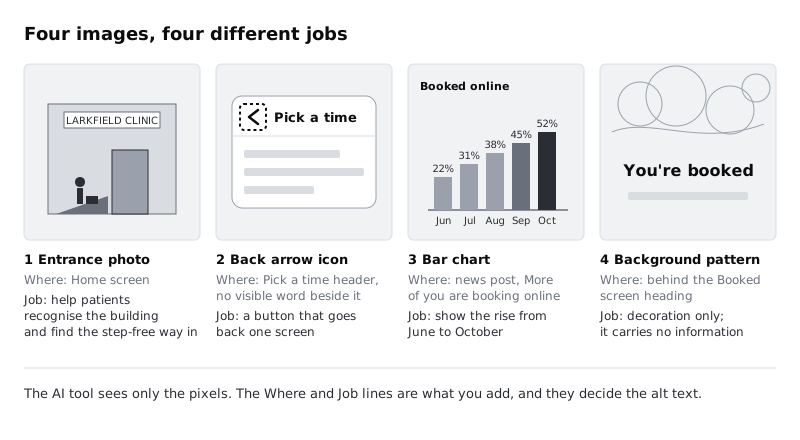
Writing the job first matters. Once you have read a fluent AI paragraph, it is hard not to edit that paragraph instead of thinking about what the image is for.
Check it worked
Your sheet has four rows, and every row has a Where it appears, Text next to it and Job entry. Each Job cell is one sentence that starts with a verb (help, take, show) or says "decoration", and none of them describes colours or shapes.
Step 2 · Ask your AI tool for a draft with no context
Before you upload anything, check what is in each image. A photo with an identifiable person in it is personal data. Use only images your organisation is allowed to share with the AI tool, and if a photo shows patients or staff, use a version without them or get the go-ahead first. The entrance photo here shows a member of the public walking up the ramp, so for a real clinic you would check the photo's consent and your tool's data terms before uploading it.
Start a new conversation in your AI tool, upload the four images one at a time, and send the same short prompt with each:
Write alt text for this image.Paste each reply into the AI draft column exactly as it came back. Do not tidy it yet. For Larkfield, the drafts looked something like this (yours will differ):
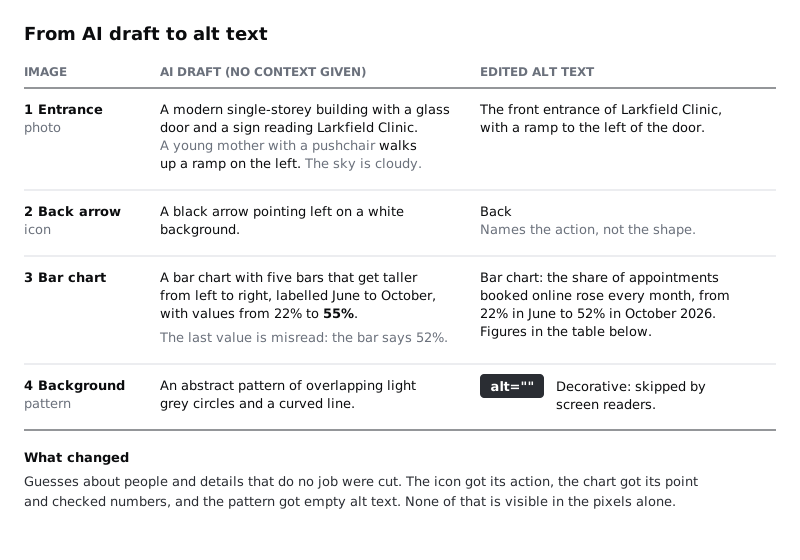
- Entrance photo: "A modern single-storey building with a glass door and a sign reading Larkfield Clinic. A young mother with a pushchair walks up a ramp on the left. The sky is cloudy."
- Back arrow: "A black arrow pointing left on a white background."
- Bar chart: "A bar chart with five bars that get taller from left to right, labelled June to October, with values from 22% to 55%."
- Pattern: "An abstract pattern of overlapping light grey circles and a curved line."
You give no context on purpose. This first round shows what the tool can and cannot see, and the gaps are the lesson. You will try a prompt with context in the last step.
Check it worked
The AI draft column has four entries, copied unedited. For each one, put a mark next to every phrase that describes appearance (colour, shape, weather) and every phrase that guesses something the image cannot show. Most drafts get at least one mark.
Step 3 · Edit the photo for its purpose, and remove guesses about people
The entrance photo is informative: it tells patients something they need. Go back to its Job cell (recognise the building, find the step-free way in) and keep only the parts of the draft that serve that job.
Work through the draft phrase by phrase:
- "A modern single-storey building with a glass door": partly useful. The door matters; "modern" and "single-storey" do not help anyone arrive.
- "a sign reading Larkfield Clinic": useful, and shorter as "Larkfield Clinic".
- "A young mother with a pushchair": cut it. The AI cannot know whether the person is a mother, how old she is, or anything about her relationship to the child. Guesses about age, gender, ethnicity, disability or relationships are often wrong and can offend, and here the person is not the point of the photo.
- "walks up a ramp on the left": the ramp is the most useful detail in the whole draft. Keep it, attached to the door rather than to the person.
- "The sky is cloudy": cut. It does no job.
The result for Larkfield:
The front entrance of Larkfield Clinic, with a ramp to the left of the door.That matches the wording in Choose and crop photos for an interface, and it should: one photo gets one alt text everywhere it appears. Do not start with "Image of" or "Photo of"; screen readers already announce it as an image. The caption under the photo gives the address, so the alt text does not repeat it.
Check it worked
Your Final alt text for the photo names the place and the ramp, says nothing about the person's age, gender or relationships, has no weather or styling, and does not start with "Image of". Read it aloud with your eyes closed: you could find the step-free entrance from that sentence.
Step 4 · Name the action for the icon, not its shape
The back arrow is functional: it is a button, so its text alternative is what the button does. "A black arrow pointing left" tells a screen reader user what it looks like, and nothing about what happens when they press it.
Replace the draft with the action:
Back"Back" is enough because the header already says where the user is, and back buttons in apps take you one screen back. If your back button skips screens or goes somewhere unexpected, say where: "Back to Choose a service".
Then check the condition you wrote in Where it appears. If your header shows the word "Back" next to the arrow, the button already has its name in visible text, and the arrow is decorative inside it: it should get empty alt text so a screen reader does not say "Back, back". The same picture needs different alt text depending on what sits next to it, which is exactly what the AI could not see.
Add a note for the developer in the Final alt text cell: the word goes on the button's accessible name, whether that is an alt on the image or a label on the button.
Check it worked
The icon's Final alt text is one or two words that name an action, with no colour, shape or direction in it. Your Where it appears cell says whether there is visible text beside the icon, and the final entry matches: an action word if there is none, alt="" if there is.
Step 5 · Give the chart its point, and check every number
A chart is a complex image. Alt text alone cannot hold all its data without becoming a paragraph nobody wants to listen to, so split it in two: a short alt text that says what the chart shows and what it means, and the full figures somewhere everyone can read them. Larkfield's news post already has a data table under the chart, which does the second job.
Before you write anything, check the AI draft's numbers against your source data, not against the chart image. In the Larkfield draft, the range "22% to 55%" is wrong: the October figure is 52%. Image-reading tools can misread small labels, tight axes and low-resolution exports, and a wrong number in alt text is worse than none, because nobody who relies on it can see the bar to catch the mistake.
The draft also lists what the chart is (bars, months, values) without saying what it shows. The Job column has that: the share of online bookings rose every month. Write:
Bar chart: the share of appointments booked online rose every month, from 22% in June to 52% in October 2026. Figures in the table below.Starting with "Bar chart" is fine here: it tells the listener there is a table of figures nearby to explore. If your chart has no table or text version next to it, add one to the page instead of stuffing every value into the alt text.
Check it worked
Every number in the chart's Final alt text matches your source data line for line. The alt text has one sentence that states the trend, and it points to a table or text on the same page that gives all five monthly figures. If no such table exists yet, there is a task in your sheet to add one.
Step 6 · Mark the pattern as decorative
The pattern behind "You're booked" carries no information. If it had alt text, a screen reader would read out "An abstract pattern of overlapping light grey circles" in the middle of a booking confirmation, which is noise at the moment the patient wants to hear that it worked.
Decorative images get empty alt text, written alt="": the attribute is present and empty. Leaving the attribute out is not the same. Without it, some screen readers fall back to reading the file name, such as "booked-bg-pattern-v3.svg".
<img src="booked-pattern.svg" alt="">If the developer adds the pattern as a CSS background instead of an image element, it is ignored by screen readers already and needs no alt at all. Write either option in the Final alt text cell as alt="" (decorative) so nobody fills it in later with a description.
A quick test for decorative: if you removed the image, would anyone lose information or a way to do something? For the pattern, no. For the entrance photo, yes (the ramp). That test is yours to apply; the AI described the pattern because it was asked to, not because it judged it worth describing.
Check it worked
The pattern's Final alt text reads alt="" (decorative), not a description and not blank. Your sheet now has a final entry in every row, and they differ in kind: a sentence, a word, a sentence with a pointer to a table, and an empty alt.
Step 7 · Write down what the AI could not know, then try a prompt with context
Fill in the last column, What the AI could not know, for each row. Be specific. For Larkfield:
- Entrance photo: that the ramp is the reason the photo is on Home; that the caption already gives the address; anything true about the person in the photo.
- Back arrow: that it is a button; where it goes; whether a visible word sits next to it.
- Bar chart: the source figures (it misread one); the point the post is making; that a table follows.
- Pattern: that it is decorative on this screen.
Now try again with context. In a new conversation, upload the entrance photo with a prompt that carries your first three columns:
Write alt text for this image, under 125 characters.
Where it appears: the top of the Home screen of a clinic booking app.
Caption below it: "Larkfield Clinic, 14 Mill Lane".
Its job: help patients recognise the building and show the step-free entrance.
Do not describe people, and do not start with "Image of".
Compare the reply with your Final alt text. It is usually much closer than the first draft, because you have given the tool the facts it lacked. It still needs the same review: read it against the Job, check any numbers or names against your source, and check for guesses about people. A good prompt reduces the editing; it does not remove the check.
If the product is published in more than one language, alt text is translated with the rest of the page. An AI tool can draft a translation into Hausa, Swahili or French, but have a fluent speaker check it, especially for health words. Alt text also shows in place of an image that fails to load, which on a slow or prepaid mobile connection is more common than designers expect, so a clear alt text helps sighted readers too.
Check it worked
Every row in your sheet has an entry in What the AI could not know that names at least one specific fact. You have the context-prompt reply next to your edited photo alt text, and you can point to any difference between them and say which version you are keeping and why.
Next steps
Put the alt text where it will be built: add each final entry to the image in your design file, for example as a comment or annotation on the layer, and to the handoff notes for the developer. Then check it in the real page, with a screen reader, to hear it in place.
- Choose and crop photos for an interface covers choosing and licensing the Larkfield photos that this alt text describes.
- Test a page for accessibility with axe and a screen reader shows how to catch missing alt attributes automatically and listen to the result.
- Check accessibility with AI tools and know what they miss applies the same review habit to a whole screen.
- Remove personal data before sharing research with AI explains what to strip out before you upload anything with people in it.
Part of these paths
Related tutorials
- Choose and crop photos for an interfaceYou will have three licensed photos for a clinic's app and website, each with marked crops for a phone and a desktop ratio, written alt text and a file size budget, collected on one photo sheet a developer can build from.
- Test a page for accessibility with axe and a screen readerYou will have a Playwright test that runs axe on the Larkfield Clinic booking page and fails on any new violation, a keyboard test that catches what axe cannot see, and a written checklist for a short screen reader pass.
- Check accessibility with AI tools and know what they missYou will have run AI accessibility reviews on a screenshot and on the code of a booking page with nine known problems, measured them against a rules engine, a keyboard pass and a screen reader pass, and recorded the results in a comparison table that shows where each method stops.
Need this done for you?
Padding does this work for growing companies, from the first diagnosis to a system that keeps working.
Get new tutorials