AI in design · Intermediate · 18 min
Rebuild an AI-generated screen with your own components
By Padding · Updated 18 Nov 2026
Figma (web) and any prompt-to-UI tool · November 2026
You will have the Larkfield Clinic Pick a time screen rebuilt from an AI draft using only Larkfield components, colour variables and text styles, with its two missing states added and a change log that shows what the draft really cost.
On this page
A prompt-to-UI tool can give you a believable booking screen in under a minute. It looks finished. Then you try to put it in the product and find that nothing in it belongs to you: the blue is not your blue, the text sizes are not your sizes, the buttons are rectangles with text on top rather than your Button component, and it has added a doctor picker the clinic never asked for. The minute you saved at the start comes back as an afternoon of rework at the end, and that rework is the part nobody puts in the demo.
This tutorial does that rework on purpose, and writes it down. You take an AI draft of Larkfield Clinic's Pick a time screen, rebuild it next to the draft from the Larkfield components, variables and text styles, put back the content and states the draft left out, and keep a change log as you go. The log is the real output. It tells you, in numbers, what the draft got right, what it cost, and what to put in your next prompt.
The working rule throughout: rebuild, do not restyle. Recolouring the AI's layers in place leaves you with frames that look right but are not instances, and every hidden raw value in them will drift the next time the system changes.
If you do not have the Larkfield file, use any screen from your own product and its components. The steps are the same; swap in your own names.
Step 1 · Put the draft on its own page and start a change log
In your Larkfield file, add a page called AI drafts. Bring the generated screen in:
- If your tool can hand over editable layers, paste them onto the page as they come.
- If it only gives you a picture, export it as PNG and place it on the page as an image.
Name the frame Pick a time / AI draft and do not edit it from here on. It is your reference, and the before half of the comparison.
Beside it, create an empty frame the size of your other Larkfield screens (for example 390 by 844), set its fill to colour/canvas, and name it Pick a time / Rebuilt.
Then start the change log. A table in a spreadsheet works, or a text block on the canvas next to the frames. Use five columns:
- Element: what you are looking at, such as "header title" or "10:30 slot".
- In the draft: the raw value or control, such as "#2563EB" or "pill button, 15 px".
- Larkfield: what replaces it, such as
colour/accentor aButtoninstance. - Type of change: one of
colour,type,component,content,removed,added. - Note: anything worth remembering, such as "fails contrast".
Write down the time you start. You will need it at the end.
The draft used as the example here had a dark gradient header reading "Book Your Visit" with a bell icon and no back control, a "Select a doctor" dropdown, five round day chips from Mon 8 to Fri 12, six pill-shaped times from "9:00 AM" to "2:00 PM", a card for "Dr A. Mensah" with a star rating, a pale caption "Slots update in real time", and a "Book now" button. Yours will differ. Log what yours has, not what this one had.
Check it worked
Your file has an AI drafts page with two frames side by side: Pick a time / AI draft, untouched, and Pick a time / Rebuilt, empty with a canvas fill. Your change log has its five column headings and a start time.
Step 2 · Inventory every raw value in the draft
Skip this step if your draft is an image: you cannot read values from pixels, so go straight to the next step and log values by eye as you rebuild.
If the draft is editable layers, select its frame and look at Selection colors in the right sidebar. It lists every colour used anywhere inside the frame. Add one log row per colour that is a raw hex value, not a variable. Then look at the layers panel: if no layer shows the instance icon, the draft contains no components at all, which is normal for AI output and worth writing in the Note column of your first row.
For text, click through each text layer and note its size and weight from the Typography section. AI drafts tend to use a size per element rather than a scale. The example draft had ten colours and six text sizes:
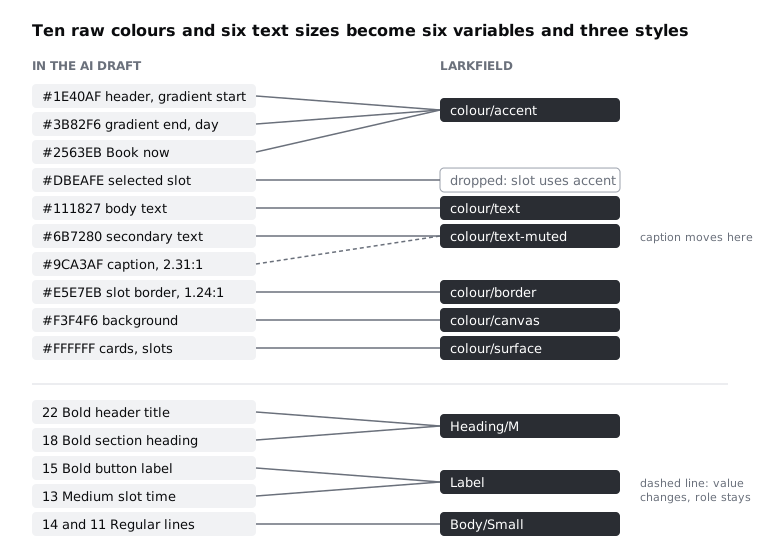
- Colours: #1E40AF and #3B82F6 for the header gradient and the selected day, #2563EB for Book now, #DBEAFE for the selected time, #111827 for body text, #6B7280 for secondary text, #9CA3AF for the caption, #E5E7EB for slot borders, #F3F4F6 for the background and #FFFFFF for cards and slots.
- Text: 22 bold for the header, 18 bold for "Available times", 15 bold on the button, 13 medium in the slots, 14 and 11 regular for the other lines.
Check the pairs a patient has to read. In the example, the #9CA3AF caption on the #F3F4F6 background is 2.31:1, under the 4.5:1 WCAG 2.2 asks for normal text. The #E5E7EB slot border on white is 1.24:1, under the 3:1 a control's edge needs. Log both in the Note column.
Check it worked
Your log has one row for every raw colour in Selection colors and one for every distinct text size, and any pair under its contrast threshold is marked in the Note column. Count the rows: that number is the raw-value debt of the draft before you touch any controls.
Step 3 · Map each value to a role, not to the nearest colour
Now fill in the Larkfield column for every row. Map by what the value is doing, not by which Larkfield colour looks closest. The AI's three blues all mean "this is the main action or the current choice", so they all become colour/accent, even though none of them is close to Larkfield's teal.
For the example draft:
- #1E40AF, #3B82F6 and #2563EB become
colour/accent. The gradient goes; Larkfield uses flat fills. - #DBEAFE has no role. Larkfield's selected Time slot is an accent fill with
on-accenttext and a tick, so this row's Larkfield column saysremoved. It stays acolourrow. - #111827 becomes
colour/text, #6B7280 becomescolour/text-muted. - #9CA3AF also becomes
colour/text-muted. The caption keeps its job and gets a colour that passes. - #E5E7EB becomes
colour/border, notcolour/line: slot edges are control boundaries and need 3:1. - #F3F4F6 becomes
colour/canvas, #FFFFFF becomescolour/surface. - 22 and 18 become
Heading/M, 15 and 13 becomeLabel, 14 and 11 becomeBody/Small.
If a value has no honest role, mark it removed rather than inventing a new variable for it. A new variable is a design system decision, and an AI draft is not a good enough reason to make one.
Check it worked
Every row in your log has an entry in the Larkfield column that is an existing variable, an existing text style, or the word removed. No row says "new". In the example, nine of the ten raw colours map to six variables and the tint is removed, and six sizes map to three styles.
Step 4 · Rebuild the layout from components
Work top to bottom in Pick a time / Rebuilt, using only instances from your components page. Keep the draft visible beside it, but never copy a layer from it.
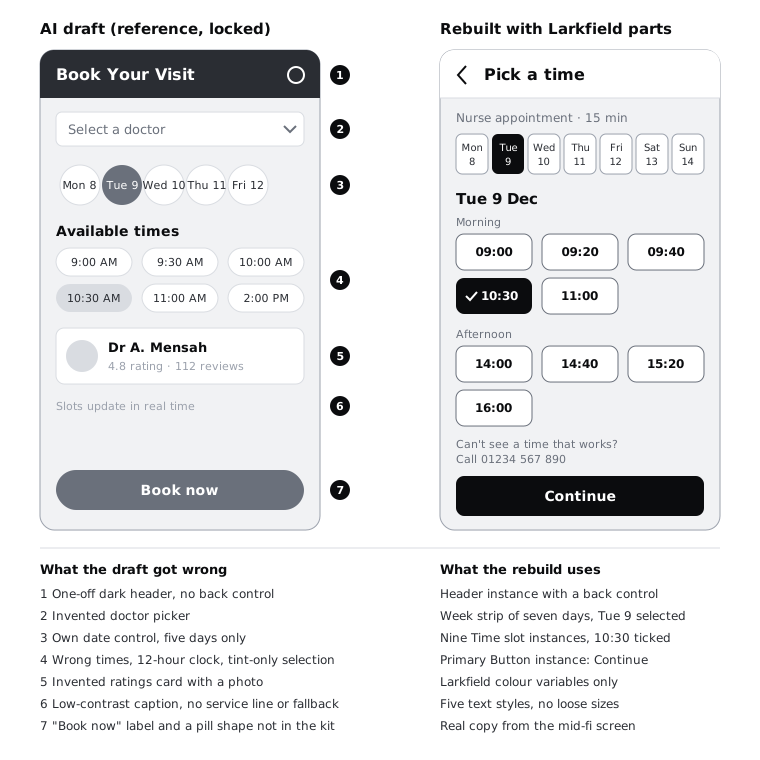
- Header: a
Headerinstance titled "Pick a time", with its back control. Log onecomponentrow for the header and onecontentrow for the title, which was "Book Your Visit". The draft's bell icon has no job in a booking flow; log it asremoved. - Week strip: the row of seven days from your high-fidelity screen, with
Tue 9selected. Copy it as it is from your04 High fidelitypage rather than redrawing it. In the Larkfield kit the day cells are plain boxes, not instances, so the strip is the one part of this screen that is not built from a component. The draft's five round chips are an invented date control with nothing in the kit to replace them; log them asremoved. - Slots: nine
Time slotinstances in theMorningandAfternoongroups, with the selected variant on 10:30. The selected variant already has its fill, text colour and tick, so you set nothing by hand. Log the draft's time pills as onecomponentrow. - Primary action: a
Buttoninstance, primary variant, labelled "Continue". The draft's pill-shaped "Book now" is not in the kit and its label is wrong, because the next screen is Your details, not a finished booking. Log onecomponentrow and onecontentrow. - Things to leave out: the doctor dropdown and the rating card. Larkfield books by service, not by clinician, and ratings of named staff are a product and policy question, not a layout one. Log both as
removed, and if you think one is a good idea, raise it with the clinic separately rather than slipping it into the design.
The draft's photo card matters for another reason. On a low-end Android phone on prepaid data, a staff photo on every visit to this screen costs the patient data and load time for no benefit to the task. Removing it is not only a system fix.
Where the draft's spacing looks better than yours, note it in the log instead of copying the number. If the idea is good, it belongs in the spacing scale, not on one screen.
Check it worked
Select Pick a time / Rebuilt and expand it in the layers panel: the header, button and every slot show the instance icon, the week strip matches the one on 04 High fidelity, and there is no doctor dropdown, rating card or bell. Selection colors for the frame lists only Larkfield variable names, with no raw hex values.
Step 5 · Put back the real content
AI drafts invent content that sounds plausible. Replace every line with Larkfield's copy from the mid-fidelity screen. Log each line that replaces one of the draft's as content, and each line the draft did not have as added:
- Under the header, the service reminder in
Body/Smallandcolour/text-muted: "Nurse appointment · 15 min". The draft had no service line, so the patient could not see what they were booking. Log it asadded. - The day heading in
Heading/M: "Tue 9 Dec", in place of the draft's "Available times". Log it ascontent. - The nine times in Larkfield's 24-hour format: 09:00, 09:20, 09:40, 10:30, 11:00 in
Morning; 14:00, 14:40, 15:20, 16:00 inAfternoon. The draft's six half-hourly times in "9:00 AM" format were invented and do not match the clinic's real availability. Log the times as onecontentrow. - Below the slots, in
Body/Smallandcolour/text-muted: "Can't see a time that works? Call 01234 567 890". The draft had no such line, so log it asadded. The draft's caption "Slots update in real time" made a technical promise nobody had checked, so log it asremoved.
Then test the layout with longer words. Larkfield serves patients who may read the app in another language, and translated labels such as "Continuer" or a two-line service name break fixed-width controls. Temporarily change the service line to "Medication review · 20 min" and the button label to a longer word, and check that nothing clips. Components with auto layout handle this; the draft's fixed pills would not have.
Check it worked
Read the rebuilt screen aloud from top to bottom. Every word matches the Larkfield mid-fi copy, there are exactly nine times with 10:30 selected, and the phone fallback line is there. Nothing clipped when you tried the longer text, and you have set it back.
Step 6 · Add the states the draft left out
A generated screen almost always shows only the happy path: times available, one selected. Larkfield's Pick a time screen has two more states that patients will meet, and the draft had neither. Duplicate Pick a time / Rebuilt twice, and name the copies:
Pick a time / No times this week: replace the slot groups with asurfacecard holding the calendar icon, "No free times this week" inBody, and a secondaryButtonlabelled "See next week". Keep the phone fallback line.Pick a time / Time gone: above the slots, a banner incolour/notice-tintwith the alert icon andBody/Smalltext incolour/notice: "10:30 was just taken. These times are still free." Remove the 10:30 slot and leave no slot selected.
Log each state as added. Then check the states inside the Time slot component itself. The draft showed its selected time by a pale tint alone, which fails anyone who cannot see the difference. Larkfield's selected variant adds a tick, so selection does not rely on colour. If your Time slot has no focus variant for keyboard users and no disabled variant, add a log row for each saying added (system): they belong in the component, as covered in Specify ten core components and their states, not in this one screen.
Finally, size. The draft's slots were 28 px tall. That clears the WCAG 2.2 minimum of 24 by 24 px, but it is a small target for a thumb on a moving bus, and it was not the size of Larkfield's Time slot. Using the component settles this for every slot at once.
Check it worked
You have three frames on the AI drafts page next to the draft: the rebuilt screen and its two states. On each, the selected or unavailable condition is clear with colour turned off (cover the screen with a desaturated layer, or squint). Every new element in the two state frames is an instance or uses a variable and text style.
Step 7 · Add up what the draft cost
Write down the time you finish, and total the log by type of change. The example draft came out like this:
colour: 10 rows. Nine raw colours mapped to 6 variables, including the gradient's two blues, and the selected-time tint removed; 2 of the ten failed contrast.type: 6 sizes mapped to 3 styles.component: 3 controls replaced (header, time pills, button).content: 4 rows rewritten (header title, day heading, nine times as one row, button label).removed: 5 invented things (bell, day chips, doctor dropdown, rating card with photo, real-time caption).added: 2 lines (service line, phone fallback line) and 2 screen states, plus anyadded (system)rows for the component.
Then answer three questions in a short note under the log:
- What did the draft give you that you kept? Be honest. In the example, the idea of grouping times under clear headings was already in Larkfield's design, so the answer was "nothing new". In your draft it might be a layout idea worth testing.
- Was it faster than building from components? Compare your rebuild time against how long it took to build the same screen from components in the high-fidelity tutorial, or time a fresh build of one more screen. Rebuilding usually takes about as long as building, plus the inventory.
- What would have prevented the biggest rows? Turn each large group into one prompt line for next time, such as "Use only these colours: …", "Use exactly these times: 09:00, 09:20, 09:40, 10:30, 11:00, 14:00, 14:40, 15:20, 16:00", "Do not add features that are not listed".
Treat this as a check on the tool, not a verdict on AI in design. A draft that ignores your system is a cost; a draft that shows you three layout options before you commit to one can still be worth it, as long as a person rebuilds the chosen one from the system.
Check it worked
Your log has a total for each change type, a start and finish time, and a note answering the three questions. Someone who opens the AI drafts page can see the draft, the rebuild, the two states and the log, and understand from them alone what changed and why.
Next steps
Take your three prompt lines into Write prompts that give usable design output and see how many log rows they remove on the next draft. If you have not yet scored a draft against the real design before rebuilding it, Generate a screen from a prompt and judge it is the step before this one.
For the component states your log flagged as added (system), work through Specify ten core components and their states. If you need the Larkfield variables, text styles and components this tutorial rebuilt from, Turn a mid-fidelity layout into a high-fidelity design sets them up.
Related tutorials
- Write team rules for using AI in design workYou will have a one-page AI policy for your design team, covering approved tools, data that never goes in, client disclosure, who checks output and how generated assets are labelled, plus a three-question check every designer runs before using AI on a task.
- Write prompts that give usable design outputYou will have turned a one-line design prompt into a five-part prompt, compared the output at every version in a prompt log, and saved a reusable prompt template with three before and after examples for design tasks.
- Use Figma's built-in AI features on a real fileYou will have tried Figma's built-in AI tools for layers, text, search and images on a copy of a real design file, timed and checked each result, and written a keep-or-skip verdict for every tool on a scorecard beside your screens.
Need this done for you?
Padding does this work for growing companies, from the first diagnosis to a system that keeps working.
Get new tutorials