AI in design · Intermediate · 15 min
Write team rules for using AI in design work
By Padding · Updated 18 Nov 2026
A shared document and a spreadsheet; the AI tools your team already uses and their published data terms · November 2026
You will have a one-page AI policy for your design team, covering approved tools, data that never goes in, client disclosure, who checks output and how generated assets are labelled, plus a three-question check every designer runs before using AI on a task.
On this page
Most design teams already use AI. One person drafts interface copy with an assistant, another generates mood board images, a third pastes interview notes in to find themes. Each of them has made a private decision about what is safe to paste, which tool is fine and whether the client needs to know. Those decisions differ from person to person, and nobody finds out until something goes wrong: a client's unreleased product name turns up in a chat history on a personal account, or a generated illustration ships without anyone checking where it came from.
A short written policy fixes that. It does not ban anything or approve everything. It records five decisions the team makes once, so that each designer does not have to make them again under deadline pressure: which tools are approved, what data never goes into them, when the client is told, who checks the output, and how generated assets are labelled.
The example here is a five-person design studio whose current client is Larkfield Clinic, a community clinic having its appointment booking app designed. The project involves patient interviews, screens such as Your details that will hold names and mobile numbers, and a waiting-room poster. That mix of sensitive research, client work and published images is common, and it tests every part of the policy.
This is practical guidance, not legal advice. If your team handles health, financial or children's data, or works under a contract with specific AI clauses, ask whoever handles legal matters for you to read the finished policy.
Step 1 · List how the team uses AI today
Start from what people actually do, not from what you imagine they do. Open a spreadsheet, name the first tab Inventory, and add these columns: person, task, tool, plan or account type (personal free, personal paid, team, enterprise), what went in, what came out, and where the output ended up.
Ask each person on the team to fill in every AI task from the last month, however small. Make it clear that nothing on the list will get anyone in trouble; the point is to see the real picture. If people fear blame, they leave out exactly the rows you most need to see.
For the studio, the sheet had 14 rows. Three of them shaped the rest of this tutorial:
- A researcher pasted two Larkfield interview transcripts, unedited, into an assistant on a personal free account to pull out themes.
- A designer generated a nurse illustration for the waiting-room poster and placed it in the Figma file with no note of where it came from.
- A content designer asked an assistant to translate the Booked screen copy into Yoruba and Hausa, and pasted the result straight into the screens.
Add one more column, concern, and mark any row where you are not sure the data, the tool or the output was handled well. Do not fix anything yet.
Check it worked
Your Inventory tab has at least one row from every person on the team, and every row names a specific tool and plan rather than "AI". At least one row is marked in the concern column; if none is, ask again, because a team that uses AI weekly almost always has one.
Step 2 · Sort tools into approved, limited and not approved
The same tool can be safe or unsafe depending on the plan and its settings. Many AI assistants use what you type to improve their models on personal plans unless you turn that off, while their business plans often exclude it by default. So the policy approves a tool on a particular plan with particular settings, not a brand name.
Add a tab called Tools. For every tool in the inventory, open its data or privacy settings page and the vendor's published data terms, and record four facts: whether inputs can be used for training on this plan, whether that can be switched off and by whom, how long chats and uploads are kept, and whether the account belongs to the person or to the studio.
Then place each tool and plan in one of three tiers:
- Approved. A studio-owned account with training off, known retention, and terms you have read. Any data the policy allows may go in.
- Limited. Fine for public or made-up content only: brainstorming, rewriting your own blog post, generating placeholder text. Personal free accounts usually land here.
- Not approved. Terms you cannot find, cannot control or do not accept. Not used for studio work.
Write the date you read each set of terms. Vendors change them, so the date tells you when a row is stale.
In Nigeria and across much of Africa, many freelancers and small studios rely on free personal tiers because paid plans are billed in foreign currency. The policy can still work: put those tools in the limited tier, and make sure the data rules in the next step keep client material out of them.
Check it worked
Every tool in Inventory has a row in Tools with a tier, the four facts and a date. You can point to the source for each fact, a settings page or a terms page, and none of the approved rows is a personal account.
Step 3 · Draw the line on what data goes in
Now decide what may go into which tier. Three zones are enough for most teams, and they are easier to remember than a long list.
- Never. Not into any AI tool, whatever the tier: passwords, API keys and access tokens; payment details; anything a contract or NDA says must not leave the studio; health information about a named or identifiable person; and research material from participants who were not told it would be processed this way.
- Approved tools only, after cleaning. Interview transcripts and research notes with names and identifiers removed; client brand files and unreleased designs when the client has agreed; internal documents.
- Any tier. Public information, your own published work, made-up example content, and generic questions that reveal nothing about a client.
Health data deserves its own line in the policy. Data protection law in many places, including the UK GDPR and the Nigeria Data Protection Act 2023, treats it as a special or sensitive category with tighter rules. For the Larkfield project that means the researcher's unedited transcripts sat in the never zone, and should have gone through de-identification before reaching even an approved tool.
Write the three zones with three or four real examples each from your own work, so a new person can match a task to a zone without asking.
Check it worked
Read each row of Inventory against the zones. Every row now has a clear answer: allowed as it was, allowed after cleaning or on a different tier, or not allowed. If any row leaves two people on the team disagreeing about its zone, rewrite the zone's examples until they agree.
Step 4 · Decide when and how to tell a client
Clients differ. Some want AI used wherever it saves time, some forbid it in their contracts, and most have not thought about it. The policy sets a default and names the moments when the client must hear about it.
Read the current client contract for any clause about AI, automated tools, subcontracting, confidentiality or ownership of deliverables. Then write three rules:
- At the start. The proposal or kick-off note says, in one or two sentences, how the studio uses AI and what it never puts into AI tools. The client can say no, or add limits.
- For each deliverable. Tell the client when AI produced something that will be published or shipped as it is or with light edits: an image, final copy, a translation. Using AI to brainstorm, summarise your own notes or check your spelling does not need a note on every file.
- When asked. Anyone in the studio can say, for any deliverable, which tools were used and who checked the result.
Some places now have legal duties to disclose certain AI-generated or manipulated content, such as Article 50 of the EU AI Act. If you work for clients in those places, note that the policy's disclosure rules are a floor, and the law or the contract can ask for more.
Write a short template for the kick-off note, for example: "We use AI tools to speed up drafting and exploration. We do not put your confidential material or anyone's personal data into them without your agreement. Anything AI-generated that we deliver is checked by a named designer, and we will tell you which deliverables it applies to."
Check it worked
Your policy has the three disclosure rules and a template the account lead could send today. Test rule 2 against the nurse illustration for the Larkfield poster: the rule clearly says the clinic must be told, and names where the note goes (the handoff message or the deliverable's description).
Step 5 · Name who checks AI output, and for what
"Someone will review it" is not a rule. AI output fails in predictable ways that depend on what it is, so the policy names a check for each kind of output and the role responsible for it.
Add a table to the policy with three columns: output type, what can go wrong, and who checks. For the studio it read:
- Interface copy: wrong facts, invented features, tone that does not match the product. Checked by the content designer against the product's real behaviour.
- Translations: wrong meaning, wrong register, medical terms that do not exist in the target language. Checked by a fluent speaker of that language before it ships, never by the person who generated it.
- Images: resemblance to real people or existing work, bias in who is shown, unclear rights. Checked by the lead designer with the rights checklist.
- Research synthesis: themes not supported by the notes, quotes that were never said, missing minority views. Checked by the researcher who ran the sessions, against the source notes.
- Accessibility checks: issues missed or wrongly reported. Checked by a person testing with a screen reader and keyboard.
Add one general rule: the person who prompted the tool cannot be the only checker for anything that ships. A second pair of eyes is cheap compared with fixing a wrong dosage instruction in a live app.
The translation row matters for products used across Africa, where an app may need to work in English, Yoruba, Hausa, Igbo, Swahili or isiZulu. AI translation in many of these languages is less reliable than in English or French, and clinic users will act on what the screen says.
Check it worked
Every kind of output in Inventory has a row in the table, and each row names a role that exists in your studio today. For the Booked screen translation, the table names a fluent Yoruba speaker and a fluent Hausa speaker; if you do not have them, the policy says the translation does not ship until you do.
Step 6 · Label generated assets so they can be traced
Six months after a project, nobody remembers which images were generated. A label in the file and a line in a log answer that question in seconds.
Agree three things:
- A layer or file label. For example, add
[AI]to the end of the layer or file name of every generated image or block of copy that survives into a design file:Poster / Nurse illustration [AI]. Remove the label only when the asset has been replaced, not when it has been edited. - An asset log. A tab called AI assets in the project's spreadsheet, with one row per asset: label, project, tool and plan, date, prompt or a short summary of it, who checked it, and whether the client was told.
- Keep provenance data. Some image tools attach Content Credentials, provenance metadata that records how an image was made. Editing or re-exporting can strip it. The policy says not to remove it on purpose, and to keep the original download in the project folder next to the edited version.
Keep the scheme light. A rule people skip under deadline is worse than a smaller rule they follow.
![A one-page policy laid out as five boxes in a column: Approved tools with three tiers, Data with three zones labelled Never, Approved tools only after cleaning and Any tier, Telling clients with three moments, Checking output with a table of output type and checker, and Labelling with the AI] suffix and asset log. Below them, a sixth box labelled Three-question check and a review date.
![AI] suffix and asset log. Below them, a sixth box labelled Three-question check and a review date.](images%2Fwrite-team-rules-for-using-ai-in-design-work-1.svg)
Check it worked
Open the Larkfield Figma file and search layer names for [AI]. The nurse illustration shows up, and it has a matching row in AI assets with a checker's name and "client told: yes" or a note of when they will be. Any generated asset you find without the label is a gap in the rule or in the habit; note which.
Step 7 · Write the three-question check and fit it on one page
The policy is for reference. What designers need in the moment is something short enough to run in their head. Write three questions that send them to the right part of the policy:
- What am I putting in? Match it to a data zone. If any of it is in the never zone, stop. If it needs cleaning, clean it first.
- Which tool, on which plan? Check it is in a tier that allows that zone. A limited tool cannot take anything beyond public or made-up content.
- Who checks what comes out, and does the client need to know? Find the output type in the checking table and the disclosure rules. If nobody is named, the output is not ready to use.
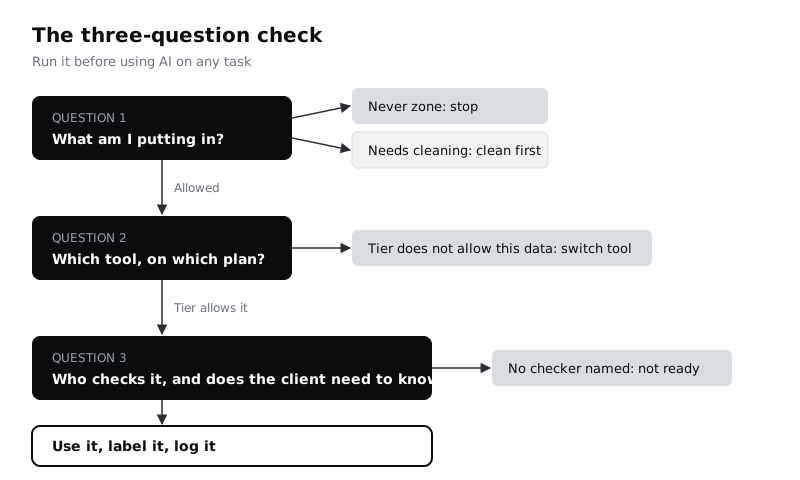
Now put the whole policy on one page: the five decisions as short sections, the three questions at the bottom, the owner's name, and a review date three months away. Move the detail (the full Tools tab, the terms dates, the asset log) to the spreadsheet and link to it.
Run the three questions against the three concern rows from your inventory. For the studio, the researcher's transcripts stop at question 1 until they are cleaned and then move to an approved account; the translation passes questions 1 and 2 but cannot be used until question 3 names a fluent checker; the illustration passes all three once it is labelled and the clinic is told.
Check it worked
The policy fits on one printed page in a readable size, and the three questions appear on it. Each concern row from Inventory gets a clear answer from the three questions alone, without anyone needing to read the rest of the policy.
Step 8 · Agree it with the team and set the first review
A policy written by one person and emailed to the rest is a document. A policy the team argued over for half an hour is a habit. Share the draft, give everyone two days to comment, then meet for 30 minutes and settle each comment: accept, reject with a reason, or park it for the first review.
Pin the one-page policy where the team works, add the three questions to your project kick-off template, and add a line to your handoff checklist: "AI assets labelled, logged and disclosed." Put the review date in the calendar. At each review, re-read the terms for every approved tool, update the dates in Tools, and look at the asset log for anything the rules did not cover.
Check it worked
Every person on the team has commented or confirmed they have read the policy, and the comment thread has no open items. The kick-off template contains the three questions, the handoff checklist has the AI line, and the review meeting is in the shared calendar with an owner.
Next steps
The policy names the rules. The tutorials below cover the work each rule points to.
- Clean research data before it reaches an approved tool with /tutorials/remove-personal-data-before-sharing-research-with-ai.
- Turn the images row of your checking table into a full check with /tutorials/check-rights-and-licences-before-using-ai-images.
- Build the review steps into the team's day-to-day process with /tutorials/keep-a-human-in-the-loop-in-an-ai-design-workflow.
- Add a bias check to the review of generated images and copy with /tutorials/check-ai-images-and-copy-for-bias.
Related tutorials
- Write prompts that give usable design outputYou will have turned a one-line design prompt into a five-part prompt, compared the output at every version in a prompt log, and saved a reusable prompt template with three before and after examples for design tasks.
- Use Figma's built-in AI features on a real fileYou will have tried Figma's built-in AI tools for layers, text, search and images on a copy of a real design file, timed and checked each result, and written a keep-or-skip verdict for every tool on a scorecard beside your screens.
- Usability-test an AI featureYou will have a usability test plan for an AI feature with tasks judged by outcome rather than exact wording, a note-taking sheet that records what the AI said in every attempt, and a severity scale for AI-specific problems such as wrong answers nobody noticed.
Need this done for you?
Padding does this work for growing companies, from the first diagnosis to a system that keeps working.
Get new tutorials