AI in design · Beginner · 16 min
Use Figma's built-in AI features on a real file
By Padding · Updated 18 Nov 2026
Figma (web) · November 2026
You will have tried Figma's built-in AI tools for layers, text, search and images on a copy of a real design file, timed and checked each result, and written a keep-or-skip verdict for every tool on a scorecard beside your screens.
On this page
Figma has a row of small AI tools that each do one job: name layers, rewrite a line of copy, fill a list, find a design, clean up a photo. Each one is fast to try and easy to over-trust. A tool that renames thirty layers in four seconds is only a win if the names are ones you would have chosen, and a tool that shortens a sentence is a loss if it drops the phone number.
So this is not a tour of menus. You run each tool on a copy of a real file, time it, check the output against things you already know are true, and write down a verdict. You end with a scorecard that tells you, and your team, which tools earn a place in your workflow and which cost more in checking than they save.
The running example is the Larkfield Clinic booking app, a fictional community clinic, with six high-fidelity screens: Home, Choose a service, Pick a time, Your details, Confirm and Booked. Use your own file if you have one. Pick screens you know well; you can only judge AI output on content whose correct answer you already hold.
This tutorial covers the single-purpose tools. Figma also has a conversational agent that can use several of them for you; the judging habits here apply to it too, but it is not covered step by step.
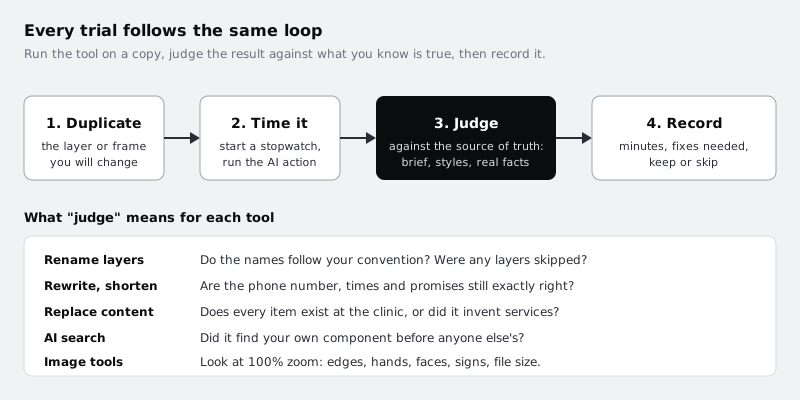
Step 1 · Make a scratch copy and check you have access
Never trial AI tools on the file people depend on. Open the Larkfield file's main menu and duplicate it, then rename the copy Larkfield AI trial. Work only in the copy.
In the copy, press Command K (Mac) or Control K (Windows) to open the Actions menu, or click Actions in the toolbar. Type rename. If Rename layers appears, the text tools are on for you. If nothing AI-related appears, check three things in this order: your plan (Starter has only the image tools), your seat (you need a Full seat to edit shared files with AI; other seats can try the tools in their own drafts), and whether an admin has turned AI off for your team.
Two more things to check before you put real work through these tools:
- Credits. Figma AI features draw on a shared pool of AI credits. If a tool stops producing results partway through, your credit usage is the first place to look.
- Content training. Whether your files can be used to train Figma's models is an admin setting, and the default differs by plan. Ask your admin which way it is set before you use client or patient material. For the Larkfield trial the content is fictional, so it does not matter here, but it will on your next real project.
Now make the scorecard. On the page with your screens, draw a frame to the right of them called AI trial scorecard. Add a table, as text or a simple auto layout grid, with six columns: Tool, Task, By hand (minutes), With AI (minutes), Fixes, Verdict.
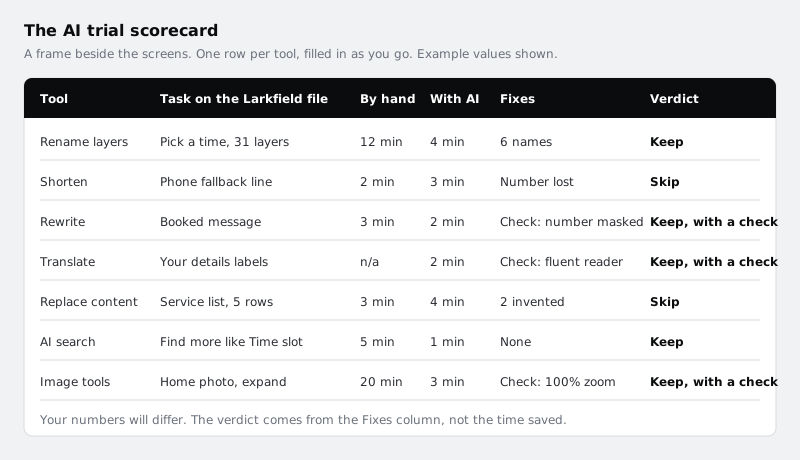
The By hand column is your honest estimate of how long the task would take you without AI. Fill it in before you run each tool, so the AI result cannot bend the estimate.
Check it worked
Your file list shows Larkfield AI trial as a separate file. In it, the Actions menu lists Rename layers when you type rename, and an empty AI trial scorecard frame with six column headings sits beside the screens.
Step 2 · Rename the layers on one screen
Rename layers is the most useful tool to judge first, because you can check every result in the Layers panel without reading the canvas.
Go to Pick a time and expand it fully in the Layers panel. Count the layers that still have default names such as Frame 41, Group 7 or a pasted image 2, and write the number in your notes. Leave out plain shapes such as a Rectangle 3 with a solid fill, because the tool does not rename those. Estimate how long renaming them by hand would take and put it in By hand.
Duplicate the Pick a time frame (Command D or Control D) and move the copy to one side. Select the copy's layers, start your stopwatch, then right-click and choose Rename layers (it is also in the Actions menu). Stop the stopwatch when the names appear.
Now judge the names against a rule, not a feeling. If your team has a naming convention, use it. If not, use the one from /tutorials/name-and-structure-figma-layers: names say what a layer is for (Week strip, Morning slots, Fallback phone line), not what it looks like (Grey box). For each renamed layer, mark it as right, acceptable or wrong. Watch for:
- Names that describe appearance. A frame named after its fill colour is wrong even if it is accurate.
- Layers it left alone. By design it skips layers you have already renamed, hidden and locked layers, layers inside component instances, rectangles without an image fill and other plain shapes (ellipses, polygons, vectors). If
Rectangle 3is still there, the tool has left it alone on purpose unless it has an image fill; rename plain shapes by hand if your convention needs it. - Matching layers on other frames. When the same unnamed layer sits in several top-level frames, Figma renames those too so prototype links keep working. Look at your other screens before you assume only the copy changed.
Fix the wrong names by hand. Write the count of fixes in Fixes, the stopwatch time plus your fixing time in With AI, and a verdict.
Check it worked
On the copy of Pick a time, no frame, group, text layer or image-filled rectangle outside an instance still has a default name like Frame 41, unless it is hidden or locked. Plain shapes may keep names like Rectangle 3. Your scorecard's Rename layers row has both times, a number of fixes and a verdict.
Step 3 · Shorten and rewrite copy that has hard facts in it
Text tools are most tempting where they are most risky: on copy that holds facts. Test them there on purpose.
Duplicate the line under the slots on Pick a time: Can't see a time that works? Call 01234 567 890. Select the duplicate, open Actions and choose Shorten. Then duplicate the Booked message, We've sent a text to 07••• ••• 123. We'll text you a reminder the day before., select the copy, choose Rewrite this, and give it a prompt with a real constraint, such as:
Rewrite for a patient reading on a small phone screen. Plain English, two short sentences, keep every number and the promise about the reminder exactly.Compare each result with the original, word by word:
- Is the phone number still there, with every digit the same?
- Is the masked mobile number still masked? A rewrite that "helpfully" changes
07••• ••• 123has broken a privacy decision. - Does it still promise only what the clinic does? "We'll text you a reminder the day before" must not become "We'll remind you", which a patient could read as a phone call.
- Is the text layer still using its text style and colour variable? Click it and look at the Typography section and Selection colors. Figma's help does not say whether the tools keep styles, so check every time.
If the shortened line lost the number, it is not shorter copy; it is a broken feature. Record that in Fixes as what it is.
Check it worked
You have the original and the AI version of both lines side by side on the canvas, each AI version marked with any changed fact. Your scorecard has a row for Shorten and a row for Rewrite, each with a verdict.
Step 4 · Translate the form labels and get them checked
Larkfield's patients do not all read English first. Translate is a quick way to see how other languages behave in your layout, and a poor way to produce final copy.
Duplicate Your details. Select the four field labels and the reminder checkbox text on the copy (Full name, Date of birth, Mobile number, Email (optional), Text me a reminder the day before), open Actions and choose Translate to..., then pick a language your users read. Figma does not publish a list of supported languages, so if yours is missing, use the closest one you can get checked.
Look at the layout first, because that is what this tool is good for:
- Did any label wrap to two lines or overflow its field?
- Did the checkbox text push the Continue button down?
- Does the font have every character? Missing glyphs show as boxes or a fallback font.
Then send the translated labels to a fluent speaker, ideally someone who has booked a clinic appointment in that language, and ask one question per label: "Is this what you would expect to see here?" Medical forms are a place where a literal translation of "Date of birth" can sound like a legal document.
If you design for users across Africa, test a language with long words or diacritics, such as Yoruba or Swahili, alongside English and French. Many patients will switch the app's language on a shared phone, so a label that overflows at 360 pixels wide is a real bug, not a corner case.
Check it worked
The duplicated Your details frame shows translated labels, and a comment on the frame lists each overflow or wrapping problem you found. Your scorecard's Translate row says whether a fluent speaker has reviewed the text, and the verdict reflects that review, not the speed.
Step 5 · Fill a list with Replace content and look for invention
Replace content swaps placeholder text in repeated items for realistic text. That is useful for early layouts and dangerous once the content is real.
Duplicate Choose a service. On the copy, replace the five service rows' text with placeholders: set every row title to Service name and every duration to 00 min. Select the five rows, open Actions, choose Replace content, and add a short prompt for context:
Appointment types at a small community clinic, with how long each takes.Larkfield offers exactly five services: GP appointment (10 min), Nurse appointment (15 min), Blood test (10 min), Vaccination (15 min) and Medication review (20 min). Compare the generated rows with that list:
- How many are services Larkfield does not offer? Each one is a patient who could try to book something that does not exist.
- Are the durations plausible but wrong? A made-up
Physiotherapy · 45 minlooks finished and would survive a quick review. - Did the rows keep their text styles and colours?
The tool does what it says; the question is where you would use it. Filling a wireframe with plausible text so a layout can be judged is a fair use. Filling a screen that goes to a client or to testing is not, unless every item is checked against the real list. Write the number of invented items in Fixes.
Check it worked
The duplicated Choose a service frame has five generated rows, and each one that is not on Larkfield's list of five services carries a comment saying so. The Replace content row on your scorecard records the count and says where, if anywhere, you would use the tool.
Step 6 · Search for a design you already have
AI search earns its place if it finds your own work faster than you can.
Select one Time slot instance on Pick a time, open Actions and choose Find more like. Note where the results come from: the Figma tab shows designs and components from files available to you, the Community tab shows public Community files. Then try a text search in the Actions menu for something you know exists in your team's files, described in plain words rather than by its layer name, such as appointment time picker.
Judge it on three questions:
- Was your own
Time slotcomponent in the results, and how far down? - Did it find related work from other files you had forgotten, which would be a real time saving?
- If you were tempted by a Community result, does that file's licence let you use it in client work? Read it before you copy anything.
Time how long it takes to find the component this way, and compare it with how long it takes to find it in the Assets panel by name.
Check it worked
Your scorecard's AI search row has both times and notes whether your own component appeared in the first screen of results.
Step 7 · Run the image tools on one photo
Larkfield's Home screen has one photo in a 16:9 frame. Image tools make visible changes, so they are the easiest to judge by eye and the easiest to wave through at a glance.
Duplicate the photo layer before every edit, so you can always go back to the original. Then try these from the secondary toolbar that appears when an image is selected:
- Expand (under More): drag the handles or pick an aspect ratio to turn the 16:9 photo into a 4:5 crop for a tall card.
- Remove background: cut out a person or object to place on
colour/accent-tint. - Select area, then Erase: lasso something distracting, such as a sign in the background, and remove it.
- Boost resolution (under More): try it on a small or blurry version of the photo.
Zoom to 100% and inspect each result where AI image tools tend to fail: hands, faces, edges of hair, repeated textures in the expanded area, and any text or signage, which can come back as nonsense letters. Check that a person's skin tone and features have not shifted after an edit; a photo of a clinic patient that changes who they appear to be is not a small artefact.
Then check the cost to your users. Export the edited image at the size it shows on Home and note the file size. Boosting resolution can produce a much larger file than the screen needs, and on a low-end Android phone on prepaid data, every extra few hundred kilobytes on the first screen is paid for by the patient.
If the photo is of a real person, also check that your consent covers an edited version of their image. Altering a real patient's photo without that is a problem no tool setting fixes.
Check it worked
Beside the Home screen you have the original photo and one copy per tool you tried, each with a short comment naming any artefact you saw at 100% zoom and the exported file size. The Image tools row on your scorecard has a verdict for each tool, or one verdict with exceptions.
Step 8 · Write the keep-or-skip verdicts
Go back to the scorecard and finish the Verdict column with one of three words, using a rule rather than how impressive each tool felt:
- Keep when the AI time plus fixing time is clearly below your By hand estimate, and every fix was a matter of taste, not a fact.
- Keep, with a check when it saves time but you found at least one factual or visual error. Write the check next to it, for example "compare against the five-service list" or "inspect at 100%".
- Skip when fixing took as long as doing it yourself, or when an error would be hard to spot later, such as a changed phone number.
Add a final line under the table: the one tool you will use on your next real file, and the one you will not. Then share the scorecard frame with whoever you work with. Their file and their content will give different results, and comparing scorecards is a quicker way to agree on team rules than arguing about AI in general.
Re-run this trial when Figma changes a tool. Names, plans and behaviour of these features change often, and a verdict from today is only good until the next update.
Check it worked
Every row on the scorecard has a verdict, every "Keep, with a check" names the check, and the line under the table names one tool to use and one to skip. The trial copy is still separate from your main Larkfield file, which has not changed.
Next steps
To go further than single tools, Generate a screen from a prompt and judge it applies the same judging habits to a whole AI-generated screen. If the rename trial showed your layer structure needs work first, Name and group layers so others can work in your file sets the convention to judge against. For copy, Generate interface copy variants with AI goes deeper than Rewrite this, and for images, Make a mood board with AI image tools covers where generated pictures belong in a project.
Part of these paths
Related tutorials
- Name and group layers so others can work in your fileYou will turn a messy Figma screen into one whose Layers panel another designer or developer can read at a glance, with clear names, frames where they belong and no hidden leftovers.
- Generate a screen from a prompt and judge itYou will have two AI-generated versions of a booking screen scored against a researched design on five criteria, with every invented feature listed and a written view on what prompt-to-UI tools are good for.
- Generate interface copy variants with AIYou will have five AI-drafted variants of a Larkfield Clinic button label and error message, scored against your voice rules, word limits and plain-language checks, the best two tested with five people, the chosen strings in your string table and a copy prompt you can reuse.
Need this done for you?
Padding does this work for growing companies, from the first diagnosis to a system that keeps working.
Get new tutorials