AI in design · Beginner · 15 min
Generate interface copy variants with AI
By Padding · Updated 18 Nov 2026
Any AI chat assistant and a spreadsheet · November 2026
You will have five AI-drafted variants of a Larkfield Clinic button label and error message, scored against your voice rules, word limits and plain-language checks, the best two tested with five people, the chosen strings in your string table and a copy prompt you can reuse.
On this page
Asking an AI assistant for "a better error message" gets you a sentence that sounds fine. It may be too long for the space, use a word your team banned last month, promise something the product does not do, or say "Oops!" to a patient who has just lost an appointment. The assistant does not know your rules unless you give them to it, and it cannot tell you whether a real person understands the result.
Used well, though, it is a quick way to see a spread of options you would not have written yourself. The method in this tutorial puts your rules into the prompt, asks for several variants rather than one answer, scores every variant against those rules yourself, and then lets people, not the model, pick between the two best.
The example is Larkfield Clinic, the fictional community clinic from the design-a-product-end-to-end series. Research found that the clinic keeps a paper cancellation list that only works when the front desk has time to ring round. The team is adding the list to the booking app: on the Pick a time / No times this week state, a patient can ask to be texted if a nurse appointment frees up that week. Two strings are new and unwritten: the button that adds the patient to the list, and the message they see when this week's list is already full. You will generate variants of both, judge them, test two of each and keep the winners. If you are working on your own product, pick one button and one error message that do not have agreed wording yet.
Step 1 · Build a context pack the assistant can work from
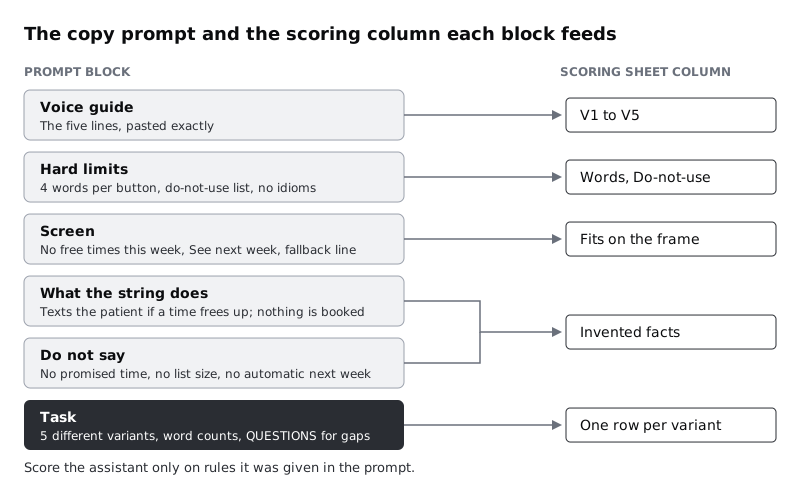
The assistant only knows what you paste in. Before you write a prompt, gather what a new copywriter would need on their first morning, in one plain-text note. Keep it to these five parts:
- The voice guide. Larkfield's five lines from the copy tutorial: buttons say what happens, use the words patients use, errors tell people what to do, short and literal, calm and direct. Paste them exactly as written.
- Hard limits. The rules you can check with a yes or no. For Larkfield: buttons up to 4 words, messages up to 15 words per sentence, and the do-not-use list (
invalid,input,submit,proceed,slot,required,field,notification,opt in, plusnotify,alertandwaitlist, which you add now because they are the words this feature invites). - The screen. What the patient sees around the string, in words: the
Pick a time / No times this weekstate, with the lineNo free times this week, the primary buttonSee next weekand the fallback lineCan't see a time that works? Call 01234 567 890. Mention that the reminder checkbox elsewhere in the app readsText me a reminder the day before, so the new button can match its pattern. - The facts. What the feature actually does, and nothing more. The clinic texts the patient if a nurse time becomes free this week. The patient still has to book it in the app; nothing is booked for them. Each week's list has a limit set by the clinic.
- What not to say. Anything the assistant might guess wrongly. Larkfield's list: do not promise a time, do not say how many people are on the list, do not say the patient is moved to next week's list.
Leave out anything personal. The pack describes a screen, not a patient: no real names, numbers or records. If your product handles health, finance or children's data, check your organisation's rules for AI tools before pasting even product details.
Many patients reading these strings use English as a second language, and some will see the app through their browser's translation. Put that in the pack too, as one line ("Readers include second-language English speakers; avoid idioms"). It changes what the assistant writes more than you might expect.
Check it worked
Your note has the five parts, each under its own heading. Read the Hard limits section and turn each line into a question: "Is it 4 words or fewer?", "Does it contain any word on the list?". If any line cannot be answered yes or no, rewrite it until it can. The note contains no personal data.
Step 2 · Write the copy prompt and ask for five variants
Now turn the pack into a prompt. Write it as a template with the parts that change in square brackets, so you can reuse it for any string later. Larkfield's version, filled in for the button:
You are helping write interface copy for a community clinic's booking app.
Follow the voice guide and hard limits below. They are rules, not suggestions.

VOICE GUIDE
[paste the five lines]

HARD LIMITS
- Element: [button]. Maximum [4] words.
- Never use these words: [do-not-use list]
- Readers include second-language English speakers. No idioms.

SCREEN
[what is on the screen around the string]

WHAT THE STRING DOES
[the facts, and only the facts]

DO NOT SAY
[the things that are not true or not decided]

TASK
Write 5 variants of the [button label that adds the patient to this week's
cancellation list]. Make them genuinely different approaches, not 5 synonyms.
For each variant give: the text, its word count, and one line on which voice
guide rule it relies on.
If a variant needs a fact I have not given you, do not invent it. List it
under QUESTIONS at the end instead.
Three parts do most of the work. The hard limits give the assistant the same rules you will score against, so you are not grading it on a test it never saw. "Genuinely different approaches" stops it returning five reworded copies of one idea. And the QUESTIONS line gives it somewhere to put a gap other than the string itself, which is where invented facts usually end up.
Send it. Then send the same template filled in for the error message: element message, maximum 15 words per sentence, and a task line asking for the message shown when this week's list for nurse appointments is already full. Ask each in its own conversation, so the button's answers do not shape the error's.
Copy every variant into a new tab of your Larkfield string sheet called Variants, one row per variant, exactly as the assistant wrote it. Give the tab these columns, in this order: ID (A, your own label for the variant, such as B-1-3 for button, round 1, variant 3), String (B, the string ID it belongs to), Text (C, the variant itself), Round (D), Date (E), Tool (F, the kind of tool you used) and Notes (G, for any QUESTIONS the assistant raised and your own remarks). Outputs vary from run to run; yours will not match the examples here, and they do not need to. For the button, a typical first round looks something like this:
Join the waiting listText me if a time frees upNotify me of openingsGet earlier appointment alertsTell me about cancellations
Check it worked
The Variants tab has the seven columns from ID to Notes and ten rows, five per string. Each row has its exact text in column C, the string it belongs to (PT-NT-B1 for the button, PT-NT-E1 for the error, or your own IDs), the round number 1, the date and the tool. Any QUESTIONS the assistant raised are in Notes. You have not edited any variant yet.
Step 3 · Score every variant against your rules
Now judge. Do it in the sheet, not by feel, and do the counting yourself. Assistants are unreliable at counting their own words and at checking their own output against a list, so treat the word counts and rule notes they gave you as claims to check, not results.
Add these columns to Variants:
- Words. With the variant text in column C, this formula works in Google Sheets, Excel and LibreOffice Calc:
=IF(LEN(TRIM(C2))=0, 0, LEN(TRIM(C2)) - LEN(SUBSTITUTE(TRIM(C2), " ", "")) + 1)- Do-not-use. Search the variant for every word on your list. Write the word you found, or leave it empty.
- Invented facts. Does the variant say anything the What the string does section did not? A promise of a time, an automatic booking, a number of places? Write what it claims.
- V1 to V5. One column per voice guide line, marked
passorfail. - Plain words. Would a patient say every word aloud at reception? Mark
failwith the word if not. This is the reading-level check: WCAG 2.2 success criterion 3.1.5, Reading Level, asks for simpler supplementary content when text needs more than lower secondary education to read, and common words in short sentences keep a string well below that. - Result.
Keep, orOutwith the reason.
One rule decides the Result: any failure on Words, Do-not-use or Invented facts puts a variant out, however good it sounds. Those are the limits you told the assistant about; a variant that breaks them is not a contender, and keeping it "because it reads well" quietly turns your rules back into taste.
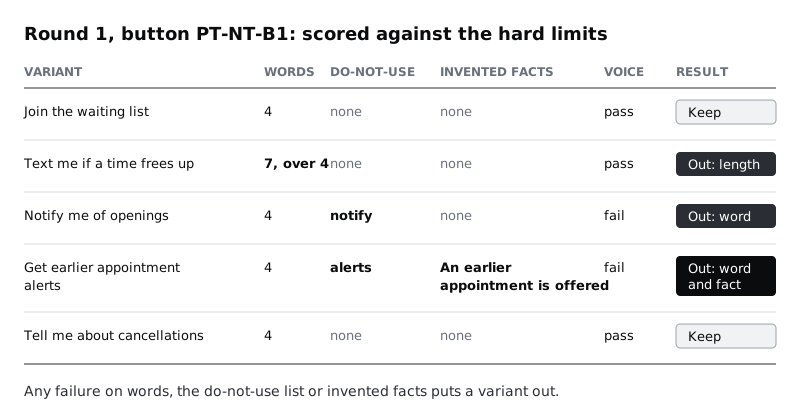
For Larkfield's button, Notify me of openings and Get earlier appointment alerts go out on the do-not-use list, and the second also implies the clinic will offer an earlier appointment, which it will not. Text me if a time frees up is the clearest of the five, but it is 7 words, so it goes out too. Note it in Notes anyway: the clearest variant failing the limit is a sign that the button alone cannot carry the whole idea, which you come back to in the last step.
The error message's first round typically shows the other common problems: a Sorry, the list is full. Please try again later. that gives no time and no next move, an Oops! variant, and one that tells the patient they will be "added to next week's list automatically", a feature nobody has built.
Check it worked
Every row in Variants has a number in Words that you calculated, a value or a blank in Do-not-use and Invented facts, five voice marks and a Result. Filter Result to Keep: no kept variant breaks a hard limit. Each Out row has its reason written in words.
Step 4 · Send the failures back for a second round
The first answer is a starting point. Go back to the same conversation and give the assistant your scoring, specifically: which variants failed, on which rule, and what you liked. For the error message, Larkfield's feedback was:
Scored against the rules:
- Variant 1 is out: "Please try again later" gives no time and no next step.
- Variant 3 is out: "Oops" and the exclamation mark break voice rule 5.
- Variant 4 is out: patients are not moved to next week's list. Do not
  say they are.
- Variant 2 is the strongest: it says what happened and offers two things
  to do. Keep that shape.
Write 5 new variants that keep variant 2's shape and follow every rule.
Name both options the patient has: see next week's times, or call
01234 567 890.
Add the new variants to Variants as round 2 and score them the same way. Stop after the second round. More rounds tend to give you smaller and smaller rewordings of the same few ideas, and the time is better spent putting the best ones in front of people.
If your product is used in more than one language, this is also where a common shortcut goes wrong. An assistant will happily translate the round 2 winners into Yoruba, Hausa, Swahili or French, and the result may read well to you. Treat it as a draft for a fluent speaker who knows the clinic to check and rewrite, never as a final string.
Check it worked
Variants has round 2 rows for both strings, scored with the same columns. Compare the two rounds: round 2 has fewer Out results, and none for a reason you named in your feedback. If round 2 repeats a failure you already flagged, the rule is missing or unclear in your template; fix the template, not only this answer.
Step 5 · Put the survivors on the screen and choose two
A string that passes in a spreadsheet can still fail on a phone. Open your design file and duplicate the Pick a time / No times this week frame once per surviving variant. Put each variant into the button or message on its own copy, using the real component, not a text box drawn on top.
Then check each one in place:
- It fits. The button label stays on one line at the narrowest phone width you support, for example a 320-wide copy of the frame. The message does not push the primary button below the first screen of content.
- It reads with its neighbours. Read the frame top to bottom:
No free times this week, the button, the fallback line. The new string should not repeat the line above it or contradict it. - Its accessible name matches. The visible label is the label in code, so a speech-input user can say what they see. WCAG 2.2 success criterion 2.5.3, Label in Name, asks for this; a button reading
Tell me about cancellationswith a hidden name of "Join list" breaks it.
From what is left, choose two per string. Pick two that differ in approach, not two near-twins, so the test with people tells you something. For Larkfield's button, that is Join the waiting list against Tell me about cancellations. For the error, it is two round 2 variants:
- A:
This week's list is full. See next week's times, or call 01234 567 890. - B:
No more room on this week's list. Call 01234 567 890 or see next week.
Check it worked
Your file has one frame per surviving variant, each using the real button or message component, none with text overflowing or wrapping a button label onto two lines at your narrowest width. Your Variants tab marks exactly two rows per string as Finalist, and you can say in one sentence how each pair differs.
Step 6 · Test the two finalists with five people
The scoring tells you which variants follow the rules. It cannot tell you which one people understand, and an assistant asked to predict that is guessing. Five short sessions can show you a clear difference, or show that there is none.
Make two versions of the frame for each string, A and B. Show each person one version of the button and one version of the error, so nobody sees both versions of the same string. Alternate which versions each person gets: person 1 sees button A and error B, person 2 sees button B and error A, person 3 sees button A and error B, and so on. With five people, three see button A and two see button B, and the error splits the other way. Ask the same questions every time:
- Button: "You wanted a nurse appointment this week and there are none. What do you think happens if you tap this?" Listen for two things: that they will get a text if a time frees up, and that they are not booked yet.
- Error: "You tapped the button and saw this. What would you do now?" Listen for whether they name a next step.
Write the answers word for word in a Test tab, one row per person per string, with the version they saw. Then mark each answer understood, partly or wrong against what the feature really does.
In the Larkfield example, button A was Join the waiting list and button B was Tell me about cancellations. Three people saw Join the waiting list, and two of them said something like "they'll book me in when one comes up", which is not what happens. Both people who saw Tell me about cancellations expected a message, and neither thought they were booked. For the error, all five people named a next step. Both people who saw A named both options; of the three who saw B, only one did. A lists the options in the order the screen shows them.
Five people is not enough for percentages, and you should not report it as a measurement. It is enough to catch a wording that most people read the wrong way, which is the failure that matters most here.
Check it worked
The Test tab has ten rows, two per person, each with the version shown, the person's words and a mark. For each string you can point to the rows that support your choice, and if the two versions scored the same, you have written that down rather than picking a winner the results do not show.
Step 7 · Record the chosen strings and save the prompt
Move the winners into the Strings tab of your string table, with their IDs, in the After column. Larkfield's:
PT-NT-B1, Button:Tell me about cancellationsPT-NT-H1, Hint, under the button:We'll text you if a nurse time becomes free this week.PT-NT-E1, Message:This week's list is full. See next week's times, or call 01234 567 890.
The hint is new, and you wrote it, not the assistant. The test showed that the button alone could not carry "you get a text, you still book it yourself", and the 7-word round 1 variant had said the same thing; a hint line carries the detail without breaking the 4-word button limit. When scoring and testing keep pointing at the same gap, fill it with a new string rather than forcing one string to do two jobs.
Because you wrote the hint after the test, nobody has read it yet. Before you ship, put the button and hint together on the frame and ask one or two new people the same button question. If either still thinks they are booked, rewrite the hint and ask again. Mark these rows scored and tested only once that check is done.
In Notes for each row, write AI-drafted, round N; scored and tested <date>. Anyone changing the string later then knows it was checked against the rules and with people, and that changing it means checking again.
Finally, save the prompt template from the second step, with the square brackets still in, at the top of your Rules tab or in your team's shared notes, next to the voice guide. Add the round 2 feedback pattern under it. If your assistant has a way to save reusable instructions, you can store the voice guide and hard limits there too, but keep the template in the shared document as well, so it does not depend on one person's account.
Check it worked
The Strings tab has the new rows with After values and provenance notes, and the design frame matches them. The Test tab has a row for each extra person who read the button and hint together. Give the saved template to a colleague with a string you have not written yet, such as the text a patient receives when a time frees up. They can fill in the brackets from the voice guide and the screen without asking you anything.
Next steps
You now have a prompt that carries your rules, a scoring sheet that holds the assistant to them, and a short test that checks the result with people.
- If you do not have a voice guide and string table yet, build them first with /tutorials/write-interface-copy-for-labels-buttons-and-errors.
- Improve prompts for other design tasks, step by step, in /tutorials/write-prompts-that-give-usable-design-output.
- Write every message a form needs, and decide when each appears, with /tutorials/design-form-errors-and-inline-validation.
- Apply the same check-every-claim habit to research notes in /tutorials/synthesise-interview-notes-with-ai-and-check-it.
Related tutorials
- Write team rules for using AI in design workYou will have a one-page AI policy for your design team, covering approved tools, data that never goes in, client disclosure, who checks output and how generated assets are labelled, plus a three-question check every designer runs before using AI on a task.
- Write prompts that give usable design outputYou will have turned a one-line design prompt into a five-part prompt, compared the output at every version in a prompt log, and saved a reusable prompt template with three before and after examples for design tasks.
- Use Figma's built-in AI features on a real fileYou will have tried Figma's built-in AI tools for layers, text, search and images on a copy of a real design file, timed and checked each result, and written a keep-or-skip verdict for every tool on a scorecard beside your screens.
Need this done for you?
Padding does this work for growing companies, from the first diagnosis to a system that keeps working.
Get new tutorials