AI in design · Intermediate · 18 min
Keep a human in the loop in an AI design workflow
By Padding · Updated 18 Nov 2026
Any whiteboard or diagramming tool, or paper, and a spreadsheet · November 2026
You will have your team's design workflow mapped from research to handoff, with every step that uses AI marked and a named reviewer and a testable pass condition placed before its output moves on, drawn as one annotated diagram and backed by a review log.
On this page
Most design teams now use AI somewhere: a transcription tool for interviews, an assistant that drafts themes or copy, a prompt-to-UI tool for early screens. Each use is small, so nobody plans the checking. The designer who generated a screen assumes the developer will catch problems; the developer assumes the designer already did. An invented quote ends up in a findings deck, a translated reminder says something the clinic never meant, and no single person was ever responsible for looking.
Keeping a human in the loop means deciding, before the work flows, exactly where a person checks AI output, who that person is, and what "checked" means. This tutorial does that for a whole design workflow rather than for one task. You list the stages from research to handoff, find every place AI touches the work, decide how much checking each one needs, and put a checkpoint with a named reviewer and a testable pass condition at each. You end with one annotated diagram the team can pin up, and a log that shows the checks happened.
This is about the checks inside your own design process. If you are designing review controls for people using an AI feature in a product, see /tutorials/let-people-review-edit-and-undo-what-ai-does. If your team has no rules yet on which AI tools are allowed and what data may go into them, /tutorials/write-team-rules-for-using-ai-in-design-work covers that, and pairs well with this one.
The running example is Larkfield Clinic, a fictional community clinic, and the redesign of its appointment booking app: six screens from Home to Booked. The team is Tunde (researcher), Efe (product designer), Priya (content designer), Kofi (frontend developer) and Ruth, the clinic's nurse lead, who checks anything clinical. You are the product manager who runs the workflow. Use your own project and people in their place.
Step 1 · List the workflow from research to handoff
Open a new spreadsheet and name the first tab Workflow. Add one row per stage of your project, in order, with four columns: stage, what it produces, who owns it, and which later stage uses its output.
Write the stages as your team actually works, not as a textbook process. A stage is anything that produces something another stage depends on. Keep it between six and twelve rows; finer than that and the diagram becomes unreadable, coarser and you lose the places where errors slip through.
The Larkfield workflow has eight stages:
- Interviews. Six patient and carer interviews. Produces recordings and transcripts. Owner: Tunde. Used by synthesis.
- Synthesis. Produces a theme list with quotes. Owner: Tunde. Used by explore and by the findings shared with the clinic.
- Explore. Rough options for the Pick a time screen. Owner: Efe. Used by high fidelity.
- High fidelity. The six screens built from Larkfield components, colour variables and text styles. Owner: Efe. Used by every later stage.
- Copy. Every string in the app, plus reminder texts in English and Yoruba. Owner: Priya. Used by high fidelity, testing and handoff.
- Alt text. Text alternatives for the images and icons. Owner: Priya. Used by handoff.
- Usability test. Five sessions on the prototype. Owner: Tunde. Used by a round of changes to the screens.
- Handoff. Frames, specs and handoff notes for Kofi. Owner: Efe. Used by the build.
The "used by" column matters most. It shows how far an error travels if nobody stops it: a wrong quote in synthesis can shape the explore stage, the screens and the case the team makes to the clinic.
Check it worked
The Workflow tab has six to twelve rows in order. Every row has an owner who is one named person, not "design" or "the team", and every row except the last names at least one later stage that uses its output. Read the stages aloud to one teammate: they agree it is how the project really runs.
Step 2 · Mark every place AI touches the work
Add three columns to Workflow: AI used (yes or no), what the AI produces, and where that output goes next. Then find out, stage by stage, where AI is used. Do not rely on what you think happens. Ask each owner, in person or in a short shared meeting, three questions:
- "Which tools do you use for this stage, and do any of them generate, summarise, translate or rewrite anything?"
- "Is any of that switched on by default, such as automatic transcripts or meeting summaries?"
- "Have you pasted anything from this stage into a chat assistant, even once, to tidy it up?"
The third question finds the uses nobody thinks of as a workflow step. Make it clear you are mapping, not policing; people will only tell you what they do if it is safe to say. Default-on features are the other blind spot: read the settings and documentation of the tools your team already uses, not only the ones bought as AI tools.
At Larkfield, the answers added five AI uses:
- Interviews: the call tool's automatic transcription produced the transcripts.
- Synthesis: Tunde asked an AI assistant for a first draft of themes with quotes.
- Explore: Efe generated four Pick a time screens from prompts in a prompt-to-UI tool.
- Copy: Priya used an assistant for button and error message variants, and for a first draft of the reminder texts in Yoruba.
- Alt text: Priya drafted alt text by giving images to an assistant.
According to the interviews, high fidelity, the usability test and handoff use no AI. Mark those rows "no"; they still matter, because high fidelity is where generated screens could slip into the real design. Treat every "no" as provisional: a use that nobody mentions in an interview can still turn up later, and the diagram step is where Larkfield found one.
Check it worked
Every row has a yes or no in the AI column, and you got the answer from the owner, not from memory. Each yes row says what the AI produces in a few words ("first draft of themes with quotes", not "AI help") and where it goes next. At least one owner told you about a use you did not know about; if none did, ask the third question again.
Step 3 · Decide how closely each AI output must be checked
Checking everything with the same care is how checks get skipped: the team runs out of time and drops them all. Give each AI use one of three review tiers, based on what happens if the output is wrong and nobody notices.
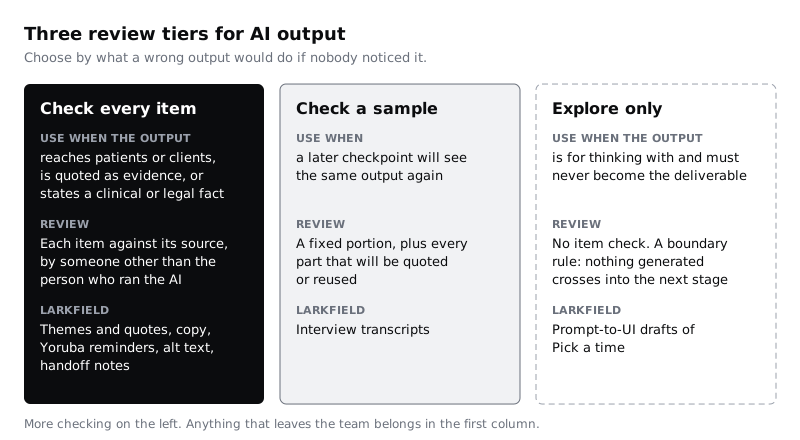
For each yes row, ask three questions and write the answers in a new column, then pick the tier:
- Who sees it if it is wrong? Patients, the client or developers, or only the team.
- Would a later check catch it? A quote in a transcript gets checked again at synthesis; a reminder text in Yoruba may never be read by anyone else on the team.
- Is it stated as fact? Quotes, clinical instructions, measurements and specs are facts. Options and sketches are not.
Check every item is for anything that reaches people outside the team, is presented as evidence, or states a fact. Check a sample is for outputs that a later checkpoint will see again. Explore only is for outputs you use to think with: they get no item-by-item check, but they get a hard boundary. At Larkfield, the boundary for the explore stage is "no generated frame, layer or colour is copied into the High fidelity page".
Take extra care with anything in a language the reviewer does not read. An AI translation of "Reply C to cancel" into Yoruba can look fine to everyone on a team that does not speak Yoruba. Many clinic users read reminders in more than one language, on a basic Android phone with limited data, and a wrong word there means a missed appointment. That use is check every item, with a fluent reader as reviewer.
Check it worked
Every AI use in Workflow has a tier and a one-line reason that mentions who would see an error. Nothing that reaches patients, clients or developers is in the explore-only tier, and every explore-only row has a boundary rule written as one sentence about what may not cross into the next stage.
Step 4 · Place each checkpoint and name the reviewer
A checkpoint sits at the point where AI output leaves its stage, before the next stage uses it. Put it any later and the error has already shaped other work; put it any earlier and the output is not finished. Add a tab called Checkpoints with one row per checkpoint and columns for ID, position (after which stage, before which), reviewer, backup reviewer, what the reviewer needs access to, pass condition and on-fail action. Number them C1, C2 and so on, in workflow order.
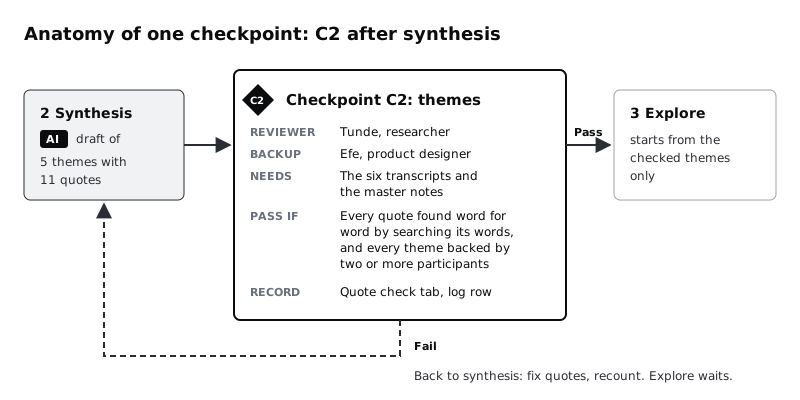
Three rules for choosing the reviewer:
- One named person. "Design" cannot be asked whether a check happened. Tunde can.
- Not the person who ran the AI, for the check every item tier, when the team is big enough. The person who wrote the prompt has already read the output once and liked it. At Larkfield, Tunde ran the synthesis prompt and still reviews it, because he is the only one who knows the transcripts; Efe then spot-checks five of his checked quotes. Priya ran the AI for both copy and alt text, so neither check can rest on her alone. At C4 she prepares the string table, but Tunde reads every non-clinical string aloud in place on the screens, because he has heard how patients talk about booking. At C5, the first draft of Checkpoints made the same kind of exception as C2: Priya reviews every alt text, as the person who knows what each image is for, and Efe spot-checks ten. Write any exception like this down with its reason and its second checker, so it is a decision rather than a habit.
- Someone who can see the source. A reviewer cannot check quotes without the transcripts, or a screen without the component library. Write down the access they need, and confirm they have it before the stage starts.
Name a backup for every checkpoint. When the reviewer is ill or on leave, the deadline does not move, and without a backup the check is the thing that gets dropped.
Where a stage needs knowledge nobody on the design team has, bring that person in for the checkpoint only. At Larkfield, Ruth reviews any copy that tells patients what to do for their health ("Do not eat for 8 hours before a fasting blood test"), and Bisi, a fluent Yoruba speaker from the clinic's patient group, paid for her time, reviews the Yoruba reminders.
Check it worked
Checkpoints has one row for every AI use in Workflow (explore-only uses get a row for their boundary). Every row names one reviewer and one backup, both real people who have agreed to it, and lists the access they need. Ask each reviewer: "Do you have the transcripts, files or library you need for this check today?" Every answer is yes.
Step 5 · Write a pass condition that someone else could test
The pass condition is the part most teams skip. "Reviewed by Priya" says a person looked; it does not say what she looked for, so the look can be a ten-second glance. Write each condition so that a different person, given the same output and source, would reach the same pass or fail.
A testable condition names the thing checked, the source it is checked against, and a rule with a clear yes or no. Compare:
- Vague: "Themes look right." Testable: "Every quote is found word for word in the source notes by searching five of its words, and every theme is supported by at least two participants."
- Vague: "Screens are on-brand." Testable: "Every layer on the High fidelity page is an instance of a Larkfield component or uses a Larkfield colour variable and one of the five text styles; with each frame selected, the selection colours in the right sidebar list only variable names, with no raw hex values."
- Vague: "Copy checked." Testable: "Tunde has read every non-clinical string aloud in place on its screen; each fits its length limit; every health instruction carries Ruth's initials in the string table."
- Vague: "Translation fine." Testable: "Bisi has read each Yoruba reminder aloud and translated it back to English without seeing the original, and her version matches the English meaning line by line."
- Vague: "Alt text done." Testable: "Each alt text does the image's job on its screen, read in place next to the screen; decorative images have empty alt text."
Then write the on-fail action. A failed check needs somewhere to go: back to the stage owner with the list of failures, and the next stage waits. At Larkfield, a failed C2 sends the theme list back to synthesis, and Efe does not start explore from those themes until C2 passes.
Keep each condition short enough to fit on the diagram in two lines. If it needs a paragraph, the stage is doing too much; split it.
Check it worked
Give one pass condition and one real AI output to a teammate who did not write the condition, and ask them to apply it. They reach pass or fail without asking you what you meant. Every condition in Checkpoints names a source, contains no word like "good", "right" or "appropriate", and has an on-fail action that names the stage the work goes back to.
Step 6 · Draw the annotated workflow diagram
Now turn the two tabs into one picture the whole team can see. Use a whiteboard tool, a diagramming tool, a large sheet of paper or a Figma page; what matters is that it fits on one screen or one wall.
Draw each stage as a box in workflow order, numbered as in Workflow. Mark the boxes where AI is used, with a short label of what it produces. Draw each checkpoint as a distinct shape, such as a diamond, on the line between stages, labelled with its ID. Below the stages, add a table with one row per checkpoint: ID, reviewer, and the pass condition in its short form.
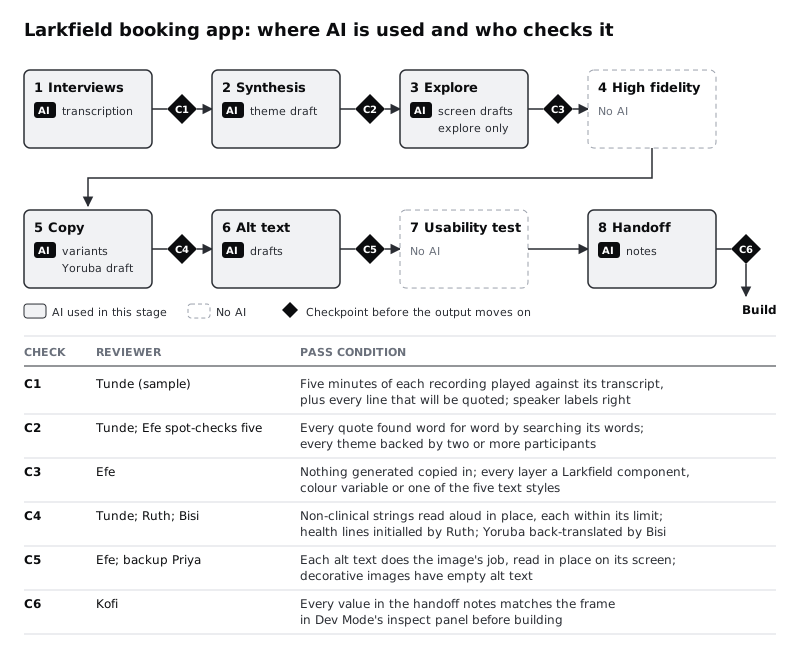
Two things to look for once it is drawn:
- Gaps. An AI use with no checkpoint after it, including one that nobody reported. At Larkfield, the handoff box was first drawn as "No AI". When the team looked at the diagram together, Efe said she had had an assistant turn her frame annotations into tidy handoff notes; she had not counted it, because she thought of it as cleaning up wording. Kofi had already found one of those notes giving the time slot a different height from the one set in the Time slot component. The use went into Workflow, the handoff box got its AI mark, and a new checkpoint became C6: "Kofi checks every value in the notes against the frame's properties in Dev Mode's inspect panel before building from it."
- Pile-ups. One person holding several checkpoints in the same week as their own stage work. At Larkfield, the diagram showed Priya reviewing C5 in the week she was still writing copy and preparing C4. C5 moved to Efe, who placed every image on the High fidelity screens, so she now checks every alt text in place, with Priya as backup. That also removed the C5 exception: the person who ran the AI is no longer the main reviewer.
Pin the diagram where the team works: the project's main page, the first page of the design file, or the wall.
Check it worked
The diagram shows every stage in Workflow, every AI use is marked, and every AI-marked box is followed by a checkpoint shape before the next stage. Every checkpoint on the diagram has a reviewer's name and a pass condition you could read aloud. A new team member shown only the diagram can tell you who checks the Yoruba reminders and what they check.
Step 7 · Log every review where the work lives
A checkpoint that leaves no trace cannot be told apart from one that was skipped. Add a tab called Review log with one row per review: date, checkpoint, reviewer, what was checked (with a count), result, what changed, and time taken. Keep it light; one row takes a minute to write.
The first Larkfield entries read:
- 2 Dec, C2, Tunde: 11 quotes, 5 themes. Fail on first pass: 1 quote not in notes, 2 paraphrased, 1 wrong participant, one theme backed by a single person. Fixed and passed the same day. 1 h 35 min.
- 4 Dec, C3, Efe: the High fidelity page. Pass; two generated icons found and replaced with Larkfield icon components first. 20 min.
- 8 Dec, C4, Bisi: 3 Yoruba reminders. Fail: the cancel instruction read as "reply to confirm". Rewritten with Bisi, passed. 40 min.
Link each row to the evidence: the Quote check tab from synthesis, the version of the frame, the string table. Then, if someone later asks where a quote in the findings deck came from, or why a reminder says what it says, the answer is a row away. If your clinic or client has to show how a decision was reached, this log is that record.
The time column is the honest part. It shows what AI saved and what the checks cost, and it is the evidence you need when someone proposes dropping a check to save time.
Check it worked
Review log has a row for every checkpoint that has run so far in the project, each with a count of items checked, a pass or fail, and a time. Every fail row says what changed. Pick one row at random and follow its link: the evidence it points to exists and shows the same count.
Step 8 · Test that the loop catches errors
Checkpoints decay. Reviewers under deadline start passing what they expect to pass, which is the over-reliance on AI output that the loop is there to stop. After a few weeks, read the log for two warning signs:
- A checkpoint that never fails. Either the AI is very good at that task, or the review has become a glance. You cannot tell which from the log alone.
- Review times falling fast while the amount checked stays the same.
To tell the difference, seed one known error. With the team's agreement, and with reviewers told in advance that this will happen now and then, change one item before it reaches a checkpoint: alter one word in a quote before C2, or detach one component instance on the High fidelity page before C3. Note it privately, and see whether the review catches it. This tests the checkpoint, not the person, so share the result with the team either way.
At Larkfield, the product manager changed one quote before a later run of C2. Tunde caught it in the first ten minutes. A seeded detached instance at C3 was missed, because Efe was checking colours and text styles but not instances; the pass condition was rewritten to name instances explicitly.
Then adjust. Move a check from every item to a sample only if the log shows it catching nothing over several runs and a later checkpoint sees the same output. Move it the other way the first time an error gets past it. Update the diagram whenever a checkpoint, reviewer or condition changes, and date the change.
Check it worked
You have run at least one seeded error through one checkpoint, recorded in the log whether it was caught, and either confirmed the pass condition or rewritten it. The diagram shows the date of its last change, and every change since the first version matches a row in the log or a note in Checkpoints.
Next steps
- If your team has no shared rules on which AI tools are approved and what data may go into them, write them with /tutorials/write-team-rules-for-using-ai-in-design-work and link them from the diagram.
- Run the C2 kind of check in full, quote by quote, with /tutorials/synthesise-interview-notes-with-ai-and-check-it.
- Run the C3 kind of check on a generated screen with /tutorials/rebuild-an-ai-generated-screen-with-your-own-components.
- To give the people using your product the same kind of control over AI actions, read /tutorials/let-people-review-edit-and-undo-what-ai-does.
Part of these paths
Related tutorials
- Write team rules for using AI in design workYou will have a one-page AI policy for your design team, covering approved tools, data that never goes in, client disclosure, who checks output and how generated assets are labelled, plus a three-question check every designer runs before using AI on a task.
- Let people review, edit and undo what AI doesYou will have six designed states for an AI-drafted reply to a patient message, from empty to draft, edited, sending, sent and corrected, in which nothing reaches a patient until a named member of staff has checked it, sent it and had a chance to undo it.
- Synthesise interview notes with AI and check every claimYou will have a theme list drafted by an AI assistant and checked line by line against your own interview notes, a log of every mistake the AI made, and a clear view of where it saved you time and where it did not.
Need this done for you?
Padding does this work for growing companies, from the first diagnosis to a system that keeps working.
Get new tutorials