AI in design · Intermediate · 17 min
Let people review, edit and undo what AI does
By Padding · Updated 18 Nov 2026
Figma (web) or any design tool, and a spreadsheet · November 2026
You will have six designed states for an AI-drafted reply to a patient message, from empty to draft, edited, sending, sent and corrected, in which nothing reaches a patient until a named member of staff has checked it, sent it and had a chance to undo it.
On this page
Most writing about AI interfaces is about answers: how a chat reply looks, how it shows its sources, what it says when it does not know. This tutorial is about a different thing, an AI that does something on a person's behalf. Once a model can fill in a form, move a booking or send a message, a wrong answer stops being something a person reads and doubts. It becomes something that has already happened.
The safe pattern has three parts, and each needs its own designed state. People review what the AI produced before it acts, they can edit it into what they actually want to say, and they can undo it, or at least correct it, afterwards. Skip any one and the others carry more weight than they can bear.
The running example is Larkfield Clinic, the fictional community clinic whose patients book through an app with the screens Home, Choose a service, Pick a time, Your details, Confirm and Booked. Patients can also send the clinic a message, and reception staff answer them from a Messages screen in the clinic's staff tool. The clinic wants a Draft a reply button there. You will design every state around it so that the draft is clearly marked, editable, never sent automatically, and sent under the name of the staff member who checked it. The example message comes from a patient, Grace O., who has booked a Nurse appointment on Tuesday 9 December at 10:30.
Step 1 · List what the AI touches and what cannot be taken back
Before drawing anything, write down what the feature actually does. Open a spreadsheet and call the first tab Actions. Add five columns: action, who starts it, what changes, can it be undone, and who answers for it.
For the Larkfield reply feature, the rows are:
- Draft a reply. Started by the staff member. Changes nothing outside the reply box. Fully undoable: discard the draft. The staff member answers for whether to use it.
- Edit the draft. Started by the staff member. Changes the reply box. Undoable with the editor's own undo, or by restoring the AI draft. The staff member.
- Send the reply. Started by the staff member. The message appears in Grace's app and, because she has text notifications on, as a text message on her phone. Cannot be undone once delivered. A text message cannot be pulled back from a phone. The staff member who sends it, on behalf of the clinic.
- Correct a sent reply. Started by the staff member. A second message to the patient. Cannot be undone either. The staff member.
The fourth column decides the design. Everything up to "send" can be undone with no harm, so those states need to be quick and forgiving. "Send" cannot, so undo has to happen before the message leaves, and after that the only honest option is a correction.
Add a sixth column, AI may do this alone?, and write "No" on every row. For Larkfield the AI only ever writes into the reply box. It does not send, schedule, move a booking or mark a message as answered. Write that down now, because the pressure to add "auto-send for simple questions" usually arrives once the feature is popular.
Check it worked
Your Actions tab has a row for every action in the feature, each with a yes or no in the undo column and a named role in the last column. At least one row says the action cannot be undone, and the AI may do this alone? column has no "Yes". If your own feature has a "Yes", that row needs the review and undo states below before anything else.
Step 2 · Map the six states and the person at every arrow
Add a page to your design file called AI reply states. Before designing any screen, draw the states as boxes and the moves between them as arrows, and label every arrow with who makes that move.
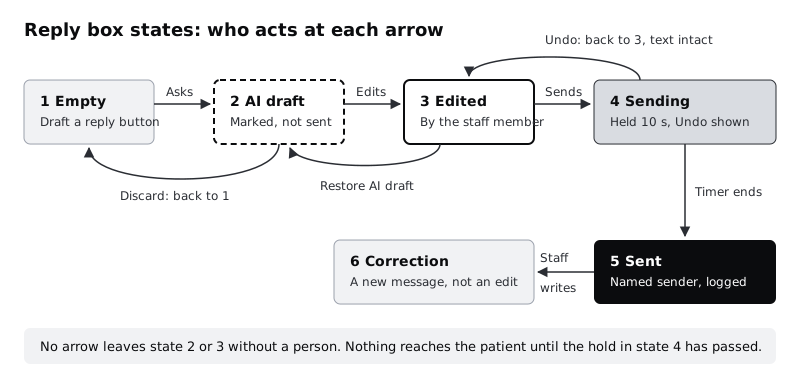
The six states are:
- Empty. The reply box with a normal text field and a Draft a reply button beside it.
- AI draft. The model's text in the reply box, marked as a draft.
- Edited. The same box after the staff member has changed anything.
- Sending. A short hold after Send, with Undo.
- Sent. The message in the conversation, with the sender's name.
- Correction. A follow-up message linked to the one it corrects.
Then look at the arrows. Only one, from Sending to Sent, is made by the system, and it only runs out a timer the staff member started. If you find an arrow where the model moves the reply forward by itself, such as a draft that sends when the staff member closes the screen, remove it.
Make each state a variant of one component, Reply box, with a property called State. Every screen that shows a reply box then has to pick a state, so no screen can quietly leave one out.
Check it worked
The AI reply states page shows six boxes and at least seven arrows, each labelled with who moves it. There is a way back from AI draft, from Edited and from Sending. The only arrow without a person is the timer from Sending to Sent. Your Reply box component has six variants, one per state.
Step 3 · Design the draft so nobody mistakes it for their own words
The draft state carries most of the risk, because a fluent paragraph looks finished. Design it so a busy receptionist cannot confuse it with something a colleague wrote, or with text they have already checked.
Build the AI draft variant with these parts, top to bottom:
- A label in words. A full-width bar across the top of the box: "AI draft · not sent · check every line before sending". Give the box a dashed border too, but the words do the work; a border colour alone fails anyone who cannot tell the colours apart (WCAG 1.4.1). Use
Labelfor the bar text. - The draft text. In
Body, editable from the first moment. There is no separate "Accept" step before the staff member can type. - Facts as chips, not prose. The service, date and time come from the booking record, not from the model. Show them as small chips inside the text:
Nurse appointment,Tue 9 Dec, 10:30. The model writes the sentence around them; it does not type the facts. Models get dates and times wrong in confident prose, and a chip pulled from the booking cannot drift by an hour. - Flags for what the draft did not answer. Grace also asked whether a sore arm after her last injection is normal. Reception staff do not give clinical advice, so the draft must not either. It leaves that question out and shows a flag: "Not answered. Needs a nurse. Question about a sore arm after an injection." The flag has a Done button the staff member presses once they have passed the question on or answered it themselves.
- What it was written from. One line in
Body/Smallandcolour/text-muted: "Written from: this message, the booking record, Visiting the clinic page". If the draft says children are welcome, the staff member can see which page that should have come from and check it. - Two actions. Discard, a secondary button on the left, and Send as Ama Mensah, the primary button on the right, with the signed-in staff member's name in the label.
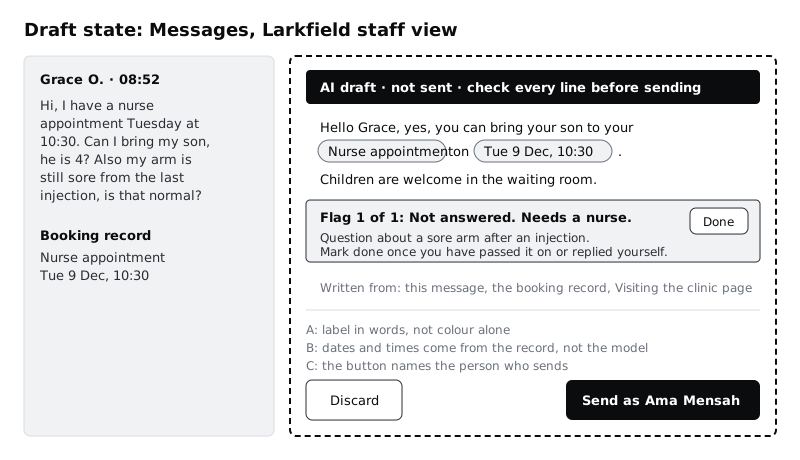
Decide what Send does while a flag is still open. A disabled button gives no reason, and some screen readers skip it. Keep Send enabled; when it is pressed with a flag open, move focus to the flag and show "Mark the flag as done, or remove it, before sending." That stops the staff member at the one thing that needs them, without a confirmation dialog on every message.
Draft only in a language the staff member reads. If Grace had written in Yoruba or Hausa and the person on reception reads only English, a fluent draft in either language is text nobody can check. In that case show "This message is in Yoruba. Pass it to a colleague who reads it" instead of the button. Clinics in multilingual cities, across much of Africa and elsewhere, get these messages every day, so design this state now.
Check it worked
Open the AI draft variant and cover the dashed border with your hand: the words "AI draft" and "not sent" still tell you what you are looking at. Every date, time and service name in the draft is a chip, and the sore-arm question appears as a flag, not as an answer. The primary button names a person, not "Send" alone.
Step 4 · Design the edited state and the ways back
The moment the staff member changes a word, the reply is partly theirs. The label should say so, without pretending the AI was never involved.
Build the Edited variant from the draft variant and change three things:
- The label. It becomes "Edited by you from an AI draft · not sent". The dashed border becomes solid, because the text is no longer the model's alone.
- Restore AI draft. A text button in the label bar that puts the original draft back. It is how the staff member gets out of an edit that went wrong, without having to remember what the model wrote.
- Normal undo. Ctrl+Z and Cmd+Z keep working inside the text box, one change at a time. Do not take over these keys for anything else, such as rewriting the draft. People reach for them without thinking.
Chips survive editing as whole units. A staff member can delete a chip, or replace it from the booking record, but cannot type inside it to change "10:30" to "11:30". If the time really has to change, the booking changes first, from Pick a time, and the chip follows. A reply that says 11:30 while the booking still says 10:30 is how a patient ends up at the wrong appointment.
If the staff member clears the box and writes their own reply, the label disappears and the box behaves exactly like the Empty state with text in it. A reply with no AI text left is not an AI reply.
Check it worked
Your Edited variant has a solid border, a label saying "Edited by you from an AI draft", a Restore AI draft button and the same chips as the draft. Click into a chip on your prototype or write a note beside it: it can be removed or replaced, not typed into. You can describe in one sentence what happens when someone deletes every word of the draft.
Step 5 · Hold the message before it leaves, then show who sent it
Sending is the arrow that cannot be reversed, so give the staff member one more chance first, then be clear about what has happened.
Build the Sending variant. When Send is pressed, the reply leaves the box and a bar appears in its place: "Sending to Grace O. in 10 seconds. Your reply is not on its way yet." with an Undo button. The number counts down. During those seconds the message has not left the clinic's system, so Undo is a true undo: it puts the text back into the box exactly as it was, chips and all, in the Edited state.
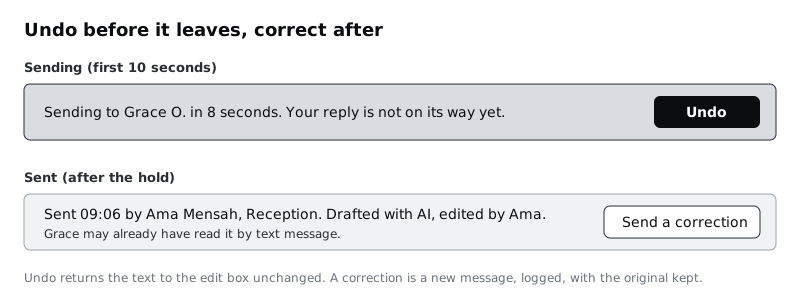
Three details make the hold work for everyone:
- Announce it without stealing focus. The "Sending" bar is a status message (WCAG 4.1.3). A screen reader user hears it, and focus moves to Undo only if they choose to go there. Write in your notes that the bar is announced once, when it appears, and not on every tick of the countdown; if the whole counting bar sits in a live region, a screen reader reads out every second.
- Let people set the length. Ten seconds is a starting point, and the Undo window is a time limit. Put a setting in the staff member's preferences with 10 seconds, 30 seconds, 2 minutes, and "Hold until I press Send now", which removes the limit: the message waits with Undo available until the staff member confirms it. WCAG 2.2.1 asks that a time limit can be turned off, or adjusted to at least ten times the default, and these last two options cover both. If some staff want speed, add "Send at once" as a separate preference, and say in its label that it removes Undo. That is a speed choice, not the accessible option.
- Keep Undo in reach when people move on. If the staff member moves to another screen during the hold, keep the countdown in a bar at the bottom of the staff tool so Undo stays in reach. If they close the tool, hold the message until they return rather than sending it unseen.
Then build the Sent variant. The message sits in the conversation with "Sent 09:06 by Ama Mensah, Reception". Grace sees the same name in her app and in the text message: "Ama at Larkfield Clinic". The patient's reply comes from a person who can be asked a follow-up question, not from "Larkfield Assistant". Whether patients are also told that a draft was written with AI is a decision for the clinic, not the designer; write the options down in your handover and ask the practice manager to choose.
Staff see one more line: "Drafted with AI, edited by Ama" or "Drafted with AI, sent unchanged". The clinic's message log keeps this line, the draft as the model wrote it and the text as sent. If a reply later causes a complaint, the clinic can see exactly who changed what.
Check it worked
Your Sending variant shows a countdown, says plainly that the message has not left, and has an Undo button. Your notes say where the hold length is set, that it reaches at least 100 seconds and has a "Hold until I press Send now" option, and that the bar is announced once, not every second. The Sent variant names the staff member, gives a time and, for staff only, says whether the draft was changed.
Step 6 · Design the correction for mistakes found too late
Undo has a deadline. After the hold, a mistake has to be fixed in the open. Design that path now, because the first time staff need it is usually the day it matters.
On the Sent message, add a Send a correction button. It does not edit or delete the original. On a phone, the text message has already arrived, and a reply that silently changes in the app while the text message says something else leaves the patient with two versions. Instead it opens the Correction variant: an empty reply box, linked to the original, with a heading "Correcting your 09:06 message to Grace O." and the original quoted above it, greyed and struck through in the staff view only.
Do not offer Draft a reply in the correction box. A correction is written because something in a reply was wrong, and the person who saw the problem is the one who should explain it. Give them a short starting line instead, which they can change: "Sorry, my last message had a mistake."
In the patient's app, the correction appears as a new message: "Correction from Ama at Larkfield Clinic", with the original kept below it and marked "Corrected". Many Larkfield patients read their messages as texts on low-cost Android phones with prepaid data, and may never open the app. Keep the correction readable in a single short text message on its own, without needing the original.
Check it worked
Your Correction variant is a new message linked to the old one, not an edit of it. It has no Draft a reply button. Read the patient's text-message version on its own: it says what was wrong and what is right, in about one text message, without the app.
Step 7 · Test the states with the people who will use them
The states only work if staff use them as intended under real pressure. Make a click-through prototype of the six frames, with Draft a reply, Send, Undo, Restore AI draft, Done and Send a correction linked to the right variant. Then sit with three people who answer messages for a living. Reception staff from a real clinic are best; support or front-desk staff from any service are fine.
Give each of them three messages to answer, one at a time, and say you are testing the screen, not them:
- A plain one. "Can I bring my son to my appointment on Tuesday?" The draft is correct.
- One with a planted error. The draft says "children must wait outside", which is not Larkfield's policy, and the page it cites says the opposite.
- One with a clinical question. Grace's full message, with the sore-arm question flagged.
Add a tab called Staff test with these columns: person, message, read the whole draft (yes or no), found the planted error, pressed Done on the flag without passing it on, used Undo, seconds from opening to sending, and what they said. Note anything they say about trust, such as "I'd just send these" or "I wouldn't use it".
Read the sheet for these signs:
- Someone sent the planted error. The label or the "Written from" line is not working. Make the source a link and test again; do not add a second confirmation dialog.
- Someone pressed Done on the flag without acting. The flag needs a choice, such as "Passed to nurse" or "Answered by me", not a single button.
- Nobody used Undo. That is fine if they never needed it. Ask each person at the end what they would do if they spotted a mistake two seconds after sending. If they do not know, the Undo button is too quiet.
- Messages took longer with drafts than without. Then the draft is not saving time for this kind of message, and the clinic may decide to offer it only for some messages. That is a valid result.
Check it worked
Your Staff test tab has nine rows, three per person, with every column filled in. You can say how many of the three people caught the planted error and what you are changing as a result. If all three caught it, write that down too, along with the fact that three people are not enough to call the design safe; test again with more staff before launch.
Next steps
You now have six states for an AI action that a person reviews, edits and sends under their own name, with an undo window before the message leaves and a correction path after it.
- To set the wider rules for when people check AI work across a design team, read /tutorials/keep-a-human-in-the-loop-in-an-ai-design-workflow.
- The draft can fail before it reaches the box. For timeouts, refusals and an unavailable provider, design the fallback states in /tutorials/design-error-refusal-and-fallback-states-for-ai.
- If the clinic decides patients should see where an answer came from, use the source line patterns in /tutorials/show-uncertainty-and-sources-in-ai-answers.
- Patient messages are personal data. Before a model sees them, settle consent and data controls with /tutorials/design-consent-and-data-controls-for-ai-features.
Part of these paths
Related tutorials
- Keep a human in the loop in an AI design workflowYou will have your team's design workflow mapped from research to handoff, with every step that uses AI marked and a named reviewer and a testable pass condition placed before its output moves on, drawn as one annotated diagram and backed by a review log.
- Design error, refusal and fallback states for AI featuresYou will have a failure matrix for an AI booking assistant that covers wrong answers, refusals, outages and rate limits, with a non-AI way forward for every row and a set of state frames that keep people moving.
- Show uncertainty and sources in AI answersYou will have three tested answer layouts for an AI assistant, one sourced, one uncertain and one out of scope, plus the rules that decide which layout each answer gets.
Need this done for you?
Padding does this work for growing companies, from the first diagnosis to a system that keeps working.
Get new tutorials