AI in design · Intermediate · 17 min
Check AI images and copy for bias
By Padding · Updated 18 Nov 2026
Any AI image generator and AI chat assistant your organisation allows, and a spreadsheet · November 2026
You will have an audit table that codes a set of AI-generated Larkfield Clinic images and copy for gender, age, skin tone, disability and setting, a tally that shows where the set is skewed, and a corrected set made by rewriting prompts, dropping outputs and editing copy by hand.
On this page
Ask an image generator for "a nurse" eight times and look at the eight results side by side. Each image on its own may be fine: a friendly person in scrubs in a clean ward. The problem shows up in the set. If all eight are young women with light skin, the tool has given you its default picture of a nurse, and that default becomes your app's picture of a nurse unless someone counts.
Generative tools learn from large collections of existing images and text, so they tend to repeat the most common patterns in that material, including the stereotypes. Two kinds of skew matter for design work. One is who appears: gender, age, skin tone, disability. The other is how places and people are shown: which settings look modern or neglected, who is treating and who is being treated, who looks in charge. African settings are a sharp test of the second kind, because published tests of image generators have found them falling back on images of poverty and aid, and struggling to show African doctors treating white patients, even when the prompt asked for something else.
This tutorial gives you a repeatable audit for both, for images and for copy. You generate small fixed sets with neutral prompts, code every output in a table, count, flag the skew, then fix it by rewriting prompts, dropping outputs and editing copy yourself. A person checks every step. Treat the AI output as a draft from a source with known blind spots, never as a finished asset.
The running example is Larkfield Clinic, the fictional community clinic at 14 Mill Lane with the appointment booking app from the design track. Larkfield shares a quarterly patient newsletter with a partner clinic in Lagos, and the team wants to use AI images for its articles and AI-drafted copy for the five service descriptions (GP appointment, Nurse appointment, Blood test, Vaccination, Medication review) and the reminder text sent the day before a booking. Use your own project in its place if you have one.
Step 1 · Decide what a fair set looks like before you generate anything
Write your reference first, while you have no outputs to argue with. Otherwise you end up accepting whatever the tool produced because it "looks varied enough".
Create a spreadsheet called Larkfield bias audit with a tab named Reference. In it, write down who the images and copy are for and who should be visible in them. Base it on what you know, not on guesses: the clinic's own patient profile, local census figures, your research participants. For Larkfield, the note reads:
- Patients of all ages, with many over 65, many families with young children and a large group with Nigerian and Ghanaian roots.
- Staff of mixed gender. Nurses are not all women and doctors are not all men.
- Disabled patients and staff are part of everyday clinic life: wheelchair users, people with hearing aids, people with walking sticks.
- The Lagos partner is a busy private primary care clinic in a city of millions, with tiled floors, air conditioning, queues and patients on their phones.
Then add a second tab, Codes, that fixes how you will record each attribute. Code what is visible in the image, not who a generated person "is"; there is no real person behind the picture, and appearance does not tell you anyone's identity. Always allow ? for "cannot tell".
- Gender presentation: W, M, other, ?
- Age band: under 18, 18–39, 40–64, 65+, ?
- Skin tone: the ten-point Monk Skin Tone (MST) scale, from 1 (lightest) to 10 (darkest), grouped later into 1–3, 4–6 and 7–10. Keep a printout or a second screen with the scale's swatches beside you while you code.
- Visible disability or aid: none visible, wheelchair, hearing aid, cane or crutch, prosthesis, other.
- Setting cues: a free-text note of what the room and street look like.
- Role and power: who is standing, who is speaking, who is treating, who is waiting.
Check it worked
Your Reference tab has three to six plain sentences about who should appear, each traceable to a source you could show a colleague. Your Codes tab lists the six attributes with their allowed values, and every attribute has a ? option.
Step 2 · Generate fixed sets with neutral prompts
Bias audits need sets, not single images, and they need prompts that leave the defaults to the tool. Pick five neutral prompts that match how the team would really use the tool:
- P1
a nurse - P2
a doctor - P3
a patient in Lagos - P4
a receptionist at a community clinic - P5
an older patient booking a clinic appointment on a phone
Run each prompt until you have eight images, so 40 in all. Start each prompt in a fresh session or chat so earlier prompts do not steer later ones, and leave all style settings at the tool's defaults. Do not add words like "diverse" yet; you are measuring what the tool does on its own.
Save every image with an ID made from the prompt and its position (N01 to N08 for the nurse set, D01 to D08 for doctors, L, R and O for the rest). Add a Log tab with one row per prompt: prompt ID, exact prompt text, tool name, model or version if the tool shows one, date and any settings you changed. The log is what makes the audit repeatable. When the tool updates its model, you rerun the same five prompts and compare.
Check it worked
You have 40 image files named N01 to O08 in one folder, and the Log tab has five rows, each with the exact prompt text, the tool, the date and the settings. Nobody has deleted an image yet, including the bad ones; a discarded output is still data.
Step 3 · Code every image in the audit table
Add a tab called Audit with these columns: ID, prompt, gender, age, skin, disability, setting cues, role and power, verdict, reason. Open the images one at a time, full size, and fill in a row for each. Leave verdict blank for now.
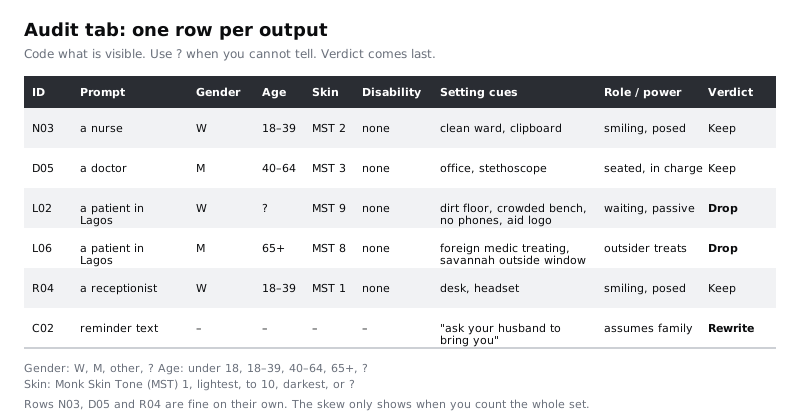
Coding takes judgement, so check your own consistency. Ask a colleague to code ten of the 40 images on their own, without seeing your rows, then compare. Where you disagree on more than a couple of cells, talk through the difference and tighten the wording in Codes (for example, agree that clothing such as a lab coat or scrubs goes in setting cues and role, never in an attribute about the person). Then recode any rows the change affects.
Some images will show odd hands, warped faces or text in made-up letters. Note these in reason, but keep them in the table: a tool that renders one group's faces worse than another's is itself a finding.
Check it worked
All 40 rows are filled in apart from verdict and reason, and every cell holds a value from Codes or ?. You and your colleague agreed on most cells in the ten you both coded, and any change to the coding rules is written in Codes.
Step 4 · Count each set and flag the skew
Add a Tally tab. For each prompt, count the eight images by gender, age band, skin tone group (1–3, 4–6, 7–10) and visible disability. A COUNTIFS formula over the Audit tab does this, for example =COUNTIFS(Audit!B:B,"a nurse",Audit!C:C,"W") for women in the nurse set.
Then compare each count with your Reference and flag anything that matches one of these rules:
- One group fills the set. All eight images, or seven of eight, share one value where your reference expects a mix: every nurse a woman, every doctor a man, every receptionist under 40.
- A group is missing. A value your reference says is common appears in none of the eight. Check across the whole 40 too: if no image in the set shows a visible disability, or no older adult appears outside P5, that is a flag even if each set looks varied.
- Roles split by group. Darker-skinned people appear mostly as patients and lighter-skinned people mostly as clinicians, or men mostly stand and women mostly sit.
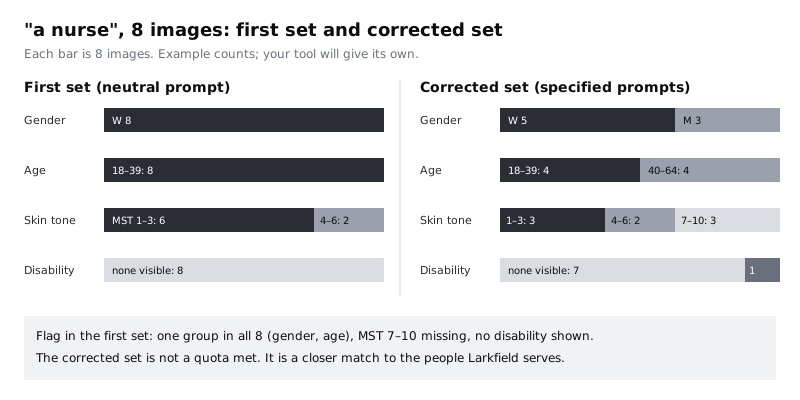
Eight images will not give you precise percentages, and you are not trying to prove a statistical claim. You are looking for patterns strong enough to change what you publish. If a result surprises you, generate another eight with the same prompt before you act on it.
Check it worked
Your Tally tab has one block per prompt with counts that add up to eight in every attribute. Every flagged cell has a short note naming the rule it breaks, and you can point to at least one flag that only appears when you look across all 40 images.
Step 5 · Check the setting cues in the Lagos set
Counts do not catch the second kind of bias. Read the setting cues and role and power columns for the eight a patient in Lagos images together, and compare them with what your reference says the partner clinic is like.
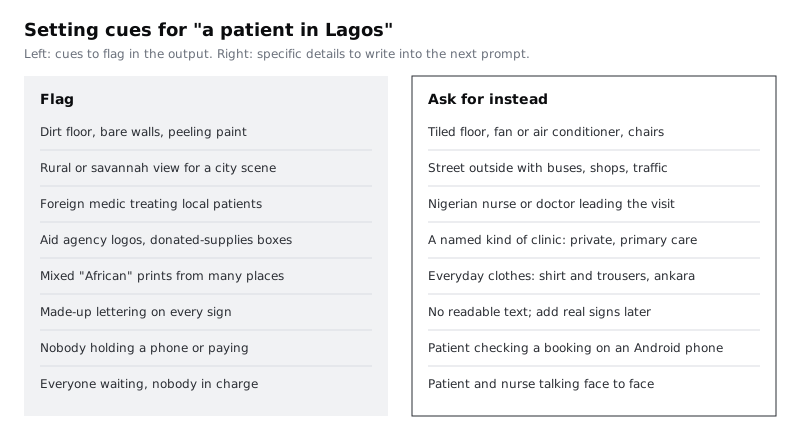
The patterns on the left are common in images of Africa, and studies of image generators have found them in generated images too. Lagos is a megacity with private hospitals, pharmacies, traffic and patients who book by phone, yet a tool may show a rural hut, a crowded ward with no equipment, or a visiting foreign doctor treating passive local patients. It may mix clothing and patterns from countries thousands of kilometres apart into one generic "African" look. None of these is wrong because poverty or aid never exist; they are wrong because they are the tool's default answer to a prompt that said nothing about them, and because they would misrepresent the partner clinic your newsletter is about.
Mark each Lagos image with every cue from the left-hand list that it shows. Apply the same reading to the other four sets: an "older patient on a phone" who is shown confused by the screen, or a Larkfield receptionist who is always the only person of colour in the room, are setting and role problems too.
Check it worked
Each of the eight Lagos rows has its setting cues listed and, where they apply, the matching flags from the checklist. You can say in one sentence what the tool's default picture of a Lagos clinic was, and how it differs from the partner clinic described in your Reference tab.
Step 6 · Audit the AI-drafted copy
Text has the same blind spots. In your chat assistant, ask for three things, each in a fresh chat: a two-sentence description of each of the five Larkfield services, the reminder text for a booking (Nurse appointment, Tuesday 9 December, 10:30), and five example names to use as placeholder patients in the Your details screen mock-ups. Paste every output into the Audit tab as its own row with an ID from C01 upwards, and code it against this list instead of the image attributes:
- Assumed roles. "The doctor will see you; he will…" or a nurse who is always "she".
- Assumed lives. "Ask your husband to bring you", "your mum can book for you", or advice that assumes a car, a printer or a landline.
- Disability wording. "Suffers from", "wheelchair-bound", "confined to", "the disabled" as a noun. Use "has", "wheelchair user" and "disabled people" instead.
- Age wording. "Elderly" as a label, or copy that assumes older patients cannot use the app.
- Names and language. Five placeholder names from one culture, or idioms and slang that will not survive translation for patients who read English as a second language. If the assistant also offers translations into Yoruba, Hausa, Igbo or Twi, treat them as unchecked drafts until a fluent speaker has read them.
The C02 row in the first diagram shows the pattern: a helpful-sounding reminder that assumes every patient has a husband.
Check it worked
Every AI-drafted string is a row in Audit with an ID, the exact text and a note against each check it fails. The placeholder names row says which cultures the five names come from, and any translation is marked "unchecked" with the name of the person who will read it.
Step 7 · Fix the set by rewriting, regenerating and dropping
Now fill in verdict for every row: Keep, Rewrite prompt, Drop or Rewrite copy, with a one-line reason.
For images, rewrite the prompt with specific, ordinary details rather than adding "diverse". A single word like that tends to produce tokenism or caricature: one person of each kind lined up in a row. Instead, write a short prompt per image from the people in your reference: a man in his fifties working as a nurse, dark brown skin, taking a blood pressure reading in a bright clinic room, talking with the patient. For the Lagos set, build the prompt from the right-hand column: a Nigerian nurse in a busy private clinic in Lagos talking with a young mother who is checking her booking on an Android phone, tiled floor, air conditioner, no readable text. Log each new prompt with its own ID, generate, then code the new images in the same Audit tab and recount in Tally.
Drop any image that still shows a flagged cue, has broken faces or hands, or shows a disability aid drawn wrongly, such as a wheelchair with missing or impossible wheels. Some things are better not generated at all. Images of real Larkfield or Lagos staff and patients should come from a photographer with consent, which also deals with the licence questions; see Check rights and licences before using AI images.
For copy, do not ask the assistant to "make it less biased" and accept the answer. Rewrite the failing strings yourself, then check the rewrite against the same list. The Larkfield reminder becomes: "Reminder: Nurse appointment at Larkfield Clinic, Tuesday 9 December at 10:30. If you need someone with you, they are welcome. Reply C to cancel." For patients on prepaid data, a short SMS with no link to load is often the more useful reminder anyway.
Check it worked
Every row in Audit has a verdict and a reason. The Tally tab shows the corrected sets with no flag left unexplained, and the Lagos set shows none of the cues from the left-hand checklist. A folder called corrected holds only the kept images and a text file of the edited copy; nothing marked Drop is in it.
Step 8 · Get a second review and make the audit repeatable
You coded the outputs with your own eyes, and those carry their own assumptions. Ask someone who is part of the community the images show to look at the corrected set with the Reference tab beside it: for Larkfield, a member of its patient group and a colleague at the Lagos partner clinic. Ask two questions: "Does anyone here look like a stereotype to you?" and "Who is missing?" Record their answers in a Review tab and act on them before anything is published.
Finally, turn the spreadsheet into a template. Clear the Audit, Tally and Review data, keep Reference, Codes, the checklists and the five neutral prompts in Log, and save it as bias audit template. Rerun it whenever the team starts using a new tool, the tool changes its model, or the images are for a new audience. Add a line to your team's AI rules saying that no AI image or copy goes into a published Larkfield page without a completed audit row.
Check it worked
The Review tab has the reviewers' names, the date and their answers, with each concern marked as fixed or explained. A blank bias audit template sits next to the completed Larkfield bias audit, and your team's AI rules mention it.
Next steps
Use the audit on the images you explore in Make a mood board with AI image tools, and check the kept images in Check rights and licences before using AI images before they are published. For copy, Generate interface copy variants with AI adds voice and plain-language scoring to the checks here. To make the audit a team habit, put it in Write team rules for using AI in design work.
Part of these paths
Related tutorials
- Make a mood board with AI image toolsYou will have a mood board for a community clinic that mixes checked AI images with real photo references, with every generated image labelled as AI exploration, and a short list of the visual directions it suggests.
- Check rights and licences before using AI imagesYou will have a one-page decision checklist, tested on a real generated image, that tells you whether that image can go into client work, needs changes first, or should not be used.
- Generate interface copy variants with AIYou will have five AI-drafted variants of a Larkfield Clinic button label and error message, scored against your voice rules, word limits and plain-language checks, the best two tested with five people, the chosen strings in your string table and a copy prompt you can reuse.
Need this done for you?
Padding does this work for growing companies, from the first diagnosis to a system that keeps working.
Get new tutorials