AI in design · Beginner · 16 min
Check rights and licences before using AI images
By Padding · Updated 18 Nov 2026
Any AI image generator and its published terms, a reverse image search, and a document or spreadsheet · November 2026
You will have a one-page decision checklist, tested on a real generated image, that tells you whether that image can go into client work, needs changes first, or should not be used.
On this page
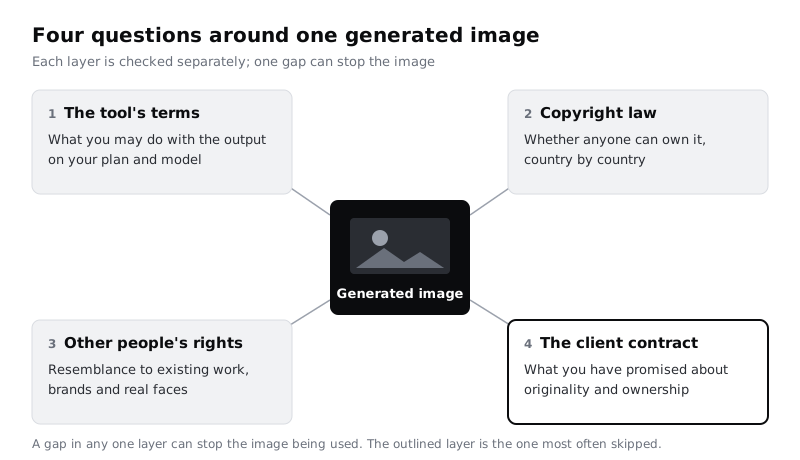
An image generator gives you a picture in seconds. It does not give you an answer to the question a client will eventually ask: "Are we allowed to use this, and is it ours?" That answer depends on four separate things, and a gap in any one of them can make an image unusable after it has been printed, posted or shipped in an app.
This tutorial walks through those four things in order: what the tool's terms let you do, what copyright law can and cannot give you, whether the image borrows from someone else's work or face, and what your client's contract expects. You record what you find as you go, and finish with a one-page checklist you can run on every generated image before it leaves your hands.
The running example is Larkfield Clinic, the community clinic from the booking app series. The clinic wants a poster for its waiting room that tells patients they can now book a Nurse appointment in the app. The designer has generated an illustration of a nurse talking to a patient at a reception desk, and wants to know whether it can go on the poster.
This is practical guidance for designers and product people, not legal advice. Law on AI output is changing, and differs by country. When the stakes are high (a logo, a national campaign, a product you sell), take the checklist to a lawyer and let them make the call.
Step 1 · Write down exactly how the image will be used
Rights questions only have answers for a specific use. "Can I use this image?" has no answer. "Can the clinic print this on an A2 poster in its own waiting room, and use it on its website for a year?" does.
Open a new document called AI image check: <project> and add a short section called Use with these lines, filled in for your image:
- Image: a file name and a one-line description.
- Made with: the tool, the plan or account type, and the model if the tool lets you choose one. Note the date you generated it.
- Where it will appear: print, website, app, social posts, paid ads, merchandise.
- Commercial or not: anything that promotes a business or is sold counts as commercial. A clinic poster promoting a service is commercial use, even for a small community clinic.
- Who will own the final work: you, your studio, or the client.
- Does the client need it to be exclusive: a logo, a mascot or a brand illustration usually does. A background texture usually does not.
- Where it will be used: the countries the work is published in, and where the client is based.
For Larkfield: "nurse-reception-v3.png, a flat illustration of a nurse and a patient at a reception desk. Generated 12 November 2026 on a paid individual plan, default model. A2 poster in the waiting room and the clinic website, both promoting online booking. Commercial. Client will own the final poster. Exclusive: not essential, but the clinic would not want a competitor using the same image. UK."
Keep the clinic's real photo of its entrance on the Home screen, as in the high-fidelity tutorial. Patients use that photo to recognise the building, and a generated building would show them a place that does not exist.
Check it worked
Your Use section has all seven lines filled in, and none of them says "not sure". If you do not know the plan or model, open your account settings or generation history now and find out, because the next step depends on it.
Step 2 · Read the tool's terms for five clauses
Every image generator publishes terms of use, and many also publish separate usage guidelines and a help page about commercial use. Find all three, usually linked from the site footer or the account page. Read the version that applies to your plan: individual, team and enterprise terms often differ.
Add a section called Terms log to your document and look for these five things. For each, copy the exact sentence from the terms, the URL, and the date you read it.
- Who owns the output. Look for words such as "you own", "we assign to you" or "licence". Some tools assign whatever rights they have to you; others keep rights and give you a licence. "We assign any rights we have" does not mean there are rights to assign; the next step covers why.
- Whether commercial use is allowed on your plan. The conditions can depend on your plan, and sometimes on who is using it. Check the wording for your plan, not the marketing page.
- What they say about similar outputs. Many terms say outright that other users may get the same or similar images. If so, you cannot promise a client the image is unique.
- What you may put in. Look for rules about uploading reference images, prompting with artists' names, brands, characters or real people. Some tools ban prompts designed to reproduce copyrighted or trademarked material, and uploads of images you do not have rights to.
- Indemnity, and which models it covers. A few providers offer to defend business customers if an output is challenged for infringement, usually with conditions. Check whether it applies to your plan and to the model you used. Some products offer several models, including third-party ones, and the commercial-use and indemnity position can differ between them inside the same app.
Write "not found" if a clause is missing. A missing clause is information too: it means the tool has made no promise either way.
Check it worked
Your Terms log has five rows, each with a quoted sentence (or "not found"), a URL and today's date. You can answer two questions from it without re-reading the terms: "Is commercial use allowed on the plan and model I used?" and "Could another user get a near-identical image?"
Step 3 · Find out what copyright you can and cannot give the client
Even when a tool's terms say you own the output, the law may not give anyone copyright in it. Copyright is what lets an owner stop others copying a work. Where it does not exist, anyone can reuse the image, and the client cannot stop them.
The position differs by country and is still moving:
- United States. The Copyright Office's January 2025 report concludes that copyright needs human authorship, and that prompts alone are, with current tools, unlikely to be enough. Human contributions that are perceptible in the result, such as your own drawing used as an input, substantial edits, or a creative selection and arrangement of several images, can be protected. The purely generated parts are not.
- United Kingdom. UK law has an older rule for "computer-generated works" with no human author, but it has not been tested on AI images in court, and the government has consulted on whether to change it. Hong Kong, India and New Zealand have similar rules, with the same uncertainty.
- Elsewhere. Korea's guidance protects only the parts a human changed. Japan's guidance decides case by case, looking at prompts, the number of attempts, selection and later edits. A Beijing court found copyright in one AI image in 2023, based on the user's choices.
If your client is in Nigeria, Kenya, Ghana or South Africa, do not assume the US or UK position applies there. Write down the client's country and treat the question as open until a local lawyer says otherwise.
What this means in practice: the more of the final image is your own work, the more there is to own. For the Larkfield poster, the designer redraws the generated sketch as vector artwork in the clinic's colours, with their own composition and lettering. That is a stronger position than placing the raw output on the poster.
Add a section called Copyright with two sentences: one saying what in the final work is human-made, and one you could say to the client about what they will and will not be able to protect.
Check it worked
Your Copyright section names the country or countries from your Use section and lists at least one human contribution to the final image, or says plainly "none: raw output". The client sentence does not promise exclusive ownership of a raw generated image.
Step 4 · Check the image for resemblance to existing work and brands
Generators learn from very large sets of existing images, and outputs can come out close to a particular photo, illustration, character or logo, especially with prompts that name an artist, a franchise or a brand. The tool's terms put that risk on you. Before any image goes further, look for it.
Work through these checks and record each one in a section called Resemblance:
- Run a reverse image search on the image in at least two search services that accept an image as the query. Look for near-copies, not just similar subjects. Note the services used and what came up. On prepaid mobile data, run the search on a compressed copy of the image; it works just as well and uses less data.
- Zoom to 200 per cent and scan every corner for signatures, watermarks, stock photo marks, garbled text that looks like a logo, or a recognisable product.
- Look for known characters, buildings and artwork. A mascot that looks like a famous cartoon, a recognisable landmark or a painting in the background can all bring in someone else's rights.
- Re-read your prompt. If it named a living artist or illustrator, a brand, a film or a game, generate again without that name. Even when the result is not a copy, a client will not want work that was asked to imitate a named artist.
- Check the content credentials. Some generators attach Content Credentials, metadata that records that an AI tool made the image. Keep it in the file you deliver rather than stripping it out; it is the honest record of how the image was made.
For Larkfield, the reverse search finds no near-copies. At 200 per cent, the designer spots a mark on the nurse's lanyard that looks like part of a real hospital trust's logo. It goes on the list of things to change.
Check it worked
Your Resemblance section lists the search services you used, what you found, and a yes or no for each of the five checks. Anything flagged has a fix written next to it: regenerate, edit out, or do not use.
Step 5 · Check for real people, likeness and sensitive context
A generated face can look like a real person by chance, or because the prompt or a reference image pushed it that way. Using a real person's likeness in promotion can break personality or publicity rights in some countries, privacy and data protection law in others, and the tool's own rules almost everywhere.
Add a section called People and answer these questions:
- Does any face look like someone recognisable, a public figure or someone you know? If a colleague says "that looks like ...", treat it as a yes and regenerate.
- Did you upload a photo of a real person as a reference? You need that person's consent for this use, and the tool's terms must allow it. Never upload a patient's or a staff member's photo without written consent. The same caution applies here as in /tutorials/remove-personal-data-before-sharing-research-with-ai.
- Could the image be mistaken for a real event, place or person? In the EU, the AI Act sets transparency duties for AI-generated images that look like real people, places or events, so they must be disclosed as artificial. Check the current rules wherever the work will be published.
- Is the context sensitive? Health, religion, politics and children need extra care. A poster that seems to show a real Larkfield nurse with a real patient implies something about both of them.
For the poster, the designer keeps the flat illustration style, so nobody could take it for a photograph of real staff, and adds "Illustration" in small type in the corner. Larkfield's patients speak several languages, so the designer writes the label in the same languages as the rest of the poster.
Check it worked
Your People section has an answer for each of the four questions, and any image that looks photographic and shows a person has either a written consent reference or a visible label saying it is an illustration or AI-generated.
Step 6 · Match the image against what the client expects
Most client contracts were written with stock photos and commissioned illustration in mind, and they often include promises that a raw generated image cannot keep. Open the contract or statement of work and search for these words: "original", "warrant", "assign", "intellectual property", "third party", "AI" or "artificial intelligence".
The clauses to look for, and what they mean for a generated image:
- You warrant the work is original or does not infringe anyone's rights. You cannot be fully sure of either for a generated image. Your resemblance checks lower the risk but do not remove it.
- You assign all intellectual property to the client. You can only hand over what exists. If the image has little or no copyright, the client receives less than the clause implies.
- You need consent to use AI, or must disclose it. More clients now add this. If the contract is silent, ask anyway; finding out after the poster is printed damages trust more than a short email does now.
Write a Client note of three or four sentences: what was generated, what you changed by hand, what the client can and cannot protect, and what you checked. For Larkfield: "The nurse illustration started as an AI-generated sketch, which I redrew as vector artwork in your colours with my own layout and lettering. The redrawn artwork is new work; the original generated sketch may not be protected by copyright, so others could make something similar. I checked it for resemblance to existing images and logos and removed one mark that looked like a hospital logo. Please confirm you are happy to use it on that basis."
Send it and wait for a written yes before the image goes to print or into a release.
Check it worked
Your document has a Client note that a non-designer could read in under a minute, and a line recording when the client replied and what they said. If the contract contains an originality warranty and you are using raw output, that line says the client accepted it in writing.
Step 7 · Turn your notes into a one-page checklist
You now have six sections of notes for one image. The point of the checklist is that the next image takes ten minutes, not an afternoon. Make a new page called AI image checklist with a question per row and three possible results: go, fix first, or do not use.
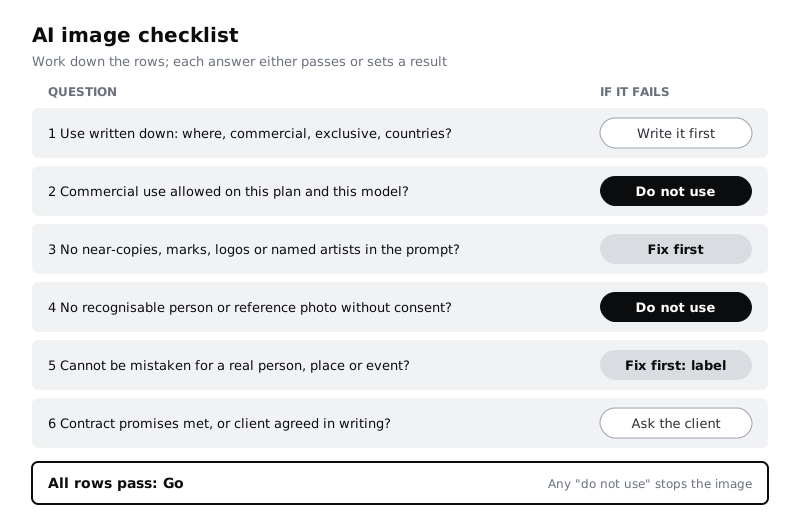
Write your own wording, but cover these:
- Is the use written down (where, commercial, exclusive, which countries)? If not: stop and write it.
- Do the tool's current terms allow commercial use on this plan and this model? If not: do not use.
- Did the reverse image search or zoom check find a near-copy, a mark or a logo, or did the prompt name an artist or brand? If yes: fix first.
- Does the image show a recognisable person, or use a reference photo of a real person, without consent? If yes: do not use.
- Could it be mistaken for a real person, place or event? If yes: add a visible label, or change the style.
- Does the contract promise originality or full ownership, or require AI disclosure? If yes: send the client note and get a written yes.
- Is there human work in the final image that you can name? If not: tell the client they may not be able to protect it.
Add a line at the bottom: "Re-read the tool's terms if the last check is more than three months old." Terms change, and the date in your Terms log tells you when you last looked.
Then run the checklist on the Larkfield image from the top, and on a second image you have not checked yet.
Check it worked
Your checklist fits on one page and has a result (go, fix first or do not use) for every row. When you run it on the Larkfield image, it ends in "go" only after the lanyard mark is removed and the client's written yes is recorded. A colleague who has not read this tutorial can run it on the second image without asking you what a row means.
Next steps
The checklist covers one image at a time. The next step is to make it part of how the team works, and to use AI images where they carry least risk.
- Use AI images for exploration rather than final assets in /tutorials/make-a-mood-board-with-ai-image-tools, and label which images are generated.
- Put this checklist into a team policy with /tutorials/write-team-rules-for-using-ai-in-design-work, so every designer runs it the same way.
- If your images or prompts start from research material, read /tutorials/remove-personal-data-before-sharing-research-with-ai before anything goes into a tool.
Part of these paths
Related tutorials
- Make a mood board with AI image toolsYou will have a mood board for a community clinic that mixes checked AI images with real photo references, with every generated image labelled as AI exploration, and a short list of the visual directions it suggests.
- Write team rules for using AI in design workYou will have a one-page AI policy for your design team, covering approved tools, data that never goes in, client disclosure, who checks output and how generated assets are labelled, plus a three-question check every designer runs before using AI on a task.
- Remove personal data before sharing research with AIYou will have a de-identified interview transcript that is safe to give an AI tool, a mapping file stored apart from it, and a short checklist to repeat for every transcript in the study.
Need this done for you?
Padding does this work for growing companies, from the first diagnosis to a system that keeps working.
Get new tutorials