Figma and design tools · Beginner · 16 min
Get a prototype ready for a usability test
By Padding · Updated 18 Nov 2026
Figma (web) · November 2026
You will have a Larkfield Clinic prototype that a participant can open from one link, finish every test task in, and never get stuck in, with a saved version to fall back on.
On this page
A prototype that works when you click through it is not yet ready for a stranger. You know where the hotspots are, which taps go nowhere and which screen to skip. A participant knows none of that. In a thirty-minute session, one dead tap or one screen showing "Lorem ipsum" can cost five minutes of confusion and leave you with notes about the prototype instead of the design.
This is part 8 of the series that takes the Larkfield Clinic booking app from paper to tested prototype. By the end of part 7 you had the six high-fidelity screens (Home, Choose a service, Pick a time, Your details, Confirm, Booked) linked into a flow, with a date-picker overlay, back navigation and a smart animate transition on Booked. Here you change very little about the design. You check the prototype against the tasks people will do, close every gap a participant could fall into, put believable data in place and set up the link so it opens exactly where the test begins.
The tasks below come from Plan a usability test, which wrote four scenarios for Larkfield: travel jabs before a trip on 14 December, the soonest weekday morning blood test, an afternoon check-up for a seven-year-old called Tomi, and finding out whether a reminder is coming. If you have your own plan, use its tasks instead. Part 9 runs the sessions, and part 10 changes the design based on them, so keep everything you build here.
Step 1 · Map each test task to the frames it needs
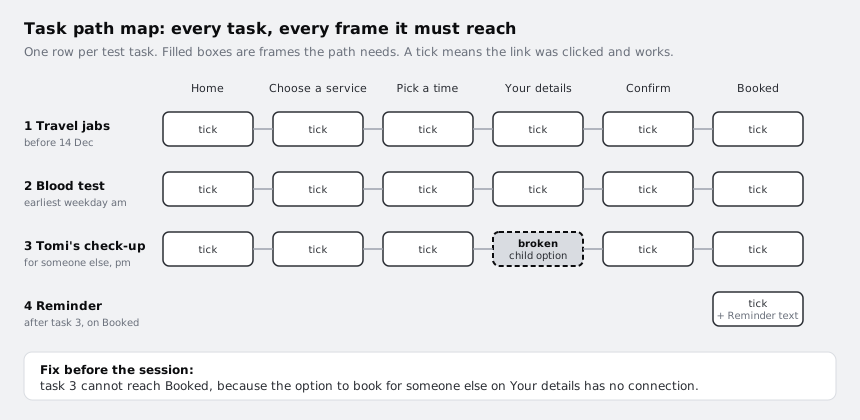
Open your test plan and the Larkfield file side by side. In the file, add a page called 08 Test prep. On it, make a text layer or a small table with one row per task and one column per screen in the flow. For each task, mark the frames a participant has to pass through to succeed, and write the taps between them in plain words:
- Task 1, travel jabs: Home, then the travel health service on Choose a service, then a date before 14 December on Pick a time (through the date picker), Your details, Confirm, Booked.
- Task 2, blood test: Home, blood test on Choose a service, the earliest weekday morning slot on Pick a time, Your details, Confirm, Booked.
- Task 3, Tomi's check-up: Home, child check-up on Choose a service, an afternoon slot, Your details with the option to book for someone else, Confirm, Booked.
- Task 4, reminder: starts on Booked, straight after task 3. The participant needs to see something that tells them how the reminder arrives.
Now compare the map with the file. Any tap in your list that has no matching connection is a gap. On a typical first pass you find two or three: the second service in the list was never linked because the happy path only used the first, the afternoon slots have no connection, or booking for someone else exists as a design but leads nowhere.
Check it worked
Your 08 Test prep page has a map with one row per task. Every task row names each frame it passes and the exact element tapped to leave it. Next to each missing link you have written which frame and which element it is on, for example "Your details: Someone else option, no connection".
Step 2 · Build the missing paths, then click every task through
Go to the page that holds your prototype and add the connections your map flagged. Work in the Prototype tab of the right sidebar: select the element the participant taps, drag a connection to the destination frame, and keep the interaction as On tap with Navigate to, matching the transitions you chose in part 6.
Some tasks need frame variants the happy path did not. Pick a time for task 2 needs the morning list with a chip selected on the right slot. Your details for task 3 needs a way to book for someone else, which the screens so far do not have: add a Me / Someone else choice above the fields on Your details, then make a version where Someone else is chosen and the name field reads "Tomi". Duplicate the existing frame, change only what the task needs, and name it clearly, such as Pick a time / Blood test morning or Your details / For someone else. The participant never sees frame names, but you will, while watching them in part 9.
When the connections are in, play the prototype and do every task yourself, in the order of the plan. Do not shortcut. If the task says "you can do any weekday morning", choose the slot a patient would choose, not the one you know is linked.
Check it worked
Each task in your map now has a tick against every frame, and you reached the end point of every task in presentation view without using the arrow keys or restarting halfway. Task 1 shows a date before 14 December on Confirm, task 2 shows a morning slot and task 3 shows Tomi's name.
Step 3 · Send every dead end to a "not part of this test" screen
Participants tap things you did not plan for: "View or cancel a booking" on Home, the clinic's phone number, a service the tasks do not use. In a raw prototype those taps do nothing, and the participant assumes they did something wrong. Turning on hotspot hints is no fix, because hints teach people where to tap and spoil the test.
Give those taps somewhere honest to go. Make one new frame, the same size as your screens, called Not part of this test. Put a short heading on it ("This part is not ready yet"), one line inviting comment ("That is fine. Tell us what you expected to see here.") and a primary button labelled "Go back". Use your Larkfield text styles and colours so it does not look like an error. Give the button an On tap interaction with the Back action, so it returns to whichever screen the participant came from.
Then go through each screen and connect everything that looks tappable but is not on a task path to Not part of this test. Look for:
- Tab bar items and header icons other than back.
- Services, dates and slots that no task uses.
- Links such as "Opening hours", "Cancel appointment" and "Add to calendar".
- The fields on Your details that you will not pre-fill in the next step.
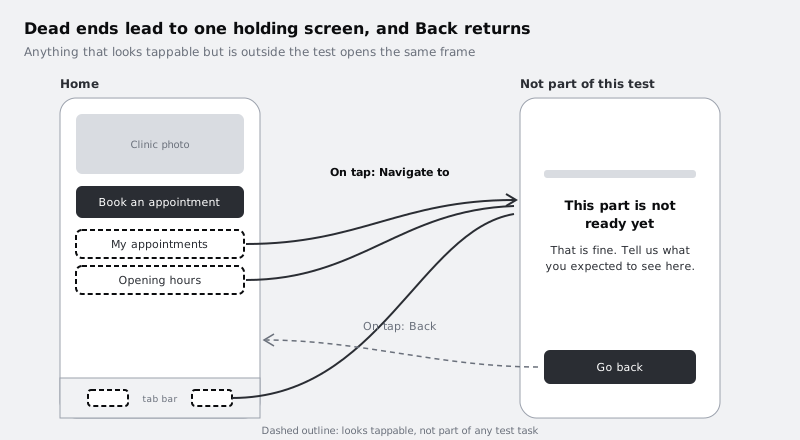
The line inviting comment matters. A participant who hits this screen tells you what they expected, which is data you would lose if the tap did nothing.
Check it worked
Play the prototype and tap every element on every screen that looks like a button, link, row or tab. Each one either moves you along a task path or opens Not part of this test, and Go back always returns you to the screen you came from. Nothing you tap does nothing.
Step 4 · Replace placeholder content with data that fits the tasks
Participants read everything, and they make decisions from what they read. If the scenario says the trip is on 14 December and Pick a time only offers dates in January, task 1 cannot succeed, and you will log a failure that is really a data problem. Go through each screen and make the content agree with the tasks:
- Dates and slots: set the week shown on Pick a time so there are dates before 14 December. For task 2, make sure the earliest weekday morning slot is not the first chip on screen, because the plan asks whether people notice that. Show a mix of taken and free slots so the list looks like a real clinic's week.
- Services: rename the five rows on Choose a service so every task has a real choice:
GP appointment,Nurse appointment,Blood tests,Travel health(in place of Vaccination) andChild check-up(in place of Medication review). - Names and numbers: use a believable patient name, a full phone number in the format your hint asks for, and a date of birth that matches an adult. For task 3, Tomi's date of birth makes him seven.
- Leftovers: search the file for "Lorem", "Label", "Button", "Text" and "Title". Each hit on a task screen is placeholder text a participant will read aloud.
Check the photo and address on Home too. "Larkfield Clinic, 14 Mill Lane" from part 4 stays; a stock image watermark does not.
Check it worked
Run the search again and get no placeholder hits on any screen a task passes through. Read each task scenario next to the screens: the dates, services and names it mentions all appear where the participant needs them, and the earliest morning slot for task 2 is visible but not first in the list.
Step 5 · Fake the things a prototype cannot do
A static Figma frame cannot take real typing, send a text message or remember what someone chose two screens ago unless you build that in. Decide in advance how each of these will look in the session, so the participant is not left tapping a field that never fills.
- Form fields: on Your details, make tapping the first field go to a version of the screen with all fields filled in for the participant's task. Tapping once to fill the form is a known prototype convention; tell participants about it in the session introduction rather than leaving them to discover it.
- The reminder: task 4 asks what the participant expects to happen next. Add a frame called
Booked / Reminder textshowing a phone lock screen with a text message from Larkfield Clinic ("Reminder: Tomi's check-up is tomorrow at 3:30pm at 14 Mill Lane. Reply C to cancel."). Do not link it from Booked. You will show it in part 9 only after the participant has answered, to ask whether it matches what they expected. - Choices that carry forward: Confirm must show the service and time from the task. If you have one Confirm frame, the participant in task 2 sees task 1's appointment. Make one Confirm and one Booked variant per task, linked from that task's path, or use variables as in Prototype with variables and conditions if you already know how.
Check it worked
Play each task again. On Your details, one tap fills every field with that task's details. On Confirm and Booked, the service, date and person match the task you are playing. Booked / Reminder text exists in the file with no connection pointing to it.
Step 6 · Set the starting point, device and link settings
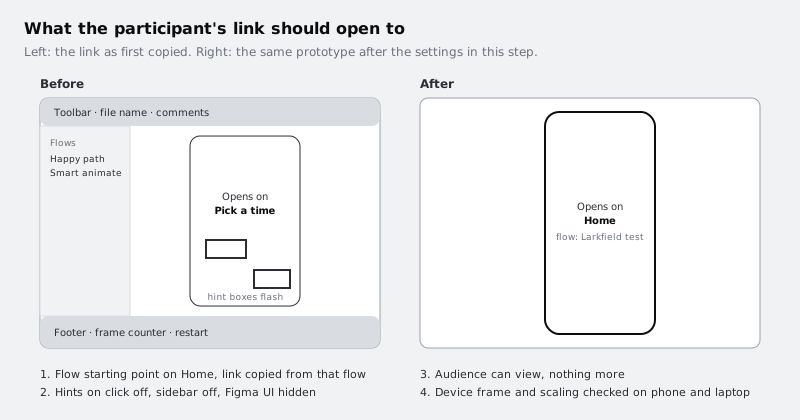
The link you send must open on Home, at the right size, with nothing on screen that is not part of the app. Parts 5 to 7 may have left you with more than one flow starting point, or one on a screen in the middle of the flow.
- Select Home. In the Prototype tab of the right sidebar, add a flow starting point if it has none and name the flow
Larkfield test. A frame can hold only one starting point. Leave older flows in place if part 7 or part 10 needs them; the test link only uses this one. - Click empty canvas so nothing is selected, and in the Prototype tab check the device setting. Choose a phone size that matches your frames (390 by 844 if you followed part 4) and a plain background.
- Click Present to open the prototype. In the Options menu, turn off Show hints on click and Show sidebar, and choose Hide UI. Some of these changes update the prototype URL, including Hide UI, which adds
hide-ui=1; that is what lets those settings travel with the link. Check the hint setting again on each device you test with anyway. - Click Share prototype. Set who can open it, and set them to view, not edit. On a Starter plan, viewers of a prototype link can still open the design file, so remove notes on the canvas you would not want a participant to read.
- Copy the link from presentation view, with the
Larkfield testflow playing from Home.
Check it worked
Open the copied link in a private browser window where you are not signed in to Figma, if your audience setting allows that, or ask a colleague to open it. It opens on Home, shows no flows sidebar or Figma toolbar, and clicking empty space does not flash hint boxes. The URL contains hide-ui=1.
Step 7 · Try the link on the devices participants will use
Part 9 runs phone sessions in the Figma mobile app on your own phone, which you hand to the participant, and laptop sessions from the share link in a browser. Try both setups now. On the laptop, open the link, check that hints are off, and check the scaling: the whole Home screen should be visible without scrolling the browser window, and the Options menu's scaling choices let you fit it if not. On the phone, open the Figma mobile app signed in to your account, find the Larkfield file, start the Larkfield test flow in presentation view and turn hotspot hints off in the prototype options. Check that the screen fills the display without a second device frame drawn around it, that scrolling lists such as Pick a time scroll, and that the date-picker overlay from part 6 closes.
If you have time, also open the share link in the phone's browser. Part 9 treats this only as a fallback, because a mobile browser plays hotspot interactions only and adds its own address bar and toolbar, but it is worth knowing whether the flow still completes there if the app fails on the day.
Three more checks for the day itself:
- Press R in presentation view on the laptop, or use the restart control in the mobile app, and confirm the prototype returns to Home. You will do this between tasks and between participants.
- If any session is in a place with poor signal, use Make available offline from the Options menu on the device you will test with, and open it once before you travel.
- Time a full run of all four tasks at a participant's pace. If it is close to the session length in your plan, cut or shorten a task now rather than in the room.
Check it worked
You have played all four tasks in the Figma mobile app on your phone, with hotspot hints off, and in a browser on the laptop from the share link. In both, restarting returns to Home, every screen fits, lists scroll and tapping empty space shows no hint boxes. Your 08 Test prep page notes the time a full run took.
Step 8 · Pilot with one person and freeze the version
Ask a colleague who has not seen the project to do all four tasks from the link while you watch, reading the scenarios from your plan exactly as written. Do not help. Write down every moment they stop, and sort each one: a prototype problem (a missing link, wrong data, a fill that did not happen) gets fixed now; a design problem (they could not find travel health) gets left alone, because that is what the real sessions are for.
When the pilot is clean, save a named version from the file menu with Save to version history. Call it Test build, round 1 and list the four tasks in the description. Then stop editing the prototype page. If you need to try an idea before the sessions, duplicate the frames to another page so the test build stays exactly as it was. Part 10 compares the revised design with this version.
Check it worked
The pilot reached the end of all four tasks with no prototype problems left on your list, and any design problems are written on the 08 Test prep page for part 9. The file's version history shows Test build, round 1 with a description, and the prototype page has not changed since you saved it.
Next steps
You have a prototype that will hold up under a stranger's taps. In Test a Figma prototype with users and log what breaks, part 9 of this series, you run the sessions on a phone and a laptop and log each issue against a frame.
If your tasks need work before the sessions, go back to Plan a usability test. To change transitions, overlays or back navigation found during the pilot, see Add overlays, transitions and scroll behaviour to a prototype, and for linking basics, Build a click-through prototype in Figma.
Part of these paths
Related tutorials
- Test a Figma prototype with users and log what breaksYou will run short test sessions with the Larkfield Clinic prototype on a phone and a laptop, sort every problem into a prototype glitch or a real design problem, and end with an issue log where each row links to the frame it happened on.
- Plan a usability test with tasks and success criteriaYou will have a written usability test plan for a booking flow, with scenario tasks that do not give away the answer, a success rule for each task and a session script another person could run without you.
- Build a click-through prototype in FigmaYou will have the six high-fidelity Larkfield Clinic screens linked into a named Figma flow that plays from Home to Booked on a phone-sized device, with a link you can send to a colleague.
Need this done for you?
Padding does this work for growing companies, from the first diagnosis to a system that keeps working.
Get new tutorials