UI and visual design · Intermediate · 18 min
Design search and filters for a list
By Padding · Updated 18 Nov 2026
Figma (web) · November 2026
You will have phone and desktop frames for a staff appointment list with a search box that matches names and phone numbers, three filters chosen from real tasks, removable filter chips, a result count and a no-results state that offers a way out.
On this page
A list that fits on one screen needs no search. Larkfield Clinic's staff list does not fit: on a normal Tuesday there are around ninety appointments across three clinicians, and on a busy morning the receptionist has a patient at the desk, another on the phone and a queue behind them. They do not scroll. They type a name, or tap a filter, and expect the right row to be on screen before the patient finishes speaking.
Search and filters look like two small controls in a toolbar. In practice they are a set of states: an empty box, a box with a query, a filter open, filters applied, a count that changes, and the moment nothing matches. Each state has to tell staff what the list is showing and how to get back to everything. Most of the design work is in those states, not in the shape of the search box.
You work on the staff appointment list from Make a data table work on a phone: Tuesday 9 December at 10:35, with its six morning rows, including Sam Patel's Nurse appointment at 10:30. This tutorial adds one earlier row, Nguyen Thi Lan at 08:40, so that the list has a patient who did not attend and a name written family name first. Search needs phone numbers, which the earlier list did not show, so each row has one here. All the numbers are in the UK range set aside for fiction. The seven rows are:
- 08:40 Nguyen Thi Lan, 07700 900731, Did not attend, Dr Amaka Bello
- 09:00 Tom Reilly, 07700 900215, Seen, Dr Ada Okafor
- 09:20 Fatima Yusuf, 07700 900386, Seen, Nurse Ruth Ellis
- 09:40 Kwame Asante, 07700 900542, Arrived, Nurse Ruth Ellis
- 10:00 Lena Novak, 07700 900678, Arrived, Dr Amaka Bello
- 10:30 Sam Patel, 07700 900417, Booked, Nurse Ruth Ellis
- 11:00 Chidinma Okoro, 07700 900859, Booked, Dr Ada Okafor
The statuses are the earlier list's set: Booked, Arrived, With clinician, Seen, Did not attend. Nobody is With clinician in these seven. Seven rows are enough to work out every count by hand, which is the point. By the end you have a set of frames at 360 by 800 and 1366 by 768, one per state, that a developer can build from without guessing.
Step 1 · Write the finding tasks before you draw a box
Make a page called Staff list / Search and filters and put a text note on the canvas. Write the moments when someone needs to find something in the list, who is doing it and what they know at that moment. For Larkfield:
- A patient arrives at the desk. Receptionist. Knows the name as the patient says it, which may be a family name, a first name or a nickname.
- A patient phones in. Receptionist. Knows the caller's number from the phone display, or the patient reads it out.
- Who is here and not yet seen? Nurse or doctor between patients. Knows the status they care about: Arrived.
- What is left on my list? A clinician. Knows their own name.
- When is my appointment? Receptionist on the phone. The appointment may be today, tomorrow or next week.
Now sort the tasks into two kinds. Tasks 1, 2 and 5 start from one person: the reader has a specific value in their head and wants one row. That is search. Tasks 3 and 4 start from a kind of row: the reader wants every row with some property. That is filtering. Keeping the two apart stops a common mistake, which is to add a filter for every column and expect staff to find a person by narrowing down five dropdowns.
Pick the filters from the second kind, plus one that sets the scope for both:
- Date, because task 5 needs other days, and every other task assumes today.
- Status, from task 3.
- Clinician, from task 4.
Write down what you leave out and why: Service and Room are real columns but no task in the list starts from them, and a receptionist looking for "the blood test at 09:20" finds it with one glance down a list sorted by time, or by searching the name. Three filters is a choice, not a limit. If a later task needs a fourth, add it then, with the task written beside it.
Check it worked
Your note lists at least five tasks, each marked "search" or "filter", and each of the three filters traces back to a task by number. There is a line saying which columns are not filters and why. If a filter has no task beside it, delete it.
Step 2 · Write the search rules, then draw the box
A search box is easy to draw and easy to get wrong in the rules behind it. Write the rules first, in a second note beside the first, because they change what the box needs to say.
What it matches. Names and phone numbers, nothing else. Write it on the box as a visible label above the field: Search name or phone. A placeholder alone disappears as soon as someone types, and it is the only clue to what the box searches.
Names. Match any part of the name, from the second character typed, without caring about case or accents. Staff hear names spoken and spell them as they hear them:
okoroandchidboth find Chidinma Okoro.ezeandwilliamsmust both find a patient registered as Eze-Williams. Hyphens and spaces separate parts.lanfinds Nguyen Thi Lan, where the family name comes first. Do not assume the last word is the surname.novakovashould find a patient registered as Nováková, so treat accented and plain letters as the same.
Phone numbers. Match on digits only, ignoring spaces, brackets and dashes, and from the fourth digit typed, so that 07 does not match everyone. Treat a leading country code and a leading zero as the same number: +44 7700 900417 and 07700 900417 are one patient. Most callers read out the last few digits, so 0417 must find Sam Patel. Many Larkfield patients carry two SIMs and give whichever number is to hand, so search every number on the record, not only the first.
When results update. As staff type, after a short pause, with no search button to press. The day's list is small enough to filter on the device; say so in the note, because for today's list it means the search costs no data and works while the clinic's connection drops, which matters on a prepaid phone in a waiting room with poor signal. Searching other dates (task 5, and the Search all dates action later) needs a connection, so add a loading state and an offline message for those.
Highlighting. Show the matching part of the name or number in bold in each result. Bold, not only colour, so the highlight survives a low-contrast screen in sunlight.
Now draw the field: an auto layout frame, full width on the phone and 260 to 320 wide on desktop, 48 tall, with a search icon on the left and a clear button on the right that appears only when there is text. Make the clear button's tappable area 48 by 48 even though the icon is 16. Make it a component with two variants, Empty and Filled.
Check it worked
Your rules note answers four questions in writing: what fields are searched, from how many characters, how phone formats are treated, and when results appear. On the canvas, the search component has Empty and Filled variants, a visible label above it in both, and a clear button only in Filled. Test the rules on paper: write the query 0417 and the query thi lan, and next to each, the row from the seven that it finds.
Step 3 · Lay out the filters on desktop
Make a frame 1366 by 768 called Desktop / Default. Under the page title, add a toolbar as a horizontal auto layout frame, 16 between items: the search field first, then three filter buttons, left to right in the order of the tasks.
Each filter button says both the filter and its current value, so a glance at the toolbar tells you what the list shows:
Date: TodayStatus: AllClinician: All
Clicking a button opens a menu under it. The choice inside depends on the question:
- Date is single choice: Today, Tomorrow, This week, Pick a date. The default is Today, and the page subtitle repeats it as
Tue 9 Dec. - Status is several at once, as checkboxes, because "booked or arrived" (everyone still to be seen) is one of the commonest questions. Each option shows its count for the current day: Booked 2, Arrived 2, With clinician 0, Seen 2, Did not attend 1.
- Clinician is single choice, as radio buttons, with All clinicians at the top: Dr Ada Okafor 2, Dr Amaka Bello 2, Nurse Ruth Ellis 3.
The counts beside each option stop staff choosing a value that returns nothing: With clinician shows 0 this morning. They also double as a summary of the day: a glance at the Status menu says one patient did not attend.
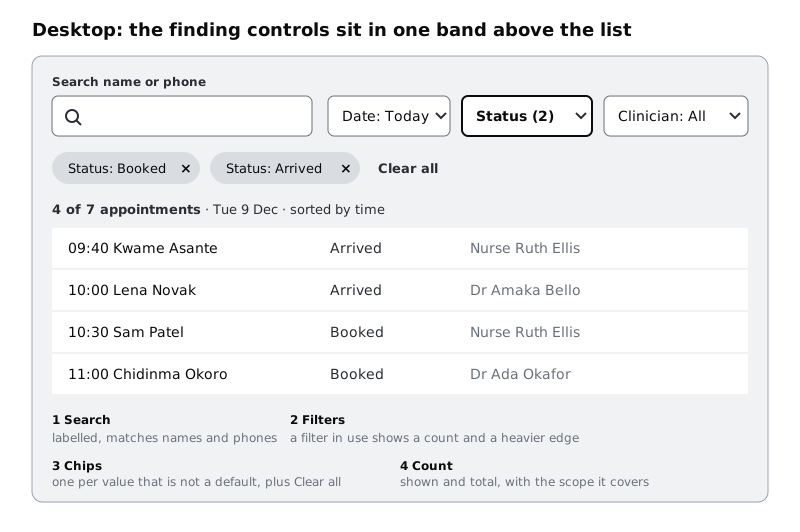
When a filter is in use, its button changes in two ways, not colour alone: the label becomes the value or a count (Status (2), Clinician: Dr Ada Okafor), and the border gets heavier. Make the filter button a component with Default and Active variants, and a text property for the label.
Apply the filters as soon as each option is clicked. On desktop the list is in view beside the menu, so staff see the effect straight away and can undo it with one more click.
Check it worked
Desktop / Default has a toolbar with the search field and three filter buttons, each showing a value. Beside it, three small frames show each menu open, and the option counts in the Status menu add up to 7, as do the counts in the Clinician menu. The filter button component has Default and Active variants that differ in label and border, not only in colour.
Step 4 · Fold the filters into one button on the phone
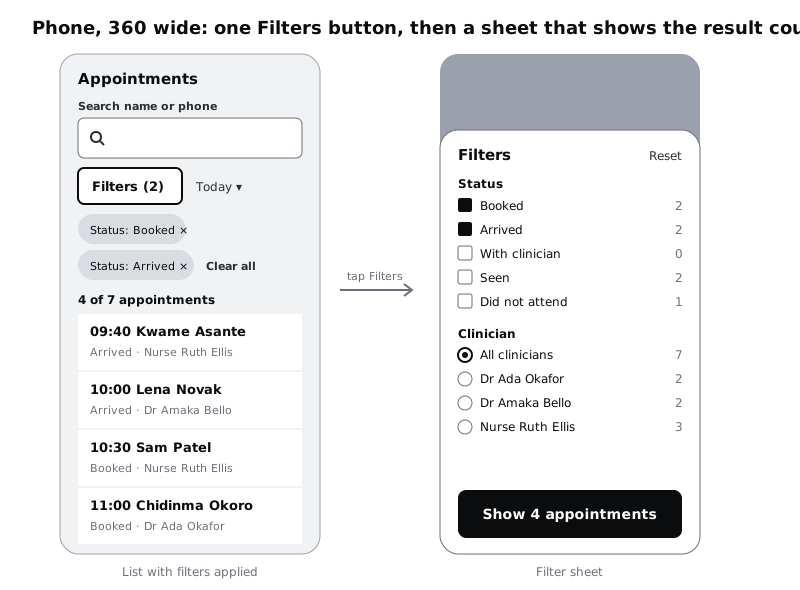
A 360 wide phone has room for the search field and one row of controls, not three dropdowns. Make a frame 360 by 800 called Phone / Default. Put the search field full width under the title, and under it a row with two things: a Filters button and the date as a small control showing Today. Date stays outside the button because it changes the scope of everything, and staff on the phone change it often.
Tapping Filters opens a bottom sheet (draw it in a frame called Phone / Filter open) with the other two filters as groups: Status as checkboxes and Clinician as radio buttons, each option with its count. At the bottom of the sheet put one wide button that names the result: Show 4 appointments. Its count updates as options change, so staff know before they close the sheet whether they have filtered too far. Add Reset at the top right of the sheet.
Phones apply on the button, not on each tap. Behind the sheet, the list is covered, so instant changes are invisible, and a list that reloads under a sheet on a slow phone makes the sheet stutter. For why a sheet suits a short set of options that relate to the screen behind it, see Choose between a modal, a bottom sheet and a new screen.
When filters are applied, the button reads Filters (2), with the number of filter values chosen, and gets the same heavier border as on desktop.
Check it worked
You have Phone / Default and Phone / Filter open. In the sheet, tick Booked and Arrived and work out the count by hand from the seven rows: the button should read Show 4 appointments (Kwame Asante, Lena Novak, Sam Patel, Chidinma Okoro). Every checkbox and radio row is at least 48 tall, so it can be tapped with a thumb.
Step 5 · Show applied filters as chips with a clear-all
Once filters are applied, the toolbar alone does not say enough. Status (2) tells you two statuses are chosen, not which. Under the toolbar, add a row of chips, one per chosen value that is not a default:
Status: Booked ×Status: Arrived ×Clear all
Write the rules beside the frame:
- One chip per value, so staff can remove Arrived without removing Booked.
- Name the filter in the chip (
Status: Booked, notBooked), because "Booked" alone could be a date filter or a service. - Defaults make no chip.
Date: TodayandClinician: Allare where the list starts, so they are not filters anyone has to undo. A date other than today, such asDate: Wed 10 Dec, does make a chip, because it changes what every other control is looking at. - Tapping the ×, or the chip, removes that value. The whole chip is the target, at least 48 tall on the phone; the × is a visual cue, not a 12 pixel button.
Clear allreturns the list to its default: today, all statuses, all clinicians, and an empty search box. Show it only when there are at least two chips or a chip and a query; with one chip, its own × does the same job.
Build the chip row as an auto layout frame with wrap turned on, so chips flow onto a second line rather than off the edge of a 360 frame. Names and statuses get longer in translation, and a chip like Clinician: Nurse Ruth Ellis is already wide. If chips would take more than two lines, show the first few and a +2 more chip that opens the filter sheet.
Check it worked
Desktop / Filtered and Phone / Filtered each show two chips and a Clear all link, and no chip for Today or All clinicians. Add a third chip, Clinician: Nurse Ruth Ellis, on the phone frame: the row wraps onto a second line inside the frame, with nothing cut off at the right edge.
Step 6 · Write the result count
Put one line between the chips and the first row. It is the only thing on the screen that says how much of the list is showing:
- No filters, no search:
7 appointments · Tue 9 Dec - Filtered:
4 of 7 appointments · Tue 9 Dec - Search:
1 of 7 appointments match "0417" - One result:
1 appointment, never1 appointments. Write the singular and plural forms into the spec; some languages Larkfield may translate into have more than two forms, so hand the developer a sentence per case, not a word to bolt a number onto.
"4 of 7" matters more than "4 results". It tells the receptionist that three appointments are hidden, which is the warning they need before telling a caller "you have no appointment today".
Put the sort order on the same line on desktop (sorted by time), so staff do not wonder whether the filter also reordered the list.
For the developer, add a note: the count updates as a status message, read out by a screen reader when it changes without moving focus away from the search box. That is what WCAG 2.2 success criterion 4.1.3 asks for, and the count line is the natural thing to announce.
Check it worked
Every frame you have made so far has a count line, and each count is correct for the seven rows: 7 with nothing applied, 4 with Booked and Arrived, 1 for the query 0417. Your spec note has a singular and a plural sentence for the count, and a line saying it is announced as a status message.
Step 7 · Design the no-results state
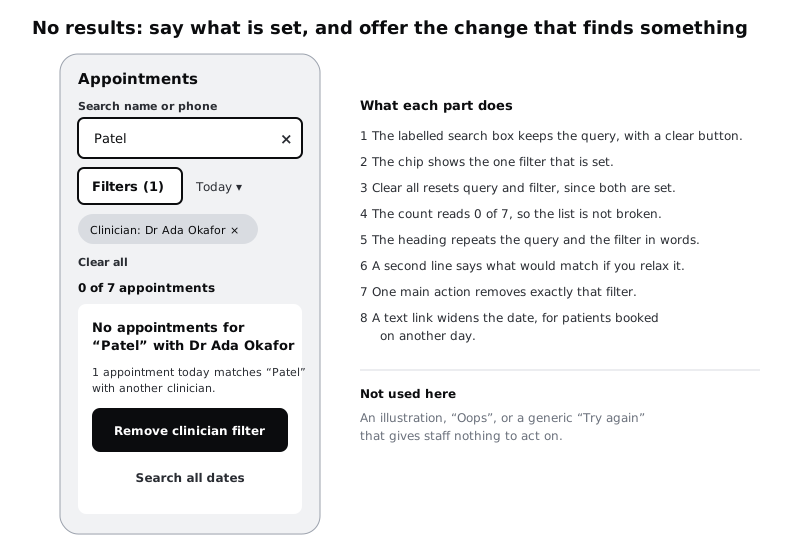
Sooner or later, the query and the filters together match nothing. Take a real case: a receptionist has the Clinician filter set to Dr Ada Okafor from earlier, and types Patel for a patient at the desk. Sam Patel is booked with Nurse Ruth Ellis, so the list goes empty.
A blank list here is dangerous. The receptionist may tell Mr Patel he has no appointment. Design the state to prevent that:
- Keep everything visible. The query stays in the box, the chip stays under it with
Clear allbeside it (a chip and a query are both set), and the count reads0 of 7 appointments. - Say what is set, in words. Heading:
No appointments for "Patel" with Dr Ada Okafor. - Say what would match. Count the results with each filter removed in turn and show the best:
1 appointment today matches "Patel" with another clinician. - Offer that change as the main action. A button:
Remove clinician filter. One tap, and Sam Patel appears. - Offer a wider scope as a second action. A text link,
Search all dates, for the caller whose appointment is next week.
If nothing would match even with every filter removed, change the words: No appointments today for "Patel", with Search all dates as the main action and Check the spelling, or search by phone number under it. Leave out drawings and "Oops": staff see this state often, and it should read as information, not an apology.
For the other kinds of empty list, such as a day with no bookings yet, see Design empty states that say what to do next. This one is different because the reader caused it, so the way out is to undo something they did.
Check it worked
Phone / No results and Desktop / No results both show the query, the chip, Clear all, 0 of 7, a heading that names the query and the filter, a line saying what would match, a main action that removes one named filter and a Search all dates link. Check the claim by hand: remove the Clinician filter from the seven rows and search Patel. You should get one row, Sam Patel at 10:30 with Nurse Ruth Ellis.
Step 8 · Lay out every state at both sizes and hand it over
Gather the frames into two rows on the page, phone on top and desktop below, in the order staff meet them:
Default: empty search, no filters, all seven rows.Searching:0417in the box, one row, the match in bold.Filter open: the Status menu on desktop, the filter sheet on the phone.Filtered: Booked and Arrived, two chips,Clear all, four rows.No results:Patelwith Dr Ada Okafor.
That is ten frames. Put a short note above each column saying what triggers the state and what leaves it, for example "Filtered: entered by applying any filter value; left by removing the last chip or Clear all". Beside the rows, keep the two notes from the first steps, the task list and the search rules, so the reasons travel with the design.
Then check the frames against a phone people actually use. Many reception staff, at Larkfield and in clinics across Africa and elsewhere, run the staff app on an entry-level Android phone at 360 wide with the system text size turned up. Duplicate Phone / Filtered, increase every text style by about a third on the copy, and make sure the chips still wrap, the sheet's button still fits on one line and the count line is not truncated.
Check it worked
The page has ten frames named Phone / <state> and Desktop / <state> for the five states, each with a trigger note. Every count on every frame matches the seven rows. On the large-text copy of Phone / Filtered, no text is cut off or overlaps, and the chip row has wrapped rather than run off the right edge.
Next steps
You now have search and filters as a set of states, not just a toolbar. The same rules apply to any list where people arrive with a person or a kind of row in mind.
- Make a data table work on a phone for the list these controls sit on top of.
- Design empty states that say what to do next for the other ways a list can be empty.
- Choose between cards, lists and tables if you have not settled what the results look like.
- Size touch targets for thumbs to check the chips, checkboxes and clear button on the phone frames.
Part of these paths
Related tutorials
- Choose between cards, lists and tablesYou will have the same five clinic services laid out as cards, a list and a table, scored against four questions, with one layout chosen for patients, one for staff and a short written rule for when each container wins.
- Design empty states that say what to do nextYou will have four empty-state frames for one list screen, first use, no results, all done and cleared, each with its own message and next action, plus a copy table a developer can build from.
- Make a data table work on a phoneYou will have tried four phone patterns on the same Larkfield appointment table, matched each one to the task it suits, and finished a 360 px frame for the pattern you chose, with a short note on when the other three would win.
Need this done for you?
Padding does this work for growing companies, from the first diagnosis to a system that keeps working.
Get new tutorials