Figma and design tools · Beginner · 15 min
Choose between Figma, Sketch, Adobe XD, Penpot, Framer and Canva
By Padding · Updated 18 Nov 2026
Figma, Sketch, Adobe XD, Penpot, Framer and Canva vendor documentation · November 2026
You will have a one-page decision sheet that picks a design tool for three real jobs, with the reasons written down so you can defend each choice to a client or a team.
On this page
Most "which design tool is best" arguments go nowhere because they compare tools in general. Tools are not good or bad in general. They are good at a kind of job: Figma and Penpot are built for designing product screens that developers will build, Framer for building and publishing websites, Canva for producing graphics quickly from templates. Sketch and Adobe XD sit in the first group too, with limits you need to know about before you start a new project in them.
In this tutorial you build a decision sheet. You write down the job first, then run it through five questions in order: what the job produces, which computers your team uses, how people work together, who owns the files, and how the work reaches the people who build or publish it. Cost comes in as a model (who pays for what), not as figures, because prices change faster than tutorials. At the end you pick a tool for three example jobs and write a short justification for each.
Everything here is from each vendor's own documentation as of November 2026. Tools change, so the last step includes a short routine for re-checking a decision before you rely on it.
Step 1 · Write down three jobs, described by what they produce
Open a new note or document and call it "Design tool decision". Under it, write three jobs. For each one, write a single sentence that ends with the thing the job produces, not the tool you think you will use.
If you do not have three of your own, use these:
- Job A: A small team designs the screens for a mobile booking app. Three designers (two on Windows, one on a Mac) hand the screens to two developers who build it in React Native. Produces: screens and specs for developers.
- Job B: A freelance designer makes a five-page marketing website for a local bakery, publishes it, and the owner updates the opening hours and menu herself afterwards. Produces: a live website.
- Job C: A charity's communications officer, not a trained designer, makes a month of social media posts and one printed flyer for a fundraising event. Produces: images and a print-ready PDF.
The output matters most because it splits the six tools into groups before any other question. If the job ends in a live website, a tool that only produces design files adds a build step. If it ends in a flyer, a tool built around developer handoff is more than you need.
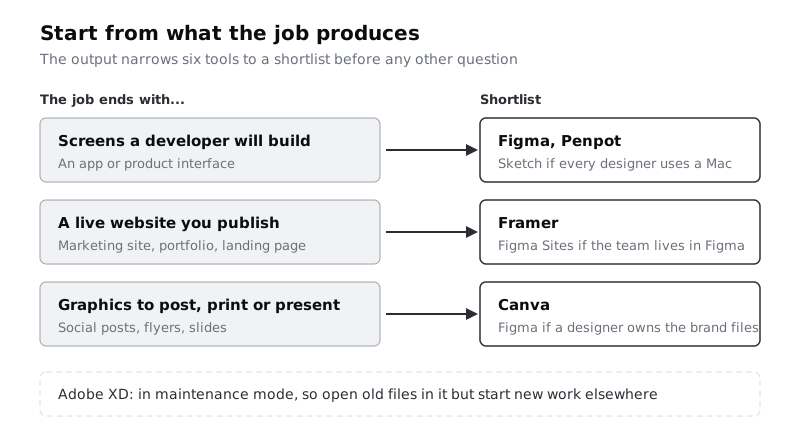
Add a shortlist under each job using the diagram above as a starting point. Keep Sketch on Job A's list for now; the next step tests it.
Check it worked
Your note has three jobs. Each job sentence ends with an output (screens, a website, graphics or print), and each job has a shortlist of two or three tools under it. None of the job sentences names a tool.
Step 2 · Take Adobe XD off every new-job list
Before comparing anything, deal with Adobe XD. Adobe's help pages say XD is in maintenance mode: Adobe is not investing in new development or shipping new features, and existing customers still get bug fixes and security or privacy updates. Adobe has also stopped accepting new plugins for XD.
That has a practical meaning for you. XD still opens old files, so if a client sends you an XD project to maintain, you can work on it. For a new project, though, you would be choosing a tool that will not gain features, whose plugin library is frozen, and which new team members are less and less likely to know. None of those costs shows on day one; all of them show a year in.
If you inherit XD files, a sensible plan is to finish the current piece of work in XD and rebuild the screens in your new tool at the next large redesign, rather than converting everything at once.
In your note, add a line at the top: "Adobe XD: maintenance mode, existing files only." Remove XD from any shortlist where you had it.
Check it worked
XD appears in your note only in that one line at the top, and no job's shortlist includes it. If you have real XD files to look after, there is a separate line naming them and when you plan to move them.
Step 3 · Rule out tools that do not run for everyone
Now test each shortlist against the computers the team uses. This is a hard filter: a tool that one team member cannot run is out, however good it is.
What each tool runs on, according to its vendor:
- Figma: runs in a web browser, with desktop apps for macOS and Windows. Anyone with a current browser can open files, including on Linux.
- Penpot: runs in a web browser, either on Penpot's own hosted service or on a server you run yourself.
- Sketch: designing happens in the Mac app, which needs a recent version of macOS (macOS Sequoia or newer at the time of writing). The Sketch web app lets anyone view, inspect and comment from any browser, but it is not where design work is done.
- Framer: works in the browser; the site you build is published to the web.
- Canva: works in the browser and in Canva's own apps, including iPhone and Android apps, which matters for people who make posts on the move.
Apply it to the examples. Job A has two designers on Windows, so Sketch is out for Job A: they could view and comment in the web app but not design. Jobs B and C involve one person each, and every tool on their shortlists runs in a browser, so nothing is removed.
If your team is entirely on Macs and already has Sketch libraries, Sketch stays in. A working library that a team knows well is worth a lot, and this filter only removes tools people cannot run.
Check it worked
Each job's shortlist has had at least one tool tested against every team member's computer. Any tool someone cannot design in is crossed out with the reason beside it, for example "Sketch: two designers on Windows".
Step 4 · Check how people will work on the same file
Next, list who touches the work and what each person does: designs, comments, approves, or only looks. Then check each remaining tool against that list.
Questions to answer in your note for each job:
- Do two or more people need to edit the same file at the same time? Figma and Penpot are built for this; several people can be in one file at once.
- Do non-designers need to comment or approve? In Figma and Penpot they open a link in a browser. In Sketch, the web app is the place for viewers. In Canva, you share a design and choose whether each person can edit, comment or only view.
- Does someone who is not a designer need to change the result after you hand it over? This is the question that decides Job B. The bakery owner needs to edit opening hours without calling you. Framer has a content management system (CMS) for this kind of content: you set up collections of items, such as menu dishes, and the site shows the changes once they are published.
- Does the result need to stay on brand when other people make it? This is Job C's question. Canva's Brand Kit and Brand Templates let a team keep approved colours, fonts and logos in one place and lock parts of a template, though these features need one of Canva's paid or team plans. Set up a brand kit in Canva walks through it.
Write a one-line answer to each question under each job. A "no" is a useful answer: Job C has one editor, so real-time co-editing does not matter there.
Check it worked
Each job has four short answers in your note. At least one answer per job points to a specific feature in a tool on that job's shortlist (for example "Job B: owner edits hours, Framer CMS"). Any tool that cannot do a "yes" requirement is crossed out with the reason.
Step 5 · Decide who owns the files and how you would leave
This step is the one people skip and regret. Every tool stores your work somewhere. You need to know where, and what you could take with you if you stopped paying or the vendor changed direction.
- Figma: files live in Figma's cloud. You can download a local copy as a
.figfile from the file menu, but Figma's documentation says the copy leaves out version history and comments. A.figfile opens in Figma, not in other tools. - Penpot: open source under the Mozilla Public License 2.0, so you can run it on your own server and keep all files there. Files can also be exported as
.penpotfiles and imported again. This matters for public bodies, health services and anyone with rules about where data is stored. - Sketch: documents can be saved to your Mac or to a Sketch Workspace in the cloud. Sketch's real-time collaboration only works on documents saved to a Workspace, so a team usually ends up there.
- Framer: the design and the live website sit in Framer. The site is published to a Framer subdomain or to a domain you own and connect. Before you commit, read Framer's publishing help pages for current hosting options, and plan on Framer hosting the site for as long as it runs.
- Canva: designs live in your Canva account. You take work out mainly by downloading finished files such as images, PDFs or video. Plan on the editable design staying in Canva.
For each job, write down where the master file will live and who owns the account it lives in. For client work, the client should normally own that account, or there should be an agreed handover. Job B is a good example: if the freelancer builds the bakery site in her own Framer account, the bakery depends on her to keep it online. Building it in an account the bakery owns avoids that.
Check it worked
Each job has a line saying where the master file lives, whose account it is in, and how you would get the work out (for example "Job A: Figma, team account owned by client, local .fig copies kept monthly"). If a job has rules about where data is stored, that rule is written next to it.
Step 6 · Write down the cost model, not the price
Prices change too often to put in a decision you want to last, so write down how each tool charges and who on the team needs to be paid for. Look up the figures on each vendor's pricing page on the day you decide and date them in your note.
The models differ in ways that change the total:
- Per seat by role: Figma charges by seat, and the seat type sets what a person can do. Its documentation says Dev Mode, where developers inspect designs, needs a Full or Dev seat. So in Job A, the two developers are part of the cost, not just the three designers.
- Open source with a hosted option: Penpot's software is free to run yourself. The cost moves to the server and the time someone spends updating and backing it up. Penpot also offers a hosted service; check its current plans on its website.
- Per site, plus editors: Framer's pricing page sells plans site by site, so a freelancer with many client sites has a cost per site. It also lists a content editor seat for people who only update the CMS and edit text on the page. In Job B, the bakery owner is that person, so check on the pricing page whether her editing needs a paid content editor seat on the plan you choose, and add it to the cost.
- Free tier with paid team features: Canva can be used for free, but the brand control features from the previous step sit on paid and team plans.
For each job, list the people who need a paid seat or plan and what for, including clients who will edit after handover. Leave the money column for the day you check the pricing pages.
Check it worked
Each job has a list of people or sites that need paying for, with the reason for each (for example "2 developers: Dev Mode" or "bakery owner: Framer content editor, check plan"). If a figure appears in your note, it has the date you read it and the pricing page it came from.
Step 7 · Match the handoff to how the work gets built
The last question is how the work leaves the tool. Mismatches here cost the most time, because they show up at the end of a project.
- Screens a developer will build (Job A): the developer needs measurements, spacing, colours, text styles and exported assets. Figma's Dev Mode is a separate view for this. Penpot's Inspect tab shows CSS, SVG and HTML for a selected layer, and its flex and grid layouts work like CSS flexbox and grid, which many front-end developers find easy to read. Sketch's web app lets developers inspect without a Mac.
- A live website (Job B): there is no handoff to a developer. Framer publishes the site itself. Figma Sites, which Figma released in open beta at Config 2025, also publishes responsive websites from Figma; it is worth a look if the team already designs everything in Figma.
- Graphics (Job C): the handoff is a file. Canva downloads images for social posts and PDFs for print. For a professional printer, ask them which file settings they need before you design.
Under each job, write the person who receives the work and the format they need.
Check it worked
Each job ends with one line naming who receives the work and in what form (for example "Job C: printer, print-ready PDF; social team, PNG images"). Every tool still on a shortlist can produce that form. If you had to cross one out here, the reason is written beside it.
Step 8 · Score the shortlist and write your justification
Put the results together. For each job, make a small sheet: questions down the side, remaining tools across the top. Fill in each cell from the answers you already wrote. Stop scoring a tool at its first hard fail.
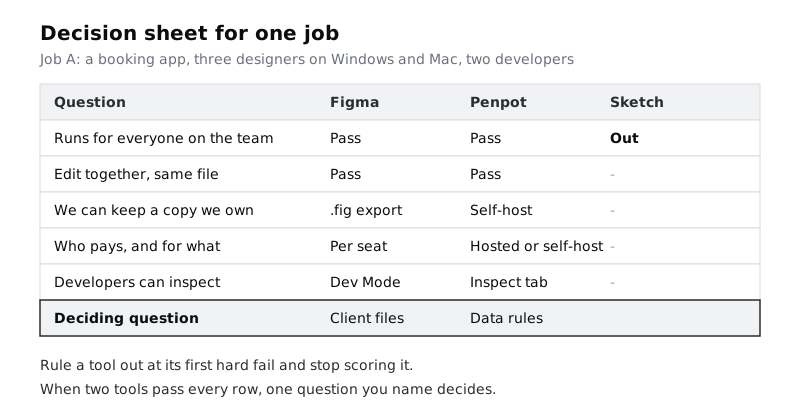
When two tools pass every row, as Figma and Penpot do in Job A, name the question that decides it. For Job A, it might be "the client's own designers already use Figma and will take over the files", which points to Figma. If instead the app is for a health service that must keep data on its own servers, self-hosted Penpot wins. Neither answer is wrong; what matters is that the deciding question is written down.
Here is how the three example jobs come out:
- Job A: Figma. It runs for everyone, several designers can edit at once, and developers inspect in Dev Mode. Deciding question: the client's team already uses Figma. Penpot is the alternative if data rules require self-hosting.
- Job B: Framer. The job produces a live site, the owner edits hours and menus through the CMS, and there is no developer to hand off to. Condition: the site is built in an account the bakery owns.
- Job C: Canva. A non-designer can work from templates, the output is images and a PDF, and a Brand Kit keeps the charity's colours and logo consistent. Condition: someone checks the printer's file requirements first. If the charity already has a designer who keeps its brand files in Figma, that designer can make the flyer master there and the officer keeps Canva for the weekly posts.
Under each job, write your justification in three sentences: the choice, the two reasons that mattered most, and the condition or risk you accepted. Add the date and a re-check date six months later, because tool features, plans and status change.
When the re-check date comes, or before you start a new project on an old decision, run this routine:
- Re-open each vendor page you relied on: the status or support page (for example Adobe's XD FAQ), the system requirements or platform page, and the pricing page.
- Go down your sheet row by row and confirm each "Pass" still holds. Mark any row that changed.
- If a row now fails, re-score that job from the step it belongs to, rather than swapping tools on instinct.
- Write the date you checked next to the decision, with the new re-check date.
Check it worked
Each of your three jobs ends with a tool name, three sentences of justification and a re-check date, and your note has the four-line re-check routine where you will find it again. Read each justification aloud as if to a client: it names something about the job (the output, the team or the data rules), not "it is the industry standard" or "I like it".
Next steps
You now have a tool for each job and the reasons behind it. Start working in the tool you picked:
- Tour the Figma canvas shows you frames, layers, pages and the toolbar if you chose Figma.
- Build your first screen in Penpot takes you through boards, flex layout and the Inspect tab if you chose Penpot.
- Build a one-page site in Framer takes a website from a blank page to published.
- Make a social media graphic in Canva and Design a printable flyer in Canva cover both halves of Job C: the posts and the print-ready flyer.
Part of these paths
Related tutorials
- Find your way around the Figma canvasYou will have a Figma file with one phone-sized frame holding a heading, a card and an avatar, and you will know which part of the screen controls each of them.
- Build your first screen in PenpotYou will have a finished Pick a time screen for the Larkfield Clinic booking app in Penpot, built from a board, a flex layout and a reusable time slot component, and you will have read its CSS in the Inspect tab.
- Build and publish a one-page site in FramerYou will have a live one-page site for Larkfield Clinic, built with stacks, adjusted for phone and tablet, with a working contact link and a custom domain.
Need this done for you?
Padding does this work for growing companies, from the first diagnosis to a system that keeps working.
Get new tutorials