UI and visual design · Beginner · 16 min
Write interface copy for labels, buttons and errors
By Padding · Updated 18 Nov 2026
Any design tool and a spreadsheet · November 2026
You will have every string on three Larkfield Clinic booking screens rewritten to four rules and tested aloud, in a string table showing old and new side by side, plus a five-line voice guide the team can write new screens from.
On this page
Interface copy is the smallest writing anyone does and some of the most read. A patient booking a nurse appointment will not read the clinic's mission statement, but they will read the label above the mobile number field, the word on the button, and the message that appears when something goes wrong. If any of those is unclear, they stop, guess or phone reception.
Most weak interface copy is not badly written. It was never written at all. It came from a database column (DOB), a framework default (Submit), a developer's error log (Error 409) or a placeholder nobody replaced. The fix is to treat every string as a decision: list them, rewrite each one against a few rules, and test them by ear before they ship.
This tutorial uses Larkfield Clinic, the fictional community clinic from the design-a-product-end-to-end series. Suppose its booking app was first built by a contractor working from the database schema, and the words on three screens (Pick a time, Your details and Confirm) came straight from field names. The designed copy from the series exists, but the build drifted. You will collect those strings, rewrite them to four rules, read them aloud, check them for plain language, and end with a string table and a five-line voice guide. If you are working on your own product, take any three screens of one flow and follow the same steps.
Step 1 · Collect every string into a table
Open a spreadsheet and name the first tab Strings. Add these columns: ID, Screen, Element, Before, After, Rule, Words, Notes.
Go through the three screens in flow order, top to bottom, and copy every piece of visible text into its own row. Every piece means every piece: titles, step lines, labels, hints, checkbox text, link text, button labels, and the text of every error, notice and empty state, including states that are not on the main screen. Give each row an ID from the screen and its position (PT-01 for the first string on Pick a time, YD-01 for Your details, CF-01 for Confirm), so you and a developer can refer to a string without quoting it.
For the Larkfield first build, the Before column reads like this (abridged; your sheet lists every row):
- Pick a time: title
Appointment slot selection; reminder lineService: NURSE_APPT (15m); day heading09/12; group labelsAMandPM; fallback lineNo suitable slot? Contact reception.; buttonProceed; notice when a time goesError 409: slot unavailable; empty stateNo availabilitywith a buttonNext >. - Your details: title
Patient information; labelsName*,DOB*,Tel. no.*andE-mail address; date hintDD/MM/YYYY; checkboxOpt in to SMS notifications; buttonSubmit; errorsThis field is required,Invalid dateandInvalid input. - Confirm: title
Review; section headingSummary; row labelsType,Slot,LocationandPatient; linkEditbeside each row; buttonConfirm; failure messageBooking failed. Please try again later.with a buttonOK.
Fill the Element column with one of seven words: Title, Label, Hint, Checkbox, Button, Link or Message. Strings that are not controls take the nearest type: the step line, day heading, AM and PM group labels and section headings are Title; the reminder line and the fallback line are Hint. Sorting by that column later lets you check that every button follows the same pattern, every label the same pattern, and so on.
Check it worked
Click through the three screens and every state frame with the sheet beside you. Every word you can see on any of them is in a Before cell, including the step lines (Step 2 of 4 and so on) and the text on every button. Each row has a unique ID and one of the seven element types. The Larkfield sheet has about 35 rows.
Step 2 · Agree four rules before you rewrite anything
Rewriting without rules turns into taste: one person likes Proceed, another likes Next, and the argument has no end. Write four rules in a second tab called Rules, and use them to judge every change. For Larkfield:
- Buttons say what happens. A verb and the thing it acts on:
Book appointment,See next week,Try again.Continueis allowed only between steps of a linear flow, where the step line already says where you are going. It is never used on the step that commits something. - Labels are nouns people use. The word a patient would say at reception, not the word in the database:
Mobile number, notTel. no.. - Errors say what to do. Start with a verb, give an example when the format is the problem, and say what is safe when something failed. No blame, no codes.
- No jargon. Words such as
invalid,input,submit,proceed,slot,required,field,notificationandopt inbelong to the people who built the app. Patients do not use them.
Put a short do-not-use list under the rules, starting with the words in rule 4, and add to it as you find more. It turns rule 4 from an opinion into something you can search for.
The rules line up with what accessibility guidance asks for. WCAG 2.2 asks that labels describe their purpose (2.4.6), that errors are described in text (3.3.1), and that a correction is suggested when one is known (3.3.3). Rules 2 and 3 are how you meet those in words.
Check it worked
The Rules tab has four numbered rules, each short enough to read in one breath, and a do-not-use list of at least eight words. Pick any three rows from Strings at random: for each one, you can say which rule it falls under. If a string fits none of them (a step line, say), note that in the Rule column as none, which is fine.
Step 3 · Rewrite the buttons so each one says what happens
Sort the sheet by Element and work through the Button rows first. Buttons are where people decide, so they matter most, and fixing them first shows you what each screen is actually for.
For each button, ask: what happens when someone taps this? Write that, starting with a verb.
Proceedon Pick a time →Continue. This is a step in the middle of the flow, the step line saysStep 2 of 4, and nothing is saved yet, so rule 1 allows it.Proceedsays the same thing in a word fewer people use.Next >in the no-times state →See next week. It says what you will see. The>was standing in for words.Submiton Your details →Continue. Nothing is submitted yet; the patient checks everything on the next screen.Confirmon Confirm →Book appointment. This is the step that commits.Confirmis the name of the screen, not the action, and it does not tell an anxious patient that pressing it makes the booking.OKafter a failed booking →Try again.OKacknowledges a problem and leaves the patient nowhere.
A good test for a button label is to read it after "I want to". "I want to book appointment" works. "I want to submit" does not mean anything to a patient.
Two practical points. Keep the label the same as the button's name in code, because people using speech input say what they see ("tap Book appointment"), and WCAG 2.5.3 asks that the visible words are part of the control's accessible name. And keep labels short enough to fit one line at your smallest phone width, but plan for wrapping: if Larkfield's labels are translated, Book appointment may need two lines.
Check it worked
Every Button row in the After column starts with a verb, or is Continue on a non-committing step. None of Submit, Proceed, OK or Confirm remains. Read the After buttons in flow order (Continue, Continue, Book appointment): someone hearing only those three words can tell which tap makes the booking.
Step 4 · Rewrite titles, labels and hints in the words patients use
Now the Title, Label, Hint, Checkbox and Link rows. For each one, ask how a patient would say it out loud to a receptionist.
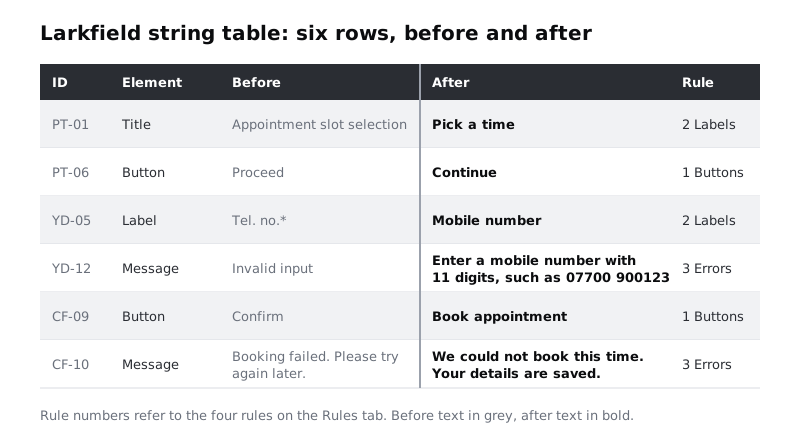
The Larkfield rewrites:
- Titles.
Appointment slot selection→Pick a time.Patient information→Your details.Review→Check your booking. A title says what the patient does on the screen, in the fewest plain words. - Reminder line and headings.
Service: NURSE_APPT (15m)→Nurse appointment · 15 min.09/12→Tue 9 Dec, because a day name helps people more than a number, and09/12reads as 12 September in some countries.AMandPM→MorningandAfternoon.Summary→Your appointment. - Labels.
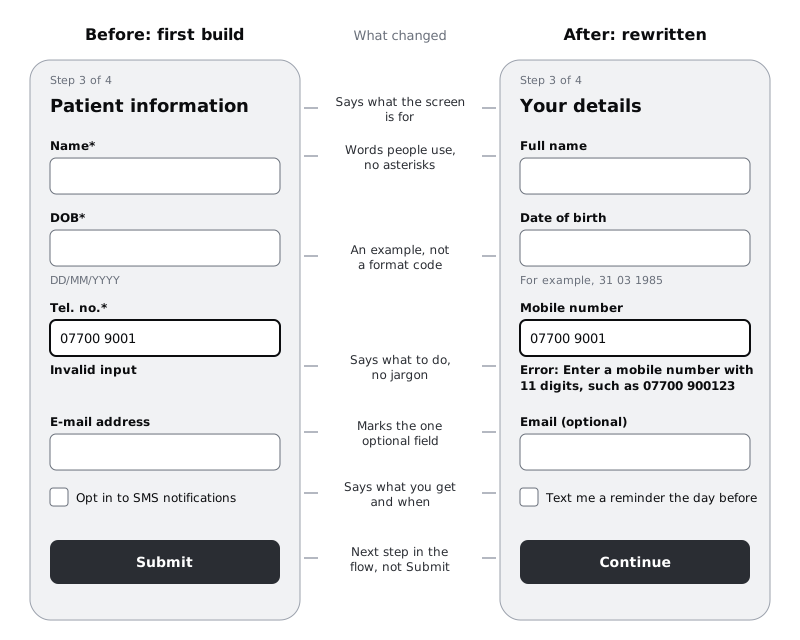
Name*→Full name.DOB*→Date of birth.Tel. no.*→Mobile number.E-mail address→Email (optional). On Confirm,Type→Service,Slot→Date and time,Location→Where,Patient→Your details. - Asterisks. Drop them. Three of the four fields are needed, so mark the one that is not, with
(optional)in the label. A red star means nothing to many people, and a screen reader may read it as "star" or skip it, depending on its settings. - Hints.
DD/MM/YYYY→For example, 31 03 1985. A worked example is easier to copy than a format code. Add the hintFor example, 07700 900123underMobile number. - Links and checkbox.
Edit→Change, which is what the patient does to a booking.Opt in to SMS notifications→Text me a reminder the day before, which says exactly what they get and when. - Fallback line.
No suitable slot? Contact reception.→Can't see a time that works? Call 01234 567 890. It names the action and gives the number, so nobody has to look for it.
Mobile number is a deliberate choice. Across much of Africa and elsewhere, most patients have only a mobile, often on a prepaid SIM, and Tel. no. or Landline may make them wonder whether their number counts. Use the word that matches the phone people actually have.
Check it worked
Read the After column for every Title, Label and Hint row. None contains an abbreviation a patient would not say aloud (DOB, Tel., AM), an asterisk, or a code such as NURSE_APPT. Every date hint and phone hint is a worked example rather than a format pattern.
Step 5 · Rewrite errors and messages to say what to do
The Message rows are where copy does the most damage when it is wrong, because the patient reads them when something has already gone wrong. Write each one in two parts, in this order: what to do (or what happened, if the patient cannot fix it), then anything that reassures them.
This field is required(on Full name) →Enter your full name.Invalid date→Enter a date of birth that exists, such as 31 03 1985.Invalid input(on Mobile number, after a 9-digit number) →Enter a mobile number with 11 digits, such as 07700 900123.Error 409: slot unavailable→10:30 was just taken. These times are still free.No availability→No free times this week.Booking failed. Please try again later.→We could not book this time. Your details are saved.
Notice what each rewrite removed. Required and invalid judge the patient's answer without saying what a good one looks like. 409 and slot are the system talking to itself. Please try again later does not say how much later, or whether the details have gone, so patients start again from the beginning or give up. The rewrite says the details are safe, and the Try again button from the button step gives the next move.
Do not try to write every possible field error here. This step is about the voice of the messages on these screens; the full set of messages for each field, and when each one appears, is the subject of Design form errors and inline validation. Failures outside the form, such as losing the connection, are covered in Design error states that help people recover.
The After cells hold only the message itself, starting at Enter .... On screen, the field component adds the Error: prefix and its alert icon in front of it, as set up in Design form errors and inline validation, so the prefix is written once for every message rather than in each string.
Keep one thing consistent: never apologise for something the patient did, and apologise once, briefly, for something the clinic's system did. Sorry, we could not book this time is fine. Oops and Something went wrong are not, because they tell the patient nothing.
Check it worked
Every Message row's After cell either starts with a verb (Enter ...) or says what happened in the patient's terms (10:30 was just taken). Search the After column for each word on your do-not-use list and for error, oops and !: the search finds nothing (the Error: prefix lives in the component, not in these cells). Cover the Screen and Element columns: you can still tell which field or situation each message is about.
Step 6 · Read every screen aloud in five seconds
Copy that reads well on a spreadsheet can still trip people on a phone. Test it by ear, which is quick and needs no participants.
First, the five-second read. Put the After strings into the screens (edit the text layers, or mock them on paper if the build is not yours to change). Show your colleague one screen at a time, and read aloud only the title, the main button and any message on it, at a normal pace. It should take about five seconds. Then ask two questions:
- What is this screen for?
- What happens if you tap the button?
Write their answers in a third tab called Read-aloud, one row per screen and state. Then swap: they read each screen aloud to you, all of it, top to bottom, and you mark in the Notes column of Strings any word they stumbled on, paused at, or changed while reading. People often swap a word for the one they would naturally say ("tap Book appointment" read as "book my appointment"); that is a hint about which word is more natural.
Larkfield's first read-aloud produced two changes. Your colleague read Can't see a time that works? fluently but paused at Call 01234 567 890 because it sat on the same line as the question in the build; moving the number to its own line fixed it. And on the time-gone notice, they asked "taken by who?", which is fine: the message does not need to say, so it stays.
Check it worked
The Read-aloud tab has one row for each of the three screens and each state frame, with your colleague's answers to both questions. For every screen, their answer to "what happens if you tap the button" matches what really happens. Every stumble is logged in Notes with either a fix in the After column or a reason it stays.
Step 7 · Run a plain-language check on the whole table
The read-aloud catches what sounds wrong. A plain-language check catches what is harder to hear: long sentences, two ideas in one string, and words that make sense to you but not to someone reading in a second language.
Add a Words formula to every row so length is visible at a glance. In Google Sheets, Excel and LibreOffice Calc, with the After text in column E:
=IF(LEN(TRIM(E2))=0, 0, LEN(TRIM(E2)) - LEN(SUBSTITUTE(TRIM(E2), " ", "")) + 1)Then check each row against four questions, and note any failures in Notes:
- One idea per sentence?
We could not book this time. Your details are saved.is two sentences, two ideas. That is fine. A single sentence carrying both, joined by "and", is harder to take in. - Short enough? Larkfield's own limits: titles, labels and buttons up to 4 words; checkbox text, hints and messages up to 15 words per sentence. These are house rules, not a standard; set your own and write them on the Rules tab.
- Common words? Each word is one a patient would use at reception. Replace
selectwithchooseorpick,commencewithstart,residewithlive. - No idioms?
Hang tightandYou're all setread oddly in a second language and are mangled by machine translation. Many Larkfield patients read English as a second language, and some translate pages in their browser. Literal sentences survive both.
WCAG 2.2 has a related success criterion at its highest level, 3.1.5 Reading Level, which asks for simpler supplementary content when text needs more than lower secondary education to read. Most interface strings are far shorter than that, but the habit behind it (common words, short sentences) is the same.
Check it worked
Every row has a number in Words. Filter to Title, Label and Button: none is over 4 words. Filter to Checkbox, Hint and Message: no sentence is over 15 words. A search of the After column for each word on your do-not-use list, and for select, still finds nothing.
Step 8 · Write the five-line voice guide
The rules got you through three screens. The voice guide is what lets the next person, writing the Home screen or a reminder text message, sound like the same clinic without reading this sheet. Condense what you learned into five lines, each one a rule with a short example. Put it at the top of the Rules tab, and paste it into your design file next to the screens so it travels with them.
Larkfield's guide:
- Buttons say what happens. Verb first:
Book appointment,See next week.Continueonly between steps. - Use the words patients use.
Mobile number,Date of birth,Where. Never field names or codes. - Errors tell people what to do.
Enter a mobile number with 11 digits, such as 07700 900123. Give an example; say what is safe. - Short and literal. Up to 4 words on titles, buttons and labels, 15 per sentence elsewhere. No idioms, no jargon from the do-not-use list.
- Calm and direct. "We" for the clinic, "you" for the patient. No exclamation marks, no "oops". "Sorry" once, only when the clinic caused the problem.
Last, give the string table to whoever builds the screens, with the IDs. Ask them to use the After column as the source for every string, so a later change in the sheet has one place to land. If your team keeps strings in a file for translation, the ID column maps to the key.
Check it worked
Your voice guide is exactly five lines, each with a rule and an example taken from your own After column. Hand it to your colleague with one string you have not rewritten yet, such as the Home screen's View or cancel a booking link or a reminder text, and ask them to check it against the guide: they can say which line applies without asking you. The Strings tab has an After value for every row, and the screens match it.
Next steps
You now have rules, a tested string table and a voice guide. Use them on more of the product, and test them where copy matters most.
- Write every error message for each field, and decide when each appears, with /tutorials/design-form-errors-and-inline-validation.
- Check that the new strings still fit when translated or doubled in length with /tutorials/design-for-translation-and-longer-text.
- Use the voice guide as a prompt constraint and judge AI-written variants against it in /tutorials/generate-interface-copy-variants-with-ai.
- Match each button's words to its weight and states with /tutorials/design-buttons-hierarchy-sizes-and-every-state.
Part of these paths
Related tutorials
- Design form errors and inline validationYou will have a validation timing table for every field on a booking form, a message for every way each field can go wrong, and an error-states frame in Figma showing the field errors, the error summary and where focus goes.
- Generate interface copy variants with AIYou will have five AI-drafted variants of a Larkfield Clinic button label and error message, scored against your voice rules, word limits and plain-language checks, the best two tested with five people, the chosen strings in your string table and a copy prompt you can reuse.
- Design error states that help people recoverYou will have an error matrix covering every way a booking can fail outside the form, and five Figma state frames that keep the person's work, say what happened in plain words and offer a next step.
Need this done for you?
Padding does this work for growing companies, from the first diagnosis to a system that keeps working.
Get new tutorials